
1. Introduction
The KINGCOOL Iron Wind 120 ARGB CPU Air Cooler is designed to provide efficient and reliable cooling for your central processing unit. Featuring a dual-tower heatsink design, six copper heat pipes, and two 120mm PWM ARGB fans, this cooler ensures optimal thermal performance while adding customizable lighting to your system. It supports a wide range of Intel and AMD sockets, making it a versatile solution for various desktop PC builds.
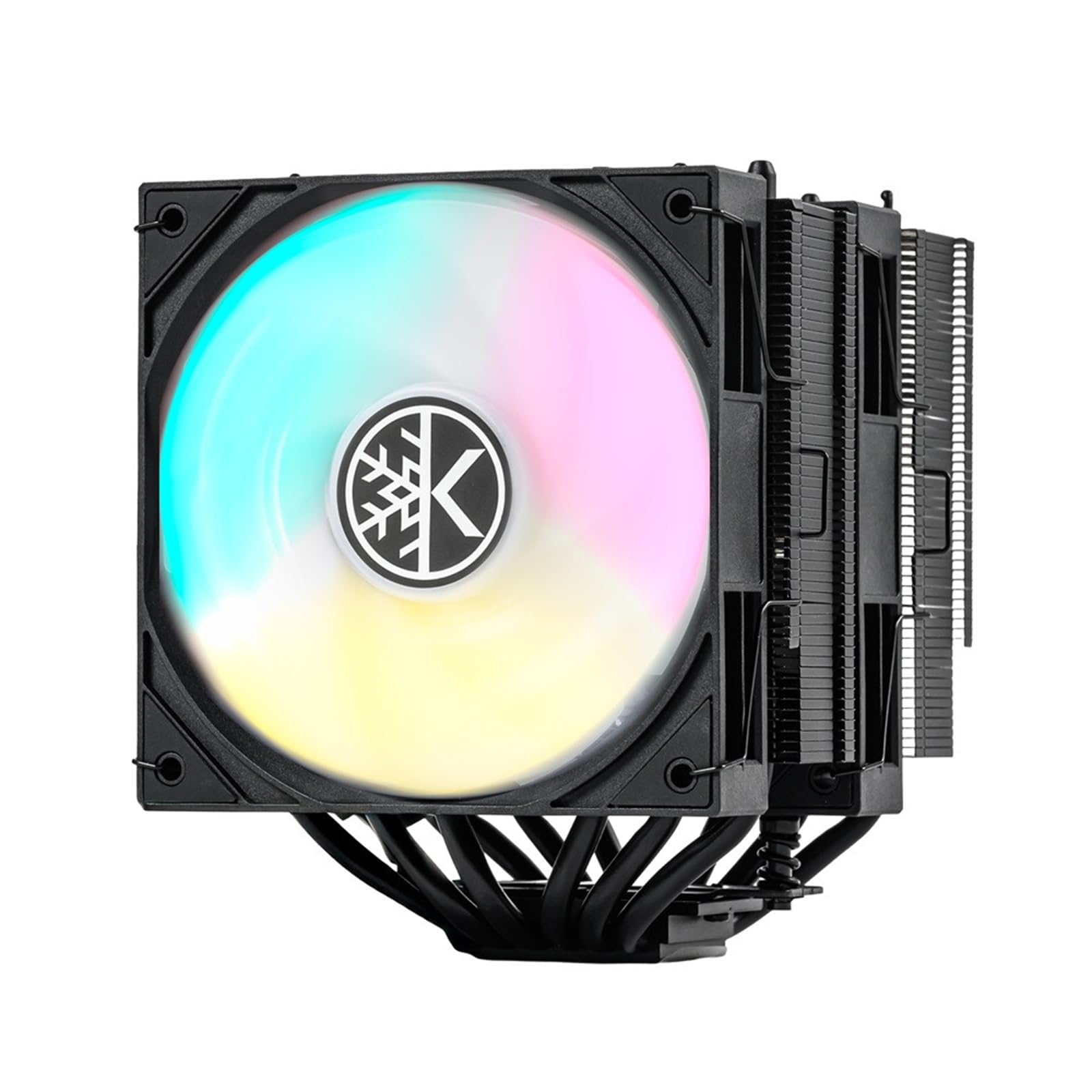
Image 1: The KINGCOOL Iron Wind 120 ARGB CPU Air Cooler, showcasing its dual-fan and dual-tower design.
2. Package Contents
Verify that all items listed below are present in your package:
- Heatsink (Dual Tower)
- 120mm ARGB Fan x 2
- Mounting Hardware for Intel (LGA1851/1700/1200/115X)
- Mounting Hardware for AMD (AM4/AM5)
- Thermal Paste
- Instruction Manual (this document)

Image 2: All components included in the KINGCOOL Iron Wind 120 ARGB CPU Air Cooler package.
3. Specifications
| Feature | Specification |
|---|---|
| Product Dimensions (L x W x H) | 125mm x 125mm x 154mm (4.92"L x 4.92"W x 6.06"H) |
| Cooling Method | Air Cooling |
| Heat Pipes | 6 Copper Heat Pipes |
| Base Plate Material | Nickel-plated Copper |
| Fan Dimensions | 120mm x 120mm x 25mm |
| Fan Speed | 1800 RPM ± 10% |
| Air Flow Capacity | 59.63 CFM ± 10% |
| Noise Level | 29.8 Decibels |
| Power Connector Type | 4-Pin PWM (Fan), 3-Pin ARGB (Lighting) |
| Voltage | 12V |
| Fan Life Expectancy | 30,000 hours |
| Compatible Sockets | Intel LGA1851/1700/1200/115X, AMD AM4/AM5 |
| Material | Aluminum, Copper |
| Item Weight | 2.54 pounds |

Image 3: Detailed dimensions of the KINGCOOL Iron Wind 120 ARGB CPU Air Cooler.
4. Installation Guide
This section provides step-by-step instructions for installing your KINGCOOL Iron Wind 120 ARGB CPU Air Cooler. Please read all instructions carefully before beginning the installation process.
4.1 General Notes
- Ensure your PC case has sufficient clearance for the cooler's dimensions (154mm height).
- Always remove the protective sticker from the copper base plate of the heatsink before applying thermal paste and installation.
- Apply a thin, even layer of thermal paste to the CPU's integrated heat spreader (IHS).
4.2 Intel Platform Installation (LGA1851/1700/1200/115X)
- Install Backplate: Place the Intel backplate behind the motherboard, aligning the holes with the CPU socket.
- Install Standoffs: From the front of the motherboard, screw the four Intel standoffs into the backplate.
- Install Mounting Brackets: Place the Intel mounting brackets onto the standoffs and secure them with the provided screws. Tighten screws evenly in a diagonal pattern.
- Apply Thermal Paste: Apply a small amount of thermal paste to the center of your CPU's IHS.
- Mount Heatsink: Carefully place the heatsink onto the CPU, aligning the mounting holes on the heatsink with the screws on the mounting brackets. Secure the heatsink by tightening the screws evenly in a diagonal pattern until snug.
- Attach Fan Clips: Connect the fan clips to the 120mm ARGB fans.
- Install Fans: Clip the fans onto the heatsink towers. Ensure the airflow direction is correct (typically blowing towards the rear of the case).
- Connect Cables: Connect the 4-pin PWM fan cable from the fans to the "CPU_FAN" header on your motherboard. Connect the 3-pin ARGB cable to a compatible 5V 3-pin ARGB header on your motherboard for lighting control.
4.3 AMD Platform Installation (AM4/AM5)
- Remove Stock Brackets: Unscrew and remove the plastic retention brackets from the motherboard around the CPU socket. Keep the original backplate if your motherboard has one.
- Install Standoffs: Screw the four AMD standoffs into the motherboard's backplate (or directly into the motherboard if no backplate is present).
- Install Mounting Brackets: Place the AMD mounting brackets onto the standoffs and secure them with the provided screws. Tighten screws evenly in a diagonal pattern.
- Apply Thermal Paste: Apply a small amount of thermal paste to the center of your CPU's IHS.
- Mount Heatsink: Carefully place the heatsink onto the CPU, aligning the mounting holes on the heatsink with the screws on the mounting brackets. Secure the heatsink by tightening the screws evenly in a diagonal pattern until snug.
- Attach Fan Clips: Connect the fan clips to the 120mm ARGB fans.
- Install Fans: Clip the fans onto the heatsink towers. Ensure the airflow direction is correct (typically blowing towards the rear of the case).
- Connect Cables: Connect the 4-pin PWM fan cable from the fans to the "CPU_FAN" header on your motherboard. Connect the 3-pin ARGB cable to a compatible 5V 3-pin ARGB header on your motherboard for lighting control.
4.4 Installation Video Guide
For a visual step-by-step guide, please refer to the official installation video:
Video 1: Official KINGCOOL IRON WIND CPU Air Cooler Installation Guide for Intel and AMD platforms.
5. Operating Instructions
5.1 Fan Control
The KINGCOOL Iron Wind 120 ARGB CPU Air Cooler features PWM (Pulse Width Modulation) fans. This allows your motherboard to dynamically control the fan speed based on CPU temperature, optimizing for either quiet operation or maximum cooling performance. You can configure fan curves through your motherboard's BIOS/UEFI settings or using compatible software provided by your motherboard manufacturer.
5.2 ARGB Lighting Control
The cooler's ARGB lighting can be synchronized with your motherboard's lighting system via the 5V 3-pin ARGB header. Use your motherboard manufacturer's ARGB control software (e.g., ASUS Aura Sync, MSI Mystic Light Sync, Gigabyte RGB Fusion, ASRock Polychrome Sync) to customize lighting effects, colors, and patterns.
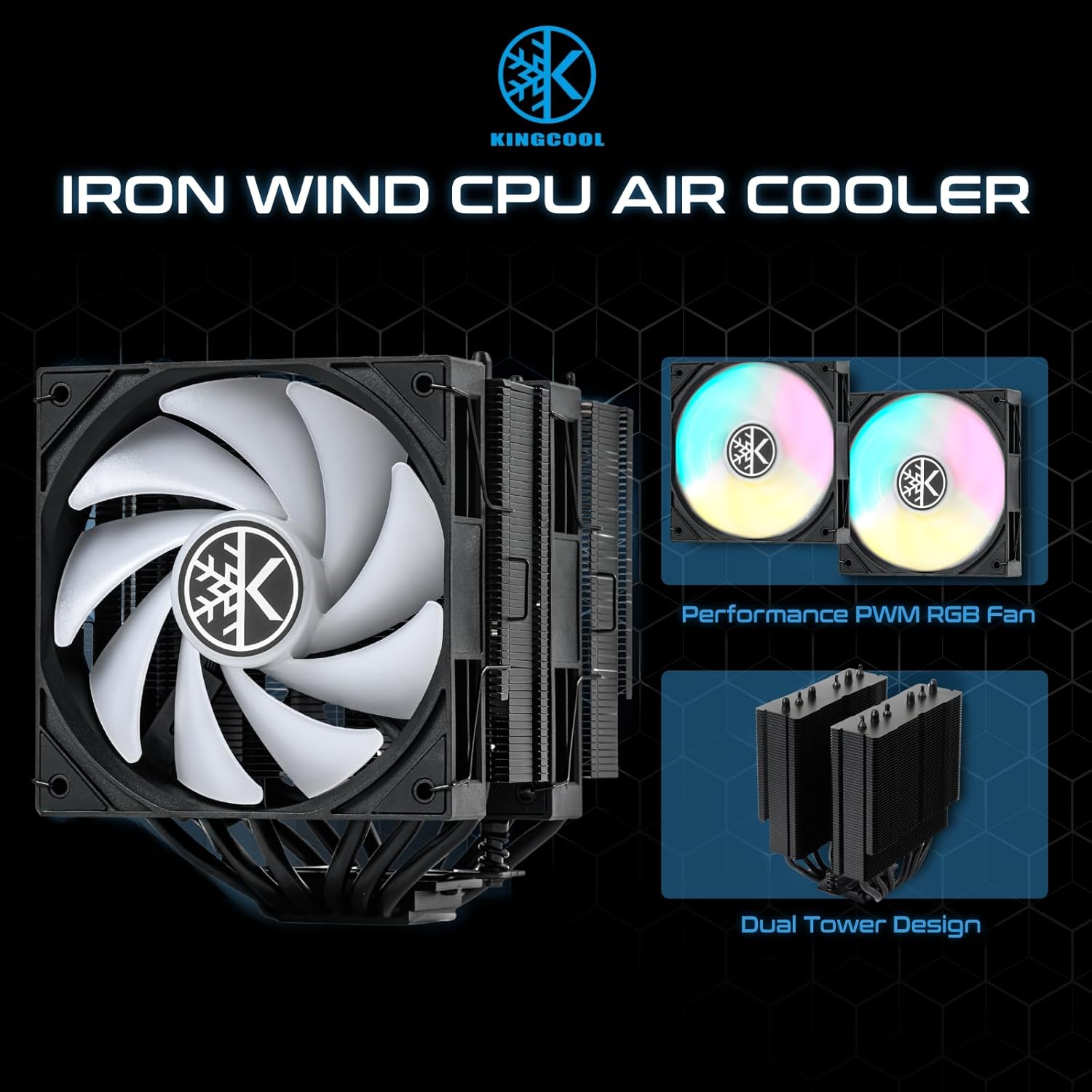
Image 4: Illustration of the dual PWM ARGB fans and dual tower design.
6. Maintenance
Regular maintenance helps ensure optimal performance and longevity of your CPU cooler.
- Dust Cleaning: Periodically clean dust from the heatsink fins and fan blades using compressed air or a soft brush. Ensure the fans are not spinning during cleaning to prevent damage.
- Thermal Paste: Reapply thermal paste if you remove the cooler from the CPU or if you notice a significant increase in CPU temperatures over time.
- Fan Inspection: Check fan cables for secure connections and ensure fan blades are free from obstructions.
7. Troubleshooting
- Fan Not Spinning:
- Check if the 4-pin PWM fan cable is securely connected to the "CPU_FAN" header on the motherboard.
- Verify fan settings in your motherboard's BIOS/UEFI.
- No ARGB Lighting:
- Ensure the 3-pin ARGB cable is correctly connected to a 5V 3-pin ARGB header on your motherboard. (Note: This is different from a 12V 4-pin RGB header. Connecting to the wrong header can cause damage.)
- Check your motherboard's ARGB software for lighting control and ensure it's enabled.
- High CPU Temperatures:
- Confirm that the heatsink is securely mounted and making proper contact with the CPU.
- Ensure thermal paste was applied correctly and evenly.
- Check for dust buildup on the heatsink fins and fan blades.
- Verify fan speed settings in BIOS/UEFI or software.
8. Warranty and Support
KINGCOOL products are manufactured to high-quality standards. For warranty information, technical support, or any product-related inquiries, please refer to the official KINGCOOL brand store or contact KINGCOOL customer service directly. Keep your proof of purchase for warranty claims.
Visit the KINGCOOL Store for more information.