
1. Introduction
The GIDIGI GX-3188A is an 8-in-1 online water quality monitor designed for continuous measurement of pH, Electrical Conductivity (EC), Total Dissolved Solids (TDS), Salinity, Oxidation-Reduction Potential (ORP), Humidity, and Temperature. This device is suitable for various applications including hydroponic systems, aquaponics, greenhouses, and saltwater or freshwater aquariums. It provides real-time data monitoring and can be integrated with the Tuya App for remote control and alerts.

Figure 1: GIDIGI GX-3188A Monitor with included probe and calibration solutions.
2. Product Features
- Multi-Parameter Monitoring: Measures pH, EC, TDS, Salt, ORP, Humidity, and Temperature simultaneously.
- Continuous Online Monitoring: Provides 24/7 real-time data for consistent water quality management.
- Large LCD Display: Clear and easy-to-read screen shows all parameters at once.
- WiFi Connectivity: Connects to the Tuya App for remote monitoring, data logging, and alert notifications.
- Adjustable Measurement Units: Supports ppm, µS, mS, and CF for conductivity/TDS readings.
- Customizable Alerts: Set maximum and minimum thresholds for parameters to receive app notifications.
- Included Calibration Kits: Comes with pH and TDS calibration liquids for initial setup and regular maintenance.
- Replaceable Probe: Features an upgraded 8-in-1 inline electrode with a replaceable double-junction pH probe.

Figure 2: Detailed view of the monitor's LCD screen displaying multiple water quality parameters.
3. What's in the Box
Your GIDIGI GX-3188A package includes the following items:
- GIDIGI GX-3188A Water Quality Monitor
- 8-in-1 Inline Probe
- Power Adapter
- Suction Cups for Installation
- English Instruction Manual
- pH Calibration Solutions (pH 4.00, pH 7.00)
- EC Calibration Solution (1413 µS/cm)
4. Setup
4.1 Physical Installation
- Mount the monitor: Use the provided suction cups to securely attach the monitor to a clean, flat surface near your water system (e.g., aquarium, hydroponic reservoir).
- Connect the probe: Insert the 8-in-1 inline probe into the designated port on the monitor. Ensure a secure connection.
- Position the probe: Submerge the probe into the water solution you wish to monitor. For aquariums, use the additional suction cups to secure the probe within the tank. Ensure the probe is fully immersed and not obstructed.
- Connect power: Plug the power adapter into the monitor and then into a standard electrical outlet. The monitor display should illuminate.

Figure 3: Monitor installation with probe placement and power connection.
4.2 App Installation and WiFi Connection (Tuya Smart App)
- Download the Tuya Smart App: Search for "Tuya Smart" in your mobile device's app store (available for Android and iOS).
- Register/Login: Open the app and create a new account or log in with an existing one.
- Add Device: In the app, tap the "+" icon to add a new device. Select "Water Quality Tester" from the device list.
- Connect to WiFi: Follow the on-screen instructions to connect the monitor to your 2.4GHz WiFi network. You may need to put the device into pairing mode (refer to the monitor's specific instructions for pairing mode activation, usually by holding a button).
- Confirmation: Once connected, the device will appear in your app's device list.

Figure 4: Steps for connecting the monitor to the Tuya Smart App.
4.3 Initial Calibration
Before first use, or after extended periods of non-use, calibrate the pH and EC sensors for accurate readings. Calibration solutions are included.
- pH Calibration:
- Prepare pH 7.00 and pH 4.00 (or pH 10.01 if needed) buffer solutions.
- Rinse the probe with distilled water.
- Submerge the probe in pH 7.00 solution. Press and hold the "CAL SET/CAL" button until the pH reading stabilizes and the monitor indicates successful calibration (e.g., a flash or specific icon).
- Rinse the probe again.
- Submerge the probe in pH 4.00 solution. Repeat the calibration process.
- EC Calibration:
- Prepare 1413 µS/cm EC calibration solution.
- Rinse the probe with distilled water.
- Submerge the probe in the EC calibration solution. Press and hold the "CAL SET/CAL" button until the EC reading stabilizes and calibration is confirmed.

Figure 5: Calibration procedure for pH and EC parameters.
5. Operating Instructions
5.1 Understanding the Display
The large LCD screen simultaneously displays all measured parameters: pH, EC, TDS, Salt, ORP, Humidity, and Temperature. The WiFi icon indicates connection status.
5.2 Changing Measurement Units
Press the "MODE/TEMP" button to cycle through different units for EC/TDS/Salt readings (e.g., µS/cm, mS/cm, ppm, CF). The temperature unit can also be switched between Celsius and Fahrenheit.
5.3 Monitoring Parameters
Once calibrated and installed, the monitor continuously displays real-time readings. Observe the values to ensure they are within desired ranges for your specific application (e.g., hydroponics, aquarium).
- Hydroponics: Monitor pH (5.5-6.8), ORP (380-480mV), EC (1.0-2.5mS/cm), TDS (2000-5000ppm).
- Saltwater Aquariums: Monitor pH (8.1-8.4), Salinity (34-36ppt), ORP (300-400mV), Temp (76.0-82.0°F).
- Pools: Monitor pH (7.2-7.8), Salt (2700-3400ppm), ORP (650-750mV), Temp (78.0-85.0°F).
- Drinking Water: TDS levels vary by source (Pure Water: 0-9ppm, Mountain Spring: 10-60ppm, Purified: 60-100ppm, Tap Water: 100-300ppm).

Figure 6: Monitor in a hydroponic system, displaying relevant parameters.
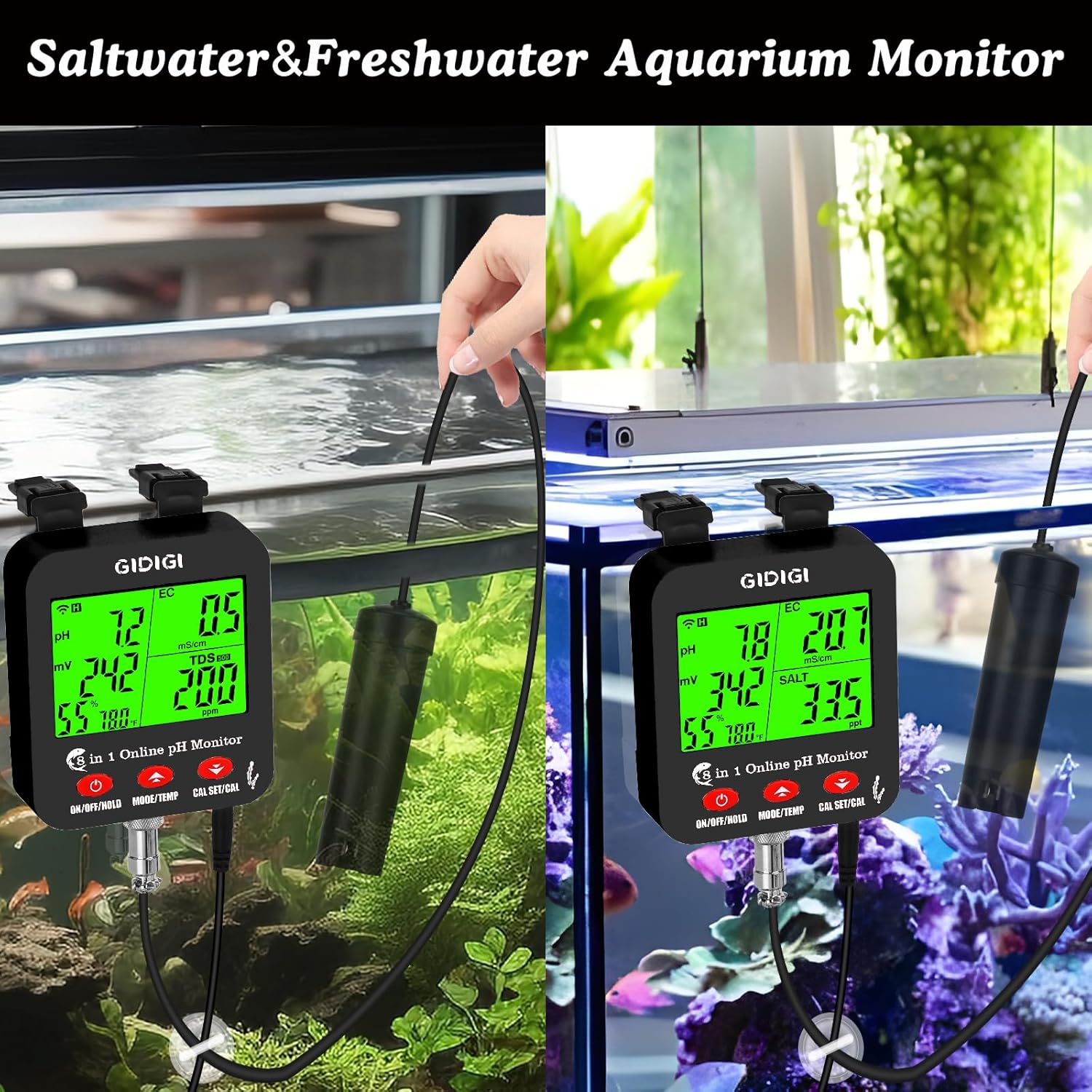
Figure 7: Monitor in a saltwater aquarium, displaying relevant parameters.
5.4 Using the Tuya App
The Tuya App provides enhanced control and monitoring capabilities:
- Remote Monitoring: View real-time data from your monitor anywhere via the app.
- Data History: Access historical data to track trends and changes over time.
- Alert Settings: Set custom maximum and minimum thresholds for each parameter. The app will send notifications if readings exceed or fall below these limits.
- TDS Conversion: Choose between 500ppm or 700ppm TDS conversion factors based on your water source.
- Sharing: Share monitoring data with family or colleagues by creating a family group within the app.

Figure 8: Tuya App interface for remote monitoring and control.

Figure 9: Setting maximum and minimum alert thresholds in the Tuya App.

Figure 10: Selecting TDS conversion factor based on water type.
6. Maintenance
6.1 Electrode Cleaning
Regular cleaning of the electrode is crucial for maintaining accuracy. If readings become unstable or inaccurate, clean the probe:
- Rinse the probe thoroughly with distilled water.
- If necessary, soak the probe in a pH cleaning solution for approximately 5 minutes.
- Gently wipe the probe with a soft cloth.
- Rinse again with distilled water before re-calibrating and using.

Figure 11: Electrode cleaning process.
6.2 Probe Replacement
The 8-in-1 inline electrode is replaceable. If the probe is damaged or consistently provides inaccurate readings even after cleaning and calibration, a replacement may be necessary. Replacement probes can be found in the GIDIGI store.

Figure 12: The replaceable 8-in-1 inline electrode.
7. Troubleshooting
7.1 Device Connectivity Issues
If you encounter difficulties connecting the device to the Tuya App or maintaining a stable connection, follow these steps:
- Ensure your WiFi network is 2.4GHz. The device does not support 5GHz networks.
- Verify the device is within range of your WiFi router.
- Restart the monitor and your WiFi router.
- If the issue persists, completely remove the device from the Tuya App and attempt to re-add it.
Video 1: Instructions on how to troubleshoot and reconnect the device to the Tuya App if connectivity issues arise.
7.2 Inaccurate Readings
- Calibration: Ensure the monitor has been recently calibrated according to the instructions in Section 4.3.
- Probe Cleanliness: A dirty probe can lead to inaccurate readings. Clean the electrode as described in Section 6.1.
- Probe Condition: Inspect the probe for any visible damage. If damaged, consider replacing it.
- Temperature Compensation: Ensure the temperature sensor is functioning correctly, as temperature affects pH and EC readings.
7.3 Display Issues
- No Display: Check the power connection and ensure the adapter is securely plugged in.
- Flickering Display: This could indicate an unstable power supply. Try plugging into a different outlet.
8. Specifications
| Parameter | Value |
|---|---|
| Model Number | GX-3188A |
| Package Dimensions | 12.32 x 8.74 x 2.83 inches |
| Item Weight | 2.38 Pounds |
| Manufacturer | JiNan Huiquan Electronic Co., Ltd |
| First Available | May 28, 2025 |
9. Warranty and Support
GIDIGI provides a Full Lifetime Warranty for this product, ensuring long-term reliability and customer satisfaction.
For any questions, technical assistance, or warranty claims, please contact GIDIGI customer support. The GIDIGI team is available 24 hours a day, and inquiries are typically answered within 12 hours.
All accessories, including pH & EC calibration liquids and new replacement probes, can be found in the official GIDIGI store.