
1. Product Overview
The HighZer0 Electronics WiFi 6 AX203 adapter is a Companion RF (CRF) module designed to support integrated wireless 802.11ax solutions from Intel. This adapter provides both Bluetooth 5.2 connectivity and 2x2 MU-MIMO 802.11ax Wi-Fi capabilities. It supports a maximum theoretical throughput of up to 2.4 Gbps (when utilizing an 80Mhz channel and a compatible router). The AX203NGW is engineered to deliver Gigabit download speeds, enhancing your wireless experience in various environments.
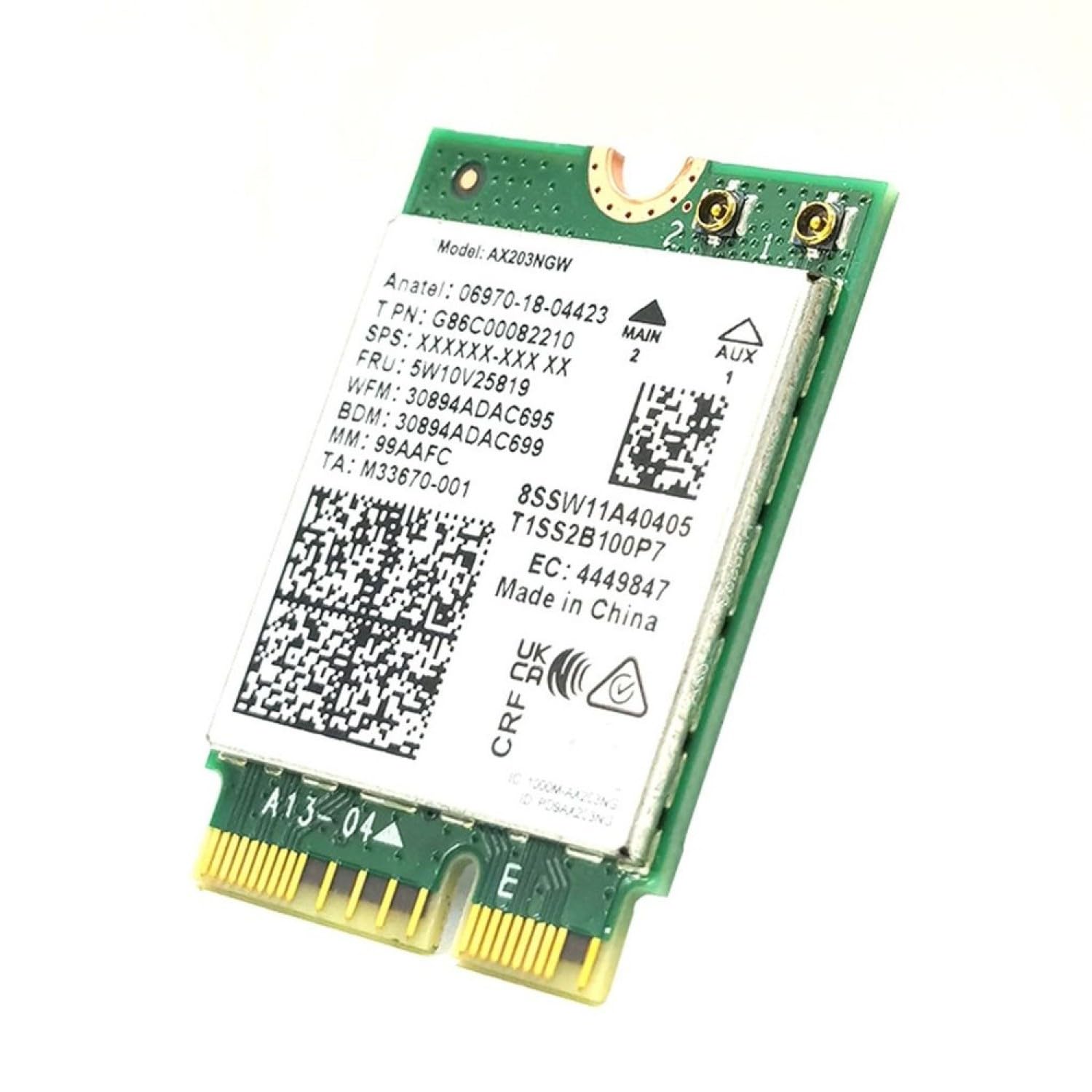
Image 1.1: Front view of the HighZer0 Electronics WiFi 6 AX203NGW M.2 CNVio2 Adapter.

Image 1.2: Detailed view of the AX203NGW adapter showing model number and regulatory information.
2. What's in the Box
- 1x AX203NGW CNVio2 Wireless Card
Note: Drivers, mounting screws, and brackets are NOT included with this product.
3. Specifications
| Model | AX203NGW |
| Product Dimensions | 1.18 x 0.87 x 0.1 inches (30mm x 22mm x 2.5mm) |
| Item Weight | 0.006 ounces (0.16 Grams) |
| Data Link Protocol | IEEE 802.11ax, IEEE 802.11ac, IEEE 802.11n, IEEE 802.11g, IEEE 802.11b, IEEE 802.11a, Bluetooth 5.2 |
| Dual Band Support | 2.4Ghz / 5Ghz (80Mhz) |
| Maximum Speed | Up to 2.4 Gbps (requires supported router) |
| Interface | M.2, CNVio2, 2230mm |
| Compatible Devices | Select Laptops with M.2 Key E slot and CNVio2 support |
| Operating Systems | Windows 10 (64-bit), Windows 11 (64-bit), Linux |
| UPC | 655466638139 |

Image 3.1: Dimensions of the AX203NGW wireless network card.
4. Compatibility Requirements
This adapter is ONLY compatible with select 10th Generation and above Intel Laptop systems that feature CNVio2 support. It requires a laptop with an open M.2 slot with Key E. This adapter is not compatible with desktop systems.
Even though these CRF modules can be physically inserted into a standard M.2 Key E socket, they are ONLY functional with systems specifically designed with the CNVio2 interface. It is crucial to contact your system or motherboard manufacturer to verify compatibility before purchase and installation. This adapter is not backwards compatible with the Intel 9560 model.
Known compatibility issues exist with some HP, IBM, and Lenovo systems. If you are unsure about compatibility, consider purchasing an AX200 adapter instead.

Image 4.1: Visual guide to compatibility requirements.

Image 4.2: M.2 slot compatibility for the AX203NGW adapter.
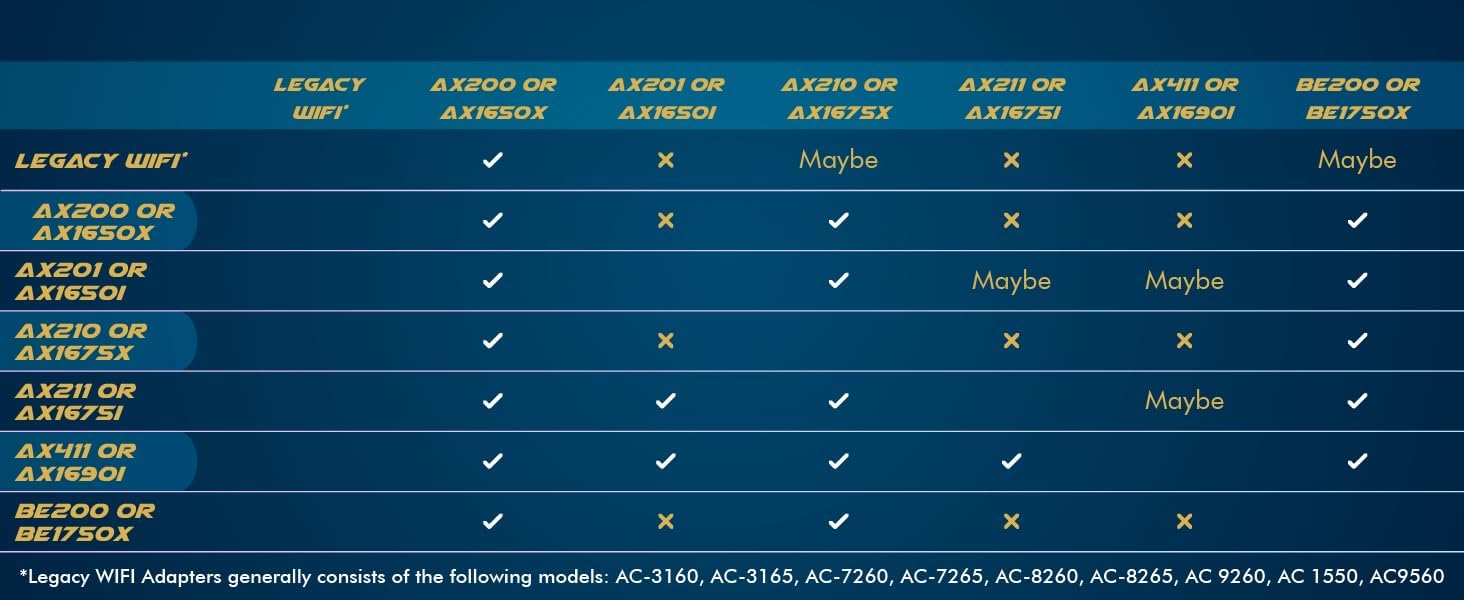
Image 4.3: Compatibility matrix for Intel Wi-Fi adapters.
5. Setup and Installation
Follow these steps to install your new wireless network card. For a visual guide, please refer to the installation video below.
- Download Drivers: Before beginning the physical installation, download both the Wi-Fi and Bluetooth drivers for your specific operating system (Windows 10/11 or Linux) from the Intel website or your laptop manufacturer's support page. Do not install them yet.
- Prepare System: Turn off your system's power completely and disconnect it from any power source. Open the back cover of your laptop to access the internal components.
- Locate Old Card: Identify your current wireless network card. Refer to your system's manual for specific instructions on locating and removing components.
- Disconnect Antennas: Gently disconnect the existing antenna connectors from your old wireless card. Use a small tool if necessary, but avoid excessive force.
- Remove Old Card: Remove the small holding screw that secures the old wireless card. Carefully slide the old card out of its slot and set it aside.
- Install New Card: Insert your new AX203NGW network card into the M.2 Key E slot at a slight angle. Once seated, gently press it flat against the motherboard.
- Secure New Card: Reinstall the holding screw you removed earlier to secure the new card in place.
- Reattach Antennas: Gently reattach your existing antenna connectors to the new card. The connectors should snap into place with minimal pressure.
- Power On & Test: Close your laptop's back cover and reconnect power. Power on your system. If drivers are not automatically installed, proceed to manually install the Wi-Fi and Bluetooth driver packages you downloaded in step 1. Test your new Wi-Fi connection using a speed test or by browsing the internet.
Video 5.1: Official installation guide for HighZer0 Electronics wireless network cards, demonstrating the step-by-step process of replacing an old card with a new one, including driver installation advice.
6. Operating Instructions
Once installed and drivers are successfully recognized, your HighZer0 Electronics WiFi 6 AX203NGW adapter will provide dual-band Wi-Fi connectivity (2.4GHz and 5GHz) and Bluetooth 5.2. You can connect to compatible Wi-Fi 6 (802.11ax) networks for optimal performance, or older Wi-Fi standards (802.11a/b/g/n/ac). The adapter supports 2x2 MU-MIMO technology for efficient data transfer in multi-device environments.
To connect to a Wi-Fi network, use your operating system's standard network settings. For Bluetooth devices, enable Bluetooth in your system settings and pair with your desired devices.

Image 6.1: Comparison of Wi-Fi standards and their features.

Image 6.2: Examples of enhanced connectivity with the adapter.
7. Maintenance
The HighZer0 Electronics WiFi 6 AX203NGW adapter is a sealed component and requires no user maintenance. Ensure your laptop's cooling system is functioning correctly to prevent overheating of internal components, including the wireless adapter.
Regularly update your Wi-Fi and Bluetooth drivers to ensure optimal performance and security. Drivers can be found on the Intel website or your laptop manufacturer's support page.
8. Troubleshooting
- System Fails to Boot or Recognize Adapter: This is a critical issue often caused by incompatibility. The AX203NGW is ONLY compatible with select Intel 10th Gen+ laptop systems with CNVio2 support. If your PC fails to boot or recognize the adapter, it is highly likely that your system is not compatible. Verify your system's specifications with the manufacturer.
- No Wi-Fi or Bluetooth After Installation: If your system does not automatically install the necessary drivers, you will need to manually download and install BOTH the Wi-Fi and Bluetooth driver packages. Ensure you have downloaded the correct drivers for your operating system (Windows 10/11 64-bit or Linux).
- Poor Performance or Intermittent Connection: Ensure your router supports Wi-Fi 6 (802.11ax) to achieve maximum speeds. Check for driver updates. Verify that the antenna connectors are securely attached to the adapter.
- Known Compatibility Issues: Be aware that this adapter has known compatibility issues with some HP, IBM, and Lenovo systems. If you own one of these brands and experience issues, compatibility may be the cause.
9. Warranty and Support
Specific warranty information for this product is not provided in the available data. Please refer to the HighZer0 Electronics official website or contact their customer support for detailed warranty terms and conditions.
For technical support or further assistance, please visit the HighZer0 Electronics support page or contact their customer service department. Ensure you have your product model (AX203NGW) and system information ready when seeking support.