
SPUNALP CM026
SPUNALP CM026 8K Waterproof Digital Camera User Manual
Model: CM026

The SPUNALP CM026 8K Waterproof Digital Camera, featuring a dual-screen design and 70MP resolution.
1. Introduction
Thank you for choosing the SPUNALP CM026 8K Waterproof Digital Camera. This manual provides essential information for setting up, operating, and maintaining your camera. Please read it thoroughly before use to ensure optimal performance and longevity of your device.
The SPUNALP CM026 is designed for adventurers and content creators, offering stunning 8K video and 70MP photo capabilities. Its robust, waterproof design allows for use up to 33 feet (10 meters) underwater, and it is also dustproof, sandproof, and freeze-resistant. Key features include autofocus, 18X digital zoom, Wi-Fi connectivity for easy sharing, and a dual-screen design for convenient selfies and vlogging.
2. Important Safety Information
- Waterproof Integrity: Ensure all covers and seals are securely closed before submerging the camera in water. Failure to do so will compromise its waterproof capabilities and may cause damage.
- Depth Limit: The camera is waterproof up to 33 feet (10 meters). Do not exceed this depth.
- Temperature: Avoid exposing the camera to extreme temperatures.
- Wi-Fi Functionality: Note that Wi-Fi signals cannot travel underwater. Wi-Fi connectivity is only functional above water, with an effective range of approximately 5 meters.
- Cleaning: After use in saltwater, rinse the camera with fresh water and dry thoroughly.
- Battery Safety: Use only the specified battery type. Do not expose batteries to high temperatures or attempt to disassemble them.
3. Package Contents
Please check that all items are present in your package:
- SPUNALP CM026 8K Waterproof Digital Camera
- 64GB SD Card
- USB Charging Cable
- Wrist Lanyard
- User Manual (this document)
- Rechargeable Lithium Battery (pre-installed or separate)

Image: SPUNALP CM026 camera with included 64GB SD card, USB cable, and lanyard.
4. Camera Overview
Familiarize yourself with the camera's components:

Image: Front and rear view of the camera, highlighting the dual screens and control buttons.
Key Components:
- Front Screen: 1.44-inch HD display for selfies.
- Rear Screen: 2.88-inch HD display for general operation and viewing.
- Lens: High-resolution optical lens.
- Flash/SOS Light: Provides illumination and emergency signaling.
- Power Button: Turns the camera on/off.
- Shutter/Record Button: Captures photos or starts/stops video recording.
- W/T Buttons: Controls digital zoom (Wide/Telephoto).
- Mode (M) Button: Switches between photo, video, and playback modes.
- OK Button: Confirms selections.
- Up/Down/Left/Right Navigation Buttons: For menu navigation and quick settings.
- Battery/SD Card Compartment: Located on the side, secured by a double-lock mechanism.
5. Setup
5.1 Battery Installation and Charging
- Locate the battery compartment on the side of the camera.
- Press the lock on the cover and slide it open.
- Insert the provided lithium battery, ensuring the correct orientation according to the diagram inside the compartment.
- Close the cover securely until it clicks into place.
- To charge, connect the camera to a power source using the supplied USB cable. The charging indicator will illuminate. A full charge provides approximately 4.5-5 hours of continuous operation.
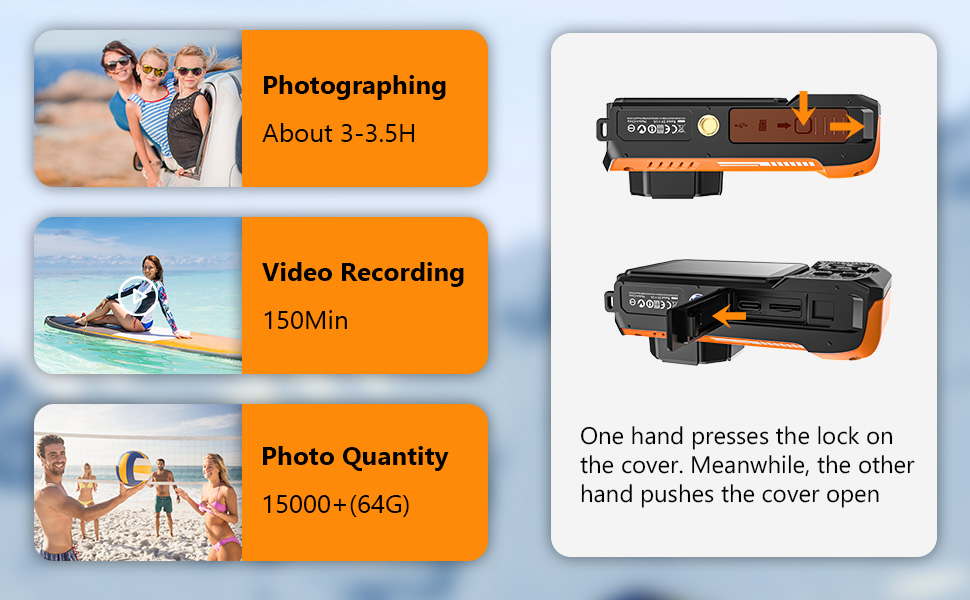
Image: Diagram showing how to open the battery and SD card compartment.
5.2 Memory Card Installation
- Open the battery compartment cover as described above.
- Insert the 64GB SD card into the designated slot with the metal contacts facing the correct direction. Push gently until it clicks into place.
- Close the compartment cover securely. The camera supports storage for over 15,000 high-resolution photos with the included 64GB card.
5.3 Initial Power On and Settings
- Press and hold the Power button to turn on the camera.
- Upon first use, you may be prompted to set the language, date, and time. Use the navigation buttons to select and the OK button to confirm.
- It is recommended to format the SD card through the camera's menu for optimal compatibility.
6. Operating the Camera
6.1 Power On/Off
- To Power On: Press and hold the Power button until the screen illuminates.
- To Power Off: Press and hold the Power button until the screen turns off.
6.2 Taking Photos
- Ensure the camera is in Photo mode (indicated by an icon on the screen). If not, press the Mode (M) button to switch.
- Frame your shot using the rear or front screen. The camera features autofocus, which will automatically adjust for clarity.
- Use the W/T buttons to adjust the 18X digital zoom if needed.
- Press the Shutter button to capture the photo.

Image: The camera's autofocus system locking onto a subject.

Image: Visual representation of the 18X digital zoom capability.
6.3 Recording Videos
- Press the Mode (M) button to switch to Video recording mode.
- Press the Record button to start recording. A timer or indicator will appear on the screen.
- Press the Record button again to stop recording.
6.4 Dual-Screen Operation
The camera features a 2.88-inch rear screen and a 1.44-inch front screen, both with a 4:3 aspect ratio, ideal for vlogging and selfies.
- To switch between the front and rear screens, use the dedicated screen switch button (refer to the camera overview for location).
- The front screen is particularly useful for framing self-portraits or vlogs.

Image: The camera displaying its dual-screen functionality.
6.5 Wi-Fi Connectivity
The camera supports Wi-Fi for easy transfer and sharing of photos and videos.
- Download the "Smart DV2" app on your smartphone or tablet.
- Turn on the Wi-Fi function on both your camera and your mobile device.
- Connect your mobile device to the camera's Wi-Fi network (SSID and password will be displayed on the camera screen).
- Once connected, you can use the app to view, transfer, and share your media to social media, email, or cloud storage.

Image: Steps for connecting the camera to a smartphone via Wi-Fi using the "Smart DV2" app.
Important Note: Wi-Fi signals do not transmit underwater. This feature is for above-water use only.
6.6 SOS Emergency Function
The camera includes an integrated SOS emergency signaling system for critical situations.
- To activate the SOS light, refer to the camera's menu settings or a dedicated button (consult the camera's physical layout for specific activation).
- This feature provides vital safety assurance during outdoor emergencies.
Image: The camera's SOS light feature highlighted.
7. Maintenance
7.1 Waterproof Care
- Always ensure the battery/SD card compartment is clean and free of debris before closing.
- After using the camera in saltwater, rinse it thoroughly with fresh water.
- Dry the camera completely with a soft cloth before opening any compartments.
- Regularly inspect the rubber seals for any signs of wear or damage. Replace if necessary to maintain waterproof integrity.
7.2 Cleaning the Lens and Screens
- Use a soft, lint-free cloth specifically designed for optical lenses to clean the camera lens and screens.
- Avoid using abrasive materials or harsh chemicals.
7.3 Storage
- Store the camera in a cool, dry place away from direct sunlight and extreme temperatures.
- If storing for an extended period, remove the battery.
8. Troubleshooting
| Problem | Possible Cause | Solution |
|---|---|---|
| Camera does not power on. | Low or depleted battery. Battery incorrectly installed. | Charge the battery fully. Reinstall the battery correctly. |
| Cannot take photos/record videos. | Memory card full or not inserted. Incorrect mode selected. | Insert or replace SD card. Delete unnecessary files. Switch to Photo/Video mode. |
| Blurry images. | Lens dirty. Subject too close/far for autofocus. | Clean the lens. Ensure subject is within autofocus range. |
| Wi-Fi connection issues. | Camera or phone Wi-Fi off. Out of range. Incorrect app. | Ensure Wi-Fi is on for both devices. Move closer to the camera (within 5m). Use "Smart DV2" app. |
| Water leakage. | Compartment not sealed properly. Damaged seals. | Ensure all covers are securely closed before submersion. Inspect and replace damaged seals. |
9. Specifications
| Feature | Detail |
|---|---|
| Brand | SPUNALP |
| Model Number | CM026 |
| Photo Sensor Technology | CMOS |
| Image Resolution | 70MP |
| Video Capture Resolution | 8K |
| Video Capture Format | AVI |
| Waterproof Depth | Up to 33 feet (10 meters) |
| Digital Zoom | 18X |
| Front Screen Size | 1.44 Inches |
| Rear Screen Size | 2.88 Inches |
| Connectivity Technology | Wi-Fi |
| Battery | 2500mAh Lithium Battery (1 9V battery included) |
| Item Weight | 13 ounces |
| Special Features | 8K Video Recording, Waterproof, Auto Focus, WiFi Connectivity, Dual-Screen, SOS Emergency Light |
10. Important Note for 8K Video Playback
For a smooth viewing experience when playing 8K videos on your computer, it is highly recommended to copy the video files directly to your computer's storage before playback. Ensure your computer meets the following minimum specifications:
- CPU: Intel Core i5 9th generation or AMD Ryzen 7 series and above.
- RAM: At least DDR4 or DDR5 16GB and above.
- Hard Drive: A high-speed solid-state drive (SSD) is recommended.
- Playback Software: The latest version of software that supports 8K video playback.

Image: Recommended computer specifications for optimal 8K video playback.
11. Warranty and Support
Your SPUNALP CM026 camera comes with a manufacturer's warranty. Please refer to the warranty card included in your package for specific terms and conditions.
For any issues or inquiries regarding your camera, please contact SPUNALP customer support. We are committed to responding to your concerns within 12 hours.
Contact information can typically be found on our official website or through your purchase platform.
Ask a question about this manual
Ask about setup, troubleshooting, compatibility, parts, safety, or missing instructions. Manuals+ will review the question and use this page’s manual context to help answer it.