
VYVIYON VYRC016
VYVIYON Bluetooth Camera Remote Shutter User Manual
Model: VYRC016
1. Introduction
Thank you for choosing the VYVIYON Bluetooth Camera Remote Shutter. This device allows you to remotely control your smartphone's camera for taking photos and videos, enhancing your photography experience. It features Bluetooth 5.2 technology for stable connection and a rechargeable battery for convenience.

Image: Two VYVIYON Bluetooth Camera Remote Shutters (one black, one white) with their respective charging cables and lanyards. This image displays the product and its included accessories.
2. Package Contents
- VYVIYON Bluetooth Camera Remote Shutter (2 units, Black & White)
- USB Charging Cable (2 units)
- Detachable Lanyard (2 units)
- User Manual
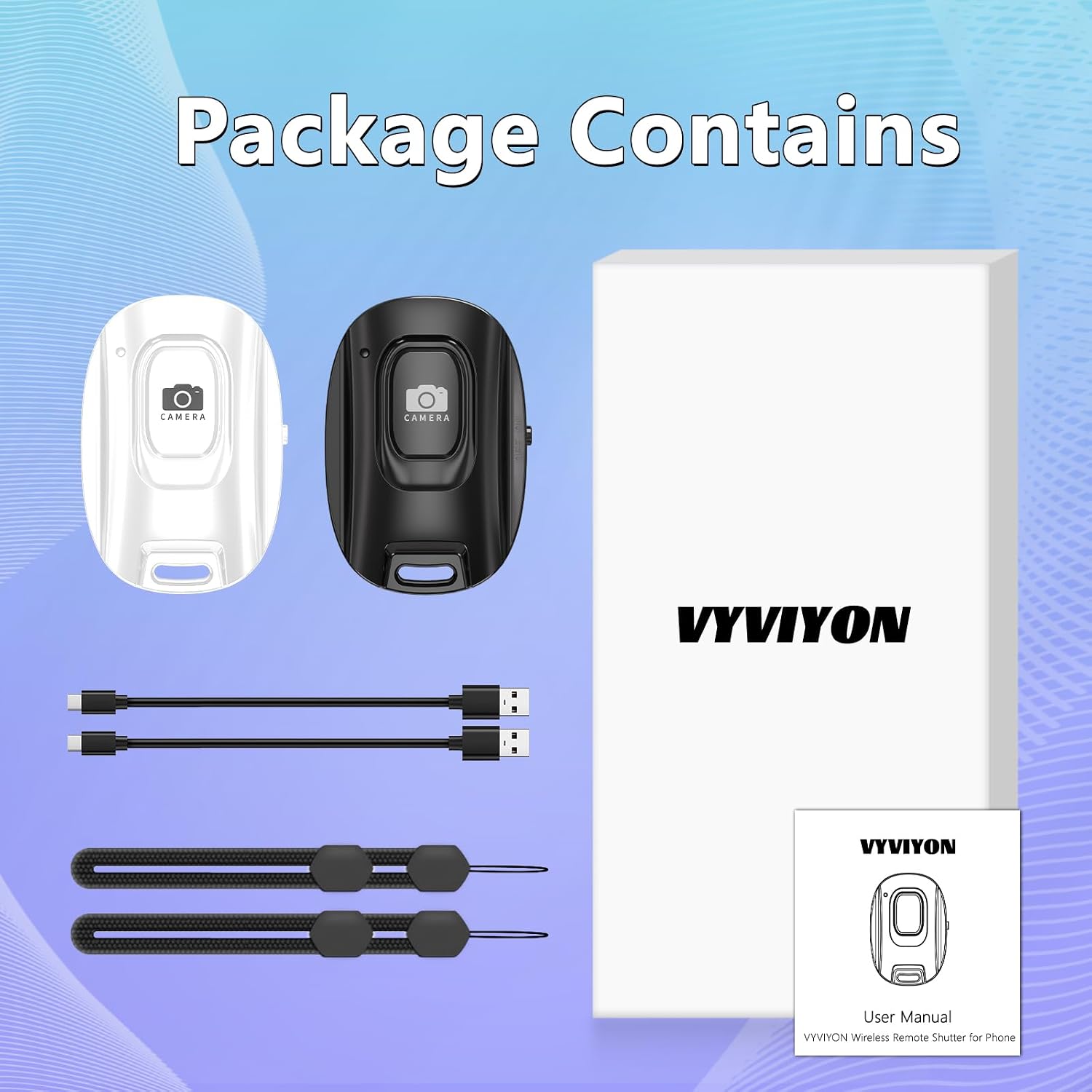
Image: The complete package contents, showing two remote shutters, two USB charging cables, two detachable lanyards, and the user manual packaging.
3. Setup
3.1 Charging the Remote Shutter
The VYVIYON Bluetooth Camera Remote Shutter features a built-in rechargeable battery. Before first use, or when the battery is low, charge the device using the included USB cable.
- Connect the small end of the USB charging cable to the charging port on the remote shutter.
- Connect the larger end of the USB cable to a standard USB power source (e.g., computer USB port, wall adapter, power bank).
- The indicator light will show charging status (refer to Section 6.1 for details).

Image: A visual representation of the remote shutter connected to a USB-C charging cable, emphasizing its rechargeable battery and extended battery life compared to button cell alternatives.
3.2 Pairing with Your Smartphone
The remote shutter uses Bluetooth 5.2 for a quick and stable connection with your smartphone.
- Ensure the remote shutter is charged.
- Locate the ON/OFF switch on the side of the remote shutter and slide it to the 'ON' position. The indicator light will flash, indicating it is in pairing mode.
- On your smartphone, go to your device's Settings and enable Bluetooth.
- In the list of available Bluetooth devices, locate and select "VYVIYON".
- Once connected, the indicator light on the remote shutter will turn off, and your phone will show "Connected" next to "VYVIYON".

Image: A step-by-step visual guide demonstrating how to turn on the remote shutter and pair it with a smartphone via Bluetooth settings, showing both iOS and Android interfaces.

Image: This graphic illustrates the universal compatibility of the remote shutter with both iOS and Android smartphones, detailing the simple pairing process.
4. Operating Instructions
4.1 Taking Photos and Videos
Once paired, open your smartphone's camera application. Press the 'CAMERA' button on the remote shutter to capture photos or start/stop video recording.
- For Photos: A single press of the button will take a picture.
- For Videos: A single press will start recording, and another press will stop recording.
The remote control offers a range of up to 10 meters (33 feet), allowing for flexible positioning of your smartphone.

Image: The remote shutter in use, demonstrating its Bluetooth 5.2 technology and effective range of up to 10 meters (33 feet) for capturing photos and videos with a smartphone mounted on a tripod.

Image: This image shows a user holding the remote shutter with its detachable strap, capturing a photo with a smartphone placed at a distance, highlighting the convenience and range.
4.2 Detachable Lanyard
Attach the included detachable lanyard to the remote shutter for added security and portability. This helps prevent loss and keeps the remote easily accessible.
5. Maintenance
5.1 Battery Care
To preserve battery health and ensure optimal performance, it is recommended to recharge the remote control quarterly (every 60-90 days) even when not in active use.
5.2 Cleaning
Wipe the remote shutter with a soft, dry cloth. Avoid using harsh chemicals or abrasive materials.
6. Troubleshooting
6.1 Indicator Light Description
Understanding the indicator light's behavior can help diagnose issues:
- Flashing Light: Indicates standby state or pairing mode.
- Light Off (after flashing): Indicates successful connection.
- Light Off (after 5 minutes of no pairing): Device has entered sleep mode.
- Red Light: Indicates low battery mode. The connection may be lost.

Image: A visual guide detailing the meaning of the remote shutter's indicator light in various states: standby, connected, sleep mode, and low battery mode.
6.2 Pairing Issues
If the remote shutter fails to pair:
- Ensure the remote shutter is sufficiently charged.
- Make sure Bluetooth is enabled on your smartphone.
- Turn the remote shutter off and on again to re-enter pairing mode.
- Forget the device from your phone's Bluetooth settings and attempt to pair again.
- Ensure no other Bluetooth devices are interfering with the connection.
6.3 Samsung Volume Button Settings
For some Samsung devices, you may need to adjust camera settings to ensure the remote shutter functions correctly for taking pictures or recording videos:
- Open the Camera application on your Samsung phone.
- Go to Camera settings.
- Find and select Shooting methods.
- Locate Press Volume buttons to.
- Choose Take picture or record video.

Image: A four-step visual guide demonstrating how to configure Samsung smartphone camera settings to allow the volume buttons (and thus the remote shutter) to take pictures or record videos.
6.4 Ignoring Contact and Call History Access Request
When connecting to Bluetooth, if a pop-up appears requesting access to your contacts and call history, you can ignore this checkbox and directly select "Pair". The photo-taking function will still work normally without granting these permissions.

Image: This graphic advises users to ignore any requests for contact and call history access during Bluetooth pairing, assuring that the remote's functionality will not be affected.
7. Specifications
| Feature | Detail |
|---|---|
| Model Number | VYRC016 |
| Connectivity | Bluetooth 5.2 |
| Wireless Range | Up to 10 meters (33 feet) |
| Battery Type | Rechargeable (built-in) |
| Charging Interface | USB (cable included) |
| Dimensions (L x W x H) | 48.5mm x 33.7mm x 12.5mm (1.9 x 1.33 x 0.49 inches) |
| Item Weight | 1.76 ounces (approx. 50g) |
| Compatible Devices | iOS and Android Smartphones |
| Max Supported Devices | 1 (at a time) |
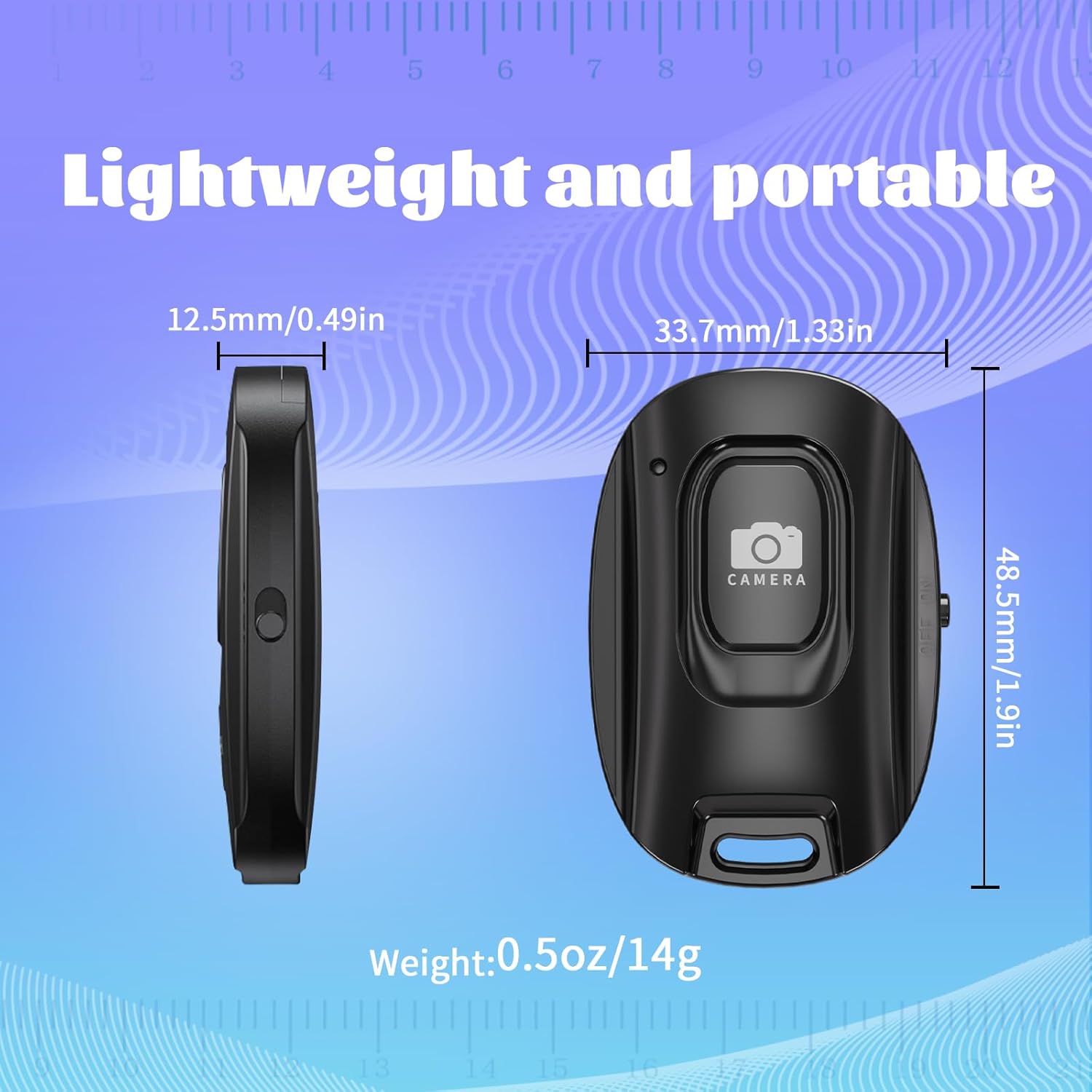
Image: A detailed view of the remote shutter with its precise dimensions (length, width, thickness) and weight, highlighting its compact and portable design.
8. Warranty and Support
8.1 Warranty Information
This product comes with a standard manufacturer's warranty. Please refer to the product packaging or contact customer support for specific warranty terms and conditions.
8.2 Customer Support
For any questions, technical assistance, or support regarding your VYVIYON Bluetooth Camera Remote Shutter, please contact VYVIYON customer service through the retailer's platform or visit the official VYVIYON brand store.
VYVIYON Brand Store: https://www.amazon.com/stores/VYVIYON/page/68123F1F-174B-4518-8286-4572EDD75828
Ask a question about this manual
Ask about setup, troubleshooting, compatibility, parts, safety, or missing instructions. Manuals+ will review the question and use this page’s manual context to help answer it.