
Introduction
This manual provides detailed instructions for the MAHVEC 7-inch Wireless Carplay Double Din Car Stereo. It covers installation, operation, maintenance, and troubleshooting to ensure optimal performance and user experience. Please read this manual thoroughly before using the product.
What's in the Box
Verify that all components are present in the package:
- MAHVEC Car Stereo
- HD Backup Camera
- External Microphone
- Remote Control
- Power Cable
- Horn Cable
- User Manual

Image: Overview of the MAHVEC car stereo, its dimensions, and included accessories such as the power cable, horn cable, microphone, remote control, user manual, and rear camera.
Setup
1. Pre-Installation Check
The car stereo has a standard double din size of approximately 6.89 inches x 4.02 inches (177mm x 102mm). Before installation, measure your car's dashboard opening to ensure compatibility. If the stereo size does not match your dash opening, an additional suitable dash kit may be required (not included).
2. Wiring Connections
Carefully connect the provided power and horn cables to your vehicle's wiring harness. Ensure all connections are secure and correctly matched to prevent damage to the unit or vehicle electrical system. Consult a professional if you are unsure about the wiring process.
3. Mounting the Unit
Slide the car stereo into the dashboard opening and secure it using the mounting brackets. Ensure the unit is firmly in place to prevent movement during driving.
Operating Instructions
1. Wireless & Wired CarPlay/Android Auto
This car stereo supports both wireless and wired CarPlay and Android Auto. Connect your smartphone to seamlessly access calls, send/receive messages, use real-time navigation, stream music, and control functions via voice commands (e.g., Siri, Google Assistant). This feature helps maintain focus on driving.
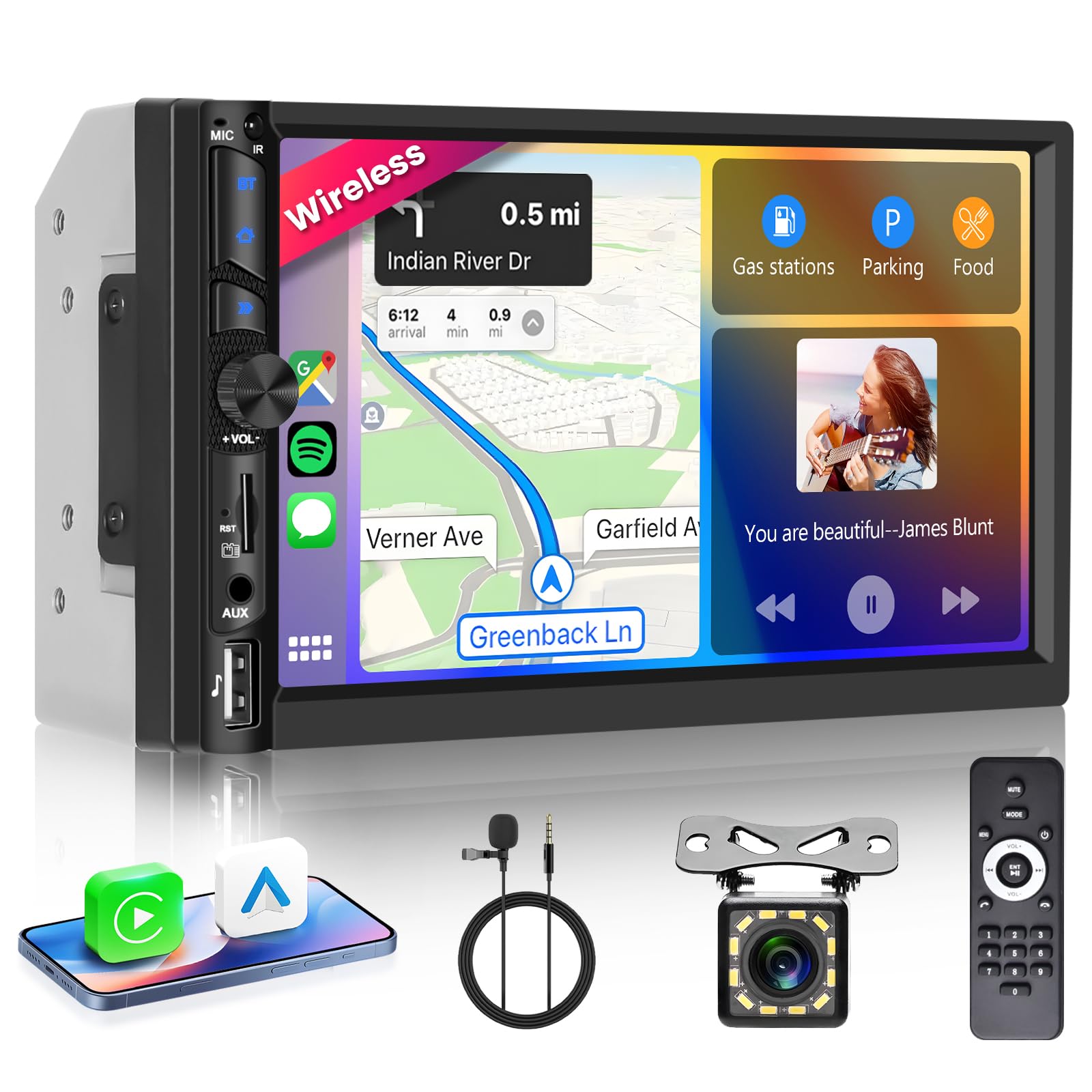
Image: The car stereo displaying navigation and media controls through Wireless CarPlay and Android Auto, with a smartphone showing the connection.

Image: Illustration of the voice control feature, showing how to use commands for music, navigation, and calls.
2. Bluetooth Hands-Free Calling & Music Streaming
Pair your mobile phone via Bluetooth 5.0 for hands-free calling, ensuring clear communication while driving. You can also stream music wirelessly from your device to the car stereo for an enhanced audio experience.

Image: The car stereo interface showing Bluetooth 5.1 connectivity, with options for hands-free calling and music streaming.
3. FM Radio
Utilize the built-in FM radio with stable signal reception to listen to news, music, and talk shows. Scan and save your favorite stations for quick access.

Image: The car stereo screen showing the FM radio interface, including frequency display and preset buttons.
4. Steering Wheel Control (SWC)
The unit supports original car steering wheel controls. This allows you to adjust volume, switch songs, and answer calls directly from your steering wheel, enhancing convenience and safety.

Image: A diagram illustrating the connection and functionality of steering wheel controls with the car stereo.
5. Dual-System Screen Mirroring
Project your phone's screen onto the stereo display. Android phones support both wireless and wired mirroring, while iOS devices support wireless mirroring only. This allows you to view apps, videos, or photos from your phone on the larger stereo screen.

Image: A smartphone mirroring its display to the car stereo screen, demonstrating the iOS/Android Mirror Link feature.
6. Backup Camera Functionality
The included HD backup camera automatically displays a clear rear view on the stereo screen when reversing. This assists in safe parking and obstacle avoidance.

Image: The car stereo screen showing the view from the HD backup camera with parking assist lines, alongside an image of the camera unit.
7. EQ Presets
Customize your audio experience with the built-in EQ function, offering 5 preset options: User, Pop, Classic, Rock, and Jazz. Adjust the sound quality to your preference.

Image: The car stereo's equalizer settings screen, showing adjustable frequency bands and sound field options.
8. Multimedia Playback (AUX/USB/TF)
The stereo is equipped with an AUX port, TF card slot, and USB port. The USB port supports device charging and U-disk music playback, providing versatile options for in-car entertainment.

Image: Visual representation of the TF card, AUX, and USB input options for multimedia playback on the car stereo.
9. HD Touchscreen
The 7-inch high-definition touchscreen (1024x600 resolution) provides sharp images and responsive touch control for all functions. It also supports HD video playback for viewing during breaks.

Image: The 7-inch HD touchscreen of the car stereo, highlighting its 1024x600 resolution and touch functionality.
10. Physical Volume Knob & 7-Color Backlit Buttons
The physical volume knob allows for quick and precise volume adjustments. The left-side buttons feature a 7-color backlight, improving visibility and ease of operation in low-light conditions.

Image: Close-up of the car stereo's physical volume knob and the customizable 7-color backlit buttons.
Maintenance
To ensure the longevity and optimal performance of your MAHVEC car stereo, follow these maintenance guidelines:
- Screen Cleaning: Use a soft, dry, lint-free cloth to clean the touchscreen. For stubborn smudges, lightly dampen the cloth with water or a screen-safe cleaner. Avoid abrasive materials or harsh chemicals.
- Connection Check: Periodically inspect all wiring connections to ensure they are secure and free from corrosion. Loose connections can lead to intermittent functionality.
- Software Updates: Check the MAHVEC official website for any available firmware updates to ensure your device has the latest features and bug fixes.
- Environmental Care: Avoid exposing the unit to extreme temperatures, direct sunlight for prolonged periods, or excessive moisture.
Troubleshooting
If you encounter issues with your car stereo, refer to the following common troubleshooting steps:
- No Power: Ensure all power cables are correctly connected and the vehicle's fuse for the stereo is intact. Check the ignition wire connection.
- No Sound: Verify speaker connections are secure. Check the volume level and ensure the mute function is not activated. Confirm the audio source is correctly selected.
- Bluetooth Connectivity Issues: Ensure Bluetooth is enabled on both the stereo and your smartphone. Delete previous pairings and attempt to re-pair the devices. Move closer to the stereo if experiencing signal drops.
- CarPlay/Android Auto Not Connecting: For wired connections, try a different USB cable. For wireless, ensure Wi-Fi and Bluetooth are enabled on your phone. Restart both the stereo and your phone.
- Backup Camera Not Displaying: Check the camera's power and video signal connections. Ensure the reverse gear is engaged.
- Touchscreen Unresponsive: Try restarting the unit. If the issue persists, a factory reset might be necessary (consult support for instructions).
If problems persist after attempting these steps, please contact MAHVEC customer support for further assistance.
Specifications
| Brand | MAHVEC |
| Model (ASIN) | B0FLPVTNDX |
| Package Dimensions | 7.87 x 5.91 x 3.94 inches |
| Item Weight | 1.76 pounds |
| Date First Available | August 8, 2025 |
| Manufacturer | MAHVEC |
| Connectivity Technology | Bluetooth |
| Controller Type | Touchscreen |
| Special Features | Built-In Bluetooth, Mirror Link, Touchscreen, Wireless CarPlay/Android Auto |
| Compatible Devices | Smartphone |
| Connector Type | USB |
| Audio Output Mode | Stereo |
| Control Method | Touch |
Warranty and Support
For detailed warranty information, product registration, or technical support, please visit the official MAHVEC website or contact their customer service department. Keep your purchase receipt as proof of purchase for warranty claims.
MAHVEC Customer Service: Refer to the contact information provided with your product packaging or on the official MAHVEC website.