1. Product Overview and Package Contents
The Zopsc Wireless Gaming Mouse X802 offers versatile connectivity with three modes: wired, 2.4G wireless, and Bluetooth 5.3. Designed for precision and comfort, it features adjustable DPI settings up to 12000 and a polling rate up to 1000Hz, suitable for various computing tasks and gaming.
1.1 Package Contents
- Zopsc Wireless Gaming Mouse X802
- USB Charging Cable (Type-C)
- 2.4G USB Receiver
- Instruction Manual

Figure 1: Package contents including the mouse, charging cable, 2.4G receiver, and manual.
2. Setup and Connection
The mouse supports three distinct connection methods. Choose the method that best suits your needs.
2.1 Wired Mode Connection
- Connect the provided USB Type-C charging cable to the mouse.
- Plug the other end of the USB cable into an available USB port on your computer.
- The mouse will be automatically recognized and ready for use.
2.2 2.4G Wireless Mode Connection
- Locate the 2.4G USB receiver. It is typically stored in a compartment on the underside of the mouse.
- Insert the 2.4G USB receiver into an available USB port on your computer.
- On the underside of the mouse, slide the connection mode switch to the "2.4G" position.
- The mouse will connect automatically.
2.3 Bluetooth (BT) Mode Connection
- On the underside of the mouse, slide the connection mode switch to the "BT" position.
- On your computer, open Bluetooth settings.
- Search for new devices. The mouse should appear as "Zopsc X802" or similar.
- Select the mouse to pair. Once paired, the mouse is ready for use.
3. Operation and Features
3.1 DPI Adjustment
The mouse features adjustable DPI (Dots Per Inch) settings, allowing you to change cursor sensitivity. Press the DPI button (usually located behind the scroll wheel) to cycle through the available DPI levels: 800, 1600, 2400, 3200, 6400, and 12000. Each press will change the sensitivity, indicated by a change in the mouse's LED lighting.
3.2 Polling Rate Adjustment
The polling rate determines how often the mouse reports its position to the computer. This mouse supports polling rates of 125Hz, 250Hz, 500Hz, and 1000Hz. Higher polling rates provide smoother and more responsive tracking. Refer to the included mini-manual or manufacturer's website for specific button combinations to adjust the polling rate.
3.3 RGB Lighting
The Zopsc X802 mouse is equipped with customizable RGB lighting. The lighting effects can be adjusted to match your preferences. Specific controls for RGB lighting modes and colors are typically managed through dedicated software (if available) or by pressing specific button combinations on the mouse. Consult the manufacturer's website for software downloads or detailed instructions.

Figure 2: The Zopsc X802 mouse showcasing its RGB lighting effects.
3.4 Ergonomic Design
The mouse features an ergonomic design crafted for comfortable extended use. Its shape is intended to support various grip styles and reduce hand fatigue during long sessions.
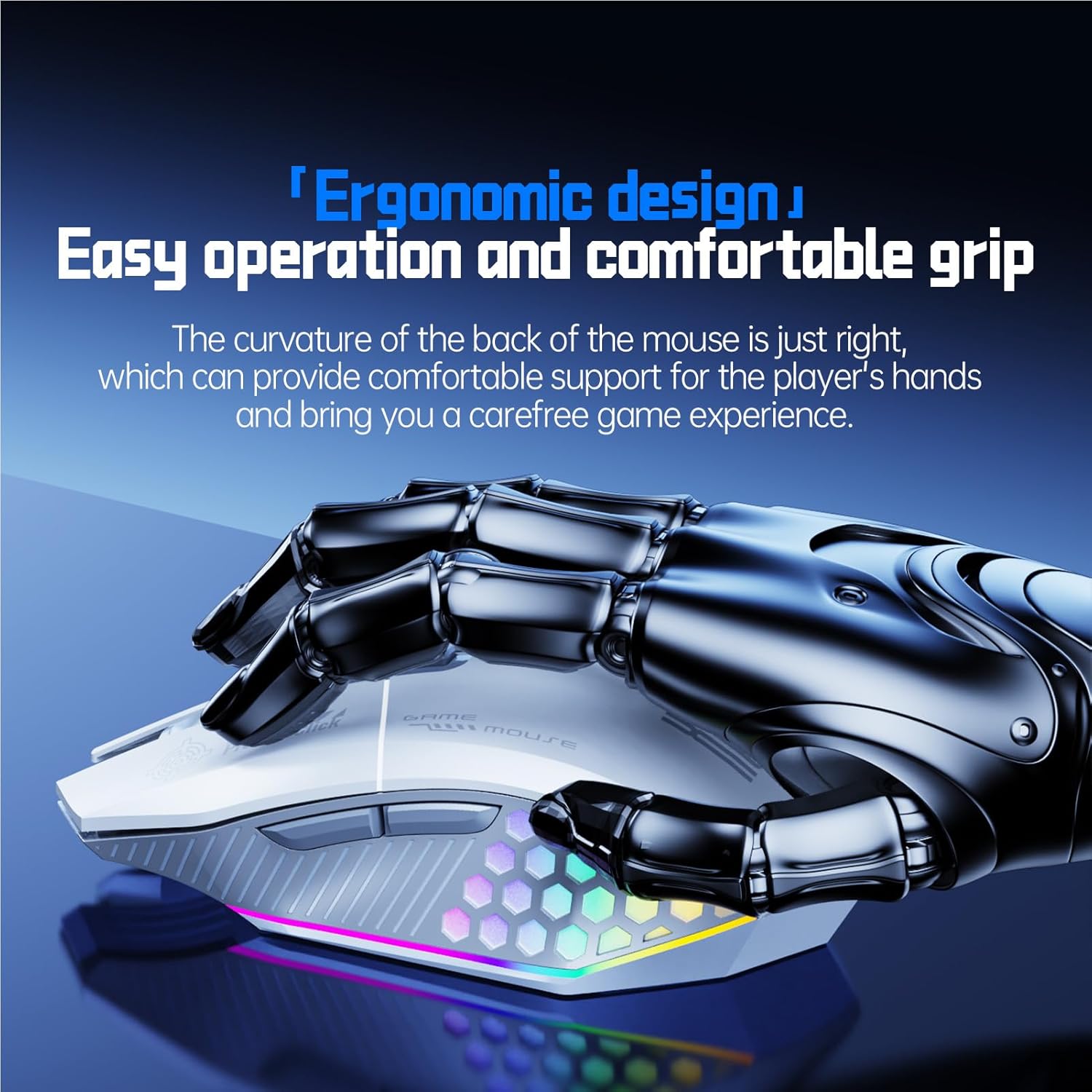
Figure 3: The ergonomic curvature of the Zopsc X802 mouse designed for comfortable grip.
4. Maintenance and Charging
4.1 Battery Information
The Zopsc X802 is equipped with a built-in 500mAh rechargeable battery. This large capacity battery, combined with intelligent power-saving technology, provides extended usage time on a single charge.
4.2 Charging Instructions
- When the battery is low, connect the provided USB Type-C charging cable to the charging port on the front of the mouse.
- Plug the other end of the USB cable into a powered USB port (e.g., computer, USB wall adapter).
- An indicator light on the mouse will typically show the charging status. Refer to the mini-manual for specific light indications.
- Once fully charged, disconnect the charging cable.

Figure 4: The Zopsc X802 mouse connected for charging, highlighting its large capacity battery.
4.3 Cleaning
To clean the mouse, use a soft, dry cloth. For stubborn dirt, a slightly damp cloth can be used, ensuring no moisture enters the mouse's internal components. Avoid using harsh chemicals or abrasive materials.

Figure 5: The Teflon foot patches on the underside of the mouse, designed for smooth movement.
5. Troubleshooting
5.1 Mouse Not Responding
- Check Power: Ensure the mouse is powered on and has sufficient battery charge.
- Check Connection Mode: Verify the switch on the underside of the mouse is set to the correct connection mode (Wired, 2.4G, or BT).
- Wired Mode: Ensure the USB cable is securely connected to both the mouse and the computer. Try a different USB port.
- 2.4G Wireless Mode: Ensure the 2.4G USB receiver is securely plugged into a USB port. Try a different USB port. Re-pair by turning the mouse off and on, then re-inserting the receiver.
- Bluetooth Mode: Ensure Bluetooth is enabled on your computer. Go to your computer's Bluetooth settings and try to re-pair the mouse. If already paired, try removing and re-adding the device.
5.2 Cursor Movement is Erratic or Laggy
- Surface: Use the mouse on a clean, non-reflective surface or a mouse pad.
- Interference: In wireless modes, move the mouse closer to the receiver/computer. Avoid obstructions or other wireless devices that might cause interference.
- Battery Level: A low battery can affect wireless performance. Charge the mouse fully.
- DPI Setting: Adjust the DPI setting to a lower value if the cursor is too sensitive.
5.3 RGB Lights Not Working
- Check Power: Ensure the mouse is powered on.
- Software/Buttons: If applicable, check the mouse's software settings or try pressing the dedicated RGB control buttons (if any) to cycle through modes.
6. Product Specifications
| Feature | Specification |
|---|---|
| Item Type | RGB Gaming Mouse |
| Structure Material | ABS |
| Connection Modes | Wired, 2.4G Wireless, Bluetooth 5.3 |
| Resolution (DPI) | 800 / 1600 / 2400 / 3200 / 6400 / 12000 |
| Polling Rate | 125Hz / 250Hz / 500Hz / 1000Hz |
| Battery Capacity | 500mAh (Built-in) |
| Charging Interface | Type-C |
| Item Size | 13 x 6.8 x 3 cm (5.12 x 2.68 x 1.18 inches) |
| Item Weight | 97g (3.42 oz) |
| Model Number | X802 (Internal SKU: Zopscpw2xgkavb0-13) |
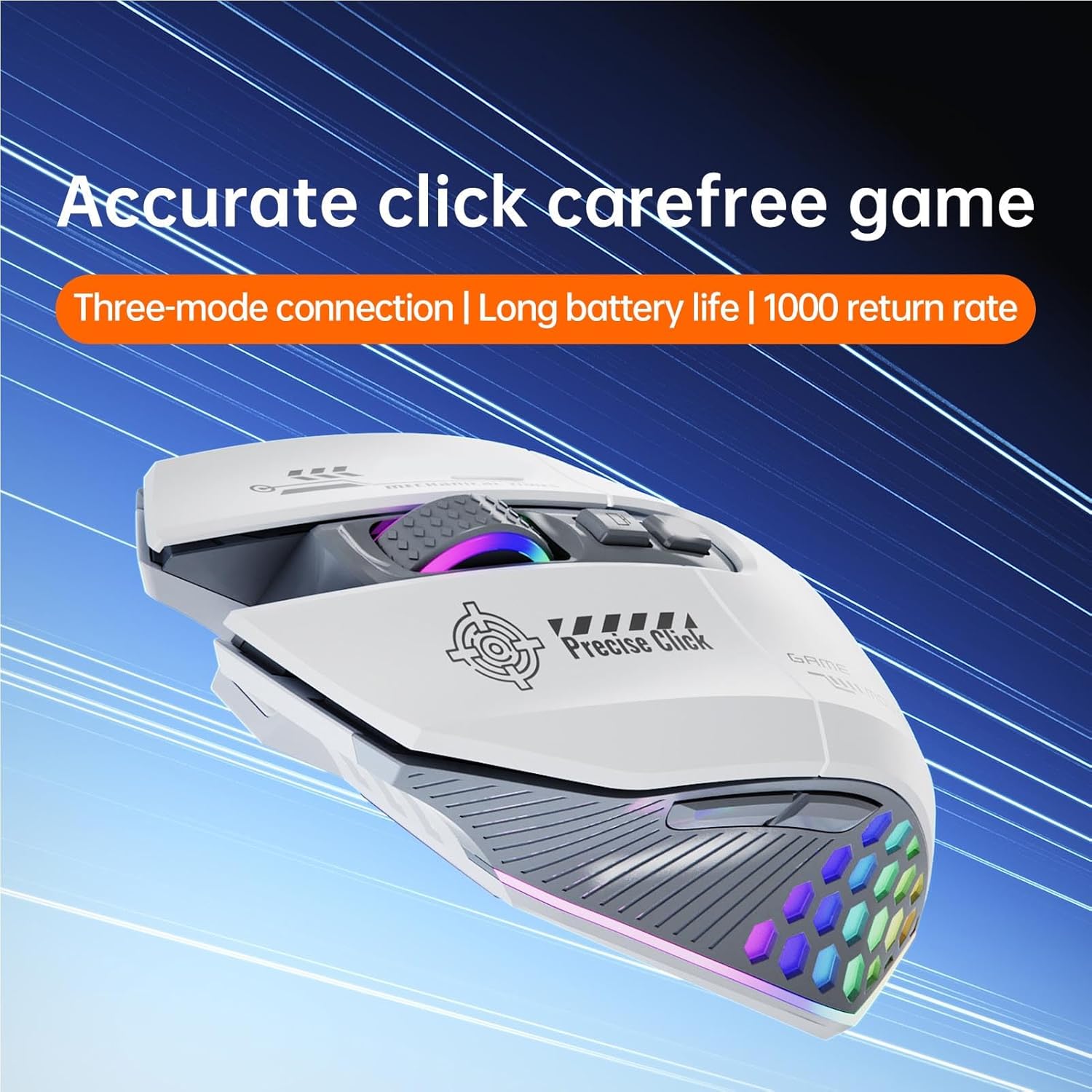
Figure 6: The optical sensor of the Zopsc X802, providing sensitive and accurate tracking.
7. Warranty and Support
For warranty information, technical support, or customer service inquiries, please refer to the contact details provided on the product packaging or visit the official Zopsc website. Keep your purchase receipt for warranty claims.