1. Introduction
Thank you for choosing the TOSHIBA 32" Class V35 Series LED FHD Smart Fire TV. This manual provides essential information for the safe and efficient use of your new television. Please read it thoroughly before operating the device and retain it for future reference.
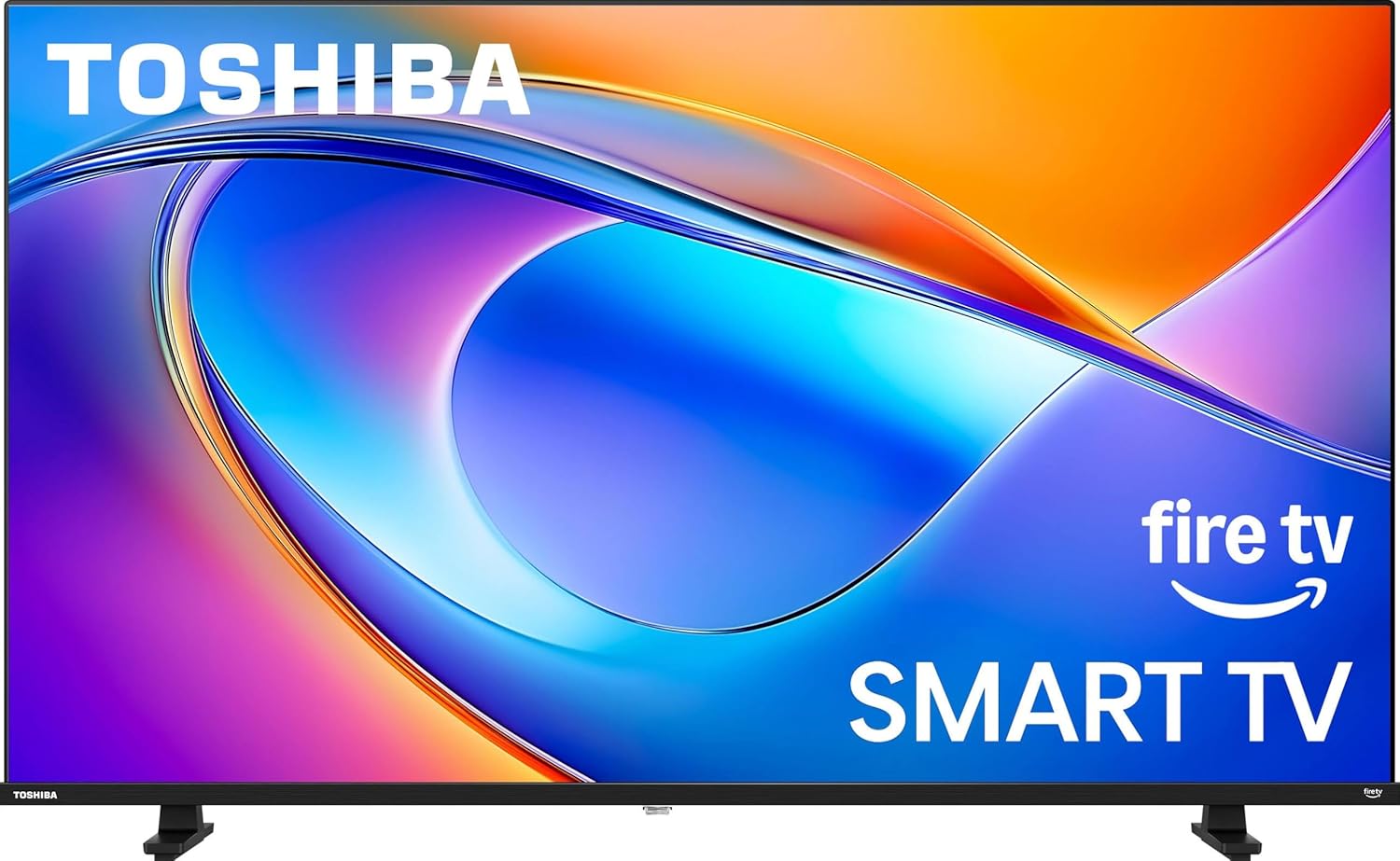
Front view of the TOSHIBA 32-inch Class V35 Series LED FHD Smart Fire TV, showcasing its display and branding.
2. What's in the Box
Upon unpacking your new television, please ensure all the following items are present:
- TOSHIBA 32" Class V35 Series LED FHD Smart Fire TV
- Voice Remote with Alexa
- Power Cable
- Quick Start Guide
- Safety and Warranty Information
- TV Stands (2) and Screws
3. Product Overview
The TOSHIBA V35 Series Fire TV combines stunning Full HD visuals with the convenience of Fire TV built-in, offering a seamless entertainment experience. Key features include:
- REGZA Engine: Optimizes picture quality beyond HD capability for a fantastic viewing experience.
- Direct LED: Provides more precise and uniform brightness across the screen for realistic and detailed pictures.
- Essential PQ Technology: Enhances picture quality with greater detail, delivering true-to-life images.
- Bezel-less Design: Maximizes viewable screen area for an immersive experience.
- REGZA Power Audio: Delivers well-balanced sound from dual clear direct speakers.
- DTS Virtual:X: Provides virtual height, multi-channel virtual surround sound, and enhanced bass and dialogue.
- Fire TV Built-in: Access a world of entertainment from popular apps and stream live TV.
- Voice Remote with Alexa: Control your TV and smart home devices with voice commands.
3.1. Design and Dimensions
The V35 Series features a sleek, bezel-less design. For precise installation, refer to the dimensions below:

A technical diagram illustrating the physical dimensions of the 32-inch TOSHIBA V35R television, including measurements for width, height, and depth, along with VESA wall mount size and product weight.
3.2. Visual and Audio Technologies
Experience superior picture and sound quality with advanced technologies:
The REGZA Engine microchip, responsible for optimizing picture quality.
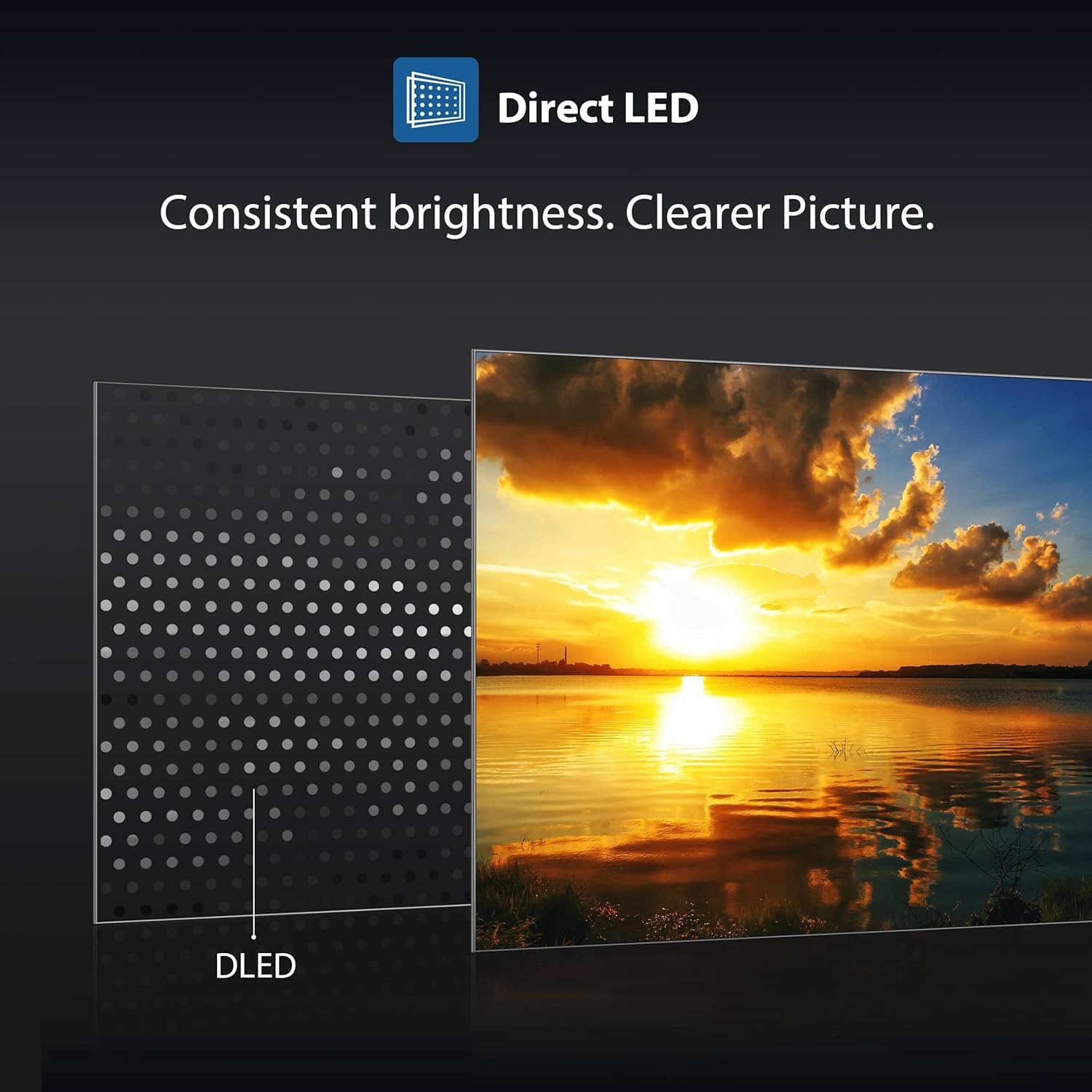
Direct LED backlight technology for consistent and clear picture.
Essential PQ Technology enhancing vivid picture on screen.

REGZA Power Audio for an immersive sound experience.
3.3. Smart Features
Your Fire TV provides access to a vast library of content and smart functionalities:
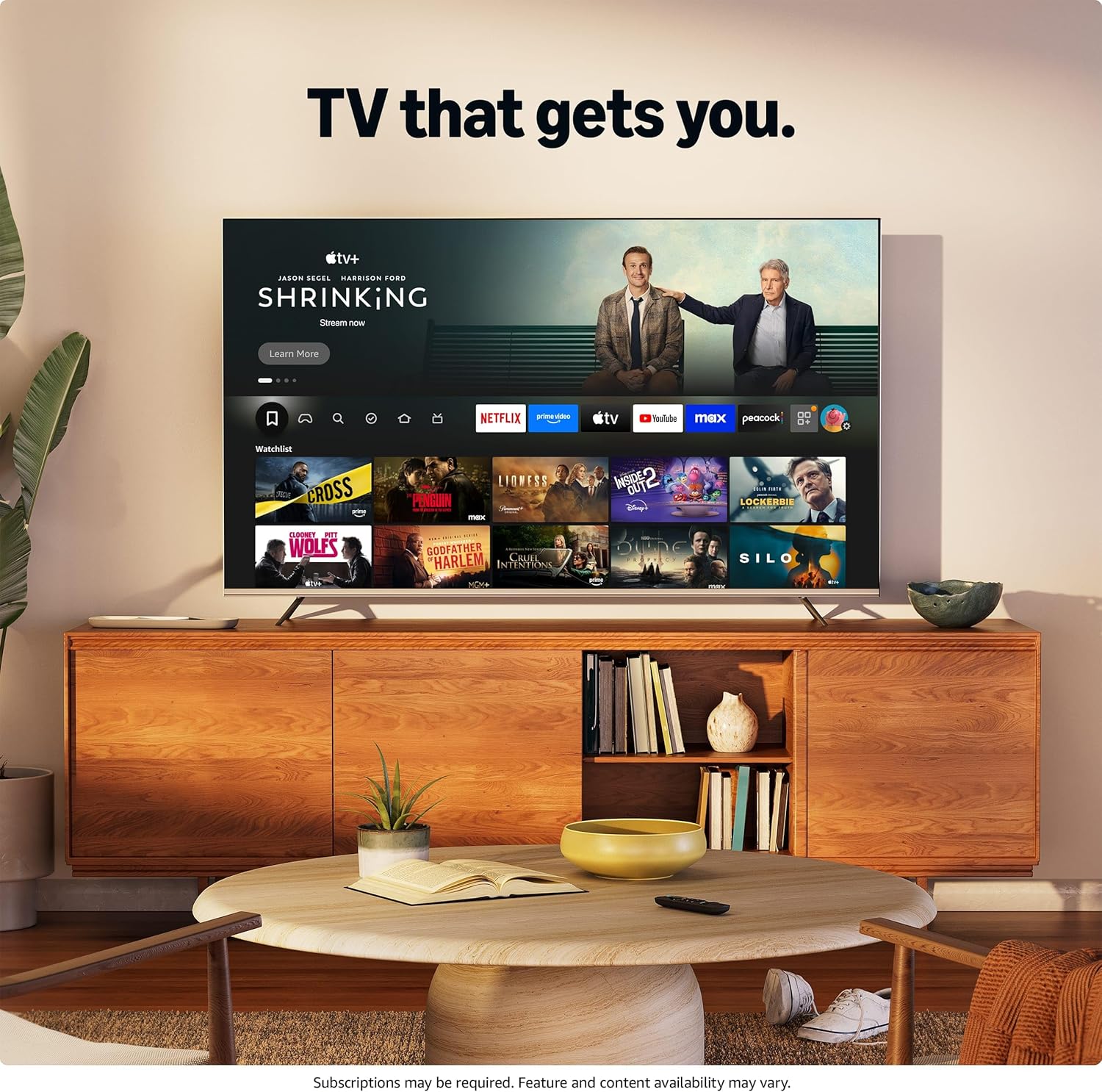
The Fire TV interface displaying various streaming applications.
4. Setup
Follow these steps to set up your TOSHIBA Fire TV:
- Unpack the TV: Carefully remove the TV and all accessories from the packaging.
- Attach the Stands (if not wall-mounting): Place the TV face down on a soft, clean surface. Align the TV stands with the screw holes on the bottom of the TV and secure them with the provided screws.
- Connect Power: Plug the power cable into the TV's power input, then into a wall outlet.
- Connect Devices: Connect any external devices (e.g., cable box, gaming console, Blu-ray player) to the appropriate HDMI or other input ports.
- Initial Setup: Turn on the TV. Follow the on-screen instructions to select your language, connect to Wi-Fi, and sign in to your Amazon account to activate Fire TV.
5. Operating Instructions
Your TOSHIBA Fire TV is designed for intuitive operation. Here are basic instructions:
5.1. Using the Voice Remote with Alexa
- Power: Press the power button to turn the TV on or off.
- Navigation: Use the directional pad and select button to navigate menus and select items.
- Alexa Voice Control: Press and hold the Alexa button and speak your command to search for content, launch apps, control playback, or manage smart home devices.
- Home: Press the Home button to return to the Fire TV home screen.
- Volume: Use the volume up/down buttons to adjust the sound level.
- App Shortcuts: Use the dedicated buttons for popular streaming services like Prime Video and Netflix.
5.2. Fire TV Interface
The Fire TV home screen provides personalized recommendations and easy access to your favorite apps and content. You can customize profiles for different household members.

Game Mode interface for an optimized gaming experience.
6. Connectivity
Your TOSHIBA Fire TV offers various connectivity options:
- Wi-Fi: Connects to your home network for streaming and smart features.
- Bluetooth: Pair with compatible devices like headphones or speakers.
- HDMI Ports: Connect external devices such as gaming consoles, Blu-ray players, or soundbars.
- USB Ports: For media playback from USB drives.
- Ethernet Port: For a wired internet connection.
7. Maintenance
To ensure the longevity and optimal performance of your TV:
- Cleaning the Screen: Gently wipe the screen with a soft, dry microfiber cloth. For stubborn marks, lightly dampen the cloth with water or a screen-specific cleaner. Avoid harsh chemicals.
- Cleaning the Body: Use a soft, dry cloth to wipe the TV's frame and back.
- Ventilation: Ensure the TV's ventilation openings are not blocked to prevent overheating.
- Power Cord: Regularly check the power cord for any damage.
8. Troubleshooting
If you encounter issues with your TV, try these common solutions:
| Problem | Possible Solution |
|---|---|
| No Power | Check if the power cable is securely plugged into the TV and the wall outlet. Try a different outlet. |
| No Picture, but Sound is Present | Ensure the correct input source is selected. Check cable connections to external devices. |
| No Sound, but Picture is Present | Check volume levels and mute settings. Verify audio cable connections. If using external speakers, ensure they are powered on and correctly connected. |
| Remote Control Not Working | Replace batteries. Ensure there are no obstructions between the remote and the TV. Re-pair the remote if necessary (refer to the Fire TV remote guide). |
| Wi-Fi Connection Issues | Restart your router and modem. Go to TV settings to re-scan for networks and reconnect. Ensure the TV is within range of your Wi-Fi signal. |
| Apps Not Loading or Crashing | Restart the TV. Clear the cache for the problematic app in the TV settings. Ensure your internet connection is stable. |
If the issue persists, please refer to the official TOSHIBA support resources or contact customer service.
9. Specifications
Below are the technical specifications for the TOSHIBA 32" Class V35 Series LED FHD Smart Fire TV (Model: 32V35RU):
- Model Name: 32V35RU
- Screen Size: 32 Inches
- Display Technology: LED
- Resolution: 1080p (Full HD)
- Refresh Rate: 60 Hz
- Product Dimensions (with stand): Approximately 28.4" W x 18.1" H x 7.3" D
- Product Dimensions (without stand): Approximately 28.4" W x 16.8" H x 3" D
- Item Weight (without stand): 7.5 Pounds
- Special Feature: Apple Airplay
- Connectivity Technology: Bluetooth, Wi-Fi
- Included Components: Power Cable, Voice Remote with Alexa, TV Stands
10. Warranty and Support
For detailed warranty information, please refer to the warranty card included with your product or visit the official TOSHIBA website. For technical support, troubleshooting assistance, or service inquiries, please contact TOSHIBA customer support through their official channels.
You can find additional support and product information by visiting the TOSHIBA Store on Amazon.