Introduction
This manual provides essential information for setting up, operating, maintaining, and troubleshooting your Lenovo IdeaCentre 24 All-in-One desktop computer. Please read this manual thoroughly before using your device to ensure proper functionality and safety.
What's in the Box
Verify that all items are present in the packaging:
- Lenovo IdeaCentre 24 All-in-One Desktop Computer (Monitor with integrated components)
- USB Calliope Wired Keyboard
- USB Calliope Wired Mouse
- Power Adapter and Power Cord
- Documentation (Quick Start Guide, Warranty Information)
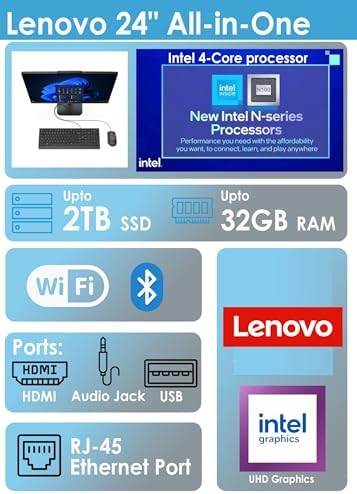
Image: The image displays the Lenovo IdeaCentre 24 All-in-One computer, including the monitor, wired keyboard, wired mouse, and power adapter, as typically found in the product packaging.
Setup Instructions
- Unpack the Device: Carefully remove all components from the packaging. Place the All-in-One computer on a stable, flat surface.
- Connect Keyboard and Mouse: Plug the USB cables of the wired keyboard and mouse into the available USB ports on the rear of the computer.
- Connect Power: Connect the power cord to the power adapter, then plug the adapter into the power input port on the rear of the computer. Plug the other end of the power cord into a wall outlet.
- Power On: Press the power button, usually located on the side or bottom edge of the monitor. The Lenovo logo will appear on the screen.
- Initial Windows Setup: Follow the on-screen instructions to complete the Windows 11 setup process. This includes selecting your region, language, connecting to a Wi-Fi network, and creating a user account.

Image: This image provides a detailed view of the rear panel of the Lenovo IdeaCentre 24 All-in-One, highlighting the various ports including USB-A, HDMI-out, Ethernet (RJ-45), headphone/microphone combo jack, and the Kensington Security Slot.
Operating Instructions
Power On/Off
- To Power On: Press the power button.
- To Shut Down: Click the Start button in Windows, then select Power > Shut down.
- To Restart: Click the Start button, then select Power > Restart.
- To Sleep: Click the Start button, then select Power > Sleep.
Connecting to Networks
Your IdeaCentre 24 supports both Wi-Fi 6 and wired Ethernet connections.
- Wi-Fi: During initial setup, you will be prompted to connect to a wireless network. To connect later, click the Wi-Fi icon in the taskbar, select your network, and enter the password.
- Ethernet: Plug an Ethernet cable from your router or modem into the RJ-45 port on the rear of the computer.
Using Peripherals
Connect external devices such as USB drives, external monitors, or headphones to the appropriate ports. The system features multiple USB-A ports (Hi-Speed USB / USB 2.0 and USB 10Gbps / USB 3.2 Gen 2) and an HDMI-out 1.4b port for external displays.
Key Features
The Lenovo IdeaCentre 24 All-in-One is designed for efficient daily computing with a focus on performance and space-saving design.
- Processor: Powered by the Intel N100 Processor (4C / 4T, Max Turbo up to 3.4GHz, 6MB Cache) for reliable performance and energy efficiency.
- Memory & Storage: Equipped with 16GB DDR4 RAM and a 1TB PCIe NVMe M.2 SSD for seamless multitasking and ample storage capacity.
- Display: Features a 23.8" FHD (1920x1080) IPS Anti-glare display with 250 nits brightness and 99% sRGB color accuracy, designed to minimize eye fatigue.
- Connectivity: Includes Intel Wi-Fi 6 AX203 (802.11ax 2x2) and Bluetooth 5.2 for stable wireless connections.
- Ports: Rear ports include 2x USB-A (Hi-Speed USB / USB 2.0), 2x USB-A (USB 10Gbps / USB 3.2 Gen 2), 1x HDMI-out 1.4b, 1x Ethernet (RJ-45), and 1x headphone/microphone combo jack (3.5mm).
- Integrated Webcam: Built-in HD camera for video conferencing and online communication.
- Operating System: Pre-installed with Windows 11 Home.
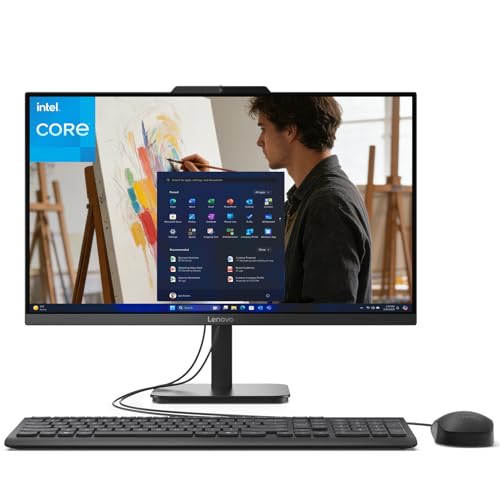
Image: This graphic illustrates the main technical specifications and connectivity options of the Lenovo IdeaCentre 24 All-in-One, including processor type, storage, RAM, wireless capabilities, and available ports.
Specifications
| Component | Specification |
|---|---|
| Processor | Intel N100 (4C / 4T, Max Turbo up to 3.4GHz, 6MB Cache) |
| Graphics | Integrated Intel UHD Graphics |
| Memory (RAM) | 16GB DDR4 |
| Storage | 1TB PCIe NVMe M.2 SSD |
| Display | 23.8" FHD (1920x1080) IPS Anti-glare 250nits, 99% sRGB |
| Operating System | Windows 11 Home |
| WLAN + Bluetooth | Intel Wi-Fi 6 AX203, 802.11ax 2x2 + BT5.2 |
| Rear Ports | 2x USB-A (USB 2.0), 2x USB-A (USB 3.2 Gen 2), 1x HDMI-out 1.4b, 1x Ethernet (RJ-45), 1x headphone/microphone combo jack (3.5mm) |
| Camera | HD Webcam |
| Dimensions (WxDxH) | 539.3 x 185 x 422.78 mm (21.23 x 7.3 x 16.65 inches) |
| Weight | Approx. 4.3 kg (9.47 lbs) |
Maintenance
Regular maintenance helps ensure the longevity and optimal performance of your computer.
- Cleaning: Use a soft, lint-free cloth to clean the screen and exterior surfaces. For stubborn marks, dampen the cloth slightly with water or a screen-safe cleaner. Avoid harsh chemicals.
- Software Updates: Regularly check for and install Windows updates and driver updates from the Lenovo support website to ensure system stability and security.
- Ventilation: Ensure that the ventilation openings on the computer are not blocked to prevent overheating.
- Data Backup: Periodically back up important data to an external drive or cloud storage to prevent data loss.
Troubleshooting
If you encounter issues, try these basic troubleshooting steps:
- No Power: Ensure the power cord is securely connected to both the computer and the wall outlet. Try a different outlet.
- No Display: Check if the computer is powered on. If connected to an external monitor, ensure the correct input source is selected on the external monitor.
- Keyboard/Mouse Not Responding: Verify that the USB cables are securely plugged into the correct ports. Try plugging them into different USB ports.
- No Internet Connection: For Wi-Fi, check if Wi-Fi is enabled and you are connected to the correct network. For Ethernet, ensure the cable is properly connected to both the computer and the router/modem. Restart your router/modem.
- Slow Performance: Close unnecessary applications. Check for available Windows updates. Ensure sufficient free space on your SSD.
For more advanced troubleshooting or persistent issues, refer to the Lenovo support website or contact customer service.
Warranty and Support
Your Lenovo IdeaCentre 24 All-in-One computer comes with a standard manufacturer's warranty. Please refer to the warranty documentation included in your product packaging for specific terms and conditions.
For technical support, driver downloads, and additional resources, visit the official Lenovo support website. You will need your product's serial number, typically found on a label on the back or bottom of the device.


