
1. Product Overview
The Generic B30 Wireless Bluetooth Headset offers a high-fidelity stereo sound experience with a lightweight, comfortable over-ear design. It supports both wireless Bluetooth and wired connections, making it versatile for various devices and situations. Key features include:
- Bluetooth 5.2 Connectivity: Ensures stable and fast audio transmission with low power consumption.
- Dual Mode Operation: Use wirelessly via Bluetooth or wired with the included 3.5mm audio cable.
- Integrated Microphone: For clear hands-free calls.
- RGB LED Lighting: Colorful lights on the earcups for an enhanced visual experience.
- Multiple Playback Options: Supports TF (SD) card playback, AUX input, and FM radio.
- Comfortable Design: Soft padded ear cushions and an adjustable silicone headband for extended wear.
- 40mm Dynamic Drivers: Delivers powerful bass and rich audio.
- Smart Noise Reduction: For clearer communication.

Figure 1: Generic B30 Wireless Bluetooth Headset in green. This image shows the headset's overall design, highlighting its over-ear structure and green color variant.
2. Setup
2.1 Charging the Headset
Before first use, fully charge the headset. Use the provided Type-C charging cable and connect it to a standard USB power adapter (not included).
- Connect the Type-C end of the cable to the charging port on the headset.
- Connect the USB-A end to a power source.
- The LED indicator will show charging status (e.g., red for charging, off or blue for fully charged).
2.2 Power On/Off
- To power on, press and hold the Power button for approximately 3 seconds until the LED indicator lights up.
- To power off, press and hold the Power button for approximately 3 seconds until the LED indicator turns off.
2.3 Bluetooth Pairing
After powering on, the headset will automatically enter pairing mode if not connected to a previously paired device. The LED indicator will flash (e.g., blue and red alternately).
- Enable Bluetooth on your device (smartphone, tablet, computer).
- Search for available Bluetooth devices.
- Select "B30" from the list of devices.
- Once paired, the LED indicator will typically show a solid blue light or flash slowly.
- The headset will automatically connect to the last paired device when powered on, if within range.
2.4 Wired Connection (AUX Mode)
If the battery is depleted or your device does not support Bluetooth, you can use the 3.5mm audio cable.
- Connect one end of the 3.5mm audio cable to the AUX port on the headset.
- Connect the other end to the 3.5mm audio jack on your device.
- The headset will automatically switch to wired mode.
2.5 SD Card Playback
- Insert a TF (microSD) card with audio files into the designated SD card slot on the headset.
- The headset will automatically detect the card and begin playing audio.
3. Operating Instructions
3.1 Controls
The control buttons are located on the side of the earcup. Refer to Figure 2 for button layout.
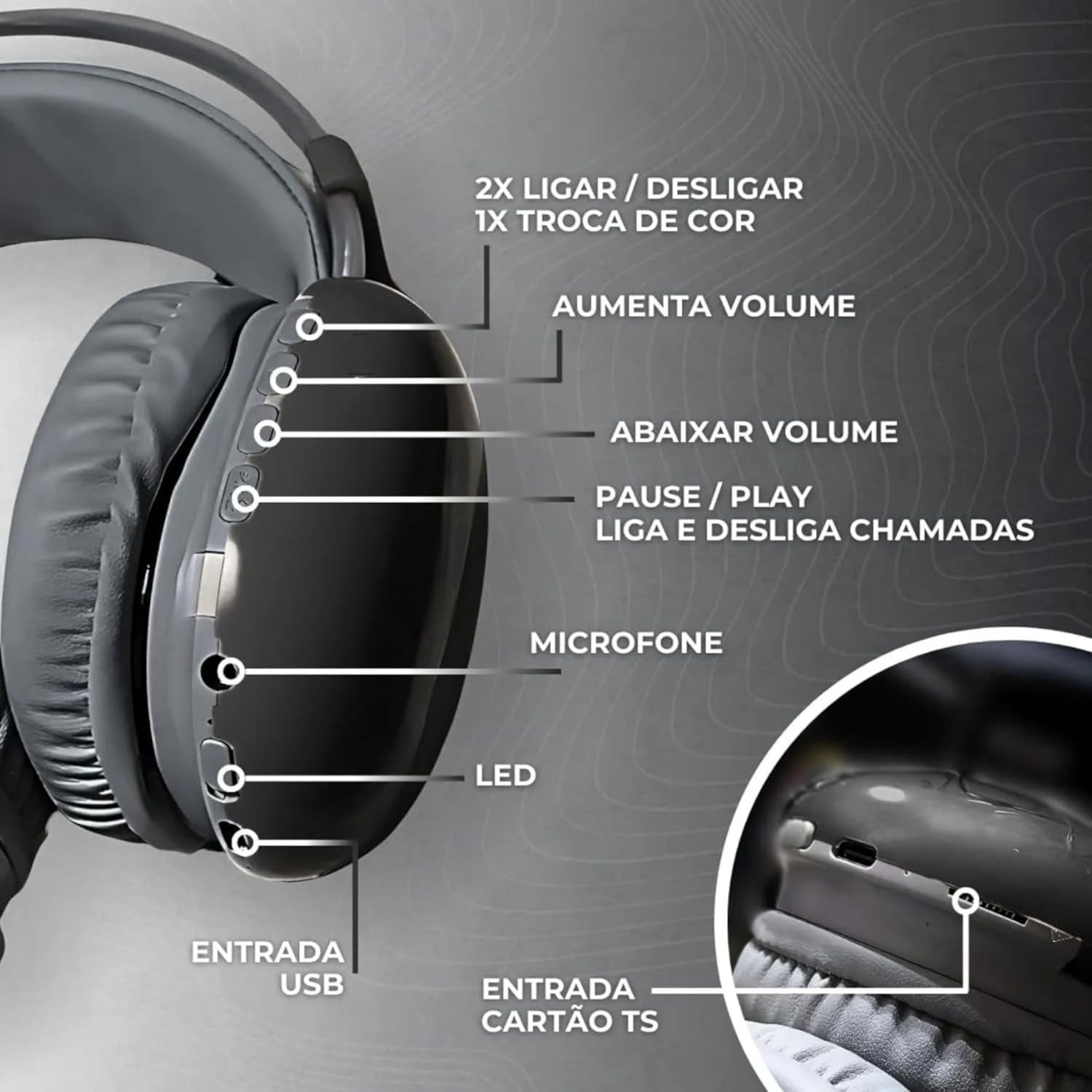
Figure 2: Detailed view of the headset's left earcup, illustrating the control buttons for volume, track navigation, play/pause, call management, and the USB charging port, microphone, and SD card slot.
| Button/Port | Function |
|---|---|
| Power Button | Press and hold for 3 seconds to Power On/Off. Double press to change RGB light mode. |
| Volume Up (+) / Next Track | Short press to increase volume. Long press to skip to the next track. |
| Volume Down (-) / Previous Track | Short press to decrease volume. Long press to go to the previous track. |
| Play/Pause / Call Button | Short press to Play/Pause music. Short press to Answer/End calls. Long press to Reject calls. |
| Mode Button (M) | Short press to switch between Bluetooth, FM Radio, and SD Card modes. |
| Type-C Charging Port | For charging the headset battery. |
| 3.5mm AUX Port | For wired audio connection. |
| TF (SD) Card Slot | For playing audio files directly from a memory card. |
| Microphone | For voice calls. |
3.2 RGB LED Lighting
The headset features colorful RGB LED lights on the earcups. You can control these lights:
- To change light mode: Double press the Power button.
- To turn off lights: Continue double-pressing the Power button until the lights turn off, or refer to specific instructions if a dedicated light button is present (not explicitly stated in data, assuming power button control).

Figure 3: The headset displaying its vibrant RGB LED lighting feature on the earcups.
3.3 FM Radio Operation
To use the FM radio function:
- Press the Mode (M) button to switch to FM radio mode.
- Long press the Play/Pause button to automatically scan and save available FM stations.
- Use the Next Track (+) and Previous Track (-) buttons to navigate between saved stations.
4. Maintenance
- Cleaning: Use a soft, dry cloth to clean the headset. Do not use abrasive cleaners or solvents.
- Storage: Store the headset in a cool, dry place away from direct sunlight and extreme temperatures.
- Battery Care: To prolong battery life, avoid fully discharging the battery frequently. Charge the headset regularly, even if not in use for extended periods.
- Water Exposure: This headset is not waterproof. Avoid exposure to water or excessive moisture.
5. Troubleshooting
| Problem | Possible Cause | Solution |
|---|---|---|
| Headset does not power on. | Low battery. | Charge the headset fully. |
| Cannot pair via Bluetooth. | Headset not in pairing mode; Bluetooth off on device; device too far. | Ensure headset is in pairing mode. Turn on Bluetooth on your device. Move device closer to headset (within 10 meters). |
| No sound or low volume. | Volume too low; incorrect source; headset not connected. | Increase volume on both headset and connected device. Ensure correct mode (Bluetooth, AUX, SD). Reconnect headset. |
| Sound distortion (especially with RGB lights). | Interference from RGB lighting. | Try changing the RGB light mode or turning off the RGB lights if distortion occurs. |
| Microphone not working. | Microphone muted; incorrect audio input selected on device. | Ensure microphone is not muted. Check audio input settings on your connected device. |
6. Specifications
| Feature | Detail |
|---|---|
| Model Name | B30 |
| Brand | Generic |
| Color | Green (variant shown) |
| Headphone Form Factor | Over-Ear |
| Connectivity Technology | Bluetooth, Wireless |
| Wireless Communication Technology | Bluetooth 5.2 |
| Impedance | 140 Ohms |
| Noise Control | Passive Noise Cancellation |
| Headphone Jack | 3.5 mm Jack |
| Included Components | Cable (charging and AUX) |
| Age Range Description | Adult |
| Country of Origin | China |
| Number of Items | 1 |
| Control Method | Via App (Note: Product description implies physical buttons, 'Via App' might be a generic spec entry) |
| Audio Driver Type | Dynamic Driver (40mm) |
| Material | Leather (ear cushions) |
| Specific Uses For Product | School, Office Work, Sports, Travel |
| Compatible Devices | Laptops, Tablets, Mobile Phones, Smart Speakers, Televisions |
| Item Weight | 3 Grams (Note: This weight seems unusually low for an over-ear headset and might be an error in the source data. Actual weight is likely higher.) |
7. Warranty and Support
7.1 Warranty Information
There are no explicit warranties provided for this product as per the available information. Please refer to your retailer's return policy for details on product returns or exchanges.
7.2 Customer Support
For any questions or issues not covered in this manual, please contact your point of purchase or the manufacturer's customer service. Contact details are typically found on the product packaging or the retailer's website.


