1. Introduction
This manual provides detailed instructions for the installation, operation, and maintenance of your AOSU 4K Wireless Outdoor Security Camera System. This system includes four 4K cameras and a HomeCortex AI base station, designed to provide comprehensive home surveillance with advanced features such as face recognition, behavior detection, and dual solar power, all without recurring monthly fees. Please read this manual thoroughly before using the product to ensure proper setup and functionality.

Image 1.1: The AOSU 4K Wireless Outdoor Security Camera System, featuring four cameras and the central HomeCortex unit.
2. Product Overview
2.1 Key Features
- HomeCortex AI: Provides advanced AI features including video descriptions, smart search, daily security summaries, and wildlife alerts. Supports up to 6 cameras with centralized storage for whole-home awareness.
- AOSU TrueSight AI: Combines face recognition and behavior analysis to detect individuals and vehicles, triggering instant alerts for suspicious activity. Footage is AI-organized for quick searches.
- Built-in Local Storage: Features 32GB of built-in storage, expandable up to 16TB, ensuring private, encrypted recordings without monthly fees.
- 4K Ultra HD: True 4K lens with f/1.6 aperture captures clear details day and night. Full-color night vision is enabled by a surrounding light band.
- Dual Solar Power: Dual solar panels provide faster charging and stable all-day power, requiring only 2 hours of sunlight for continuous operation.
- Motion-Activated Alarm: Integrated light and siren activate upon motion detection to deter intruders.
2.2 Package Contents
Verify that all items listed below are included in your package:
- 1 × AOSU SolarCam Max System 4-Cam Kit
- 1 × HomeCortex Base Station
- 1 × Power Adapter for HomeCortex
- 1 × Ethernet Cable
- 4 × Solar Panels (integrated with cameras)
- 4 × Mounting Kits & Screw Packs
- 1 × User Guide (this document)
3. Setup Guide
3.1 Initial Charging
Before installation, ensure the camera batteries are sufficiently charged. While solar panels provide continuous power, an initial charge via USB-C (cable not included) is recommended for optimal performance, especially if installing in low-light conditions.
3.2 HomeCortex Base Station Setup
- Connect the HomeCortex base station to your router using the provided Ethernet cable.
- Plug the power adapter into the HomeCortex and an electrical outlet.
- Wait for the indicator light on the HomeCortex to turn solid blue, indicating it is ready.
3.3 AOSU App Installation and Camera Pairing
- Download the AOSU app from your smartphone's app store (iOS or Android).
- Create an account and log in.
- Follow the in-app instructions to add your HomeCortex base station.
- Power on each camera. The cameras will automatically attempt to pair with the HomeCortex. Follow any on-screen prompts in the app to complete the pairing process for each camera.
3.4 Camera Mounting
Select mounting locations that provide optimal surveillance coverage and sufficient sunlight exposure for the integrated solar panels. Ensure the cameras are within Wi-Fi range of the HomeCortex.
- Use the provided mounting kits and screws to securely attach each camera to a wall or desired surface.
- Adjust the camera angle to cover the desired area.
- For best solar charging, position the camera's integrated solar panel to receive direct sunlight for at least 2 hours daily.

Image 3.1: Quick and easy setup of the wireless AOSU camera system, requiring no complex wiring.
4. Operating Instructions
4.1 Using the AOSU App
The AOSU app is the primary interface for managing your security system. It allows you to view live feeds, access recordings, configure settings, and receive alerts.
4.1.1 Live View and Recording
- Open the AOSU app to view live feeds from all connected cameras.
- Tap on a camera feed to view it in full screen.
- Record video manually or capture screenshots directly from the live view.

Image 4.1: Example of 4K Ultra HD video quality, capturing fine details like a delivery person's badge and package.
4.1.2 Two-Way Talk
Utilize the two-way talk feature to communicate with individuals near your cameras. The app includes a voice-changing feature for added security.
4.1.3 Motion-Activated Alerts and Alarms
- Receive instant notifications on your smartphone when motion is detected.
- The camera's built-in light and 105dB siren can be configured to activate automatically upon motion detection to deter intruders.
4.1.4 AI Features (HomeCortex & TrueSight)
- Face Recognition: The system can identify familiar faces and alert you to unfamiliar individuals.
- Behavior Detection: Analyzes activity patterns to distinguish between routine and suspicious behaviors.
- Vehicle Identification: Recognizes familiar and unfamiliar vehicles, providing alerts for suspicious ones.
- Wildlife Alerts: Identifies and alerts you to the presence of wild animals.
- Smart Search: Use simple commands to quickly find specific events, people, vehicles, or objects in your recorded footage.
- Daily Security Summaries: Receive concise reports of daily security events.
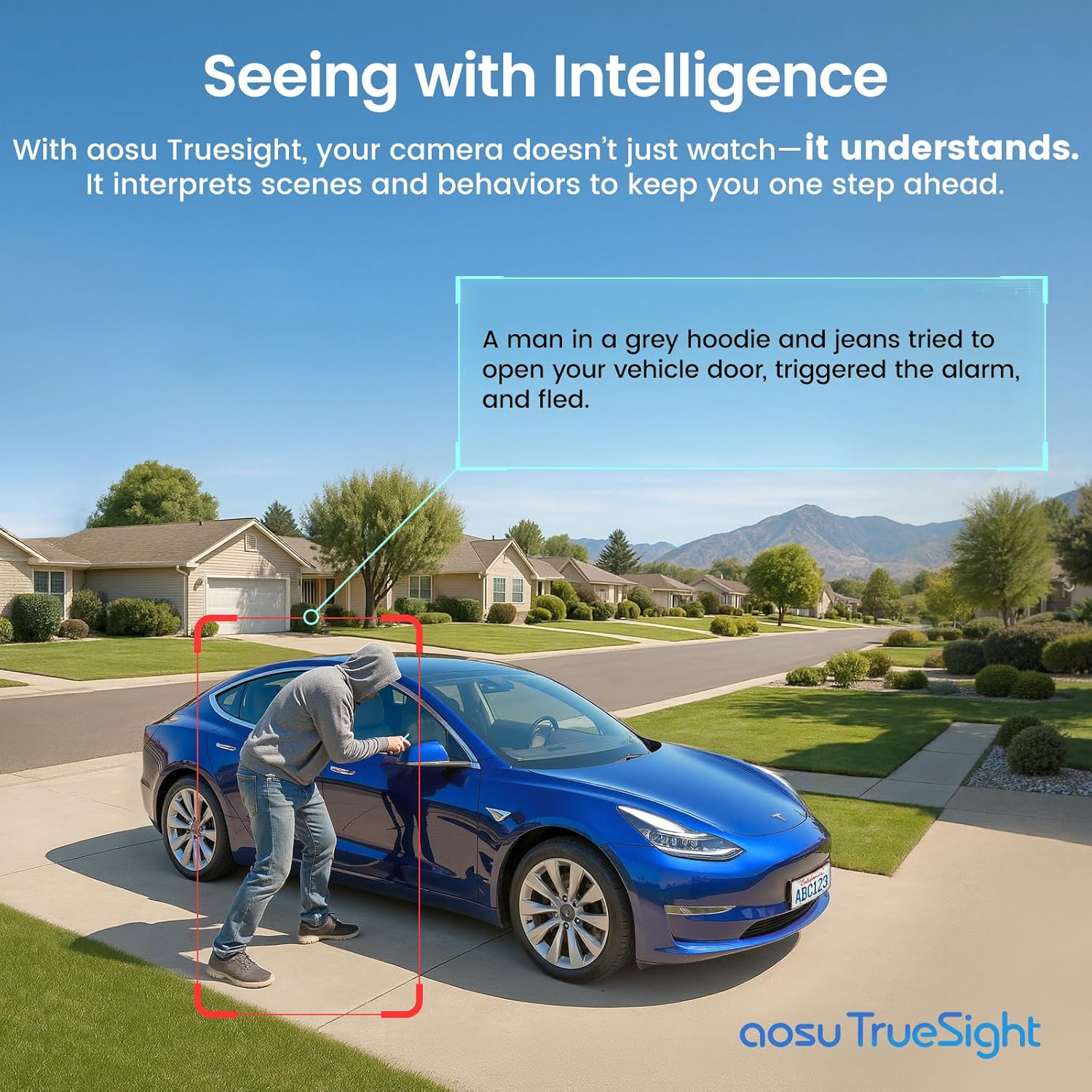
Image 4.2: The AOSU TrueSight AI intelligently interprets scenes and behaviors, providing detailed alerts.
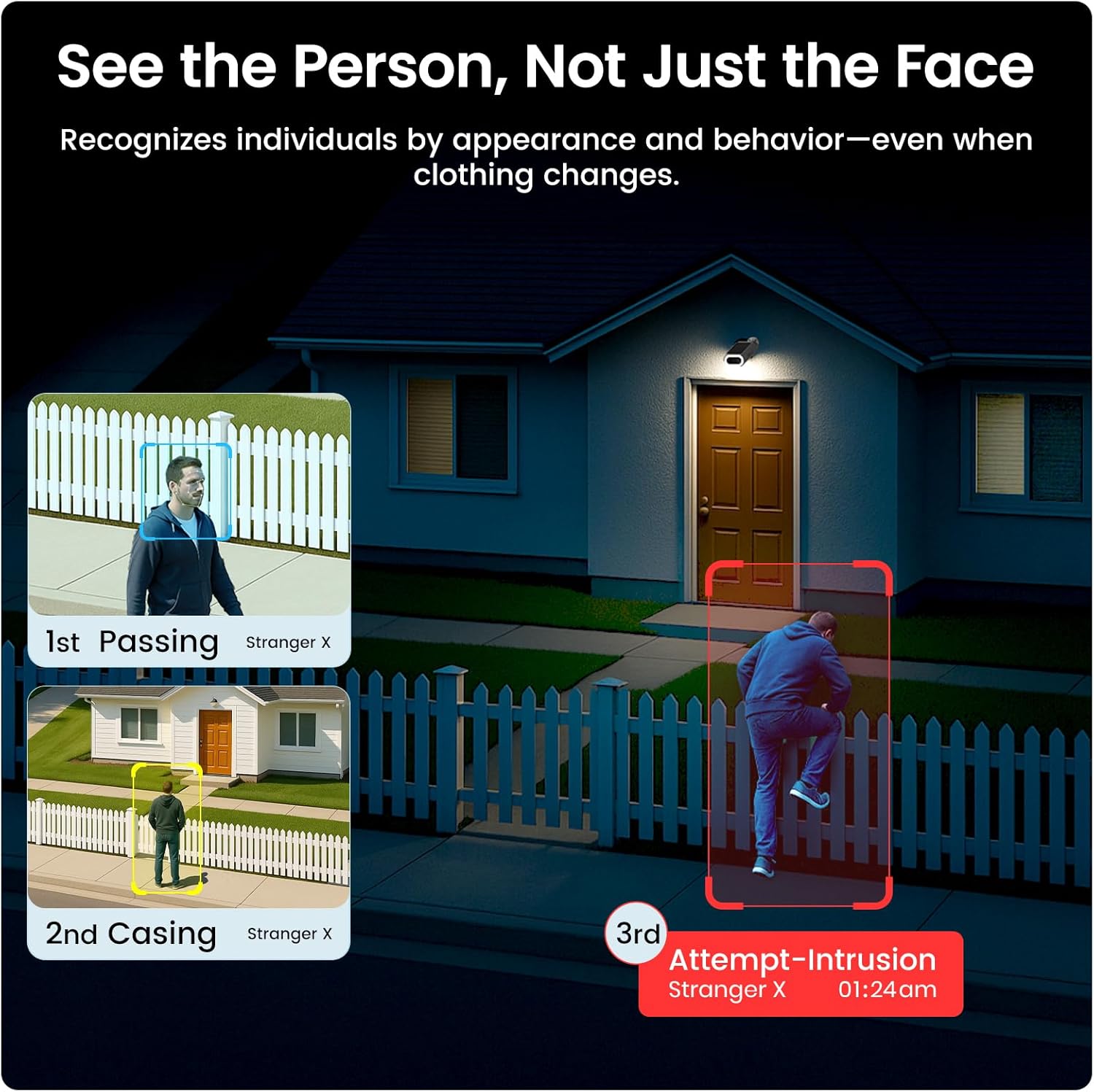
Image 4.3: The system recognizes individuals by appearance and behavior, even with clothing changes, to detect potential threats.

Image 4.4: Quick search functionality allows users to pinpoint specific moments, people, vehicles, or objects in their footage.
4.1.5 Camera-to-Camera Track & Sync
If an event spans multiple cameras, the system can track and sync the video footage, providing a single, easy-to-view compilation of the event.

Image 4.5: The system tracks and syncs events across multiple cameras for a comprehensive view.
4.2 Smart Home Integration
The AOSU system is compatible with Amazon Alexa and Google Assistant, allowing for voice control and integration into your smart home ecosystem.
5. Maintenance
5.1 Battery Management
The cameras are designed for continuous operation with dual solar power. Ensure solar panels are kept clean and free from obstructions (e.g., leaves, dirt) to maximize charging efficiency. In prolonged periods of low sunlight, the camera batteries may require manual charging via USB-C.

Image 5.1: Dual solar power ensures reliable, all-day protection for your cameras.
5.2 Storage Management
The HomeCortex base station includes 32GB of built-in local storage. For extended recording capacity, you can expand the storage up to 16TB by installing a compatible 2.5-inch HDD or SSD (not included).
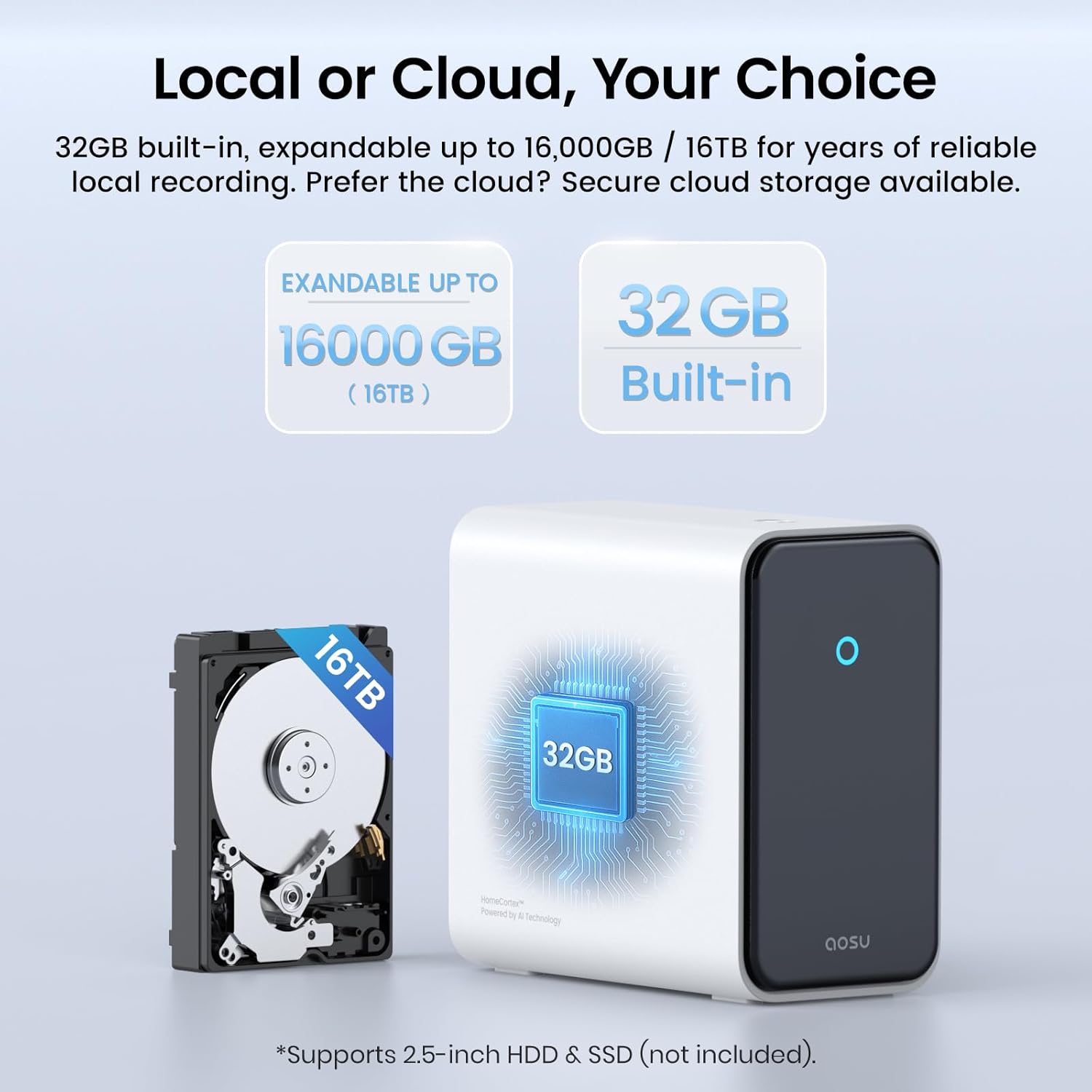
Image 5.2: The HomeCortex offers 32GB built-in storage, expandable up to 16TB with an optional HDD/SSD.
5.3 Cleaning
Periodically clean the camera lenses and solar panels with a soft, damp cloth to ensure clear image quality and efficient solar charging. Avoid using harsh chemicals.
6. Troubleshooting
If you encounter issues with your AOSU security system, refer to the following common troubleshooting steps:
- No Power/Charging Issues: Ensure solar panels are clean and receiving direct sunlight. Verify USB-C charging if applicable. Check HomeCortex power connection.
- No Video Feed: Check Wi-Fi connectivity between cameras and HomeCortex. Ensure HomeCortex is connected to the internet. Restart the camera and HomeCortex.
- Poor Video Quality: Clean camera lenses. Ensure cameras are mounted securely and not vibrating. Check network stability.
- Motion Detection Not Working: Verify motion detection settings in the AOSU app. Ensure the camera's field of view is clear.
- App Connectivity Issues: Ensure your smartphone has a stable internet connection. Restart the AOSU app.
For further assistance, please contact AOSU customer support.
7. Specifications
| Feature | Specification |
|---|---|
| Model Number | C8S2EA11 |
| Video Capture Resolution | 4K Ultra HD |
| Viewing Angle | 130 Degrees |
| Frame Rate | 15 frames per second |
| Zoom Type | Digital Zoom (6x) |
| Power Source | Solar Powered, Battery Powered |
| Connectivity Technology | Wireless (Wi-Fi) |
| Indoor/Outdoor Usage | Outdoor |
| International Protection Rating | IP65 |
| Local Storage | 32GB Built-in, Expandable up to 16TB (2.5-inch HDD/SSD) |
| AI Features | HomeCortex AI, TrueSight AI (Face Recognition, Behavior Detection, Vehicle Identification, Wildlife Alerts) |
| Compatible Devices | Smartphone, Amazon Alexa, Google Assistant |
| Product Dimensions | 16.18 x 9.37 x 6.42 inches |
| Item Weight | 9.06 pounds |
8. Warranty and Support
8.1 Warranty Information
AOSU products typically come with a limited warranty covering manufacturing defects. Please refer to the warranty card included in your package or visit the official AOSU website for specific warranty terms and conditions.
8.2 Customer Support
For technical support, product inquiries, or warranty claims, please contact AOSU customer support through the following channels:
- Official Website: Visit the AOSU Store on Amazon for product information and support resources.
- In-App Support: Access support options directly within the AOSU mobile application.