
Tenda R10
Tenda N300 WiFi Range Extender (Model R10-BK) User Manual
Model: R10-BK | Brand: Tenda
1. Introduction
The Tenda N300 WiFi Range Extender (Model R10-BK) is designed to expand your existing WiFi network coverage, eliminating dead zones and providing stable internet access throughout your home or office. This device operates on the 2.4GHz band and offers speeds up to 300Mbps. It supports both Repeater Mode (Wireless Extension) and Access Point (AP) Mode (Wired Extension) and includes a 100Mbps Ethernet port for wired connections.
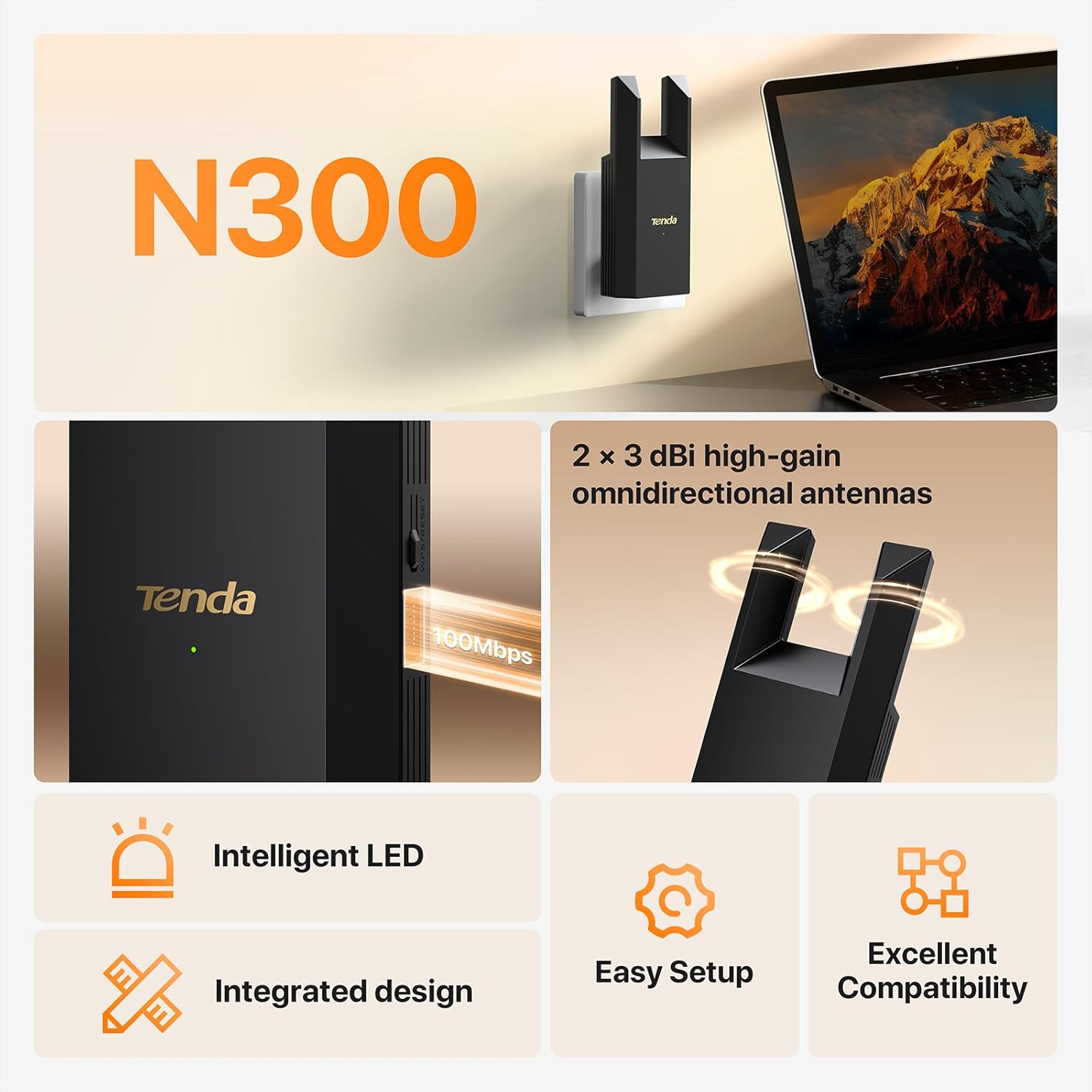
Figure 1: Tenda N300 WiFi Range Extender (Model R10-BK)
2. Package Contents
Please check the package for the following items:
- 1x Tenda WiFi Extender Body (Model R10-BK)
- 1x Instruction Manual (this document)
- 1x GPL (General Public License)
3. Setup Guide
The Tenda R10-BK extender offers an easy setup process. You can configure it for Wireless Extension (Repeater Mode) or Wired Extension (Access Point Mode).
3.1 Choosing an Optimal Location
For optimal performance, place the extender halfway between your main router and the Wi-Fi dead zone. Avoid placing it too close to the router (which may not effectively extend coverage) or too far (where it might receive a weak signal). The extender's LED indicator will help you find the best spot.

Figure 2: Optimal Extender Placement for Wireless Extension
For cross-floor network coverage, it is recommended to connect the extender to a power strip or socket on the floor where the signal needs boosting.
3.2 Powering On the Extender
Plug the Tenda R10-BK extender into a wall socket. The system will start up when the indicator blinks green.
Video 1: Tenda R10 Installation Guide. This video demonstrates the initial power-on and setup process for the Tenda R10-BK WiFi extender.
3.3 Wireless Extension (Repeater Mode) Setup
This mode extends your existing Wi-Fi network wirelessly.
- Connect your phone or PC to the extender's Wi-Fi network (e.g., "Tenda_EXT").
- Open a web browser. The extender's web UI should appear automatically. If not, access re.tenda.cn. (If using a smartphone, disable mobile data traffic).
- Tap "Start Now" to begin the quick configuration.
- Select your home router's Wi-Fi network from the list.
- Enter the password for your home router's Wi-Fi network. Tap "Next".
- Set the Wi-Fi name and password for the extender's extended network. You can choose to use the upstream Wi-Fi name/password or create a new one. Tap "Next".
- Wait for the extension process to complete. Once successful, the extender's indicator will turn solid green.
- Connect your Wi-Fi enabled devices to the new extended Wi-Fi network (e.g., "my_wifi_EXT") and enter the password to access the internet.
Video 2: Tenda R10 Wi-Fi Extender N300 - Installation. This video provides a visual guide for setting up the Tenda R10-BK in wireless extension mode.
3.4 Wired Extension (Access Point Mode) Setup
This mode allows the extender to create a new Wi-Fi network using a wired Ethernet connection from your router.
- Connect an Ethernet cable from your main router's LAN port to the Ethernet port on the Tenda R10-BK extender.
- Connect your phone or PC to the extender's Wi-Fi network (e.g., "Tenda_EXT").
- Open a web browser. The extender's web UI should appear automatically. If not, access re.tenda.cn.
- Set the Wi-Fi name and password for the extender's new network. Tap "Next".
- Wait for the configuration to complete. Once successful, the extender's indicator will turn solid green.
- Connect your Wi-Fi enabled devices to the new Wi-Fi network created by the extender and enter the password to access the internet.
Video 3: Tenda R10 Wi-Fi Extender N300 - Access Point Mode Setup. This video demonstrates the steps for configuring the Tenda R10-BK in Access Point mode.
4. Operating Modes
The Tenda R10-BK supports two primary operating modes:
- Repeater Mode (Wireless Extension): In this mode, the extender connects wirelessly to your existing router's Wi-Fi network and re-broadcasts it, extending the coverage area. This is ideal for eliminating Wi-Fi dead zones.
- Access Point (AP) Mode (Wired Extension): In this mode, the extender connects to your router via an Ethernet cable and creates a new Wi-Fi network. This is suitable for rooms that already have an Ethernet connection but need Wi-Fi coverage.

Figure 3: AP Mode and Wireless Extension Mode
5. Maintenance
- Firmware Updates: Periodically check the official Tenda website for firmware updates to ensure optimal performance and security.
- Cleaning: Keep the device clean and free from dust. Use a soft, dry cloth for cleaning. Do not use liquid cleaners.
- Placement: Ensure the extender is placed in a well-ventilated area to prevent overheating.
- Reset: If the device is not functioning correctly, you may perform a factory reset by pressing and holding the WPS/Reset button for approximately 8 seconds until the indicator light changes.
6. Troubleshooting
- No Internet Access after Setup:
- Ensure the extender's indicator light is solid green, indicating a good connection to the main router.
- Verify that your main router has internet access.
- If in Wired Extension (AP) Mode, ensure the Ethernet cable is securely connected and the upstream router is connected to the internet.
- Try moving the extender closer to your main router if the indicator is red or orange.
- Slow Speed:
- Wireless extenders improve coverage, not internet speed directly. However, improved signal stability can enhance overall performance.
- Ensure the extender is placed optimally (refer to Section 3.1).
- Minimize interference from other electronic devices.
- LED Indicator Meanings:
- Solid Green: Good connection.
- Solid Orange: Fair connection. Consider repositioning the extender closer to the router.
- Solid Red: Poor connection or too far away from the router. Reposition the extender.
- Blinking Green: Starting up or WPS pairing in progress.

Figure 4: Intelligent LED Indicators for Connection Status
7. Specifications
| Feature | Detail |
|---|---|
| Brand | Tenda |
| Model | R10-BK |
| Wireless Communication Standard | 802.11a/b/g/n |
| Data Transfer Rate | Up to 300 Mbps |
| Frequency Band Class | Single-Band (2.4 GHz) |
| Coverage Area | Up to 800 sq. ft. (Note: Specifications also mention 1200 feet, actual coverage may vary based on environment) |
| Ethernet Port | 1x 100Mbps RJ45 Port |
| Special Features | 1-Tap Setup, Access Point Mode, Dustproof, LED Indicator, MU-MIMO |
| Compatible Devices | IP Camera, Personal Computer, Router, Smart Television, Smartphone |
| Dimensions (D x W x H) | 1.26"D x 2.83"W x 6.34"H |
| UPC | 885397278245 |
8. Warranty Information
This Tenda N300 WiFi Range Extender (Model R10-BK) comes with a 3-Year Manufacturer's Warranty. Please retain your proof of purchase for warranty claims. For detailed terms and conditions, refer to the official Tenda website or contact customer support.
9. Customer Support
If you encounter any issues or have questions regarding your Tenda N300 WiFi Range Extender, please contact Tenda customer support:
- Email: support.usa@tenda.cn
- Phone: +1 800-570-5892
For additional resources and FAQs, visit the official Tenda website.
Ask a question about this manual
Ask about setup, troubleshooting, compatibility, parts, safety, or missing instructions. Manuals+ will review the question and use this page’s manual context to help answer it.