
EZVIZ H6C Pro
EZVIZ H6C Pro 1080p Wi-Fi Pan & Tilt Smart Camera User Manual
Model: H6C Pro
Introduction
This manual provides detailed instructions for the installation, operation, and maintenance of your EZVIZ H6C Pro 1080p Wi-Fi Pan & Tilt Smart Camera. Please read this manual carefully before using the product and retain it for future reference.
Product Overview
Familiarize yourself with the components and features of your EZVIZ H6C Pro camera.
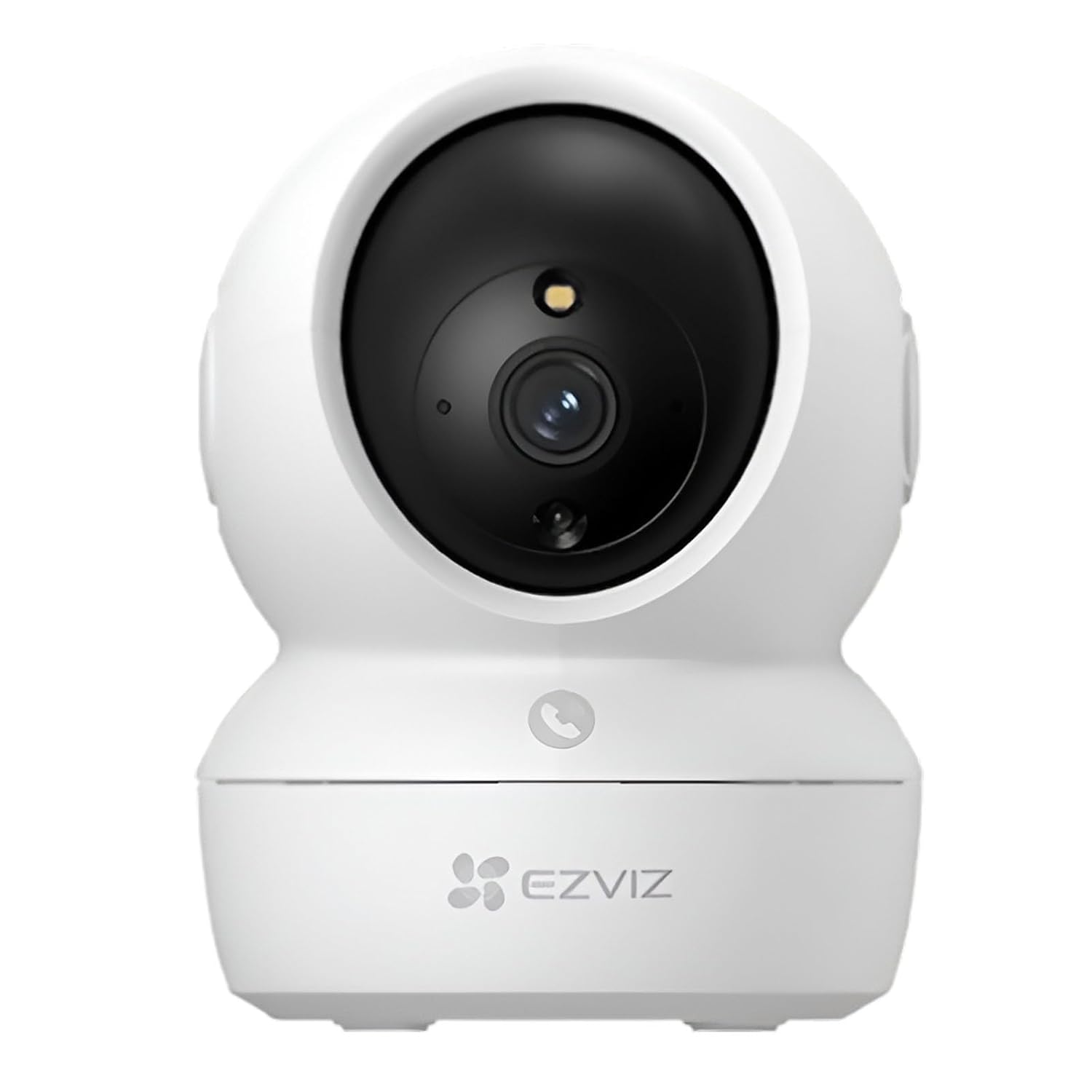
Figure 1.1: Front view of the EZVIZ H6C Pro camera, showing the lens, indicator light, and microphone.

Figure 1.2: Angled view of the EZVIZ H6C Pro camera, highlighting its compact design and pan-tilt base.

Figure 1.3: The One-Touch Call Button located on the front of the camera, enabling quick two-way communication.

Figure 1.4: Illustration of the camera's 360-degree horizontal pan and vertical tilt functionality, providing comprehensive room coverage.

Figure 1.5: Demonstration of the camera's Smart Color Night Vision, showing both color and traditional black-and-white infrared views in low light conditions.

Figure 1.6: A smartphone display illustrating the Smart Tracking feature, where the camera automatically follows detected motion.

Figure 1.7: Comparison of the camera's Sleep Mode, showing the monitoring status when off and the privacy protection when on.
Setup
- Unpack the Camera: Carefully remove the camera and all accessories from the packaging. Ensure all components are present: camera unit, power adapter, mounting plate, screw kit, and quick start guide.
- Power On: Connect the power adapter to the camera's power port and plug it into a power outlet. The camera will power on and the indicator light will flash blue.
- Download EZVIZ App: Download the EZVIZ app from the App Store (iOS) or Google Play Store (Android).
- Create Account: Open the EZVIZ app and follow the on-screen instructions to create a new user account or log in to an existing one.
- Add Device: In the EZVIZ app, tap the "+" icon to add a new device. Scan the QR code located on the bottom of the camera or on the cover of the quick start guide.
- Network Configuration: Follow the app's instructions to connect the camera to your Wi-Fi network. Ensure your Wi-Fi network is 2.4 GHz.
- Mounting (Optional): If mounting, choose a suitable location. Use the provided mounting plate as a template to drill holes. Secure the mounting plate with screws, then attach the camera to the plate.
Operating Instructions
Live View and Pan/Tilt Control
Open the EZVIZ app and select your H6C Pro camera from the device list to access the live view. Use the on-screen joystick or swipe gestures to control the camera's pan (horizontal) and tilt (vertical) movements.
Two-Way Talk and Calling
- Two-Way Talk: In the live view, tap the microphone icon to initiate two-way audio. Speak into your phone's microphone to communicate through the camera's speaker. Tap the icon again to end.
- One-Touch Call Button: A person near the camera can press the call button on the camera itself to initiate a call to your EZVIZ app. You will receive a notification and can answer the call directly from the app.
Motion Tracking
Enable the "Smart Tracking" feature in the camera settings within the EZVIZ app. When enabled, the camera will automatically detect and follow moving objects within its field of view, ensuring continuous recording of the activity.
Night Vision
The H6C Pro automatically switches to night vision mode in low-light conditions. You can configure the night vision mode (e.g., Smart Color Night Vision, Black & White) in the camera settings to suit your preferences.
Storage Options
- MicroSD Card: Insert a microSD card (up to 256GB, not included) into the designated slot on the camera for local storage of recordings.
- EZVIZ CloudPlay: Subscribe to EZVIZ CloudPlay for encrypted cloud storage of your video recordings. Access recordings anytime, anywhere via the app.
Maintenance
- Cleaning: Use a soft, dry cloth to clean the camera lens and body. Do not use harsh chemicals or abrasive cleaners.
- Firmware Updates: Regularly check for and install firmware updates via the EZVIZ app to ensure optimal performance and security.
- Power Cycle: If the camera becomes unresponsive, disconnect the power adapter, wait 10 seconds, and then reconnect it to power cycle the device.
Troubleshooting
| Problem | Possible Cause | Solution |
|---|---|---|
| Camera offline | No power; Wi-Fi disconnected; Router issue. | Check power connection; Restart camera and router; Ensure camera is within Wi-Fi range. |
| Poor video quality | Insufficient bandwidth; Dirty lens; Low light. | Check internet speed; Clean the lens; Ensure adequate lighting or enable night vision. |
| Motion detection not working | Feature disabled; Sensitivity too low; Obstructions. | Enable motion detection in app settings; Adjust sensitivity; Clear obstructions from camera's view. |
| Two-way audio issues | Microphone/speaker muted; App permissions; Network latency. | Check audio settings in app; Grant microphone permissions; Ensure stable network connection. |
Specifications
| Model | H6C Pro |
| Resolution | 1080p Full HD (1920 x 1080) |
| Pan/Tilt Range | Pan: 360°, Tilt: 75° |
| Night Vision Distance | Up to 10 meters (33 feet) |
| Wi-Fi Standard | IEEE 802.11b/g/n (2.4 GHz) |
| Local Storage | MicroSD card slot (up to 256GB) |
| Audio | Two-way talk with built-in microphone and speaker |
| Compatibility | Amazon Alexa, Google Assistant |
Warranty and Support
For warranty information, please refer to the warranty card included with your product or visit the official EZVIZ website. For technical support, frequently asked questions, and additional resources, please visit the EZVIZ support page or contact their customer service directly.
EZVIZ Support Website: www.ezviz.com/support
Related Documents - H6C Pro
 |
EZVIZ HB90 2K+ Dual-Lens Wi-Fi Pan&Tilt Camera User Manual This user manual provides comprehensive instructions for setting up, installing, and using the EZVIZ HB90 2K+ Dual-Lens Wi-Fi Pan&Tilt Camera. It covers device basics, app integration, camera installation, live view, settings, and smart home connectivity with Amazon Alexa and Google Assistant. |
 |
EZVIZ C8C Lite Camera: Setup, Installation, and User Guide Comprehensive guide to setting up and installing the EZVIZ C8C Lite security camera. Covers package contents, basic functions, power-on, internet connection (Wi-Fi/wired), SD card installation, and mounting options. |
 |
EZVIZ E6 Security Camera User Manual User manual for the EZVIZ E6 Security Camera, covering setup, installation, operations, and integration with smart assistants like Amazon Alexa and Google Assistant. Includes troubleshooting and product usage initiatives. |
 |
EZVIZ H90 2K+ Wi-Fi Pan & Tilt Camera User Manual | Installation, Setup, and Features Comprehensive user manual for the EZVIZ H90 2K+ Wi-Fi Pan & Tilt Camera. Includes setup, installation guide, app operations, troubleshooting, and smart home integration with Alexa and Google Assistant. |
 |
EZVIZ H8c 4G LTE 2K Camera User Manual User manual for the EZVIZ H8c 4G LTE camera, covering setup, installation, device management, and troubleshooting. |
 |
EZVIZ Smart Camera User Manual: Setup, Installation, and Operation Comprehensive user manual for EZVIZ smart cameras, covering setup, installation, basic functions, advanced settings, connectivity with Amazon Alexa and Google Assistant, and frequently asked questions. Learn how to get the most out of your EZVIZ device. |