
1. Introduction
This manual provides detailed instructions for the installation, operation, and maintenance of your EKAT 4G+64G Android 15 Car Stereo. Designed for select Audi A4, S4, RS4 (2002-2008) and Seat Exeo models, this unit enhances your driving experience with advanced features like Wireless Carplay, Android Auto, GPS navigation, and a high-definition touch screen.
Please read this manual thoroughly before installation and use to ensure proper function and to maximize the benefits of your new car stereo system.
2. Vehicle Compatibility
This car stereo is compatible with the following vehicle models:
- Audi A4 (2002-2008)
- Audi S4 (2002-2008)
- Audi RS4 (2002-2008)
- Seat Exeo (Compatible with models within the 2002-2008 Audi A4 platform range)
Important: Before installation, confirm your vehicle's original car system configuration, year, and central control panel layout to ensure compatibility. Incompatibility may arise if the original system differs significantly.

Image: Visual guide for checking car stereo compatibility. Shows examples of compatible and incompatible dashboard layouts for installation.
3. What's in the Box
Upon unpacking, please verify that all the following components are included:
- EKAT Android Car Radio Unit
- Installation Cable (Power Cable, RCA Cable, 3.8Pin Canbus Plug, USB Cables)
- Rear Camera
- GPS Antenna
- Instruction Manual
- Accessories (e.g., mounting brackets, screws)

Image: Diagram showing the car stereo unit and all included accessories and cables in the package.
4. Setup & Installation
Installation of this car stereo requires technical knowledge and experience with automotive electrical systems. It is highly recommended to have the unit installed by a qualified professional to prevent damage to the unit or your vehicle.
4.1 Pre-Installation Checklist
- Ensure the vehicle's ignition is off and the battery is disconnected.
- Verify all components listed in "What's in the Box" are present.
- Confirm compatibility with your vehicle's dashboard and wiring harness.
4.2 Wiring Diagram Overview
Refer to the detailed wiring diagram provided below and in the included instruction manual for correct connections. Incorrect wiring can cause damage to the unit or vehicle electronics.

Image: Detailed diagram illustrating the various cables and their connection points for the car stereo, including power, RCA, USB, GPS, and camera inputs.
4.3 Post-Installation
- Reconnect the vehicle battery.
- Turn on the ignition and power on the car stereo.
- Perform initial setup steps as prompted on the screen, including language selection and time zone.
- Test all functions: radio, audio playback, GPS, Bluetooth, Carplay/Android Auto, and rear camera.
5. Operating Instructions
This section covers the basic operation of your EKAT Android Car Stereo.
5.1 Touch Screen Interface
The unit features a 7-inch IPS touch screen for intuitive control. Navigate through menus, select applications, and adjust settings by tapping or swiping on the display.

Image: Illustration of the vibrant and clear display of the 7-inch IPS screen, highlighting wide viewing angles and superior color accuracy.

Image: Examples of various user interface (UI) themes available on the car stereo, demonstrating customization options.
5.2 Wireless Carplay & Android Auto
Connect your smartphone wirelessly to access navigation, make calls, send messages, and play music through the car stereo's display. This feature provides a safer way to use your phone while driving.
- Ensure Bluetooth and Wi-Fi are enabled on your smartphone.
- On the car stereo, select the Carplay or Android Auto application.
- Follow the on-screen prompts to pair your device.

Image: Display showing the car stereo screen with various smartphone applications integrated via Wireless Carplay or Android Auto, demonstrating wireless connectivity.
5.3 GPS Navigation & WiFi Connectivity
The unit supports both online and offline GPS navigation. Connect to a mobile hotspot via WiFi for online navigation and internet access. For offline navigation, download maps in advance.
- Online Navigation: Go to Settings > Wi-Fi, connect to your mobile hotspot. Open a navigation app (e.g., Google Maps).
- Offline Navigation: Download map data for your region using a Wi-Fi connection. Select the offline navigation app.
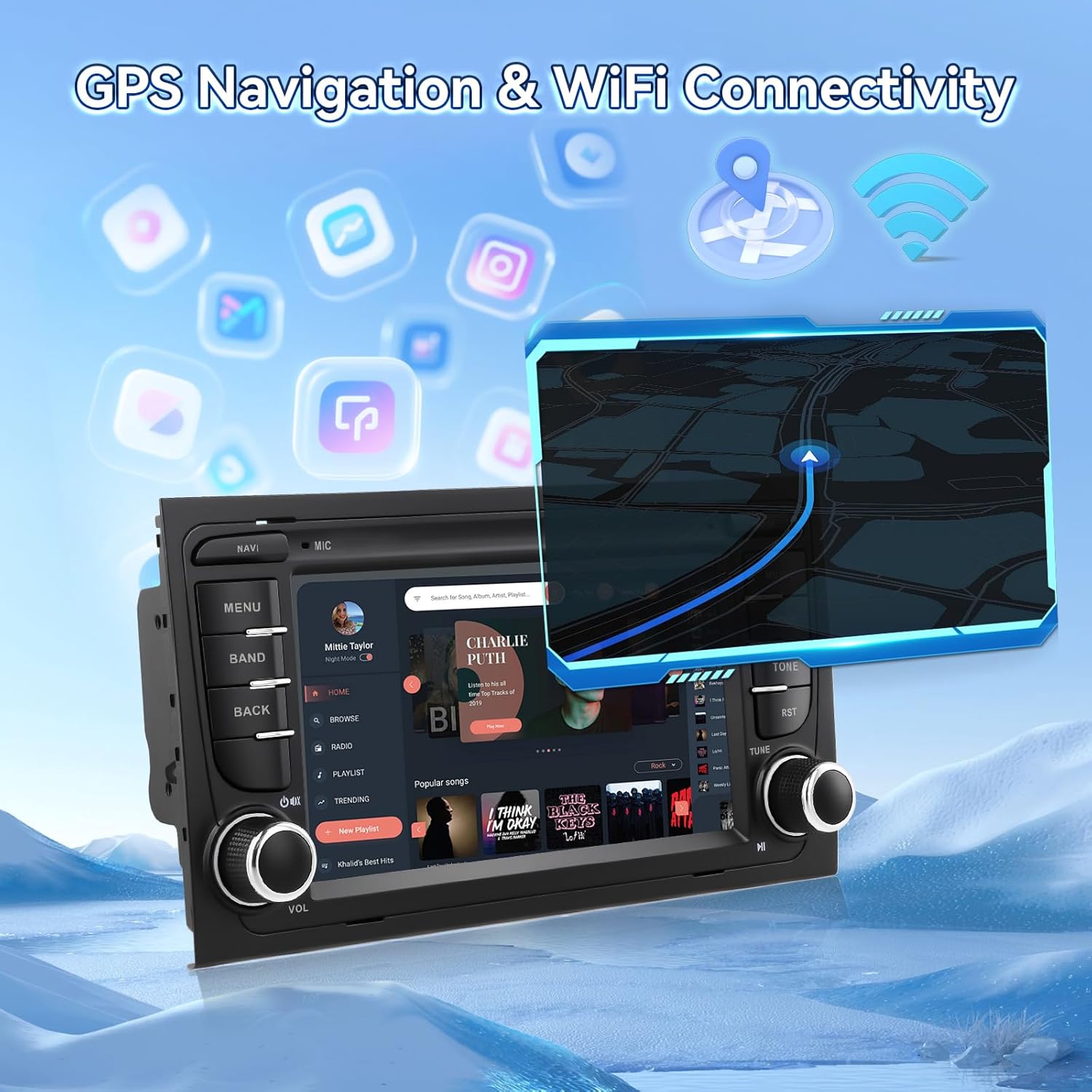
Image: Car stereo display showing GPS navigation with a map and route, alongside icons representing WiFi connectivity and various online applications.
5.4 FM/RDS Radio
Tune into your favorite radio stations, listen to news, and weather forecasts using the built-in FM/RDS radio tuner.
- Select the "Radio" application from the main menu.
- Use the touch screen to scan for stations or manually tune to a specific frequency.
- Save your preferred stations as presets for quick access.

Image: Car stereo screen displaying the FM/RDS radio interface, showing current frequency and options for tuning and saving presets.
5.5 Bluetooth Functionality
Connect your phone or other Bluetooth devices for hands-free calling, music playback, and data transfer. This reduces cable clutter and enhances driving safety.
- Go to Settings > Bluetooth on the car stereo.
- Enable Bluetooth on your device and search for the car stereo.
- Pair the devices using the provided PIN (usually 0000 or 1234).

Image: Car stereo screen showing the Bluetooth interface with options for making calls and playing music, alongside images of smartphones connected via Bluetooth.
5.6 Rear View Camera & Steering Wheel Control (SWC)
The system supports an AHD rear view camera for safer parking and reversing. It also integrates with your vehicle's steering wheel controls for convenient operation without taking your hands off the wheel.
- Rear View Camera: When the vehicle is shifted into reverse, the display will automatically switch to the rear camera view.
- SWC: Access the Steering Wheel Control settings in the system menu to program the buttons on your steering wheel to control stereo functions (e.g., volume, track skip).

Image: Car stereo display showing the rear view camera feed with parking guidelines, and a separate image illustrating the steering wheel control learning interface.
6. Key Features
6.1 32-Band EQ & DSP
Customize your audio experience with the built-in 32-band equalizer and Digital Sound Processor (DSP). Adjust frequency settings to match your preferences and optimize sound quality within your vehicle's acoustics.

Image: Car stereo screen displaying the 32-band equalizer interface with adjustable frequency sliders and DSP settings for sound customization.
6.2 Split-Screen Function
The split-screen feature allows you to run and view two applications simultaneously on the display. For example, use navigation on one side while controlling music on the other, enhancing multitasking capability during your drives.

Image: Car stereo screen demonstrating the split-screen feature, with a navigation app on one side and a music player on the other.
6.3 OBD2 Support
The unit supports On-Board Diagnostics (OBD2) functionality, providing real-time monitoring of your vehicle's performance and health. This helps identify issues early, offering alerts for engine problems, fuel efficiency, and more, ensuring timely maintenance.

Image: Car stereo screen displaying OBD2 diagnostic data, such as engine parameters and performance metrics, with an OBD2 scanner device shown.
6.4 DVR Support
The Digital Video Recorder (DVR) function allows you to record your driving journeys, providing valuable evidence in case of accidents. It enhances safety by documenting events on the road and can assist with insurance claims.

Image: Car stereo screen showing a live feed from a connected DVR camera, indicating recording in progress, with a separate image of a dash camera.
7. Maintenance
Proper maintenance ensures the longevity and optimal performance of your car stereo.
- Screen Cleaning: Use a soft, lint-free cloth slightly dampened with water or a screen cleaner specifically designed for electronic displays. Avoid harsh chemicals or abrasive materials.
- Software Updates: Periodically check for available software updates through the system settings or the manufacturer's website to ensure you have the latest features and bug fixes.
- Environmental Care: Avoid exposing the unit to extreme temperatures, direct sunlight for prolonged periods, or excessive moisture.
- Cable Connections: Ensure all cables are securely connected. Loose connections can lead to intermittent issues.
8. Troubleshooting
If you encounter issues with your car stereo, refer to the following common problems and solutions:
| Problem | Possible Cause | Solution |
|---|---|---|
| No Power | Loose power connection, blown fuse, vehicle battery issue. | Check power cables and fuse. Ensure battery is connected and charged. |
| No Sound | Volume too low, mute activated, loose speaker wires, incorrect audio settings. | Increase volume, check mute status, verify speaker connections, adjust audio settings. |
| GPS Not Working | GPS antenna not connected, poor satellite signal, outdated maps, no internet for online maps. | Ensure GPS antenna is properly installed and has a clear view of the sky. Update maps. Connect to WiFi for online navigation. |
| Carplay/Android Auto Disconnects | Unstable Wi-Fi/Bluetooth connection, phone software issue, interference. | Restart phone and car stereo. Re-pair the device. Check for phone OS updates. |
| Touch Screen Unresponsive | System freeze, temporary software glitch. | Perform a soft reset (refer to the main manual for specific reset instructions). If persistent, contact support. |
If the problem persists after attempting these solutions, please contact EKAT customer support for further assistance.
9. Specifications
| Feature | Detail |
|---|---|
| Brand | EKAT |
| Model Number | B0FLJ3FQFQ |
| Operating System | Android 15 |
| RAM | 4GB |
| ROM (Internal Storage) | 64GB |
| Display Size | 7 Inch |
| Display Type | IPS 1280*720 HD Touch Screen |
| Connectivity | Bluetooth, Wi-Fi (5G), USB |
| Special Features | Wireless Carplay, Android Auto, GPS Navigation, AHD Rear View Camera Support, Steering Wheel Control (SWC), 32-Band EQ, DSP, FM RDS Radio, Split Screen, OBD2 Support, DVR Support |
| Audio Output Mode | Stereo |
| Supported Internet Services | Pandora, Spotify (and other Android apps) |
| Control Method | Touch |
10. Warranty & Support
10.1 Warranty Information
This EKAT car stereo comes with a 2-year warranty from the date of purchase. This warranty covers manufacturing defects and malfunctions under normal use. It does not cover damage caused by improper installation, misuse, accidents, or unauthorized modifications.
Please retain your proof of purchase for warranty claims.
10.2 Customer Support
For technical assistance, troubleshooting not covered in this manual, or warranty inquiries, please contact EKAT customer support. Refer to the contact information provided with your product packaging or visit the official EKAT website.
When contacting support, please have your product model number (B0FLJ3FQFQ) and purchase date ready.
Image: An illustrative image showing how to find seller contact information on an e-commerce platform, useful for support inquiries.