
1. Getting Started
This section provides essential information to begin using your Fitifun M10 Android 13 Tablet.
Package Contents
Before proceeding, please verify that all items are present in your package:
- Fitifun M10 Android 13 Tablet
- Protective Case
- Wireless Keyboard
- Wireless Mouse
- Stylus Pen
- USB Type-C Charging Cable
- Power Adapter (may vary by region)

Image: The Fitifun M10 Android 13 Tablet displayed with its included accessories: a protective case, wireless keyboard, wireless mouse, stylus pen, and charging cable.
Charging the Tablet
For optimal performance, fully charge the tablet before first use. Connect the USB Type-C cable to the tablet's charging port and the other end to the power adapter. Plug the adapter into a wall outlet. The battery indicator on the screen will show charging status.
Powering On/Off
- To Power On: Press and hold the Power button located on the side of the tablet until the Fitifun logo appears on the screen.
- To Power Off: Press and hold the Power button until a power menu appears. Select 'Power Off' from the options.
- To Restart: From the power menu, select 'Restart'.
2. Setup and Connectivity
Initial Setup Wizard
Upon first power-on, the tablet will guide you through an initial setup process. This includes selecting your language, connecting to a Wi-Fi network, and setting up your Google account.
Connecting to Wi-Fi
The Fitifun M10 supports 5G/2.4G dual-band Wi-Fi 6 for stable and fast internet access.
- Go to Settings > Network & internet > Wi-Fi.
- Toggle Wi-Fi On.
- Select your desired Wi-Fi network from the list of available networks.
- Enter the network password if prompted, then tap Connect.
Connecting Accessories (Keyboard, Mouse, Stylus)
The included keyboard, mouse, and stylus connect wirelessly, typically via Bluetooth. Refer to the individual accessory manuals for specific pairing instructions. Generally, you will need to:
- Ensure the accessory is charged and in pairing mode.
- On your tablet, go to Settings > Connected devices > Pair new device.
- Select the accessory from the list of available devices and follow any on-screen prompts.

Image: The Fitifun M10 Tablet set up with its wireless keyboard and mouse, demonstrating a typical desktop-like usage scenario.
3. Operating Your Tablet
Android 13 Operating System
Your Fitifun M10 tablet runs on the Android 13 operating system, offering an intuitive user interface, enhanced privacy features, and improved performance.

Image: The Fitifun M10 Tablet showcasing the Android 13 operating system interface on its screen.
Basic Navigation
- Touch Gestures: Swipe, tap, pinch-to-zoom are standard touch gestures for navigating the interface.
- Home Screen: Tap the home button or swipe up from the bottom to return to the home screen.
- App Drawer: Swipe up from the home screen to access all installed applications.
- Notifications & Quick Settings: Swipe down from the top of the screen to view notifications and quick settings toggles.
Storage Management
The tablet comes with 64GB of internal storage and 7GB of RAM (3GB physical + 4GB virtual memory). You can expand the storage up to 1TB using a microSD card.
- Inserting a MicroSD Card: Locate the microSD card slot on the side of the tablet. Carefully insert the card until it clicks into place.
- Managing Storage: Go to Settings > Storage to view storage usage and manage files.
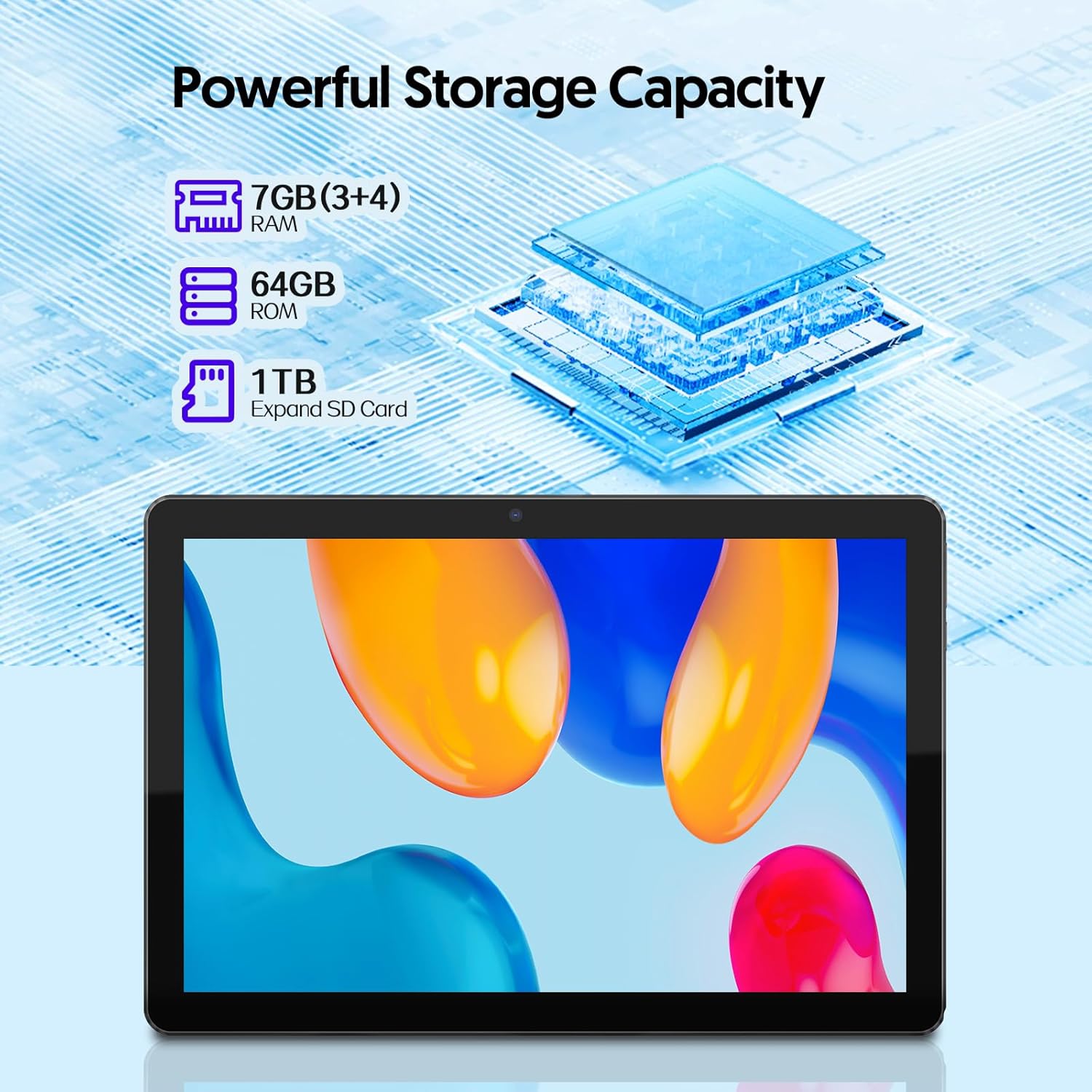
Image: A graphic illustrating the Fitifun M10 Tablet's storage capabilities, including 7GB RAM, 64GB ROM, and support for 1TB SD card expansion.
Camera Usage
The tablet features an 8MP rear camera and a 2MP front camera for photos and video calls.
- Open the Camera application from your home screen or app drawer.
- Tap the camera icon to switch between front and rear cameras.
- Tap the shutter button to take a photo or the video button to record.

Image: A visual representation of the Fitifun M10 Tablet's camera specifications, highlighting its 2MP front camera and 8MP rear camera with example photos.
4. Maintenance and Care
Battery Care
The tablet is equipped with a 6000mAh battery, providing up to 12 hours of usage depending on activity. To prolong battery life:
- Avoid extreme temperatures.
- Do not let the battery fully discharge frequently.
- Use the original charger or a certified compatible charger.
- Adjust screen brightness and disable unused features (Wi-Fi, Bluetooth) to conserve power.

Image: The Fitifun M10 Tablet with a prominent display of its 6000mAh high-capacity battery, illustrating its long-lasting power.
Screen Cleaning
To clean the IPS display, use a soft, lint-free cloth. For stubborn smudges, slightly dampen the cloth with water or a screen-specific cleaning solution. Avoid harsh chemicals or abrasive materials.
Software Updates
Periodically check for system updates to ensure your tablet has the latest features and security patches. Go to Settings > System > System update.
5. Troubleshooting
This section addresses common issues you might encounter with your Fitifun M10 tablet.
Device Not Powering On
- Ensure the tablet is sufficiently charged. Connect it to the charger for at least 30 minutes.
- Press and hold the Power button for 10-15 seconds to perform a forced restart.
Wi-Fi Connection Issues
- Verify that Wi-Fi is enabled in Settings.
- Restart your Wi-Fi router and the tablet.
- Forget the network in Settings > Network & internet > Wi-Fi, then reconnect.
- Ensure you are within range of the Wi-Fi signal.
Slow Performance
- Close unused applications running in the background.
- Clear cache for frequently used apps in Settings > Apps > [App Name] > Storage & cache.
- Ensure sufficient free storage space. Consider moving large files to an SD card or cloud storage.
- Restart the tablet periodically.
Battery Draining Quickly
- Reduce screen brightness.
- Disable Wi-Fi, Bluetooth, and GPS when not in use.
- Identify and close power-intensive applications.
- Check for system updates, as they often include battery optimizations.
6. Specifications
Detailed technical specifications for the Fitifun M10 Android 13 Tablet:
| Feature | Specification |
|---|---|
| Model Name | M10 |
| Operating System | Android 13 |
| Screen Size | 10.1 Inches |
| Screen Resolution | 1280 x 800 Pixels (IPS Display) |
| Processor | Quad-Core (1.8GHz) |
| RAM | 7GB (3GB physical + 4GB virtual) |
| Internal Storage | 64GB |
| Expandable Storage | Up to 1TB via MicroSD Card |
| Wi-Fi Support | 5G/2.4G Dual-Band Wi-Fi 6 |
| Rear Camera | 8MP |
| Front Camera | 2MP |
| Battery Capacity | 6000mAh |
| Audio | Dual Speakers |
| Dimensions (LxWxH) | 30 x 30 x 6 inches |
| Item Weight | 2.97 pounds |
7. Warranty and Support
For information regarding warranty coverage, technical support, or service inquiries, please refer to the official Fitifun website or contact their customer service directly. Details are typically provided with your purchase documentation or on the manufacturer's product support pages.