
1. Introduction
This manual provides essential instructions for the safe and efficient use of your Fitifun M10 Android 14 Tablet PC. It covers setup, operation, maintenance, and troubleshooting to ensure optimal performance of your device. The Fitifun M10 is a 10-inch tablet featuring the Android 14 operating system, an Octa-Core processor, 8GB RAM, 64GB internal storage (expandable up to 1TB), a 6000mAh battery, and Google Mobile Services (GMS) certification. It also includes a keyboard, mouse, pen, and case for enhanced versatility.
2. Package Contents
Please verify that all items listed below are present in your package:
- Fitifun M10 Android 14 Tablet PC
- Bluetooth Keyboard
- Wireless Mouse
- Stylus Pen
- Protective Case
- USB Charging Cable
- Power Adapter (not explicitly listed but implied for charging)
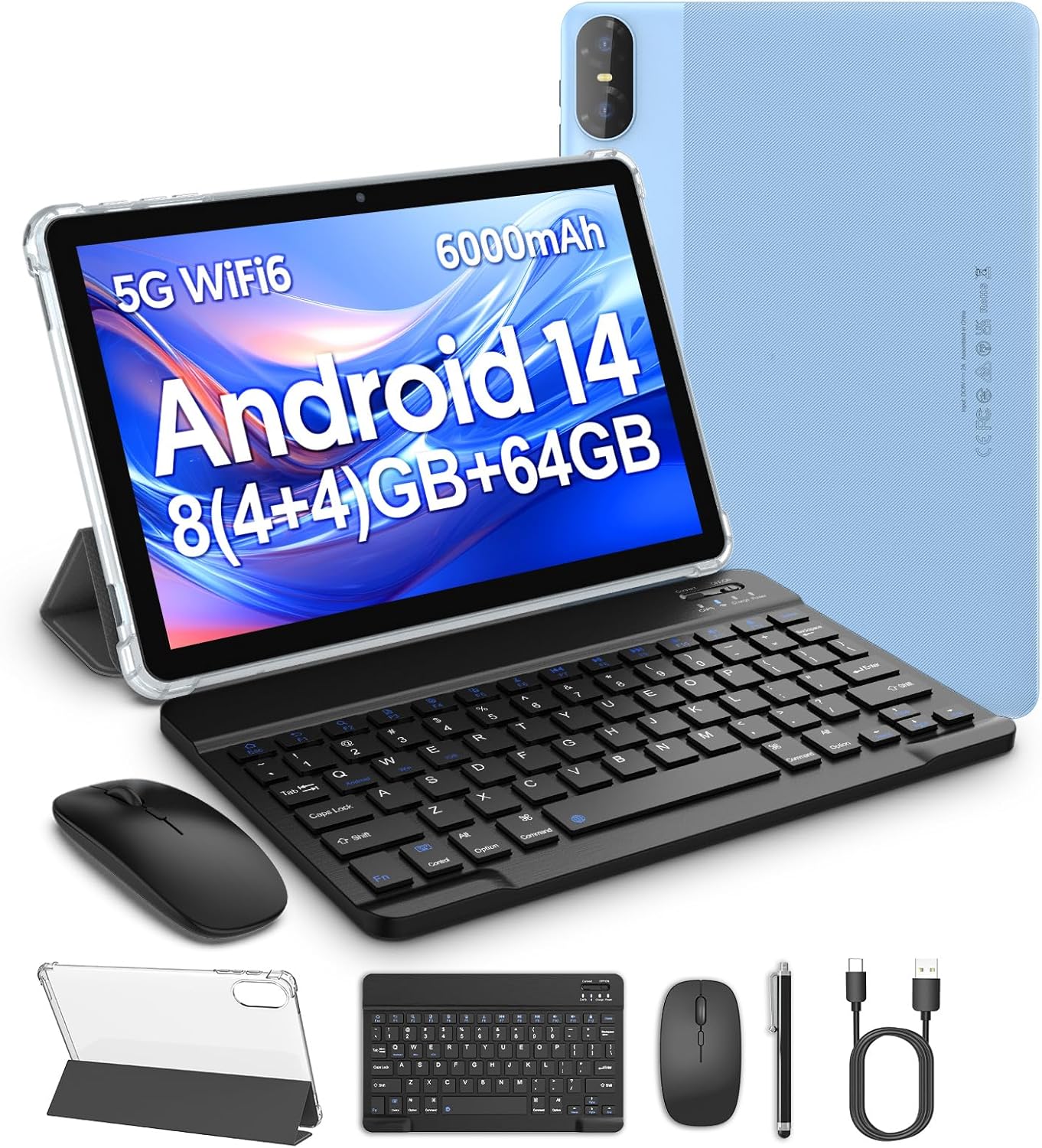
Image 2.1: The Fitifun M10 Tablet PC shown with its complete set of accessories, including the keyboard, mouse, pen, and protective case.
3. Device Overview
Familiarize yourself with the physical components of your tablet.
3.1 Front View
- Display: 10-inch HD screen (1280x800 pixels).
- Front Camera: 2MP camera for video calls and selfies.
3.2 Rear View
- Rear Camera: 8MP camera with autofocus and flash.
- Speaker: Audio output.
3.3 Side Views (Ports and Buttons)
- Power Button: Press and hold to power on/off or restart. Press briefly to sleep/wake.
- Volume Buttons: Adjust audio volume.
- USB-C Port: For charging and data transfer.
- MicroSD Card Slot: For storage expansion up to 1TB.
- 3.5mm Headphone Jack: For audio output.

Image 3.1: Rear view of the Fitifun M10 Tablet PC, showcasing the 8MP rear camera and the tablet's design.
4. Setup
4.1 Initial Charging
Before first use, fully charge the tablet. Connect the USB charging cable to the tablet's USB-C port and the other end to the power adapter. Plug the adapter into a wall outlet. The battery indicator on the screen will show charging status. A full charge typically takes several hours.

Image 4.1: The Fitifun M10 Tablet PC being charged via its USB-C port, illustrating the large 6000mAh battery capacity.
4.2 Powering On/Off
- To Power On: Press and hold the Power button until the Fitifun logo appears on the screen.
- To Power Off: Press and hold the Power button until the power options menu appears. Select 'Power off'.
- To Restart: Press and hold the Power button until the power options menu appears. Select 'Restart'.
4.3 Initial Setup Wizard
Upon first power-on, the tablet will guide you through the initial setup process. Follow the on-screen prompts to:
- Select your language.
- Connect to a Wi-Fi network (essential for Google GMS setup).
- Sign in with your Google account or create a new one.
- Set up screen lock (PIN, pattern, or password).
- Review and accept Google services and privacy settings.
4.4 Connecting Accessories
The Fitifun M10 supports Bluetooth accessories for a 2-in-1 experience.
- Bluetooth Keyboard/Mouse:
- Turn on the keyboard/mouse and ensure they are in pairing mode (refer to their individual manuals if needed).
- On your tablet, go to Settings > Connected devices > Bluetooth.
- Toggle Bluetooth on.
- Select 'Pair new device' and choose your keyboard/mouse from the list of available devices.
- Follow any on-screen prompts to complete pairing.
- Stylus Pen: The included stylus pen typically does not require Bluetooth pairing and can be used directly on the screen.

Image 4.2: The Fitifun M10 Tablet PC configured with its Bluetooth keyboard and mouse, demonstrating its 2-in-1 functionality.
5. Operating the Tablet
5.1 Android 14 Basics
Your tablet runs on Android 14, offering an intuitive user experience.
- Home Screen: Swipe left/right to navigate between home screens. Tap and hold an empty space to customize widgets, wallpapers, and settings.
- App Drawer: Swipe up from the bottom of the screen to access all installed applications.
- Notifications & Quick Settings: Swipe down from the top of the screen once for notifications, and again for quick settings toggles (Wi-Fi, Bluetooth, brightness, etc.).
- Navigation Gestures: Android 14 supports gesture navigation. Swipe up from the bottom for Home, swipe up and hold for Recent Apps, swipe from the left or right edge for Back.
5.2 Display and Visuals
The 10-inch HD display provides a clear viewing experience with a resolution of 1280x800 pixels.
- Brightness: Adjust screen brightness from Quick Settings or Settings > Display > Brightness level.
- Eye Comfort Shield: Enable this feature in Display settings to reduce blue light emission for comfortable viewing, especially in low light.

Image 5.1: The Fitifun M10 Tablet PC showcasing its 10.1-inch HD display with a resolution of 1280x800 pixels, providing clear visuals.
5.3 Connectivity
The tablet supports 5G WiFi 6 for fast and stable internet connections.
- Wi-Fi: Go to Settings > Network & internet > Wi-Fi. Turn Wi-Fi on and select your desired network. Enter the password if prompted.
- Bluetooth: For connecting wireless headphones, speakers, or other Bluetooth devices. Refer to Section 4.4 for pairing instructions.
5.4 Camera Usage
The tablet is equipped with a 2MP front camera and an 8MP rear camera.
- Open the 'Camera' application.
- Tap the camera icon to switch between front and rear cameras.
- Tap the shutter button to take a photo or start/stop video recording.
- Access various modes and settings within the camera app for optimal results.
5.5 Storage Management
The tablet comes with 64GB of internal storage, expandable up to 1TB via a MicroSD card.
- Inserting a MicroSD Card: Carefully insert the MicroSD card into the designated slot until it clicks into place.
- Managing Storage: Go to Settings > Storage to view storage usage and manage files. You can move photos, videos, and other files to the MicroSD card to free up internal space.
5.6 Battery Management
The 6000mAh battery provides extended usage time. To optimize battery life:
- Reduce screen brightness.
- Turn off Wi-Fi and Bluetooth when not in use.
- Close unused applications running in the background.
- Enable battery saver mode in Settings > Battery.
6. Maintenance
6.1 Cleaning the Device
Use a soft, lint-free cloth to clean the screen and body of the tablet. Avoid using harsh chemicals or abrasive materials that could damage the surfaces.
6.2 Software Updates
Regularly check for and install software updates to ensure your tablet has the latest features, security patches, and performance improvements. Go to Settings > System > System update.
6.3 Storage Optimization
Periodically review your installed apps and files. Uninstall unused apps and delete unnecessary files to maintain optimal performance. Consider using cloud storage for large files.
7. Troubleshooting
This section addresses common issues you might encounter.
7.1 Tablet Not Powering On
- Ensure the battery is charged. Connect the tablet to a power source and wait a few minutes before attempting to power on again.
- Press and hold the Power button for at least 10-15 seconds to force a restart.
7.2 Wi-Fi Connection Issues
- Ensure Wi-Fi is enabled in Quick Settings or Settings > Network & internet > Wi-Fi.
- Restart your Wi-Fi router.
- Forget the network and reconnect: Go to Wi-Fi settings, tap on the network name, and select 'Forget'. Then, reconnect.
7.3 Slow Performance
- Close unused applications running in the background.
- Clear app caches: Go to Settings > Apps > See all apps, select an app, then Storage & cache > Clear cache.
- Free up storage space (refer to Section 6.3).
- Restart the tablet.
7.4 Factory Reset (Last Resort)
If issues persist, a factory reset can resolve many software-related problems. Warning: This will erase all data on your tablet. Back up important data before proceeding.
- Go to Settings > System > Reset options.
- Select 'Erase all data (factory reset)'.
- Confirm your decision and follow the on-screen prompts.
8. Specifications
| Feature | Specification |
|---|---|
| Brand | Fitifun |
| Model Name | M10 |
| Operating System | Android 14 |
| Screen Size | 10 Inches |
| Screen Resolution | 1280 x 800 Pixels |
| Processor | Octa-Core (A523 High-Performance Chipset, ContexTM-A55) |
| RAM | 8GB (4+4) |
| Internal Storage | 64GB |
| Expandable Storage | Up to 1TB via MicroSD card |
| Wi-Fi Support | 5G WiFi 6 |
| Rear Camera | 8MP |
| Front Camera | 2MP |
| Battery Capacity | 6000mAh |
| Item Weight | 2.97 pounds |
| Product Dimensions | 30 x 30 x 6 inches |
9. Warranty and Support
Your Fitifun M10 Tablet PC comes with a 1-year warranty from the date of purchase. This warranty covers manufacturing defects and ensures your product functions as intended under normal use.
For any questions, technical assistance, or warranty claims, please contact the seller or Fitifun customer support. Provide your purchase details and a clear description of the issue to receive prompt assistance.