
1. Introduction
This manual provides detailed instructions for the installation, operation, and maintenance of your NHOPEEW 7-inch Single Din Car Stereo. Please read this manual thoroughly before using the product to ensure proper functionality and safety. Keep this manual for future reference.

Image: The NHOPEEW 7-inch Single Din Car Stereo with its extended touchscreen and an included backup camera.
2. Package Contents
Verify that all items listed below are included in your package:
- Single Din Radio
- Power Cable
- Backup Camera
- Horn Cable
- User Manual

Image: An illustration detailing the dimensions of the car stereo and its included accessories, such as the power cable, horn cable, user manual, and rear camera.
3. Product Overview
The NHOPEEW 7-inch Single Din Car Stereo is designed to enhance your driving experience with a range of modern features:
- Wireless & Wired CarPlay and Android Auto: Seamless smartphone integration for navigation, music, calls, and more.
- Online YouTube Viewing & Video Sharing: Enjoy high-definition video playback and share content with external screens.
- Mobile Phone Mirror Link: Synchronize your smartphone screen with the car stereo display.
- FM Radio & Bluetooth 5.0: Access local radio stations and enjoy wireless audio streaming and hands-free calling.
- Steering Wheel Control (SWC) Function: Control essential stereo functions directly from your steering wheel for safer driving.
- Backup Camera Support: Includes a 12-LED reversing camera with superior night vision and wide-angle view.
- 7-inch IPS Touch Screen: High-resolution 1080P display for a clear and responsive user interface.
4. Setup & Installation
4.1 General Wiring Diagram
Refer to the detailed wiring diagram for connecting the power, speakers, and other essential components. Ensure all connections are secure and correctly matched to avoid damage.

Image: A comprehensive diagram illustrating all necessary wiring connections for the car stereo, including power, speaker outputs, antenna, and control wires.
4.2 Backup Camera Installation
The included 12-LED reversing camera provides enhanced visibility when backing up. Follow these steps for installation:
- Connect the red wire of the camera to the positive terminal of your car's reversing light.
- Connect the black wire of the camera to the negative terminal of your car's reversing light.
- Connect the video cable from the camera to the 'CAMIN' input on the car stereo.
- Ensure the reversing input is plugged in, even if the camera is not actively used, for proper system function.

Image: The car stereo displaying the view from the backup camera, alongside an illustration of steering wheel control buttons.

Image: A visual guide demonstrating the correct wiring for connecting the backup camera to the car stereo.
5. Operating Instructions
5.1 Wireless CarPlay and Android Auto
Connect your smartphone wirelessly via Bluetooth or using a USB data cable to access CarPlay or Android Auto. This allows for seamless integration of your phone's features, including navigation, music, messages, and calls, directly on the stereo's touchscreen.

Image: The car stereo screen showing both Wireless CarPlay and Android Auto interfaces, with visual cues for wireless and wired connection options.
Video: A demonstration of connecting a smartphone to the car stereo for CarPlay and Android Auto functionality, showcasing the interface and features.
5.2 Mobile Phone Mirror Link
The Mirror Link function allows you to display your smartphone's screen content directly on the car stereo. Connect your phone using the original USB cable. Note: Some Samsung and Huawei phones may not be fully compatible. iOS phones support wireless connection, while Android phones support both wireless and wired connections.

Image: The car stereo screen mirroring a smartphone display, highlighting the Mirror Link feature for both iOS (wireless) and Android (wireless/wired) devices.
5.3 FM Radio & Bluetooth 5.0
Tune into your favorite FM radio stations for news, sports, and entertainment. The built-in Bluetooth 5.0 module enables quick and stable wireless connection to your smartphone for music streaming and hands-free calls.
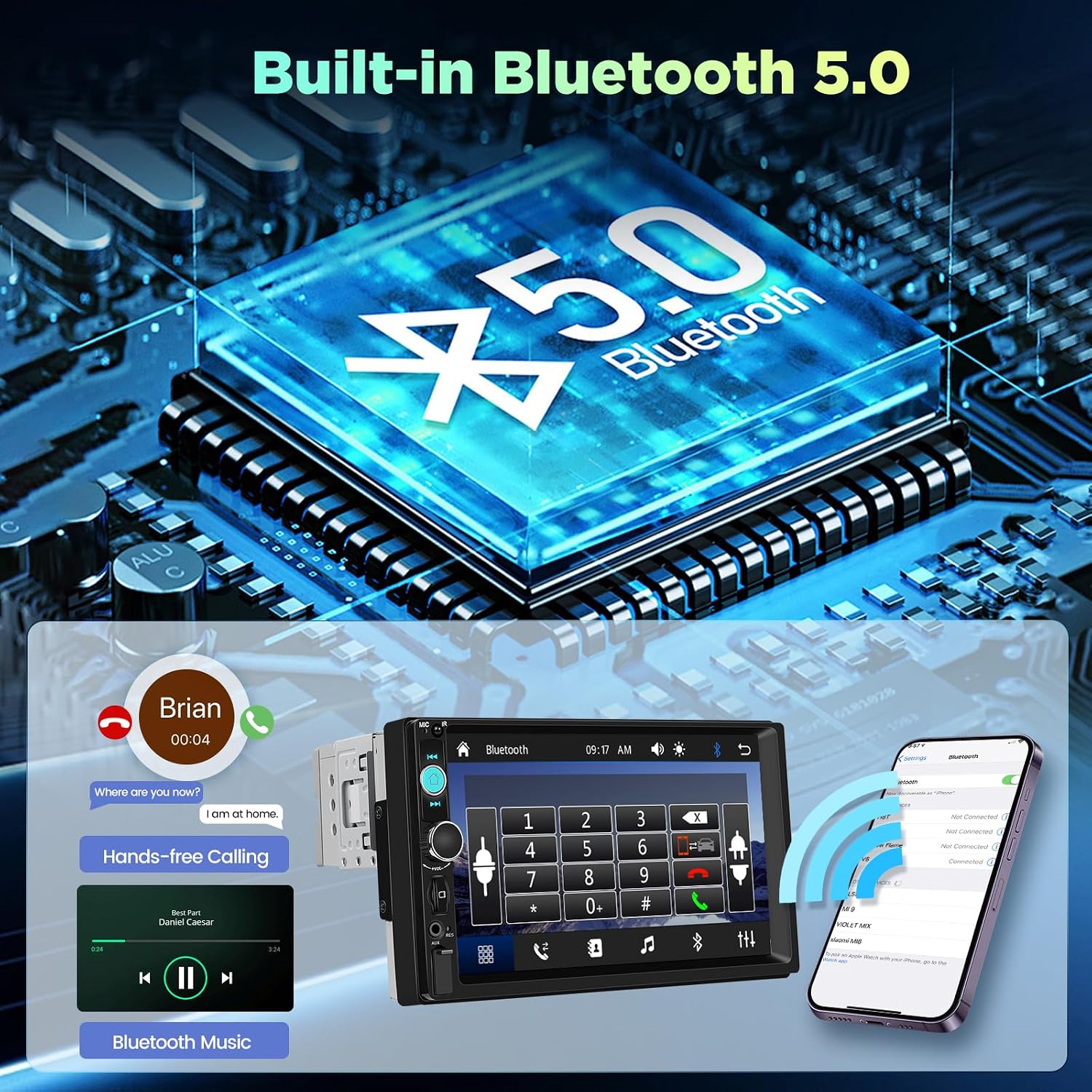
Image: The car stereo screen showing Bluetooth 5.0 features, including hands-free calling and music playback, with a smartphone connected.

Image: The car stereo's FM radio interface, showing frequency selection and various equalizer (EQ) settings for audio adjustment.
5.4 Online YouTube Viewing
The car stereo supports online playback of YouTube, allowing you to watch high-definition videos. The 'Share Same Video' feature enables simultaneous video output on the radio display and external screens.

Image: The car stereo's IPS touchscreen showing YouTube videos, highlighting its online video viewing and sharing capabilities.
5.5 Steering Wheel Control (SWC)
Utilize the Steering Wheel Control function to manage car radio features such as calls, volume, and music tracks directly from your steering wheel, promoting safer driving.
6. Maintenance
- Screen Cleaning: Use a soft, dry cloth to clean the touchscreen. Avoid abrasive cleaners or solvents.
- Software Updates: Periodically check the manufacturer's website for any available software updates to ensure optimal performance and access to new features.
- General Care: Avoid exposing the unit to extreme temperatures, direct sunlight for prolonged periods, or excessive moisture.
7. Troubleshooting
| Issue | Possible Solution |
|---|---|
| No Power | Check power cable connections and vehicle fuse. Ensure the ignition switch (ACC) wire is correctly connected. |
| No Sound | Verify speaker wiring. Check volume levels and mute settings. Ensure audio output mode is correctly selected. |
| Bluetooth Not Connecting | Ensure Bluetooth is enabled on both the stereo and your phone. Delete previous pairings and try re-pairing. Check for interference. |
| CarPlay/Android Auto Issues | Ensure your phone's operating system is up to date. Try a different USB cable if using a wired connection. Restart both the phone and the stereo. |
| Backup Camera Not Displaying | Check camera power and video connections. Ensure the reverse gear signal wire is correctly connected to the stereo. |
| Touchscreen Unresponsive | Restart the unit. If the issue persists, perform a factory reset (Factory setting keyword: 8288). |
8. Specifications
| Feature | Detail |
|---|---|
| Model Number | A4356A3 |
| Display Size | 7 Inches |
| Display Type | IPS Touch Screen, 1080P Full HD |
| Connectivity Technology | Bluetooth 5.0, USB, AUX |
| Special Features | Wireless & Wired CarPlay, Wireless & Wired Android Auto, Mirror Link, Online YouTube Viewing, Share Same Video, SWC Function, Backup Camera |
| Audio Output Mode | Stereo |
| Human Interface Input | Touchscreen |
| Compatible Devices | Smartphone |
| Item Weight | 1.58 pounds |
| Package Dimensions | 4.13 x 3.15 x 2.95 inches |
9. Warranty & Support
This NHOPEEW car stereo comes with a 2-Year Manufacturer Warranty. For any technical assistance, troubleshooting not covered in this manual, or warranty claims, please contact NHOPEEW customer support through your retailer or the official brand channels.