
1. Introduction
The Xtra Edge Xtra Muse is a compact vlogging camera designed for capturing high-quality video and photos with exceptional stability. Featuring a 1-inch CMOS sensor, 4K/120fps video recording, and a 3-axis gimbal stabilizer, it is engineered to deliver smooth, detailed footage in various shooting conditions. This manual provides essential instructions for setting up, operating, and maintaining your Xtra Muse camera.

Image: The Xtra Muse Vlogging Camera, a compact device with a gimbal-stabilized lens and a screen displaying a scenic view.
2. What's in the Box
Verify that all components are present in your Xtra Muse package:
- Xtra Muse Pocket Gimbal Camera
- Carrying Bag
- Wrist Strap
- Handle with 1/4" Thread
- USB-C to USB-C PD Cable
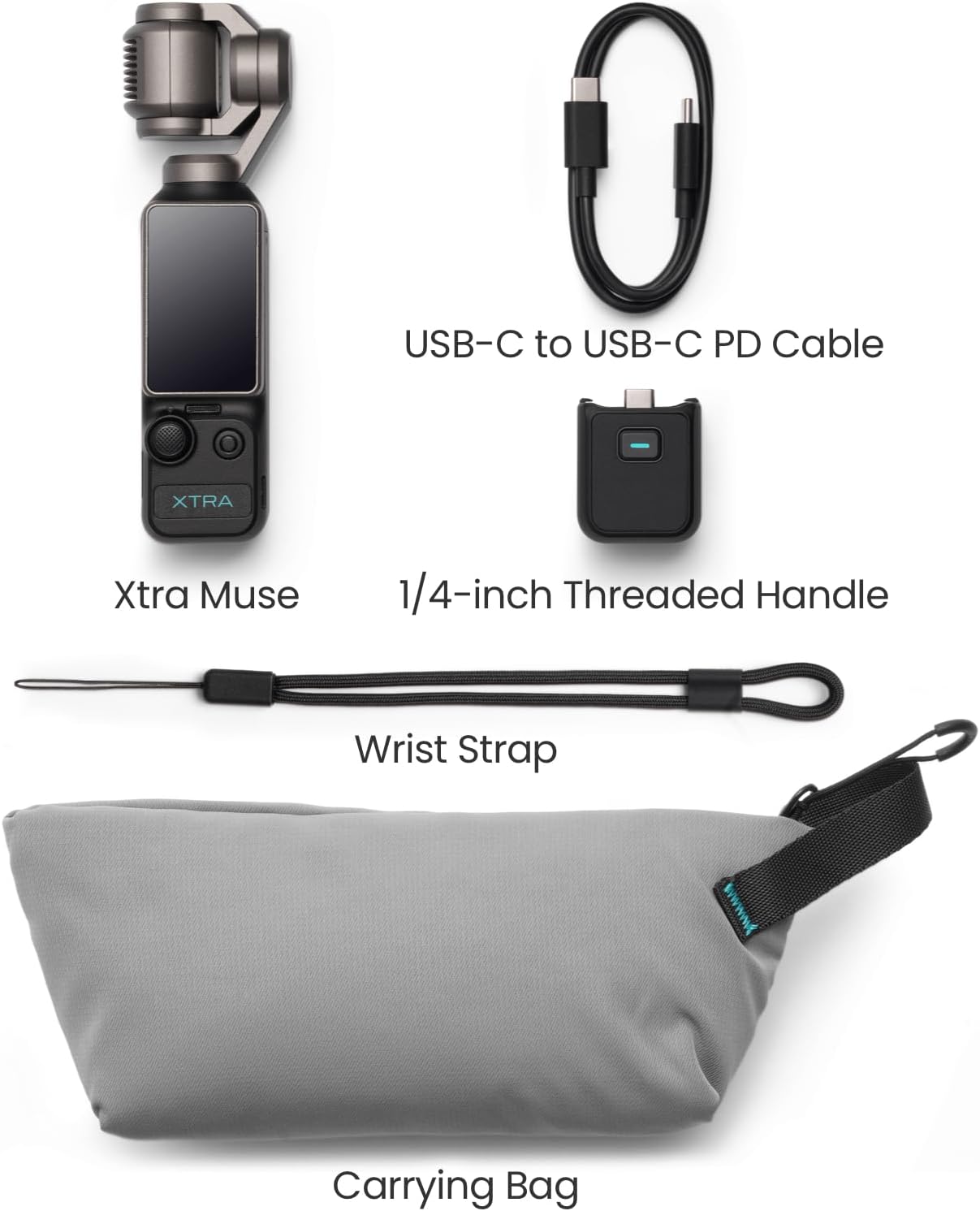
Image: All included accessories for the Xtra Muse camera, including the camera, USB-C cable, 1/4-inch threaded handle, wrist strap, and carrying bag.
3. Setup
3.1 Charging the Battery
Before first use, fully charge the Xtra Muse camera. Connect the provided USB-C to USB-C PD cable to the camera's USB-C port and a compatible power adapter (not included). The charging indicator will show the charging status.
3.2 Inserting a MicroSD Card
The Xtra Muse requires a MicroSD card (not included) for storing photos and videos. Insert a high-speed MicroSD card (UHS-I Speed Class 3 or higher recommended) into the designated slot until it clicks into place. Ensure the camera is powered off before inserting or removing the card.
3.3 Powering On/Off
To power on the camera, flip the screen to the horizontal position or press and hold the power button. To power off, flip the screen back to the vertical position or press and hold the power button until the device shuts down.
4. Operating Instructions
4.1 Basic Operation
- Recording Video: Tap the record button on the touchscreen or the physical button to start/stop recording.
- Taking Photos: Tap the shutter button on the touchscreen or the physical button to capture a photo.
- Switching Modes: Swipe left or right on the touchscreen to navigate between different shooting modes (e.g., Video, Photo, Slow Motion, Timelapse).
- Screen Orientation: The 2-inch touchscreen allows for effortless switching between horizontal and vertical shooting modes.
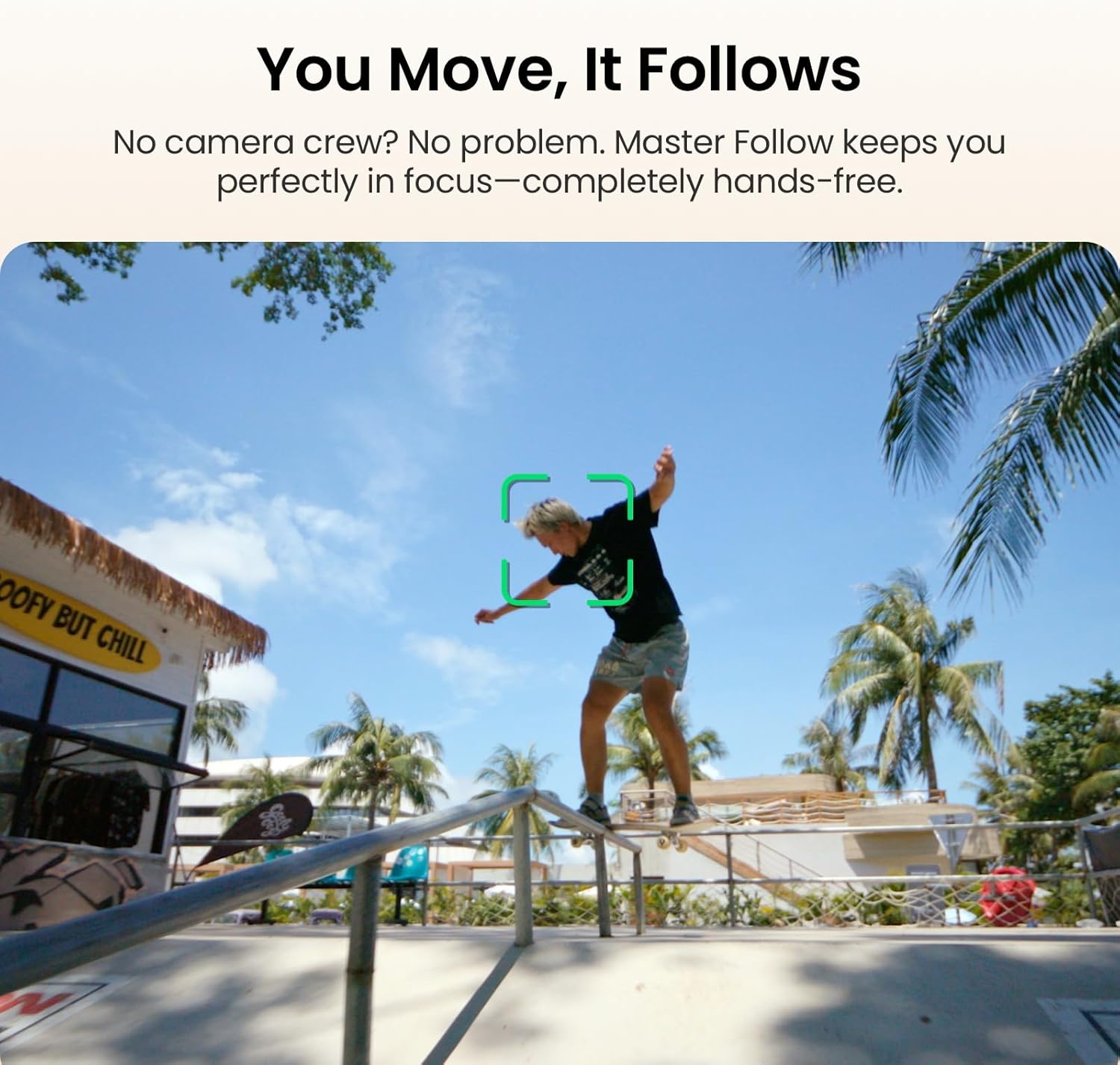
Image: A person holding the Xtra Muse camera, demonstrating its compact size and ease of use for capturing moments.
4.2 Gimbal Control
The integrated 3-axis gimbal provides stabilization and precise camera movement. Use the joystick or touchscreen controls to adjust the camera's pan and tilt. Different gimbal modes (e.g., Follow, Tilt Lock, FPV) can be selected via the touchscreen menu to suit various shooting scenarios.
4.3 Master Follow (Face/Object Tracking)
Activate Master Follow via the touchscreen to enable intelligent face and object tracking. The camera will automatically keep the selected subject in the center of the frame, ideal for vlogging or dynamic action shots.

Image: A person skateboarding, with a green tracking box on the screen indicating the camera's Master Follow feature is actively tracking the subject.
5. Features Overview
5.1 Cinematic-Style Footage
Equipped with a 1-inch CMOS sensor, the Xtra Muse records 4K resolution videos at 120 frames per second (fps), ensuring high-quality, detailed, and smooth cinematic output.

Image: A side-by-side comparison showing the enhanced vividness and detail of video captured with the Xtra Muse versus without.
5.2 Ultra-Steady Shooting
The advanced 3-axis gimbal camera stabilizer actively compensates for movement, providing exceptional smoothness even during dynamic activities like running or hiking.

Image: A comparison of footage with and without Xtra Muse stabilization, showing a dog jumping, highlighting the difference in stability.
5.3 Brand-New Color Grading (10-bit X-Log)
Utilize 10-bit X-Log color modes to capture up to one billion colors, offering extensive flexibility for post-production color grading and achieving professional visual effects, especially for scenes like sunrises and sunsets.

Image: A side-by-side comparison of footage captured in X-Log and the same footage after cinematic editing, demonstrating color grading capabilities.
5.4 Portability and Design
The Xtra Muse features a sleek, lightweight design that easily fits into a pocket or bag, making it convenient for on-the-go content creation.
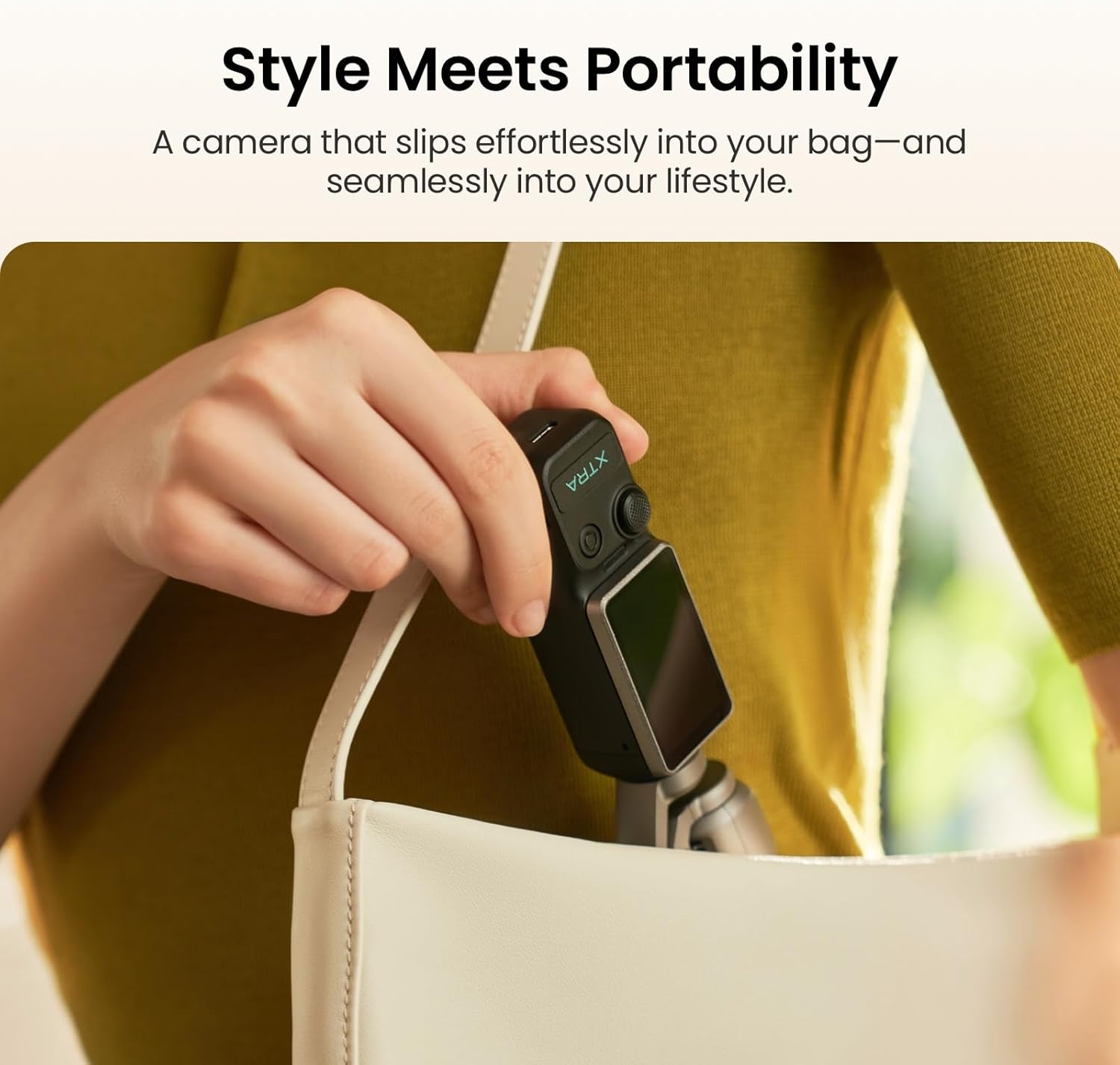
Image: The Xtra Muse camera being placed into a small handbag, illustrating its compact and portable design.
5.5 Next-Gen Webcam Functionality
Connect the Xtra Muse to your computer to use it as a webcam with smart tracking capabilities, ideal for online classes, remote work, or interactive creative sessions.

Image: The Xtra Muse camera connected to a laptop, functioning as a webcam for a video call, demonstrating its versatility.
5.6 Additional Features
- Spin Capture: Rotate the camera 180 degrees for unique shots.
- Cinematic Composition: Frame Lock ensures professional-level framing with intelligent composition modes.
- Bokeh Effect: Create a soft, professional background blur with wide aperture settings.
- Personalize Your Look: In-app enhancements allow for personalized visual styles.
- Native Vertical Shooting: Capture social media-ready videos directly in portrait mode without extra editing.
- Instant File Transfer: Connect directly to your phone or tablet via USB-C for quick footage offloading.
- Live Streaming: Stream wirelessly in 1080p for sharing moments in real-time.
- Timecode Sync: Professional timecode support for seamless multi-camera editing.
- Panorama: Capture breathtaking 180-degree panoramas with a single tap.
- Dynamic Timelapse: Utilize presets to capture time-lapse videos from sunrise to sunset.
- Immersive Stereo Sound: Built-in stereo microphones capture clear, balanced audio.
- Fast Charging: PD fast charging provides up to 161 minutes of 1080p/24fps recording in 35 minutes.
6. Maintenance
6.1 Cleaning
Use a soft, dry cloth to clean the camera body. For the lens, use a specialized lens cleaning cloth and solution. Avoid using harsh chemicals or abrasive materials.
6.2 Storage
Store the Xtra Muse in its carrying bag in a cool, dry place away from direct sunlight and extreme temperatures. Remove the MicroSD card if storing for extended periods.
6.3 Battery Care
To prolong battery life, avoid fully discharging the battery frequently. If storing for a long time, charge the battery to approximately 50-60% every three months.
7. Troubleshooting
7.1 Camera Not Powering On
- Ensure the battery is charged. Connect the camera to a power source and check the charging indicator.
- Verify the screen is correctly flipped to the horizontal position, or the power button is pressed and held sufficiently.
7.2 Shaky Footage
- Ensure the gimbal is unobstructed and free from debris.
- Recalibrate the gimbal through the camera settings if the issue persists.
- Avoid sudden, jerky movements that exceed the gimbal's stabilization capabilities.
7.3 Recording Stops Unexpectedly
- Check if the MicroSD card has sufficient free space.
- Ensure you are using a high-speed MicroSD card (UHS-I Speed Class 3 or higher) as recommended. Slower cards may not keep up with 4K recording speeds.
- Verify the battery level.
7.4 Touchscreen Unresponsive
- Restart the camera.
- Ensure your fingers are clean and dry when operating the touchscreen.
8. Specifications
| Brand | Xtra Edge |
| Model Number | XCAME01 |
| Item Weight | 9.9 ounces |
| Package Dimensions | 7.95 x 4.09 x 2.09 inches |
| Batteries | 1 C battery required (included) |
| Photo Sensor Technology | CMOS |
| Video Capture Resolution | 4K |
| Maximum Focal Length | 20 Millimeters |
| Flash Memory Type | Micro SD |
| Video Capture Format | MP4 |
| Screen Size | 2 Inches |
| Connectivity Technology | USB |
9. Warranty and Support
9.1 Product Warranty
The Xtra Muse Vlogging Camera comes with a product warranty of up to 2 years from the date of purchase. Please retain your proof of purchase for warranty claims.
9.2 Official Support
For technical assistance, troubleshooting, or warranty inquiries, please contact Xtra Edge official support:
- Email: after-sales@xtra-us.com

Image: A customer support representative wearing a headset and typing on a laptop, symbolizing Xtra Edge's professional support services.
