
Introduction
Welcome to the user manual for your Topsand G12 MINI 8-inch Android 15 Tablet. This guide provides essential information to help you set up, operate, maintain, and troubleshoot your device. Please read this manual carefully to ensure optimal performance and a satisfying user experience.
What's in the Box
Upon unpacking your Topsand G12 MINI tablet, please verify that all items listed below are included:
- 1x Topsand Android 15 Tablet (8 inch)
- 1x Charging Cable (Type-C)
- 1x Power Adapter
- 1x Quick Guide Manual
- 1x Tablet Case (Pink)

Image: The Topsand G12 MINI tablet, charging cable, power adapter, quick guide, and a pink protective case.
Setup
1. Installing SIM Card and MicroSD Card
Your Topsand G12 MINI tablet supports 4G LTE connectivity and expandable storage up to 2TB via a MicroSD card (sold separately). Follow these steps to install your SIM card and MicroSD card:
- Locate the SIM/MicroSD card tray on the side of the tablet.
- Use the provided SIM ejector tool to gently push into the small hole next to the tray until it pops out.
- Place your 4G LTE SIM card and/or MicroSD card into the designated slots on the tray, ensuring correct orientation.
- Carefully reinsert the tray into the tablet until it clicks into place.
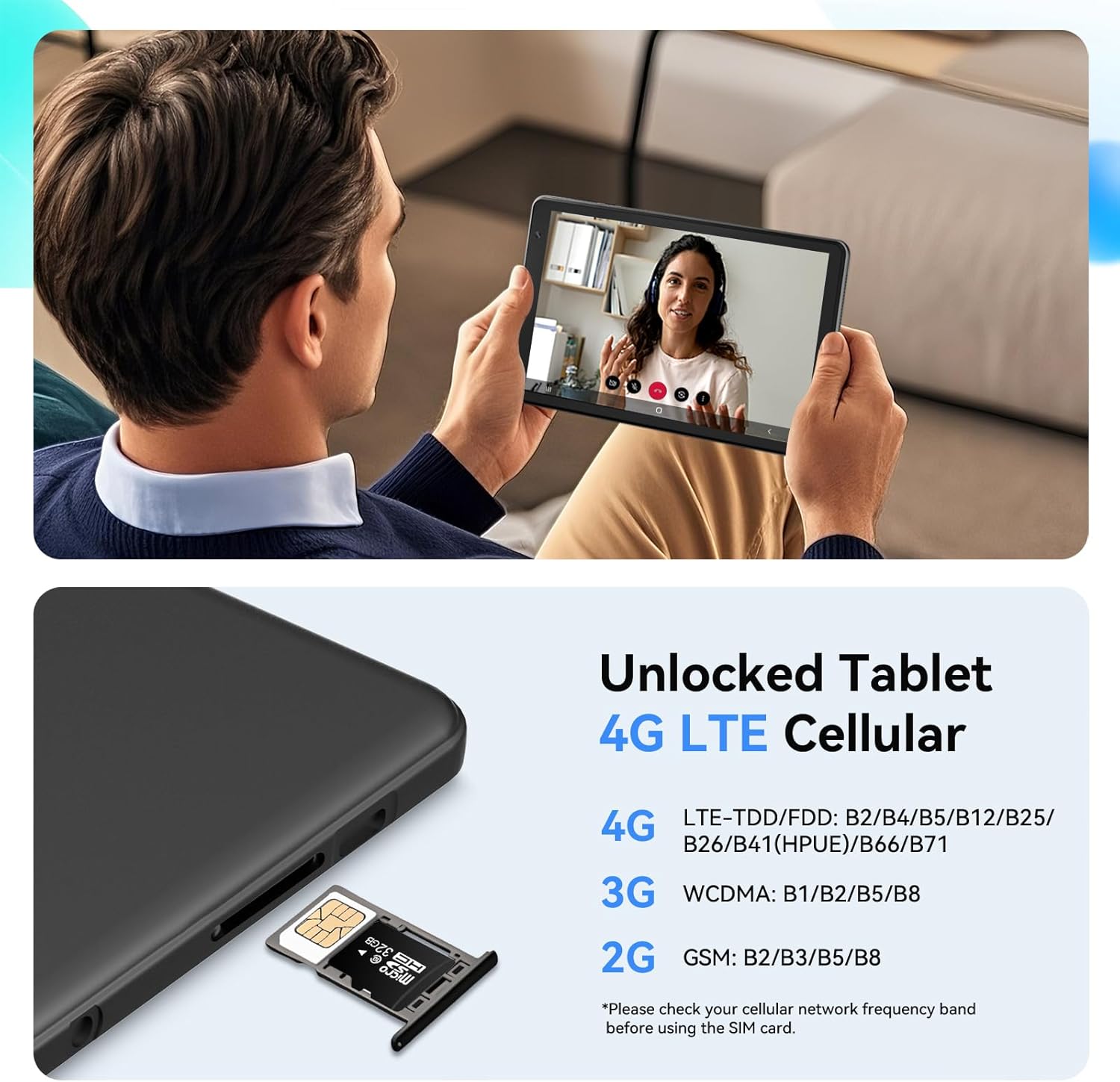
Image: A close-up view of the tablet's side, illustrating the insertion of a SIM card and MicroSD card into the tray.
2. Attaching the Protective Case
The included rugged case provides protection against drops and allows for hands-free use with its built-in kickstand.
- Align the tablet with the case, ensuring all ports and buttons match the case openings.
- Gently press the tablet into the case, starting from one corner and working your way around until it is securely fitted.
- To use the kickstand, pull it out from the back of the case until it locks into position.
Video: This video demonstrates the process of inserting a SIM card into the tablet and then fitting the tablet into its pink protective case, highlighting the kickstand feature.
3. Powering On and Initial Setup
- Press and hold the power button located on the side of the tablet until the screen lights up.
- Follow the on-screen prompts to select your language, connect to a Wi-Fi network, and set up your Google account.
- Ensure the tablet is sufficiently charged before beginning the setup process.
Operating Instructions
1. Android 15 Operating System
Your tablet runs on a pure, ad-free Android 15 operating system, officially Google certified for security and smooth performance. It supports features like Google Play, Private Space, Screen Split, Parental Control, and Google Gemini AI.

Image: The tablet screen showing the Android 15 operating system with various application icons and features.
2. 4G LTE and 5G WiFi Connectivity
Stay connected with 4G LTE for calls and data without Wi-Fi, and enjoy fast internet speeds with 5G WiFi (2.4G+5G Dual-band WiFi) for browsing and streaming.
3. GPS Navigation
The tablet features 4-mode GPS (GPS/Galileo/Beidou/GLONASS) and Google Maps for accurate real-time navigation, offline maps, and traffic information.

Image: The tablet displaying a navigation map, emphasizing its built-in GPS capabilities and support for Android Auto.
4. Camera Usage
Capture moments with the 8MP rear camera for sharp photos and videos, and use the 5MP front camera for video calls and selfies.

Image: The tablet's front camera being used for a video chat and the rear camera capturing a photo.
5. Display and Audio
Enjoy vibrant visuals on the 8-inch 1280x800 HD IPS touchscreen with rich stereo speakers. A 3.5mm audio jack is available for private listening.
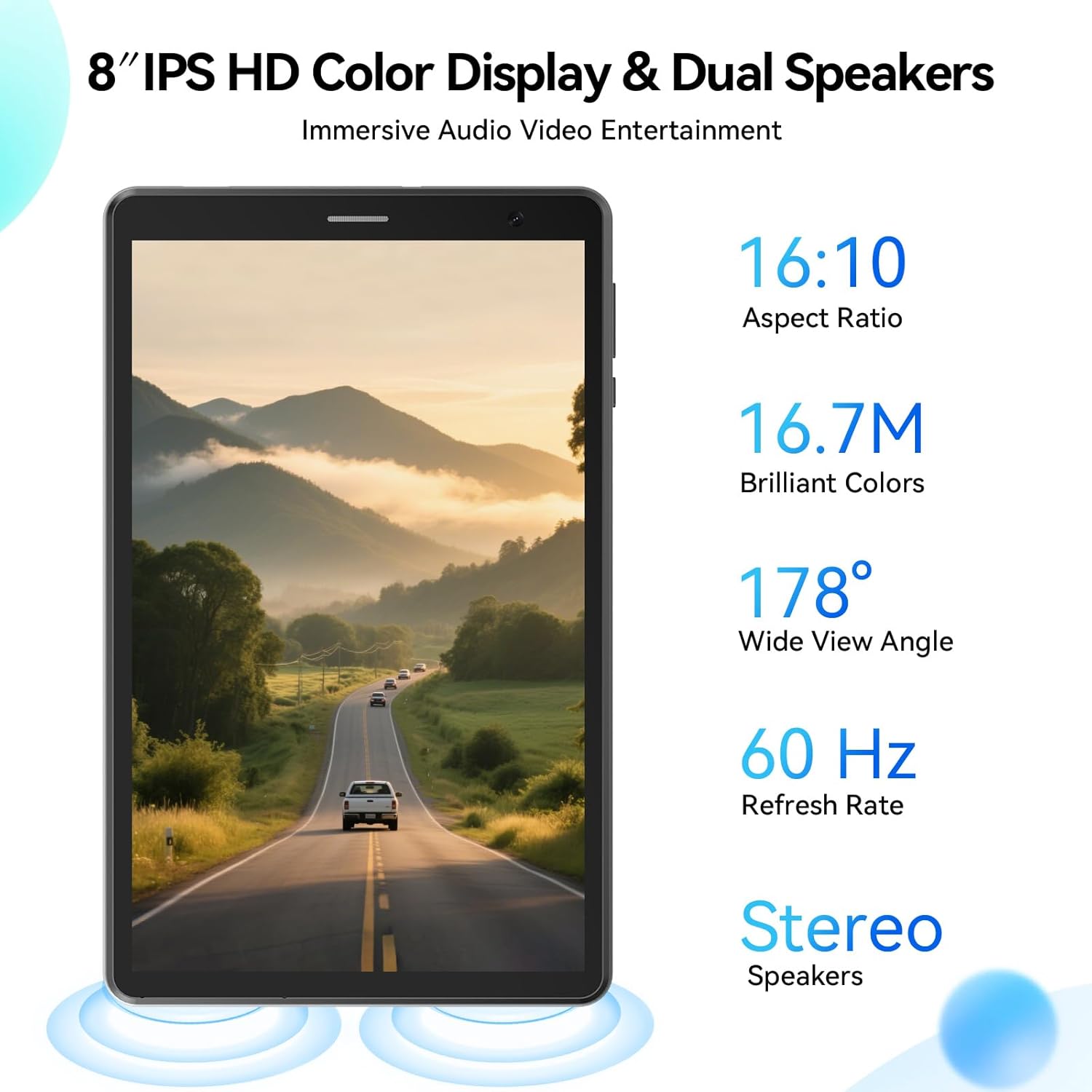
Image: The tablet's 8-inch IPS HD display and dual speakers, showcasing its visual and audio capabilities.
6. Kids Space & Parental Controls
The tablet comes pre-loaded with YouTube Kids and Google Kids Space. Parental controls allow you to manage screen time, filter content, and monitor app permissions using Google Family Link.

Image: A child and adult interacting with the tablet, illustrating the Kids Space and Parental Control features.
7. Screen Split Display
Utilize the screen split feature to multitask by running two applications side-by-side. Drag the center bar to resize the windows as needed.

Image: The tablet displaying two applications simultaneously using the screen split feature.
8. Display Modes
The tablet offers three display modes to protect your eyes and adapt to different lighting conditions:
- Normal Mode: Vibrant colors and optimal clarity.
- Eye Protection Mode: Filters out harmful blue light.
- Read Mode: Simulates a real book for comfortable reading.

Image: Illustrations of the tablet's three display modes: Normal, Eye Protection, and Read Mode.
9. Wireless Screen Casting
Easily cast your tablet's screen to a larger display using 5G WiFi for presentations or entertainment.

Image: The tablet's screen being wirelessly cast to a larger TV screen.
Maintenance
To ensure the longevity and optimal performance of your Topsand G12 MINI tablet, follow these maintenance guidelines:
- Cleaning: Use a soft, lint-free cloth to clean the screen and body of the tablet. Avoid abrasive materials or harsh chemicals.
- Storage: Store the tablet in a cool, dry place away from direct sunlight and extreme temperatures.
- Battery Care: Avoid fully discharging the battery frequently. For long-term storage, charge the battery to about 50-60%.
- Software Updates: Regularly check for and install system updates to ensure your device has the latest security patches and features.
- Protective Case: Keep the tablet in its protective case to guard against accidental drops and scratches.
Troubleshooting
If you encounter issues with your Topsand G12 MINI tablet, try the following basic troubleshooting steps:
- Device Not Turning On: Ensure the tablet is charged. Connect it to the power adapter and try again after a few minutes.
- Screen Unresponsive: Try restarting the device by holding down the power button for about 10-15 seconds.
- App Crashing/Freezing: Close the problematic app and reopen it. If the issue persists, clear the app's cache or reinstall it.
- No Internet Connection: Check your Wi-Fi or cellular data settings. Ensure Wi-Fi is enabled and connected to a network, or that your SIM card is properly inserted and has an active data plan.
- Poor Performance: Close unnecessary background applications. Consider freeing up storage space by deleting unused files or apps.
For more complex issues, please refer to the support section.
Specifications
| Feature | Specification |
|---|---|
| Brand | Topsand |
| Model Name | G12 MINI |
| Operating System | Android 15 |
| Processor | MediaTek Helio G80 Octa-Core (up to 2 GHz) |
| RAM Memory | 12 GB (3GB physical + 9GB virtual) |
| Storage Capacity | 64 GB ROM |
| Expandable Storage | Up to 2 TB (MicroSD) |
| Screen Size | 8 Inches |
| Display Resolution | 1280x800 Pixels (HD IPS) |
| Rear Camera | 8 MP |
| Front Camera | 5 MP |
| Battery Capacity | 5100 mAh |
| Connectivity | 4G LTE, 5G Wi-Fi (802.11a/b/g/n/ac), Bluetooth 5.3, USB Type-C |
| Navigation | GPS/Galileo/Beidou/GLONASS |
| Audio | Stereo Speakers, 3.5mm Audio Jack |
| Dimensions | 9.3"L x 4.9"W x 0.3"Th |
Warranty and Support
Topsand tablet products come with a 1-year warranty and dedicated support. For assistance, please contact us through the following methods:
- Contact Seller: Reach out to the seller directly via the address provided on your warranty documentation.
- Online Message: Send a message through the "Contact Seller" button on your order page.
- Direct Support: If the return window has closed, contact the seller directly for technical assistance.
Topsand is committed to providing high-performance tablets and outstanding service. Our team of experts develops devices with powerful processors, brilliant displays, and sleek designs, blending advanced technology with dedication to customer satisfaction.

Image: A family enjoying a Topsand tablet, representing the brand's commitment to user experience.