
1. Introduction
The REYGEAK Bluetooth Remote Controller is designed to provide convenient wireless control for your action camera and smartphone. It is compatible with DJI Osmo 360, DJI Action 6, DJI Action 5 Pro, DJI Action 4, as well as iOS and Android phones. This manual will guide you through the setup, operation, and maintenance of your remote controller.
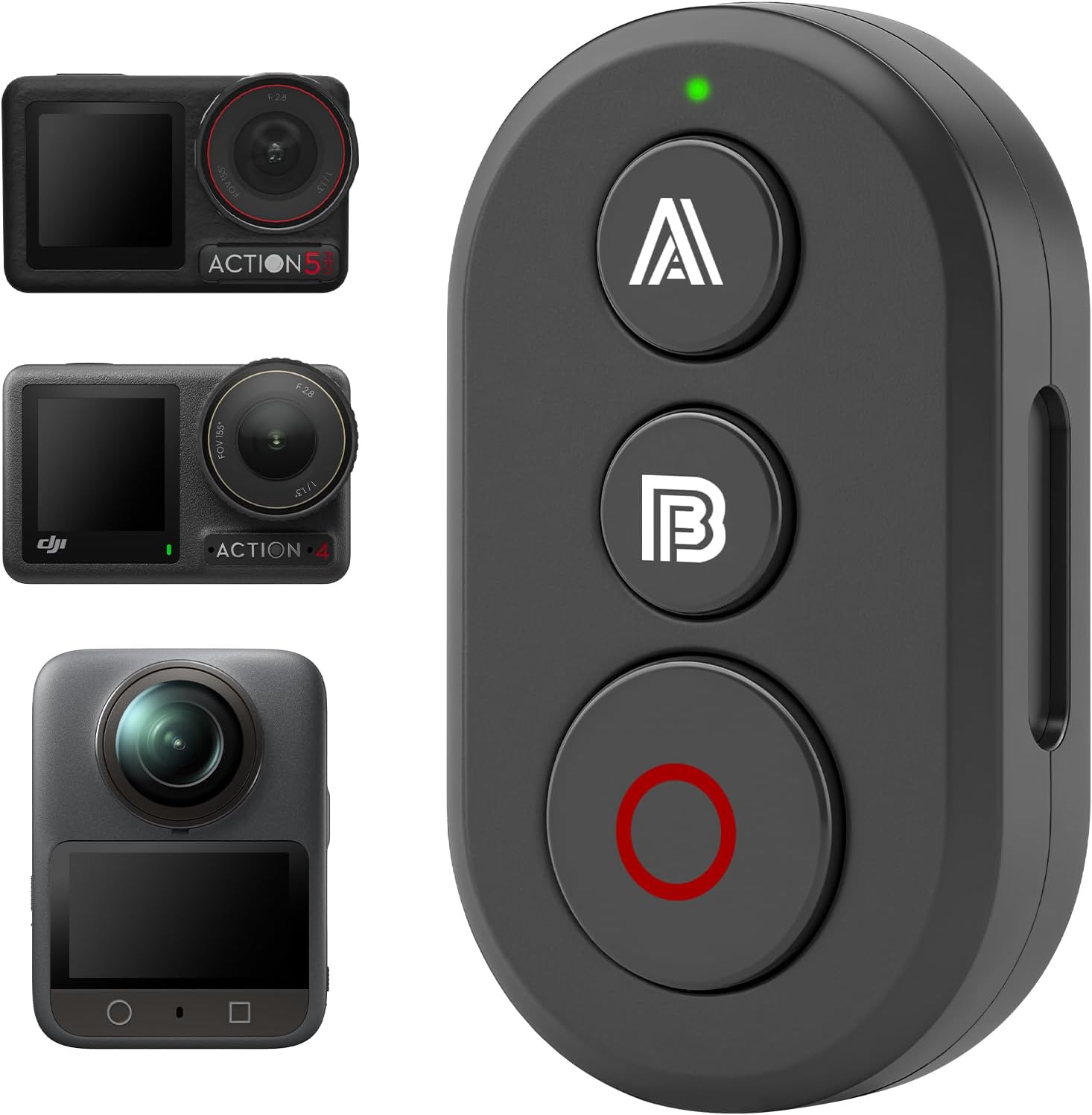
Image 1.1: REYGEAK Bluetooth Remote Controller with compatible DJI Osmo Action cameras.
2. Safety Information
- Keep the device away from extreme temperatures and direct sunlight.
- Do not attempt to disassemble or modify the remote controller.
- Use only the provided charging cable or a certified equivalent.
- Ensure the remote is securely mounted when used in active environments to prevent loss or damage.
3. Package Contents
The REYGEAK Bluetooth Remote Controller package includes the following items:
- 1x Bluetooth Remote Controller
- 1x Mounting Frame
- 1x Velcro Strap
- 1x Lanyard
- 1x Charging Cable (Type-C)
- 2x Bungee Cords

Image 3.1: The package includes the remote controller, mounting frame, Velcro strap, lanyard, charging cable, and bungee cords.
4. Product Overview
The remote controller features a compact design with intuitive buttons and an indicator light for easy operation.
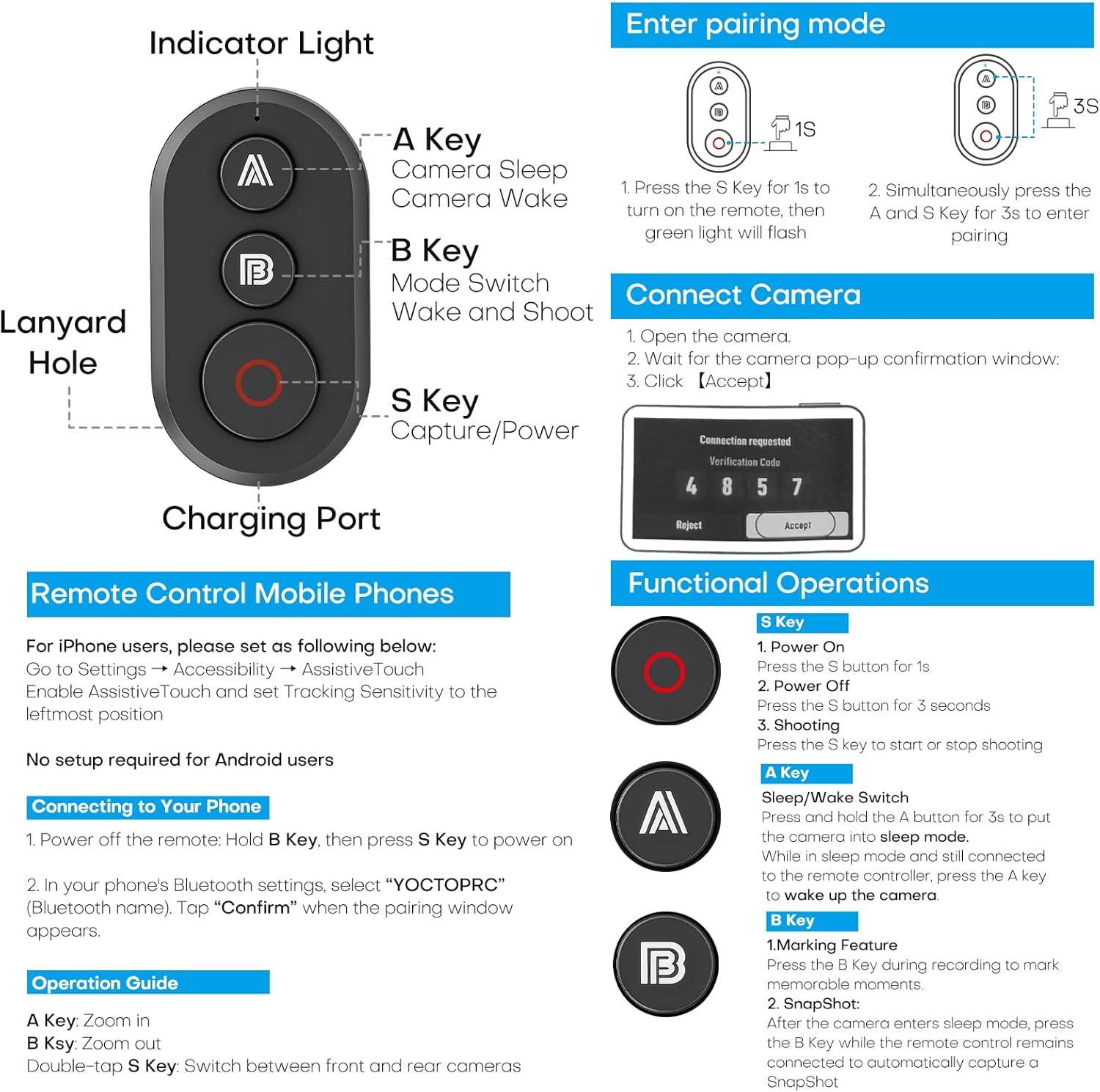
Image 4.1: Detailed diagram showing the indicator light, A key, B key, S key (Capture/Power), lanyard hole, and charging port.
Button Functions:
- S Key (Capture/Power): Press for 1 second to power on. Press for 3 seconds to power off. Short press to start/stop shooting.
- A Key: Camera Sleep/Wake. Press and hold for 3 seconds to put the camera into sleep mode. While in sleep mode and connected, press the A key to wake up the camera.
- B Key: Marking Feature. Press the B key during recording to mark memorable moments.
- Indicator Light: Displays connection status and battery level.
5. Setup
5.1 Pairing with DJI Osmo Action Camera
- Turn on your DJI Osmo Action camera.
- On the remote controller, press the S key for 1 second to turn it on. The green light will flash.
- Simultaneously press the A key and S key on the remote for 3 seconds to enter pairing mode.
- On your camera, navigate to settings and enable Bluetooth pairing.
- A connection request with a verification code will appear on the camera screen. Ensure the code matches the remote controller's display (if applicable) and press "Accept" on the camera.
- Once connected, the remote controller's indicator light will turn solid green.
For a visual guide on camera connection, please refer to the video below:
Video 5.1: Official REYGEAK guide on connecting the Bluetooth Remote Controller to DJI Osmo Action cameras.
Video 5.2: Demonstration of Bluetooth remote controller pairing and functionality with DJI Action cameras.
5.2 Pairing with Mobile Phones (iOS/Android)
- Power off the remote controller by holding the S key for 3 seconds.
- On your phone, go to Bluetooth settings.
- On the remote, press and hold the A key and the S key simultaneously for 3 seconds to enter pairing mode.
- Search for "YOCTOPRC" (Bluetooth name) in your phone's Bluetooth device list and tap to connect.
- Confirm the pairing when prompted.
For iOS users, please ensure "AssistiveTouch" is enabled under Settings > Accessibility > Touch, and set "Tracking Sensitivity" to the leftmost position for optimal performance. No special setup is required for Android users.
Video 5.3: Demonstration of remote control functionality with a smartphone.
6. Operating Instructions
6.1 Power On/Off
- Power On: Press the S button for 1 second.
- Power Off: Press the S button for 3 seconds.
6.2 Recording and Capture
- Shooting: Press the S key to start or stop recording/capturing.
- SnapShot: When the camera is powered off, press the B key to automatically capture a SnapShot.
6.3 Switching Modes
- Zoom In/Out: Press the A key to zoom in. Press the B key to zoom out.
- Switch Front/Rear Cameras: Double-tap the S key.
Video 6.1: Detailed demonstration of remote control functions including power, recording, and mode switching.
7. Mounting Options
The remote controller offers multiple mounting options for various activities:
- Wrist Strap: Attach the remote to your wrist using the provided Velcro strap for easy access.
- Handlebar Mount: Use the mounting frame to secure the remote to bicycle handlebars.
- Selfie Stick/Tripod: The remote can be attached to selfie sticks or tripods using the bungee cords or mounting frame.
Image 7.1: Examples of mounting the remote on a wrist, handlebar, and selfie stick.
Video 7.2: Visual guide on how to attach the remote to a wrist strap and bicycle handlebar.
8. Battery and Charging
The remote controller is equipped with a 40mAh battery. It takes approximately 2 hours to fully charge and provides about 30 hours of working time.
- Charging: Connect the provided Type-C charging cable to the remote controller's charging port and a USB power source.
- Battery Life: A full charge offers approximately 30 hours of continuous operation.

Image 8.1: The remote controller features a Type-C charging port and offers long battery life.
9. Specifications
| Feature | Specification |
|---|---|
| Brand | REYGEAK |
| Model Number | Bluetooth Remote Controller |
| Compatible Devices | DJI Osmo 360, DJI Action 6, DJI Action 5 Pro, DJI Action 4, iOS/Android Phones |
| Max Control Distance | 35 meters (114 feet) |
| Battery Capacity | 40mAh |
| Charging Time | Approx. 2 hours |
| Working Time | Approx. 30 hours |
| Item Weight | 3.53 ounces |
| Color | Black |
10. Troubleshooting
- Remote not pairing: Ensure both the remote and camera/phone are in pairing mode. Check that the remote is charged. Try restarting both devices.
- Remote not responding: Verify that the remote is powered on and within the effective range (35 meters). Check battery level.
- Camera not waking up: Ensure the camera is within 30 minutes of being powered off for the wake-up function to work.
- iOS phone pairing issues: Confirm that "AssistiveTouch" is enabled and "Tracking Sensitivity" is set to the leftmost position in your phone's accessibility settings.
11. Warranty and Support
This REYGEAK product is covered by a standard manufacturer's warranty. For detailed warranty information, technical support, or service inquiries, please contact REYGEAK Official customer service through the retailer's platform or the official brand website.