
1. Introduction
Thank you for choosing the Perledesign 70-inch Executive Electric Height Adjustable Standing Desk. This manual provides essential information for the safe assembly, operation, maintenance, and troubleshooting of your new desk. Please read this manual thoroughly before installation and use, and retain it for future reference.
2. Safety Information
WARNING: Failure to follow these safety instructions may result in injury or damage to the product.
- This desk includes a collision detection system. However, always ensure the area around the desk is clear during height adjustments to prevent accidents.
- Do not exceed the maximum weight recommendation of 176 pounds (80 kg) on the desktop. Overloading can cause damage to the motor and frame.
- Ensure the desk is stable and properly assembled according to the assembly instructions to avoid tipping.
- Keep children and pets away from the desk during operation.
- Do not sit or stand on the desk.
- Only use the provided power adapter and cables.
- If any unusual sounds or movements occur, immediately stop operation and unplug the desk.
3. Product Overview
The Perledesign Executive Standing Desk is designed to provide a versatile and ergonomic workspace. Key features include:
- Electric Height Adjustment: Easily adjust the desk height from 29.5 inches to 43.3 inches with programmable memory presets.
- Ample Storage: Features multiple open shelves and a dedicated compartment for a computer tower (CPU).
- One-Piece Desktop: A large 70 x 30 inch desktop provides a seamless and spacious work surface.
- Privacy Panel: Integrated panel designed to provide visual separation and a focused work zone.
- Integrated Charging Station: Includes 2 AC outlets, 1 USB-C port, and 1 USB-A port for convenient device charging.
- Durable Construction: Crafted with P2 particleboard and high-quality cold-rolled steel for stability and longevity.

Figure 3.1: Perledesign 70-inch Executive Electric Height Adjustable Standing Desk.
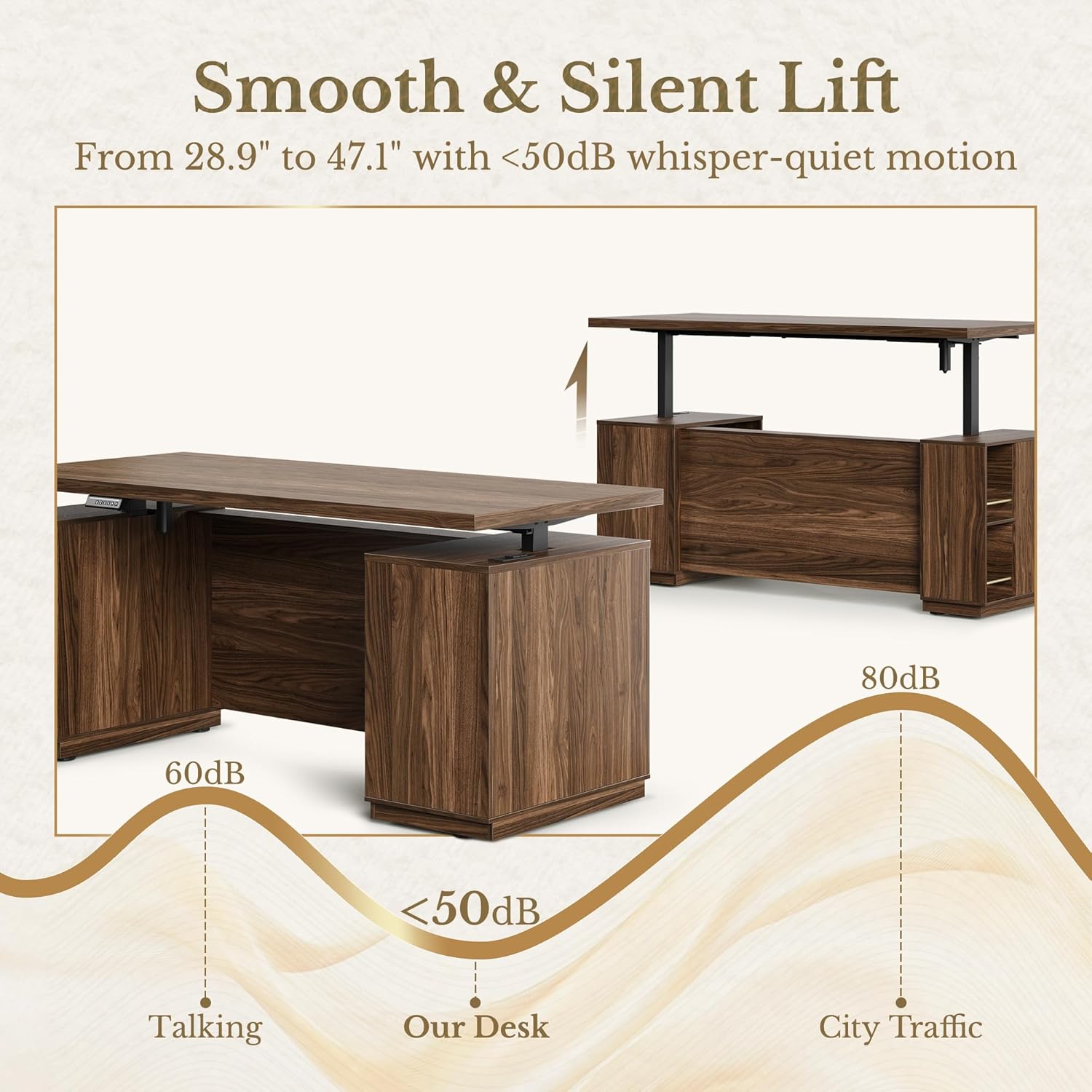
Figure 3.2: Versatile storage options with open shelves and a dedicated CPU compartment.

Figure 3.3: Integrated privacy panel for focused work.

Figure 3.4: Detail of the 1.18-inch thick one-piece desktop.
4. Setup and Assembly
The Perledesign 70-inch Executive Electric Height Adjustable Standing Desk requires assembly. The product ships in multiple boxes for better protection and easier handling.

Figure 4.1: Desk dimensions and packaging information.
Please refer to the separate assembly guide included in your packaging for detailed step-by-step instructions. Ensure all components are present before beginning assembly. It is recommended to assemble the desk with at least two people due to its size and weight.
- Unpack all components and verify against the parts list in the assembly guide.
- Assemble the frame and desktop according to the provided instructions.
- Connect all electrical cables securely.
- Place the desk on a level surface.
5. Operating Instructions
5.1 Electric Height Adjustment
Your desk is equipped with an electric motor system for smooth height adjustments and a control panel with memory presets.

Figure 5.1: Control panel for height adjustment and memory presets.
- Adjusting Height: Use the Up (▲) and Down (▼) buttons on the control panel to raise or lower the desk to your desired height. The current height will be displayed on the LED screen.
- Setting Memory Presets:
- Adjust the desk to your preferred height.
- Press the SAVE button. The LED display will show 'S-'.
- Immediately press one of the numbered preset buttons (1, 2, 3, or 4). The display will show 'S-1', 'S-2', etc., confirming the preset is saved.
- Using Memory Presets: Press a numbered preset button (1, 2, 3, or 4) to automatically move the desk to the saved height.
- Collision Detection System: The desk is equipped with a collision detection system. If the desk encounters an obstruction during adjustment, it will stop and reverse slightly. Ensure the area is clear before resuming adjustment.
5.2 Integrated Charging Station
The desk includes a built-in charging station for your electronic devices.

Figure 5.2: Integrated 3-in-1 charging station.
- The charging station provides 2 AC Outlets (125V/12A) and USB-C & A Ports (5V/2A).
- Connect your devices to the appropriate ports for charging.
- Ensure the desk is properly plugged into a wall outlet for the charging station to function.
6. Maintenance
Regular maintenance helps ensure the longevity and proper function of your desk.
- Cleaning: Wipe the desktop and frame with a soft, damp cloth. Avoid harsh chemicals or abrasive cleaners that may damage the finish.
- Cable Management: Periodically check and organize cables to prevent tangles and damage.
- Motor and Frame: Inspect the motor and frame components for any loose screws or signs of wear. Tighten any loose fasteners as needed.
- Power Cord: Ensure the power cord is not pinched or damaged.
7. Troubleshooting
If you encounter issues with your Perledesign standing desk, refer to the following common problems and solutions:
| Problem | Possible Cause | Solution |
|---|---|---|
| Desk does not move. | Power cord disconnected; motor cable loose; overload. | Check power connection; ensure all cables are securely plugged in; remove excess weight from the desk. |
| Desk stops during adjustment. | Collision detection activated; obstruction. | Remove any obstructions; ensure clear path for movement. If the issue persists, contact customer support. |
| Unusual noise during operation. | Loose components; motor issue. | Check for and tighten any loose screws; if noise persists, discontinue use and contact customer support. |
| Control panel not responding. | Power issue; control panel cable loose. | Verify power supply; check control panel cable connection. |
If the problem persists after attempting these solutions, please contact Perledesign customer support.
8. Specifications
| Feature | Specification |
|---|---|
| Model Number | AMESD04DW-V-US |
| Brand | Perledesign |
| Product Dimensions (D x W x H) | 30"D x 70"W x 30"H (minimum height) |
| Height Adjustment Range | 29.5" to 43.3" |
| Maximum Weight Recommendation | 176 lbs (80 kg) |
| Desktop Material | Engineered Wood (P2 Particleboard) |
| Base Material | Alloy Steel |
| Desktop Thickness | 1.18 Inches |
| Number of Height Positions | 4 (Programmable Presets) |
| Included Components | Built-in Outlet (2 AC), Built-in USB Port (1 USB-C, 1 USB-A) |
| Item Weight | 163 Pounds |
| Assembly Required | Yes |
9. Warranty and Support
For warranty information, please refer to the documentation included with your purchase or contact Perledesign directly. Perledesign is committed to providing quality products and customer satisfaction.
Customer Support
If you have any questions, require assistance with assembly, or need troubleshooting support, please contact Perledesign customer service. Please have your model number (AMESD04DW-V-US) and purchase information ready when contacting support.
For the most up-to-date contact information, please visit the official Perledesign website or refer to your purchase receipt.