
1. Introduction
Thank you for choosing the Razuvious R2 Smart Door Lock. This manual provides detailed instructions for the installation, operation, and maintenance of your new smart lock. Please read this manual thoroughly before installation and use to ensure proper function and safety.
2. Product Features
- Remote Control: Manage your lock from anywhere using the TT Lock WiFi Version app. View access logs, share temporary access, and manage family members.
- 5-in-1 Access Methods: Unlock your door using the app, fingerprint, passcode, IC card, or a mechanical key.
- Enhanced Security: Features an anti-peep touchscreen keypad, supporting random number input before and after the correct code. Includes low battery alerts and an emergency USB charging interface.
- Versatile Application: Ideal for short-term rentals (Airbnb), offices, and residential homes. Create and share temporary passcodes remotely for visitors or service providers.
- Door Compatibility: Suitable for door thicknesses ranging from 38mm to 80mm. The reversible handle design accommodates both left and right-handed doors.
3. Package Contents
Please verify that all components are present in your package:
- 1 x Razuvious R2 Smart Door Lock
- 4 x AA Batteries
- 1 x 4585 Mortise Lock
- 5 x IC Cards
- Installation Hardware (screws, spindle, etc.)
4. Specifications
| Feature | Detail |
|---|---|
| Dimensions (L x W x H) | 6.5 x 2 x 26 cm |
| Weight | 1.5 kg |
| Material | Aluminum |
| Communication Protocol | Wi-Fi, Bluetooth |
| Control Method | Touch, App |
| Control Device Type | TT Lock |
| Special Features | Fingerprint, Touchscreen, Passcode Unlock, Fob Unlock, Anti-peep Passcode |
| Lock Type | Deadbolt, Mortise Lock, Keypad, Biometrics |
| Recommended Use | Indoor |
| Color | Black |
| Power Source | 4 AA Batteries (included) |
| Warranty | 1 Year |
| Country of Origin | China |
5. Setup and Installation
Important Note: Do not use the keypad to change the master password before pairing the lock with the app. Before pairing, you may need to touch the keypad to activate the lock. If the app cannot find the lock or connect, please reset the lock.
5.1 Pre-Installation Check
- Ensure your door thickness is between 38mm and 80mm.
- Confirm the door's opening direction (left or right) to adjust the handle orientation if necessary.
- Verify all package contents are present.
5.2 Mechanical Installation
Follow the detailed instructions provided in the separate installation guide for physical mounting of the lock and mortise. Ensure all cables are connected correctly and the mortise is aligned properly within the door frame.

Image: Mortise type 4585 dimensions and smart lock front panel. This image displays the dimensions of the 4585 mortise lock and the overall smart lock unit, including its length and width, to assist with installation measurements.
5.3 App Pairing and Initial Setup
- Download the TT Lock app from your smartphone's app store.
- Create an account and log in.
- Enable Bluetooth on your smartphone.
- In the app, tap "Add Lock" and select "Door Lock".
- Touch the smart lock's keypad to activate it. The app should detect the lock.
- Follow the on-screen prompts to pair the lock. You will be asked to name your lock.
- Once paired, you can set up the initial administrator passcode and register fingerprints and IC cards.
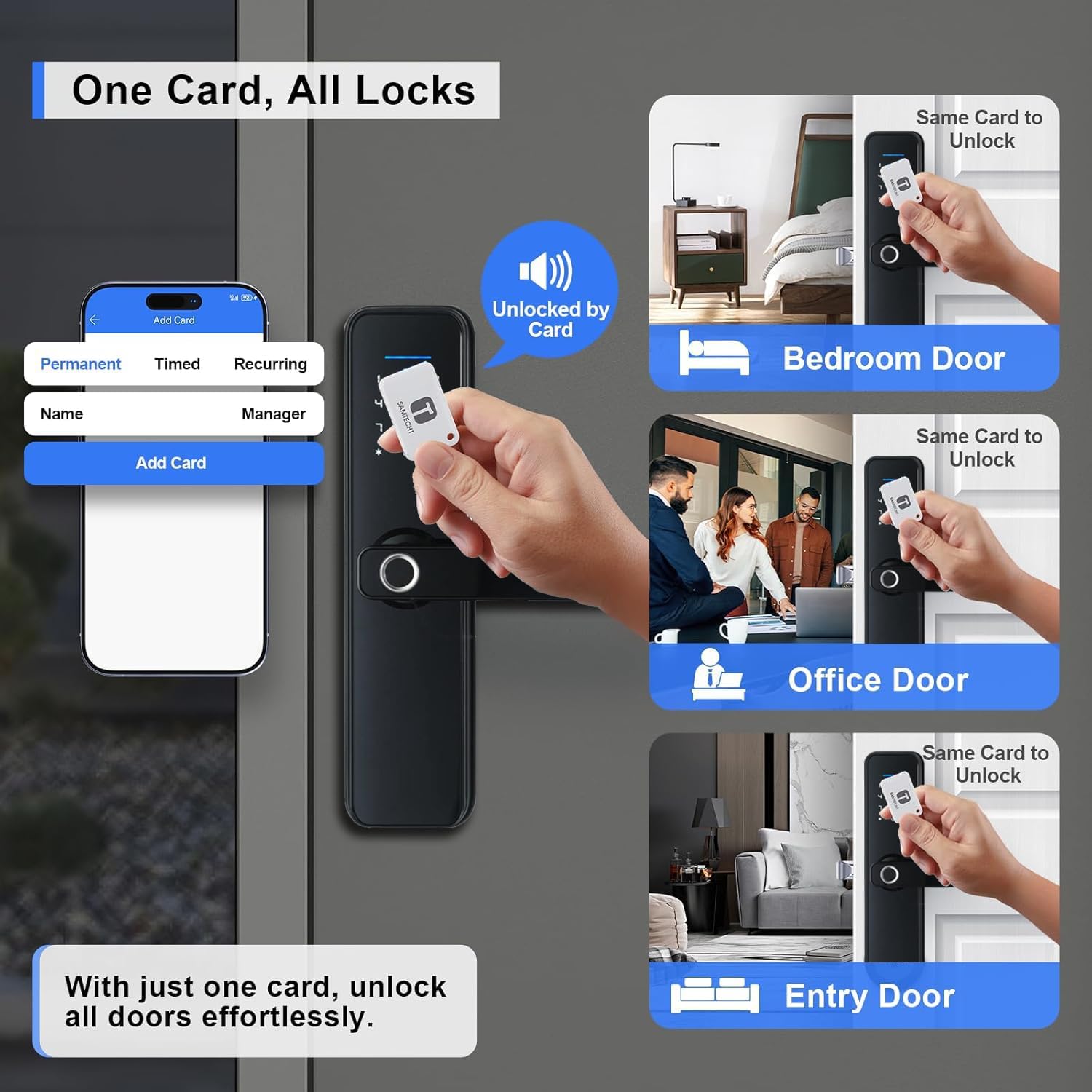
Image: Smart lock with app interface showing card management. This image illustrates the process of adding and managing IC cards through the mobile application, allowing users to assign permanent, timed, or recurring access.
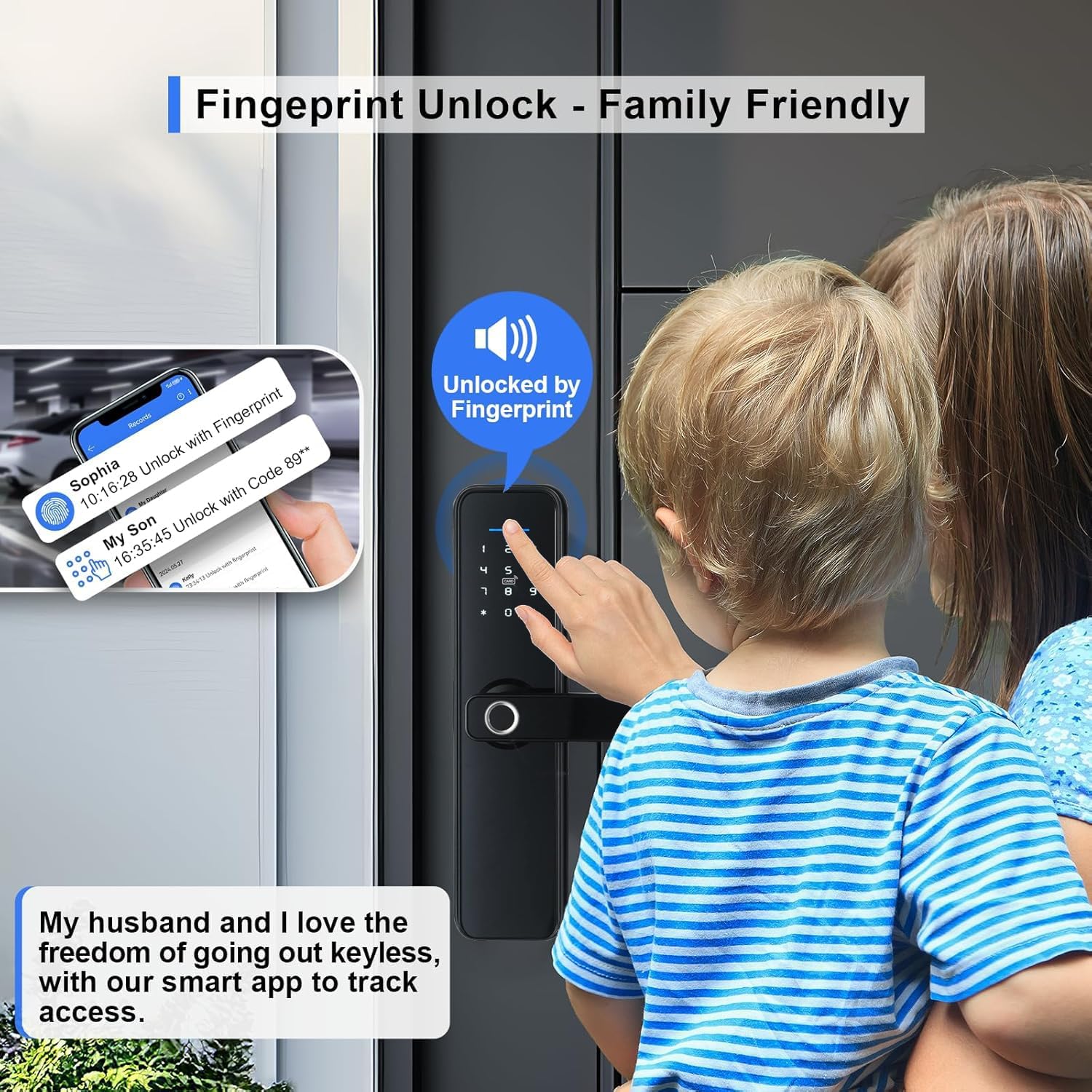
Image: Smart lock with multiple doors showing 'One Card, All Locks' feature. This image demonstrates how a single IC card can be used to unlock various Razuvious smart locks on different doors, such as a bedroom, office, or entry door.
6. Operating Instructions
6.1 Unlocking Methods
- Fingerprint Unlock: Place your registered finger on the fingerprint sensor. The lock will unlock if the fingerprint is recognized.

Image: Smart lock with fingerprint unlock and app notifications. This image shows a child using the fingerprint sensor to unlock the door, with a smartphone displaying app notifications for fingerprint and code unlocks, highlighting the family-friendly and tracking features.
- Passcode Unlock: Enter your 4-9 digit passcode on the keypad, followed by the '#' key. For enhanced security, you can enter random digits before or after your actual passcode (anti-peep function).

Image: Smart lock with code unlock and app for generating passcodes. This image illustrates the process of generating temporary or scheduled passcodes via the app for guests, household members, or service providers, and shows a user entering a code on the lock's keypad.
- IC Card Unlock: Present a registered IC card to the card reader area on the lock.
- App Unlock: Open the TT Lock app, ensure Bluetooth is enabled, and tap the unlock icon. If a Wi-Fi gateway is connected, you can unlock remotely.
- Mechanical Key Unlock: In case of emergency or battery depletion, use the provided mechanical key to unlock the door.
6.2 Locking Methods
- Automatic Locking: The lock will automatically engage after a set period (configurable in the app) once the door is closed.
- Manual Locking: Lift the handle upwards from the outside or turn the thumb turn from the inside to manually lock the door.
6.3 Advanced Features via App
- User Management: Add, modify, or delete users (administrators, regular users, temporary users).
- Passcode Generation: Create one-time, timed, recurring, or permanent passcodes.
- Access Logs: View a history of who entered and when.
- Privacy Mode: Activate privacy mode from the inside to prevent external access (except by mechanical key or administrator).
- Anti-theft Alarm: The lock features an alarm that triggers after multiple incorrect entry attempts.

Image: Smart lock security features: auto-locking, privacy mode, anti-theft alarm. This image highlights the key security functionalities of the Razuvious R2 lock, including automatic locking, privacy mode activation, and an anti-theft alarm, with app notifications for low battery and lock status.
Image: Smart lock management via web portal and smart app. This image shows how the Razuvious R2 smart lock can be managed through both a web portal interface on a laptop and a dedicated smart app on a mobile phone, offering comprehensive control and monitoring.
7. Maintenance
7.1 Battery Replacement
The lock requires 4 AA batteries. When the battery level is low, you will receive an alert via the app and the lock will indicate a low battery status. Replace all four batteries simultaneously with new, high-quality alkaline batteries. Do not mix old and new batteries or different battery types.
7.2 Cleaning
Clean the lock's exterior with a soft, dry cloth. Avoid using abrasive cleaners, solvents, or harsh chemicals, as these can damage the finish and electronic components. Keep the fingerprint sensor and keypad clean for optimal performance.
7.3 Emergency Power
If the batteries completely drain, you can use a portable power bank connected to the emergency USB charging port on the lock to temporarily power it and gain access.
8. Troubleshooting
| Problem | Possible Cause | Solution |
|---|---|---|
| Lock not responding | Dead batteries, system error | Replace batteries. Use emergency USB power. Reset the lock. |
| App cannot find/connect to lock | Bluetooth off, lock not active, interference | Ensure Bluetooth is on. Touch keypad to activate lock. Move closer to lock. Reset lock and try pairing again. |
| Fingerprint not recognized | Finger dirty/wet, unregistered fingerprint, sensor dirty | Ensure finger and sensor are clean and dry. Re-register fingerprint if issue persists. Try another registered finger. |
| Passcode not working | Incorrect code, anti-peep feature confusion | Verify passcode. Ensure you are entering the correct sequence. Try entering only the correct passcode without extra digits. |
| Lock makes alarm sound | Multiple incorrect entry attempts | Wait for the alarm to clear, then try again with a correct entry method. |
9. Warranty and Support
9.1 Warranty Information
The Razuvious R2 Smart Door Lock comes with a one-year warranty from the date of purchase. This warranty covers manufacturing defects and malfunctions under normal use. It does not cover damage caused by improper installation, misuse, accidents, unauthorized modifications, or natural disasters.
9.2 Customer Support
For technical assistance, troubleshooting, or warranty claims, please contact your retailer or the Razuvious customer support team. Please have your purchase receipt and product model number (R2) ready when contacting support.