
1. Introduction
The Unihertz Jelly Star is a compact 3-inch mini smartphone designed for portability and functionality. It operates on Android 13 and features a MediaTek Helio G99 processor, 8GB RAM, and 256GB ROM. This manual provides essential information for the safe and efficient use of your device.

Image 1.1: Front and side view of the Unihertz Jelly Star Mini Smartphone. This image displays the compact size and design of the device, highlighting its screen and side buttons.
2. What's in the Box
Upon unpacking your Unihertz Jelly Star, please verify that all the following items are included:
- Unihertz Jelly Star Smartphone
- Phone Case
- Power Adapter
- SIM Tray Ejector
- Screen Protector (one pre-applied, one extra)
- USB Cable (Type-C)
- User Guide (this document)
- Warranty Card
- Phone Lanyard

Image 2.1: Diagram illustrating the contents of the Unihertz Jelly Star retail box, including the phone, case, charger, cables, and documentation.
3. Setup
3.1 Inserting the SIM Card
- Locate the SIM tray on the side of your Jelly Star.
- Insert the SIM tray ejector tool into the small hole next to the tray and push gently until the tray pops out.
- Place your Nano SIM card(s) into the tray, ensuring proper orientation. The Jelly Star supports dual Nano SIMs.
- Carefully reinsert the SIM tray into the phone.
3.2 Initial Power On and Setup
- Press and hold the power button (located on the right side) until the Unihertz logo appears.
- Follow the on-screen prompts to select your language, connect to Wi-Fi, and set up your Google account.
- Configure security settings, including fingerprint unlock, for enhanced device protection.
3.3 Verizon Network Activation (Important)
For Verizon users, please note the following specific activation procedure:
- Unihertz phones are unlocked.
- Local Verizon stores may not be able to assist with activation as these phones are not in Verizon's local database.
- Activate your SIM card with another Verizon-certified phone first, then transfer the activated SIM card to your Jelly Star.

Image 3.1: Important instructions for Verizon users regarding SIM card activation with the Unihertz Jelly Star.
4. Operating Instructions
4.1 Basic Navigation
The Jelly Star runs on Android 13. Navigate the interface using touch gestures on the 3-inch display. Swipe up from the bottom for the app drawer, swipe down from the top for notifications and quick settings.
4.2 Programmable Button
The device features a customizable programmable button. You can assign various functions to this button through the phone's settings, such as launching an app, activating the flashlight, or taking a screenshot.
4.3 LED Notification Light
The transparent back design incorporates a dynamic LED notification light. This light provides visual alerts for incoming calls, messages, and other notifications. Settings for the LED light can be adjusted in the phone's display or notification settings.

Image 4.1: Back and side view of the Unihertz Jelly Star, showcasing its transparent design and LED notification light.
4.4 Camera Usage
The Jelly Star is equipped with a 48MP camera. Open the camera application from the home screen or app drawer. Tap to focus, and press the shutter button to capture photos or videos. Explore the camera settings for various modes and adjustments.
4.5 Fingerprint Unlock
To set up fingerprint unlock, go to Settings > Security & privacy > Device unlock > Fingerprint. Follow the on-screen instructions to register your fingerprint(s). Once set up, you can unlock your phone by placing your registered finger on the fingerprint sensor.
4.6 Audio Jack and FM Radio
The device includes a 3.5mm audio jack for connecting headphones or external speakers. To use the FM radio, plug in wired headphones (which act as an antenna) and open the FM Radio application.
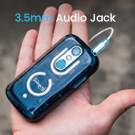
Image 4.2: Close-up of the Unihertz Jelly Star highlighting the 3.5mm audio jack.
4.7 USB On-The-Go (OTG)
The Jelly Star supports USB OTG, allowing you to connect USB devices such as flash drives, keyboards, or mice directly to your phone using a compatible OTG adapter (sold separately).
5. Connectivity & Compatibility
The Unihertz Jelly Star offers versatile connectivity options and broad network compatibility.
- Network Compatibility: Compatible with T-Mobile and Verizon networks only. (Refer to Section 3.3 for Verizon activation details). Note: Not compatible with AT&T.
- Wireless Connectivity: Supports Wi-Fi, Bluetooth, NFC, and Infrared.
- Navigation: Integrated GPS for location services.
- SIM Slots: Dual Nano SIM slots for managing two phone numbers or different carriers.
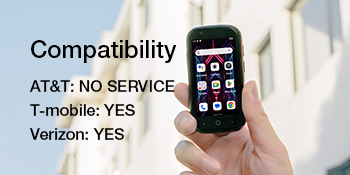
Image 5.1: Visual representation of the Unihertz Jelly Star's network compatibility, indicating support for T-Mobile and Verizon.
Video 5.1: An official product video demonstrating the compact size and various features of the Unihertz Jelly Star Mini Phone. This video highlights the phone's design and portability.
6. Maintenance
6.1 Battery Care
The Jelly Star is equipped with a 2000mAh battery. To maximize battery life:
- Avoid extreme temperatures.
- Use the provided power adapter and USB cable for charging.
- Avoid fully discharging the battery frequently.
- Optimize screen brightness and close unused background applications.
6.2 Cleaning Your Device
Use a soft, lint-free cloth to clean the screen and body of your phone. Avoid using harsh chemicals or abrasive materials, which can damage the device.
6.3 Software Updates
Regularly check for and install software updates to ensure your device has the latest features, security patches, and performance improvements. You can usually find this option in Settings > System > System update.
7. Troubleshooting
If you encounter issues with your Unihertz Jelly Star, refer to the following common troubleshooting steps:
- Device not powering on: Ensure the battery is charged. Connect the phone to the charger and wait a few minutes before attempting to power it on again.
- Network connectivity issues:
- Check if your SIM card is properly inserted (refer to Section 3.1).
- Verify that your mobile data or Wi-Fi is enabled.
- Restart the device.
- For Verizon users, confirm SIM activation as per Section 3.3.
- Apps crashing or freezing:
- Close and restart the problematic app.
- Clear the app's cache and data in Settings > Apps > [App Name] > Storage & cache.
- Ensure the app is updated to its latest version.
- Short battery life:
- Reduce screen brightness.
- Disable unused features like Bluetooth, GPS, or Wi-Fi when not needed.
- Identify and close power-consuming background apps.
If these steps do not resolve your issue, please contact Unihertz customer support for further assistance.
8. Specifications
Below are the key technical specifications for the Unihertz Jelly Star Mini Smartphone:
| Model Name | Jelly Star |
| Operating System | Android 13.0 |
| CPU Model | MediaTek Helio G99 |
| CPU Speed | 2200 MHz |
| RAM Memory Installed Size | 8 GB |
| Memory Storage Capacity | 256 GB |
| Standing Screen Display Size | 3 Inches |
| Resolution | 480 x 854 |
| Refresh Rate | 60 Hz |
| Battery Capacity | 2000 Milliamp Hours |
| Product Dimensions | 3.75 x 1.95 x 0.74 inches |
| Item Weight | 4.3 ounces |
| Connectivity Technologies | Bluetooth, Infrared, NFC, USB, Wi-Fi |
| Audio Jack | 3.5 mm |
| GPS | True |
9. Warranty and Support
9.1 Product Warranty
The Unihertz Jelly Star comes with a one-year warranty from the date of purchase. This warranty covers manufacturing defects and malfunctions under normal use. Please retain your proof of purchase for warranty claims.
9.2 Technical Support
Unihertz provides long-term technical support and efficient online customer service. For any technical issues, questions, or support needs not covered in this manual, please visit the official Unihertz website or contact their customer service team.
You can find more information and support resources on the Unihertz Store on Amazon.