
1. Introduction
The Powate AI Voice Recorder is a compact digital recording device designed to capture audio and provide advanced AI-powered transcription and summarization services. It supports multiple languages and offers seamless integration with a dedicated mobile application for enhanced functionality.
Key Features:
- AI Transcription & Smart Summaries: Powered by GPT-4o, converts speech to text in 112 languages and generates meeting summaries, mind maps, and key points.
- Military-Grade Security & Unlimited Cloud Backup: Features end-to-end encryption and secure device-to-app pairing with unlimited cloud storage.
- Dual-Mode Recording with Smart Noise Filtering: Utilizes 6D omnidirectional microphones and AI noise reduction for clear audio, including a Vibration Conduction Sensor (VCS) for phone calls.
- Enhanced Powate App Experience: Allows editing recordings, speaker identification with color-coded labels, and professional transcript creation.
- Ultra-Compact, Magnetic & Portable: Slim aluminum alloy design (0.13-inch thin, 0.07 lbs) with a built-in magnet for attachment to metal surfaces or phones.

Figure 1: Front and back view of the Powate AI Voice Recorder, showcasing its compact design.
2. What's in the Box
Upon opening your Powate AI Voice Recorder package, you should find the following items:
- 1 x Powate NOTE Recorder
- 1 x Magnetic Ring
- 1 x Charging Cable
- 1 x User Manual (this document)

Figure 2: Package contents of the Powate AI Voice Recorder.
3. Setup
3.1 Initial Charging
Before first use, fully charge your Powate AI Voice Recorder. Connect the provided magnetic charging cable to the back of the device and plug the USB end into a power adapter or computer. A full charge typically takes 1-2 hours.

Figure 3: Charging the Powate AI Voice Recorder.
3.2 App Installation and Device Pairing
The Powate AI Voice Recorder operates in conjunction with the dedicated AIREC mobile application. Download the AIREC app from your smartphone's app store (iOS/Android).
- Open the AIREC application to register and log in.
- Push the switch upwards to the ON position on the voice recorder.
- In the app, click on the connection "+" in the upper left corner to search for devices.
- Once the device is found, click to connect.
The app allows you to manage recordings, initiate transcriptions, and access smart summaries.
3.3 Magnetic Attachment (Optional)
For convenient use, the recorder can be magnetically attached to your smartphone. If your phone case is not magnetic, use the provided magnetic ring by adhering it to the back of your phone case.

Figure 4: Magnetic attachment of the recorder to a smartphone.
4. Operating Instructions
4.1 Recording Audio
The device offers two recording modes:
- Without App Connection: Simply slide the power switch to the ON position. The device will automatically begin recording. To stop and save the recording, slide the switch to the OFF position.
- With App Connection: Connect the device to the AIREC app. You can initiate and manage recordings directly from the app interface.

Figure 5: Illustration of the two recording modes.
4.2 AI Transcription & Summarization
After recording, transfer the audio file to the AIREC app for processing.
- In the AIREC app, select the desired recording.
- Choose the recording language (supports 112 languages).
- Select a summary structure (e.g., Meeting Note, Call, Interview Note) to help extract key points.
- Click 'Transcribe' to convert the audio to text. The app will also generate smart summaries and mind maps based on the content.
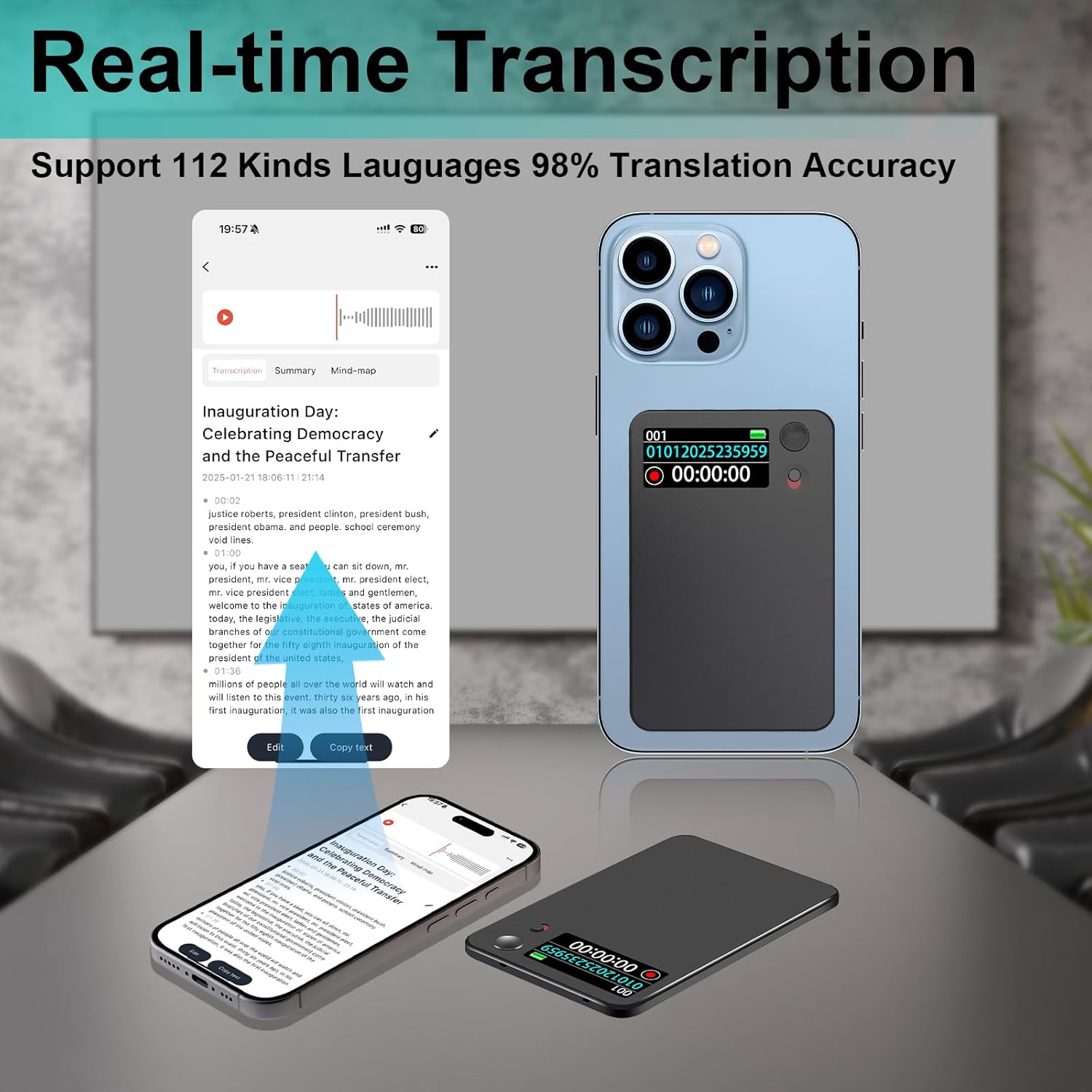
Figure 6: Real-time transcription feature in the AIREC app.
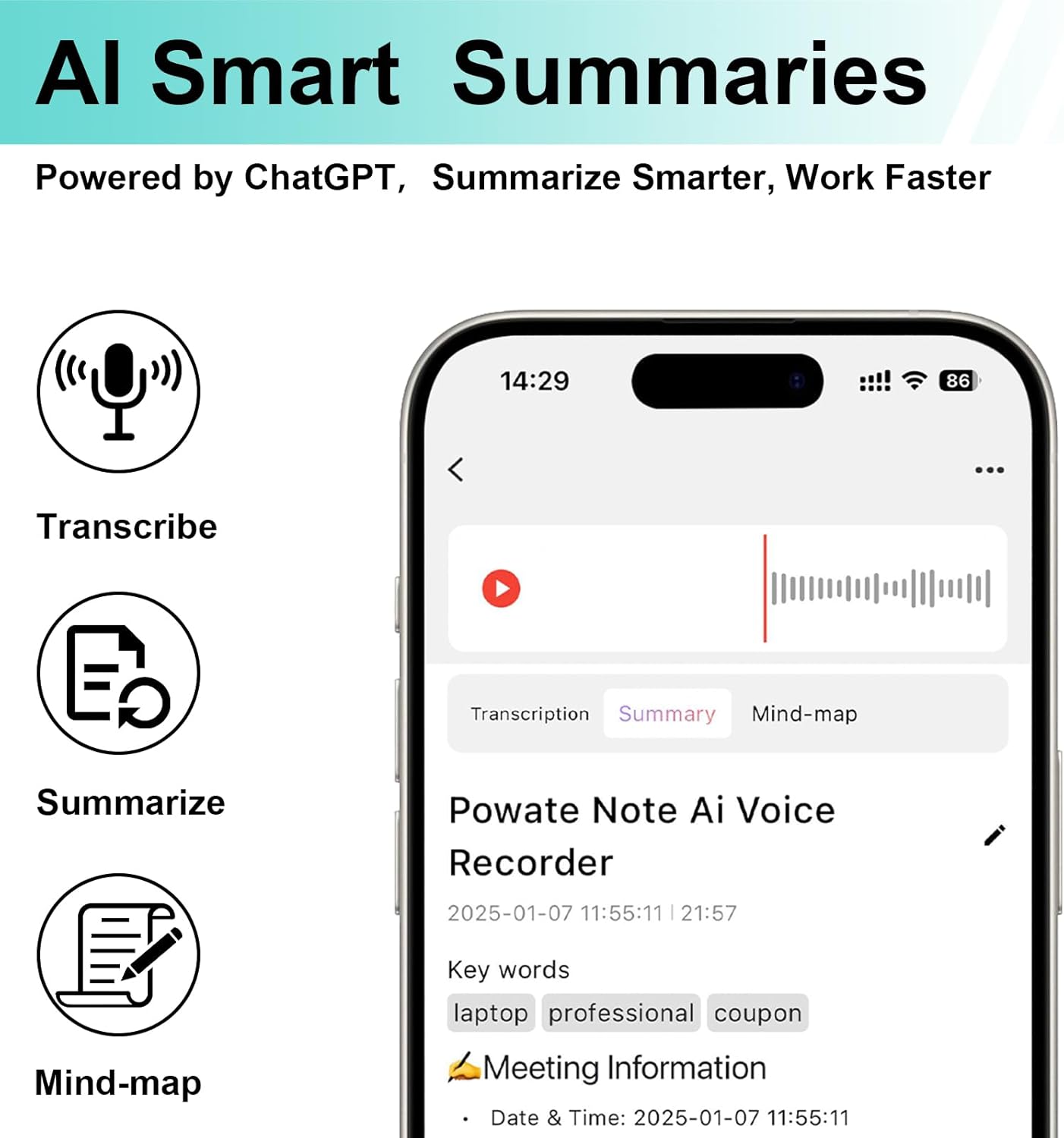
Figure 7: AI Smart Summaries feature in the AIREC app.
4.3 Noise Reduction
The device features 6D omnidirectional microphones and advanced AI noise reduction technology. This helps filter out ambient interference, ensuring clear audio capture, especially in noisy environments or during phone calls via the Vibration Conduction Sensor (VCS).
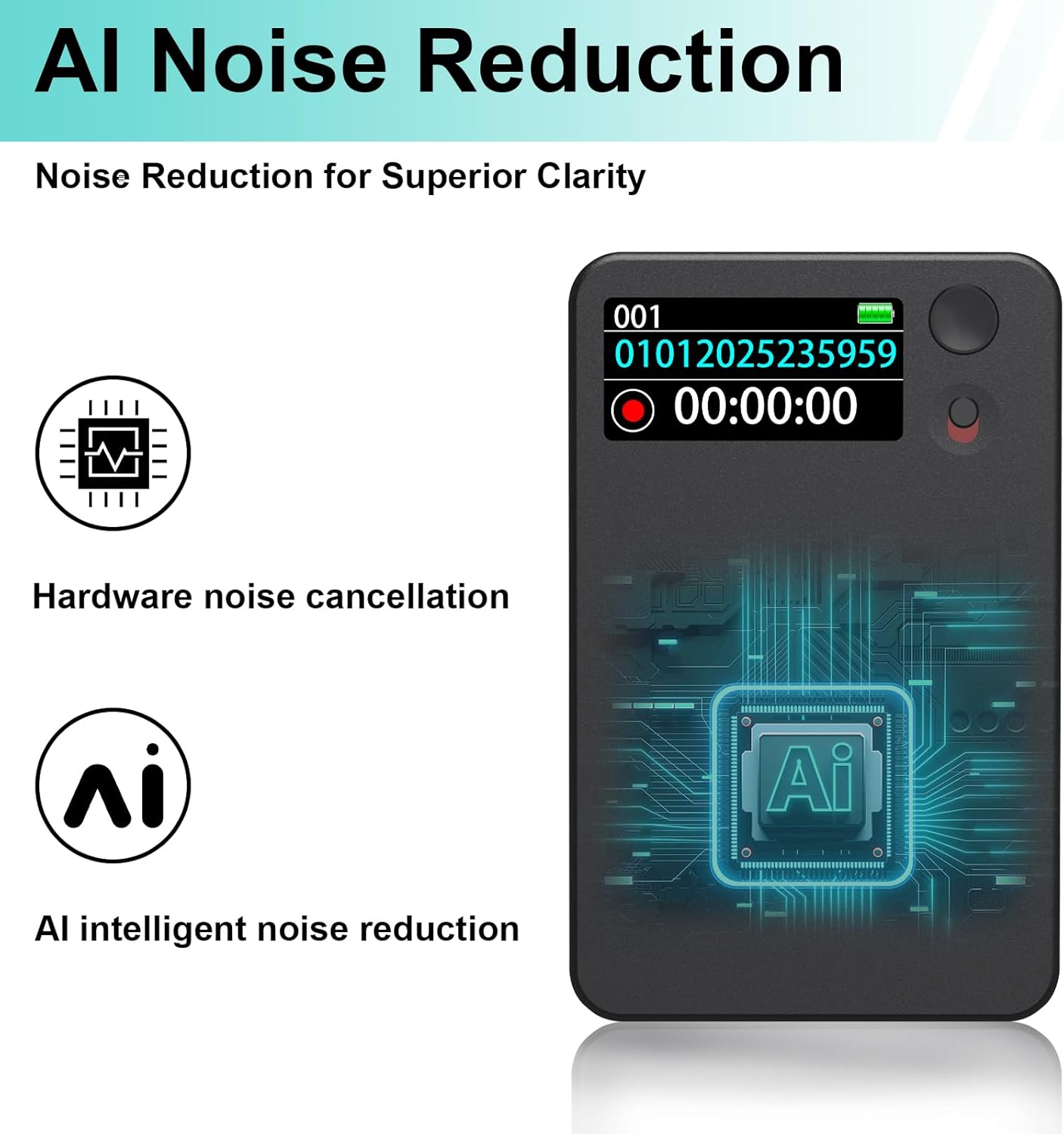
Figure 8: AI Noise Reduction capabilities.
5. Charging and Battery Life
The Powate AI Voice Recorder offers a long-lasting battery. A full charge (1-2 hours) provides up to 30 hours of continuous recording time. The device uses a magnetic charging port for convenience.
Figure 9: Charging the device.
6. Storage and Security
The device comes with 64GB of internal memory. All recordings are backed up to Powate Web with unlimited cloud storage. Your data is protected with end-to-end encryption and secure device-to-app pairing, ensuring privacy and accessibility.

Figure 10: Data privacy and cloud backup features.
7. Usage Scenarios
The Powate AI Voice Recorder is versatile and can be used in various professional and academic settings:
- Meetings: Record discussions and generate summarized minutes.
- Lectures/Classes: Capture entire lectures for later review and transcription.
- Phone Calls: Record important conversations with clear audio.
- Interviews: Transcribe interviews in real-time or post-recording for easy documentation.

Figure 11: Recording in meetings.

Figure 12: Recording phone calls.

Figure 13: Recording in classrooms.

Figure 14: Recording interviews.
Official Product Videos:
Video 1: Overview of the AI Voice Recorder's transcription and summarization features.
Video 2: Demonstration of the Note Voice Recorder's capabilities.
Video 3: AI Voice Recorder showcasing transcription and summarization with AI technology.
Video 4: Short overview of the AI Recorder as a smart recording expert.
Video 5: Brief demonstration of the AI Voice Recorder's features.
8. Specifications
| Feature | Detail |
|---|---|
| Product Dimensions | 1 x 1 x 1 inches (1"D x 1"W x 1"H) |
| Item Weight | 1.06 ounces (30 Grams) |
| Memory Storage Capacity | 64 GB |
| Screen Size | 2 Inches |
| Brand | Powate |
| Manufacturer | Powate |
| Compatible Devices | Smartphone |
| Hardware Interface | USB 2.0 |
| Microphone Form Factor | Built-In |
| Headphones Jack | 3.5 millimeters |
9. Troubleshooting
- Device not turning on: Ensure the device is fully charged. Connect to the charging cable and allow at least 30 minutes for charging before attempting to power on again.
- App connection issues: Verify Bluetooth is enabled on your smartphone and the recorder is in pairing mode. Restart both the app and the recorder if issues persist.
- Transcription accuracy: Ensure clear audio recording by minimizing background noise. Speak clearly and at a moderate pace. For best results, use the device in a quiet environment.
- Recording not saving: Confirm that the device has sufficient storage space. Ensure the power switch is correctly moved to the OFF position to finalize and save the recording.
10. Maintenance
- Cleaning: Use a soft, dry cloth to clean the device. Avoid using liquid cleaners or abrasive materials.
- Storage: Store the device in a cool, dry place away from direct sunlight and extreme temperatures.
- Battery Care: To prolong battery life, avoid fully discharging the device frequently. Charge it regularly, even if not in active use.
- Software Updates: Regularly check the AIREC app for any available software or firmware updates for the device to ensure optimal performance and access to new features.
11. Warranty and Support
For warranty information and customer support, please refer to the documentation included in your product packaging or visit the official Powate website. Keep your purchase receipt as proof of purchase for any warranty claims.