
Introduction
This manual provides detailed instructions for the installation, operation, and maintenance of your Hodozzy 10-inch Android Car Radio. Please read this manual thoroughly before using the product to ensure proper functionality and to prevent damage.

Image: The Hodozzy 10-inch Android Car Radio displaying its main interface, accompanied by a backup camera, an external microphone, and a smartphone illustrating wireless CarPlay/Android Auto connectivity.
Package Contents
Verify that all items listed below are included in your package:

Image: Overview of the Hodozzy 10-inch Android Car Radio and its included accessories, such as power cables, RCA cables, GPS antenna, rear camera, microphone, USB cables, mounting brackets, and the user manual.
- 1 x Car Player (Hodozzy 10-inch Android Car Radio)
- 1 x Power Cable
- 1 x GPS Antenna
- 1 x Rear Camera Input Cable
- 1 x RCA Cable
- 2 x USB Cable
- 2 x Mounting Bracket
- 4 x Screw
- 1 x User Manual (this document)
- 1 x Backup Camera
- 1 x Microphone (MIC)
Specifications
| Feature | Detail |
|---|---|
| System | Android 15 |
| Screen Material | Incell |
| Chipset | RK3326 |
| MCU | G0001ALT |
| Sound Processor | TM2313 |
| Operating Speed | 1.5GHZ |
| Screen Size | 10 inches |
| Memory | 4GB RAM + 128GB ROM |
| Screen Resolution | 1280x720 |
| Bluetooth | Supported |
| Radio Chip | UMW2652 |
| Power Output | 4*45W |
| Work Voltage | 9V-16V |
| Work Temperature | -20℃ to 70℃ |
| Steering Wheel Control | Supported |
| Power Amplifier Chip | YD7388 |
| Radio Band | FM/RDS |
| Reversing Input | AHD/CVBS |
| External Microphone | Supported |
| Split Screen | Supported |
| Mirror Link | Supported (iOS/Android) |
| Offline Maps | Built-in (requires internet to download data) |
| WiFi | Supported |
| USB | Double USB interface |
| Audio Format | APE/FLAC/WAV/MP3/WMA etc. |
| Video Format | MKV/RMVB/AVI/MP4/MDV etc. |
| Picture Format | PNG/JPEG/JPG/GIF/WBMP/BNP etc. |
| Languages | Chinese/English/French/Italian/Korean/Japanese/Arabic/Spanish/Portuguese/Russian/Turkish/Vietnamese/Hebrew/Polish/German |
Setup and Installation
Professional installation is recommended for this product. Ensure the vehicle's power is disconnected before beginning installation.
1. Physical Installation
- Mounting: Use the provided mounting brackets and screws to secure the head unit into your vehicle's double DIN slot. Refer to your vehicle's specific dashboard disassembly instructions.
- Power Connection: Connect the main power cable harness to the corresponding ports on the car radio and your vehicle's wiring. Ensure correct connections for constant power (B+), accessory power (ACC), and ground (GND).
- Speaker Connections: Connect your vehicle's speaker wires to the appropriate outputs on the car radio's harness.
- GPS Antenna: Mount the GPS antenna in a location with a clear view of the sky, such as on the dashboard or under the windshield, ensuring it is securely attached.
- Rear Camera: Install the backup camera at the rear of your vehicle. Route the video cable and power cable to the head unit. Connect the video input cable to the "Rear Camera Input" on the radio and the power cable to the vehicle's reverse light circuit.
- External Microphone: Connect the external microphone to the designated port on the head unit and position it for optimal voice pickup, typically near the driver's sun visor.
- USB Cables: Route the two USB cables to an accessible location, such as the glove compartment or center console, for connecting USB devices.
- RCA Cables: If connecting external amplifiers or subwoofers, use the provided RCA cables to connect the audio outputs from the head unit to your external audio components.
2. Initial Power-Up and Configuration
- Power On: Reconnect the vehicle's power. The unit should power on automatically or by pressing the power button.
- Language Selection: Follow the on-screen prompts to select your preferred language.
- WiFi Connection: Navigate to the settings menu, select "Network & Internet," and connect to an available Wi-Fi hotspot to download offline map data or access online services.
- GPS Calibration: Ensure the GPS antenna is properly connected and the unit acquires a satellite signal for accurate navigation.
Operating Instructions
Your Hodozzy Android Car Radio offers a range of features for an enhanced driving experience.
1. User Interface and Navigation
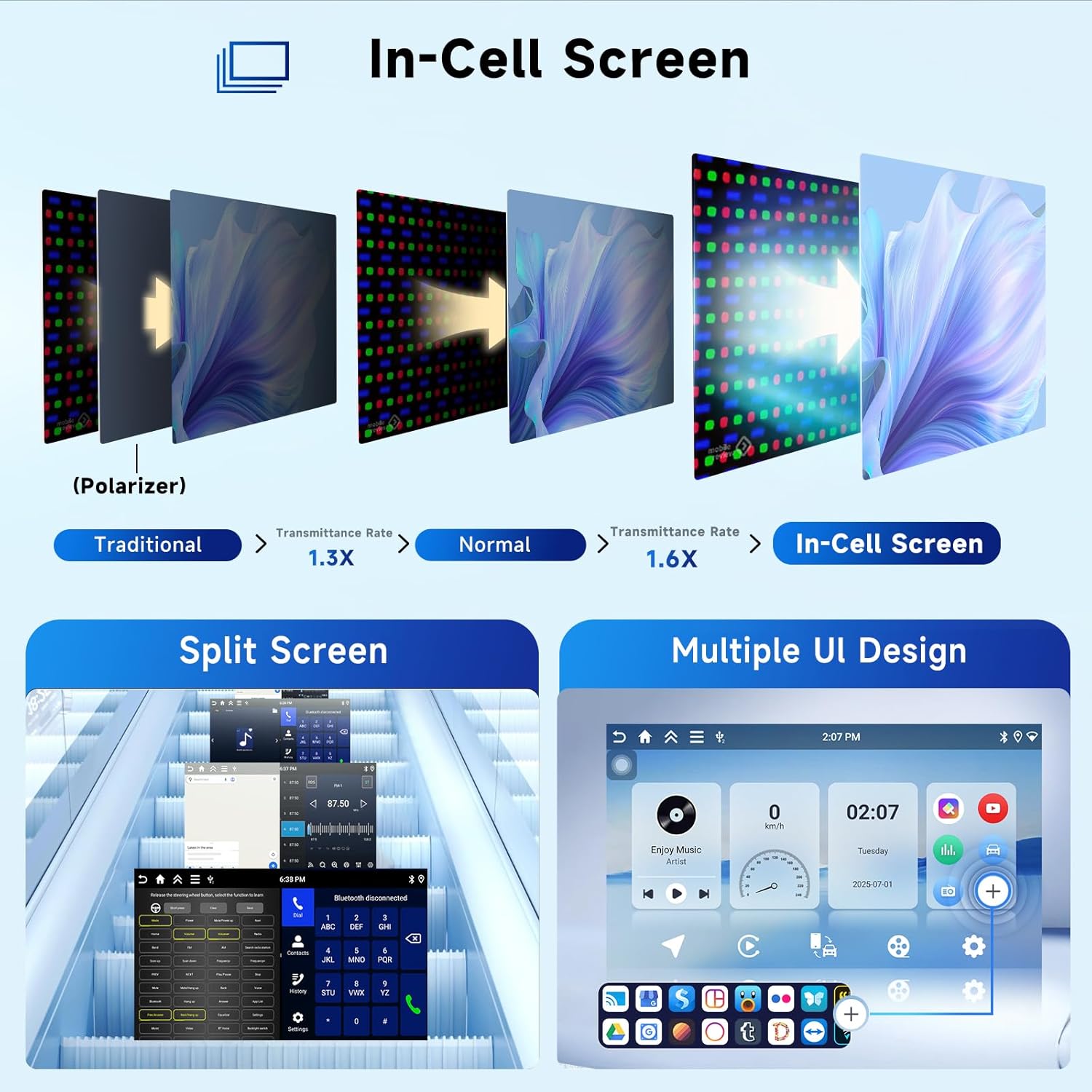
Image: Demonstrates the In-Cell screen technology for improved clarity, the split-screen functionality allowing two apps to run simultaneously, and various customizable user interface designs.
- Touch Screen: The 10-inch Incell capacitive touchscreen provides responsive control.
- Home Screen: Customize your home screen with drag-and-drop widgets and app shortcuts.
- Split Screen: Access the split-screen feature to run two applications simultaneously, such as navigation and music playback.
- UI Themes: Choose from 15 different UI themes to personalize the interface.
- Day/Night Mode: The system supports automatic or manual switching between day and night display modes for optimal visibility.
2. Wireless CarPlay & Android Auto

Image: Illustrates the seamless integration of Wireless CarPlay, Wireless Android Auto, and Mirror Link, allowing users to connect their iOS or Android smartphones for navigation, communication, and entertainment.
- Connection: Connect your smartphone wirelessly via Bluetooth or wired via USB for CarPlay (iOS) or Android Auto (Android). The system will automatically connect after initial pairing.
- Features: Access navigation (Maps, Waze), communication (calls, texts), and media (Spotify, Podcasts) directly from the car radio display.
- Voice Assistant: Utilize Siri or Google Assistant for hands-free operation.
- MirrorLink: For devices not supporting CarPlay or Android Auto, use MirrorLink to display your phone's screen on the head unit.
3. GPS Navigation and WiFi

Image: Highlights the GPS navigation capabilities with built-in offline maps, the WiFi connection for internet access and streaming, and the system's high performance with 4GB RAM and 128GB ROM for fast operation.
- Offline Maps: The unit comes with built-in offline maps. Connect to Wi-Fi to download map data for your region.
- Online Navigation: Connect to a Wi-Fi hotspot (e.g., from your phone) to access real-time traffic updates, speed camera alerts, and other online navigation features via apps like Waze.
- App Downloads: Download additional navigation or entertainment apps from the app store.
4. Audio and Radio

Image: Shows the digital sound processor (DSP) interface for audio customization, hands-free Bluetooth calling, Bluetooth music playback, the display for the rear view camera, the FM/RDS radio interface, and how steering wheel controls integrate with the unit.
- DSP Equalizer: Utilize the 36-band DSP equalizer to fine-tune your audio experience. Adjust bass, treble, and other sound parameters.
- FM/RDS Radio: Tune into FM radio stations. RDS (Radio Data System) provides station information and track titles where available.
- Bluetooth Audio: Stream music wirelessly from your smartphone via Bluetooth A2DP.
- USB Playback: Play audio and video files from USB drives connected to the dual USB ports.
5. Bluetooth Calling
- Pairing: Pair your phone via Bluetooth in the settings menu. The unit will automatically sync your contacts.
- Hands-Free Calls: Make and receive calls directly from the head unit, using the built-in or external microphone.
6. Rear View Camera
- Automatic Display: When the vehicle is shifted into reverse, the screen will automatically display the rear camera feed.
- Parking Guidelines: The camera display includes parking guidelines to assist with maneuvering.
7. Steering Wheel Controls
- Integration: The unit supports integration with your vehicle's existing steering wheel controls. This allows you to manage volume, tracks, and calls without taking your hands off the wheel.
- Configuration: If not automatically detected, configure steering wheel controls in the system settings.
Maintenance
- Screen Cleaning: Use a soft, lint-free cloth to clean the touchscreen. Do not use abrasive cleaners or solvents.
- Software Updates: Periodically check for OTA (Over-The-Air) software updates in the system settings to ensure optimal performance and access to new features.
- General Care: Avoid exposing the unit to extreme temperatures or direct sunlight for prolonged periods.
Troubleshooting
| Problem | Possible Cause | Solution |
|---|---|---|
| Unit does not power on. | Incorrect wiring; blown fuse; vehicle power issue. | Check power cable connections (B+, ACC, GND). Inspect vehicle fuses. Consult a professional installer. |
| No sound from speakers. | Incorrect speaker wiring; volume too low; mute activated. | Verify speaker connections. Increase volume. Check if mute is active. Ensure external amplifier (if used) is powered. |
| GPS signal is weak or inaccurate. | GPS antenna improperly placed or disconnected. | Ensure GPS antenna has a clear view of the sky and is securely connected. |
| CarPlay/Android Auto not connecting. | Bluetooth/USB connection issue; phone settings. | Ensure Bluetooth is enabled on phone and unit. Try reconnecting via USB. Check phone's CarPlay/Android Auto settings. Restart both devices. |
| Rear camera not displaying. | Camera wiring issue; camera power issue. | Verify rear camera video input and power connections. Ensure the camera is receiving power when the vehicle is in reverse. |
| Touchscreen unresponsive. | Temporary software glitch. | Restart the unit by pressing the reset button (if available) or by cycling the vehicle's ignition. |
Warranty Information
Hodozzy provides a 2-Year Replacement Warranty for this product. This warranty covers manufacturing defects and ensures a replacement unit if issues arise within the warranty period. Please retain your proof of purchase for warranty claims.
Customer Support
For technical assistance, troubleshooting, or warranty inquiries, please contact Hodozzy Customer Support:
- Email: hodozzyofficial@163.com
- Support: Lifetime technical support is available for all Hodozzy products.
- Response Time: Expect a response within 18 hours.

Image: Hodozzy customer support details, including email for inquiries and information on warranty and lifetime support.