
1. Product Overview
The CXK GT11-1 is a 4G LTE GPS Tracker designed for reliable location tracking across USA and Canada. This device offers real-time updates, extensive travel history, and smart geo-fencing capabilities, making it suitable for various personal and asset tracking needs. Its robust design ensures continuous operation and peace of mind.
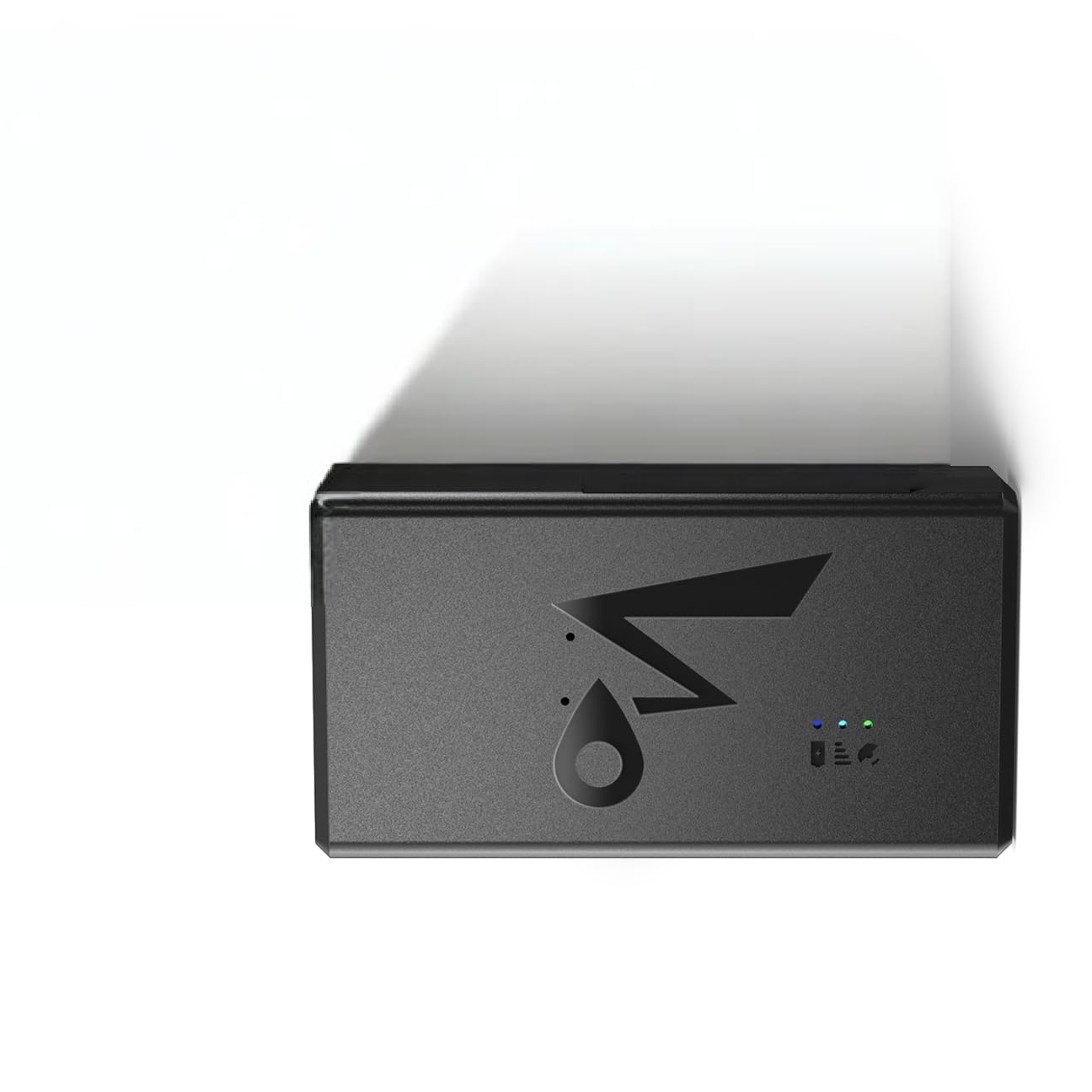
Figure 1: CXK GT11-1 4G LTE GPS Tracker. This image displays the compact design of the tracker, highlighting its portability and discreet nature.
Key Features:
- 14-Day Battery Life: Operates continuously for up to 14 days with active use, reducing the need for frequent charging.
- Real-Time Location Updates: Provides instant 30-second updates for accurate tracking.
- 90-Day Travel History: Access detailed route playback with timestamps and speed analysis via the companion app.
- Smart Geo-Fencing: Set custom safe zones and receive alerts when the device enters or exits these areas.
- WiFi Tracking: Maintains real-time tracking in challenging environments like urban areas or indoors where GPS signals may be weak.
- USA/Canada Coverage: Designed for reliable performance across both countries.
2. Safety Information
Please read and follow these safety guidelines to ensure proper operation and prevent damage to the device or injury.
- Do not attempt to open, disassemble, or modify the device. This may cause damage, void the warranty, and lead to safety hazards.
- Keep the device away from extreme temperatures, direct sunlight, and high humidity.
- Avoid dropping or subjecting the device to strong impacts.
- Use only the specified charging accessories.
- Dispose of the device and its components responsibly, following local regulations for electronic waste.
3. Device Setup
3.1. Charging the Device
Before first use, fully charge the GT11-1 tracker. Connect the provided charging cable to the device's charging port and plug the other end into a standard USB power adapter (not included). The charging indicator light will illuminate during charging and turn off when fully charged.
- A full charge typically takes approximately 2-3 hours.
- Ensure the charging port is dry and clean before connecting the cable.
3.2. SIM Card Installation (If Applicable)
The GT11-1 tracker requires a 4G LTE compatible SIM card for cellular connectivity. Please ensure your SIM card is activated and has an active data plan for USA/Canada coverage.
- Locate the SIM card slot on the device. This may be under a protective cover.
- Carefully insert the activated 4G LTE SIM card into the slot with the gold contacts facing down and the notched corner aligned correctly.
- Gently push the SIM card until it clicks into place.
- Close the protective cover (if present) to ensure water resistance.
3.3. App Download and Account Creation
To manage and track your device, download the official CXK tracking application on your smartphone or tablet.
- Search for "CXK Tracker" in the Apple App Store (for iOS devices) or Google Play Store (for Android devices).
- Download and install the application.
- Open the app and follow the on-screen instructions to create a new user account.
3.4. Device Activation/Pairing
Once your account is created, you will need to add your GT11-1 tracker to the app.
- In the CXK Tracker app, select the option to "Add Device" or "Bind Device".
- You will typically be prompted to scan a QR code located on the device or its packaging, or to manually enter the device's unique ID number (IMEI).
- Follow any additional prompts to complete the pairing process. The device should now appear in your app's device list.
4. Operating Instructions
4.1. Real-Time Tracking
To view the current location of your GT11-1 tracker:
- Open the CXK Tracker app.
- Select your device from the list.
- The map will display the device's current location, updated every 30 seconds in normal mode.
- The app may also show additional information such as speed, battery level, and signal strength.
4.2. Geo-Fencing
Geo-fencing allows you to define virtual boundaries and receive alerts when the tracker enters or exits these areas.
- In the app, navigate to the "Geo-fence" or "Safe Zone" settings.
- Tap to create a new geo-fence. You can typically draw a circular or polygonal area on the map.
- Name the geo-fence and configure alert preferences (e.g., notify on entry, notify on exit).
- Save the geo-fence. You will now receive notifications when the device crosses these boundaries.
4.3. Travel History Playback
The GT11-1 stores up to 90 days of travel history, which can be reviewed in the app.
- Access the "History" or "Route Playback" section in the app.
- Select a date range for the desired travel history.
- The app will display the route taken by the device on the map, often with options to play back the journey, view timestamps, and analyze speed patterns.
4.4. WiFi Tracking (Indoor/Weak GPS Signal)
In areas where GPS signals are weak or unavailable (e.g., indoors, dense urban environments), the GT11-1 utilizes WiFi positioning to maintain tracking accuracy. This feature operates automatically when GPS is not optimal.
- No manual configuration is typically required for WiFi tracking.
- The app will indicate the positioning method being used (GPS, WiFi, or LBS).
4.5. Alert Management
The app allows you to configure various alerts beyond geo-fencing, such as low battery warnings or movement alerts.
- Navigate to the "Alerts" or "Notifications" section in the app settings.
- Enable or disable specific alert types and customize their triggers and notification methods (e.g., push notifications).
5. Maintenance
5.1. Battery Care and Charging
- Charge the device regularly, especially if it will be stored for an extended period.
- Avoid completely draining the battery frequently, as this can reduce its overall lifespan.
- Use only the original or certified compatible charging cables.
5.2. Cleaning
- Wipe the device with a soft, dry, or slightly damp cloth.
- Do not use harsh chemicals, solvents, or abrasive cleaners.
- Ensure the charging port and SIM card slot are free of dust and debris.
5.3. Storage
- Store the device in a cool, dry place when not in use.
- If storing for a long time, charge the battery to about 50% every few months to prevent deep discharge.
6. Troubleshooting
If you encounter issues with your CXK GT11-1 tracker, refer to the following common problems and solutions:
| Problem | Possible Cause | Solution |
|---|---|---|
| Device not tracking / No location updates |
|
|
| Inaccurate location |
|
|
| Battery drains quickly |
|
|
| Cannot connect to app |
|
|
7. Specifications
| Brand | CXK |
| Model | GT11-1 |
| Connectivity | 4G LTE |
| Coverage | USA/Canada |
| Battery Life (Active Use) | Up to 14 days |
| Tracking Frequency | Instant 30-second updates (Normal Mode) |
| Travel History Storage | 90 days |
| Positioning Methods | GPS, WiFi, LBS |
| Parcel Dimensions | 10 x 5 x 0.1 cm |
| Item Weight | 100 g |
8. Warranty and Support
CXK products are manufactured to high-quality standards. For information regarding warranty coverage, please refer to the warranty card included with your product or visit the official CXK website.
For technical support, troubleshooting assistance, or any inquiries about your GT11-1 tracker, please contact CXK customer service through the contact information provided on the official website or within the CXK Tracker application.
Manufacturer: CXK
Model Number: GT11-1


