
1. Introduction
This manual provides essential information for setting up, operating, maintaining, and troubleshooting your ANPCOWER B14 15.6-inch laptop. Please read this guide thoroughly to ensure proper use and to maximize the lifespan of your device.
The ANPCOWER B14 is equipped with an Intel N95 processor, 8GB RAM, 256GB SSD, and a 15.6-inch Full HD display, designed for everyday computing tasks, office work, and web browsing.
2. What's in the Box
Verify that all items are present in the package:
- ANPCOWER B14 15.6'' Laptop (8GB RAM, 256GB SSD)
- 12V 3A DC Power Adapter (3.5mm connector)
- USB Flash Drive for OS Installation (for recovery purposes)
- User Manual (this document)
3. Product Overview
Familiarize yourself with the components and ports of your ANPCOWER B14 laptop.

Image: ANPCOWER B14 Laptop highlighting key internal specifications like N95 processor, 8GB RAM, and 256GB SSD.
3.1. Front View
The front of the laptop features the 15.6-inch Full HD display and the integrated webcam located at the top center of the screen bezel.
3.2. Keyboard and Touchpad
The laptop includes a full-size backlit keyboard with a numeric keypad and a multi-touch touchpad with an integrated fingerprint reader for secure login.

Image: Close-up of the ANPCOWER B14's full-size backlit keyboard, showing the numeric keypad and the fingerprint reader on the touchpad.
3.3. Side Ports
The sides of the laptop house various ports for connectivity:
- Left Side: USB 3.2 Gen 1 port, Mini-HDMI port.
- Right Side: TF Card Slot, USB 3.2 Gen 1 port, Headphone Jack, DC Power Input.
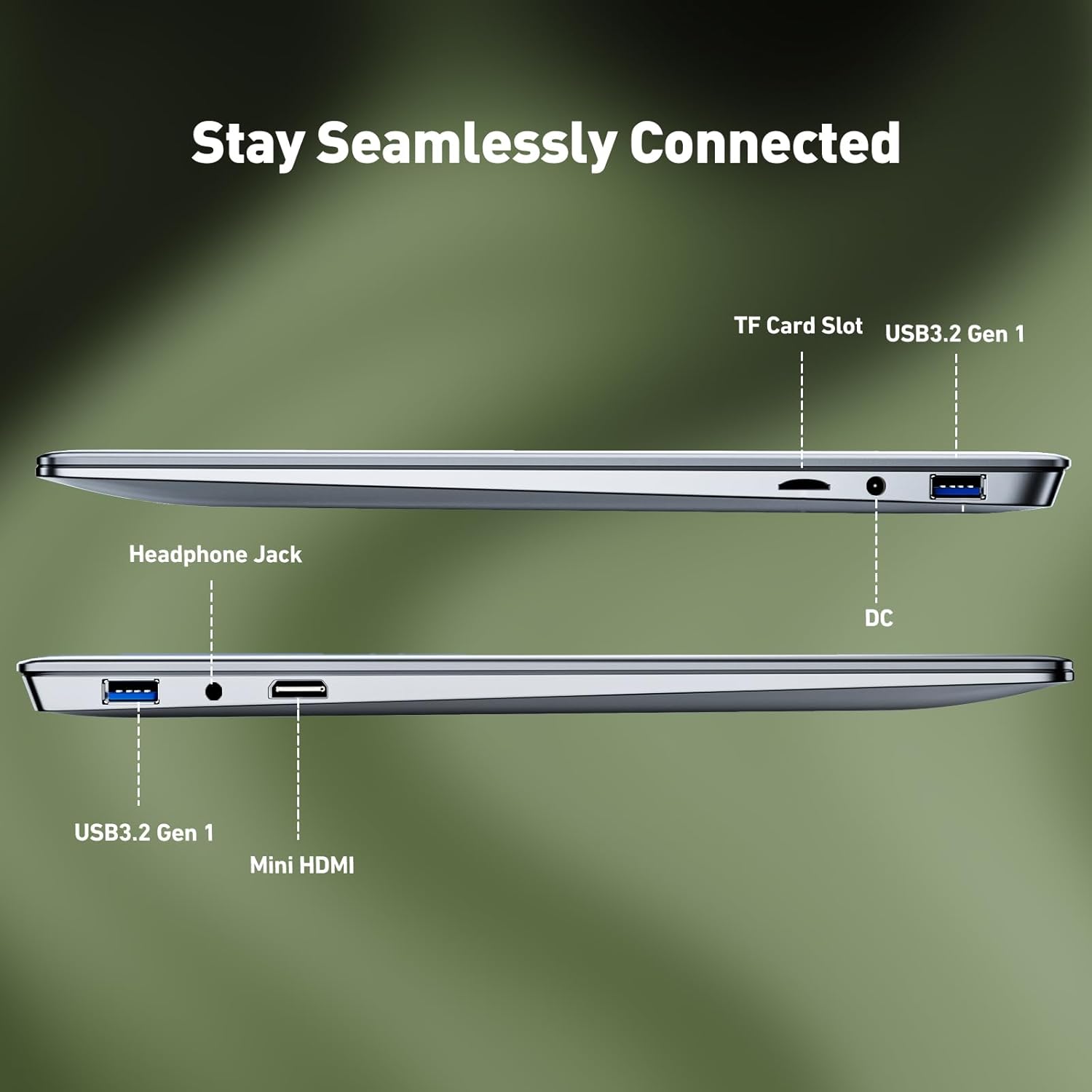
Image: Side view of the ANPCOWER B14 laptop, illustrating the placement of the TF Card Slot, USB 3.2 Gen 1 ports, Headphone Jack, DC Power Input, and Mini-HDMI port.
4. Setup
- Charge the Laptop: Before first use, connect the provided power adapter to the DC power input port on the right side of the laptop and plug it into a power outlet. Allow the laptop to charge fully. The charging indicator light will show the charging status.
- Power On: Open the laptop lid and press the power button, typically located above the keyboard or on the side.
- Initial Windows 11 Setup: Your laptop comes with Windows 11 pre-installed and partially set up to simplify the initial process. Follow the on-screen prompts to complete the remaining setup steps, which may include connecting to a Wi-Fi network, creating a user account, and setting privacy preferences.
- Fingerprint Setup (Optional): During or after the initial Windows setup, you can configure the fingerprint reader for secure and quick login. Navigate to Settings > Accounts > Sign-in options to set up Windows Hello Fingerprint.
5. Operating Instructions
5.1. Basic Operation
- Power On/Off: Press the power button to turn on. To shut down, click the Start button, then Power, and select "Shut down".
- Sleep Mode: Close the lid or click the Start button, then Power, and select "Sleep".
- Adjust Volume: Use the function keys (Fn + Fx) or the volume icon in the taskbar.
- Adjust Screen Brightness: Use the function keys (Fn + Fx) or display settings in Windows.
5.2. Keyboard Functions
- Backlit Keyboard: Press the dedicated backlight key (often Fn + a specific F-key, refer to keyboard icons) to toggle or adjust the keyboard backlight intensity.
- Numeric Keypad: Use the dedicated numeric keypad for efficient data entry. Ensure "Num Lock" is active.
- Fingerprint Reader: Place your registered finger on the fingerprint sensor on the touchpad to log in quickly.
5.3. Connectivity
- Wi-Fi: Connect to wireless networks via the Wi-Fi 5 module. Access Wi-Fi settings from the taskbar network icon.
- Bluetooth: Pair Bluetooth devices (e.g., headphones, mice) through Windows Settings > Bluetooth & devices.
- Mini-HDMI: Connect an external display or projector using a Mini-HDMI to HDMI cable (not included).
- USB Ports: Use the USB 3.2 Gen 1 ports for connecting external devices like USB drives, mice, or keyboards.
- TF Card Slot: Insert a TF (microSD) card to expand storage or transfer files.
6. Maintenance
- Cleaning: Use a soft, lint-free cloth to clean the screen and chassis. For stubborn marks, slightly dampen the cloth with water or a screen cleaner. Avoid harsh chemicals.
- Battery Care: To prolong battery life, avoid fully discharging the battery frequently. Store the laptop in a cool, dry place. If storing for an extended period, charge the battery to about 50-60%.
- Software Updates: Regularly check for and install Windows updates and driver updates to ensure optimal performance and security.
- Cooling: Ensure the laptop's ventilation openings are not obstructed to prevent overheating.
7. Troubleshooting
| Problem | Possible Cause | Solution |
|---|---|---|
| Laptop does not power on. | Low battery, power adapter issue. | Ensure the power adapter is securely connected and plugged into a working outlet. Allow the laptop to charge for at least 30 minutes before attempting to power on again. |
| Screen is blank or black. | Display settings, external monitor connected, system crash. | Press Fn + Fx (display toggle key) to cycle through display modes. Disconnect any external monitors. Perform a hard reset by holding the power button for 10-15 seconds. |
| Wi-Fi connection issues. | Wi-Fi disabled, incorrect password, router issue. | Check if Wi-Fi is enabled in Windows settings. Verify the Wi-Fi password. Restart your router and the laptop. |
| Fingerprint reader not working. | Incorrect setup, dirty sensor, software issue. | Ensure your finger is clean and dry. Re-register your fingerprint in Windows Hello settings. Check for driver updates. |
If you encounter persistent issues, please refer to the Warranty and Support section for assistance.
8. Specifications
| Feature | Detail |
|---|---|
| Brand | ANPCOWER |
| Model Name | B14 |
| Screen Size | 15.6 Inches |
| Screen Resolution | 1920 x 1200 pixels (FHD) |
| Processor | Intel N95 (3.4 GHz, 4 Cores) |
| RAM | 8 GB DDR4 |
| Hard Drive | 256 GB SSD |
| Graphics Coprocessor | Intel UHD Graphics |
| Operating System | Windows 11 |
| Wireless Type | Wi-Fi 5 (2.4 GHz, 5 GHz), Bluetooth |
| USB 3.0 Ports | 2 |
| Other Ports | Mini-HDMI, TF Card Slot, Headphone Jack, DC Power Input |
| Battery | 8000mAh Lithium Ion (approx. 6 hours average life) |
| Special Features | Backlit Keyboard, Fingerprint Reader, HD Audio, Numeric Keypad |
| Item Weight | 4 pounds |
| Product Dimensions (LxWxH) | 9 x 13.4 x 0.9 inches |
9. Warranty and Support
9.1. Warranty Information
Your ANPCOWER B14 laptop is covered by a 2-Year Worry-Free Warranty. This warranty includes repairs for defects and accidental damage. Please retain your proof of purchase for warranty claims.
9.2. Customer Support
For technical assistance, warranty claims, or any questions regarding your ANPCOWER B14 laptop, please contact ANPCOWER customer support. Reliable 24/7 support is available. Refer to the contact information provided on the ANPCOWER official website or your purchase documentation.
You can also visit the ANPCOWER Store on Amazon for additional resources and product information.