
1. Product Overview
The WENTER USB to HDMI Adapter converts a USB signal from your computer into a high-quality HDMI output. This device allows you to connect your laptop or desktop to HDTVs, monitors, or projectors, enabling multiple display setups. It supports synchronous audio and video transmission for a complete multimedia experience.
Key Features:
- High-Definition Output: Provides clear projection at up to 1080P resolution (1920x1080@60Hz) via a high-speed USB 3.0 connection. Compatible with 3D content.
- Display Modes: Supports both Mirror and Extend display modes for flexible screen sharing and multitasking.
- Audio Support: Enables simultaneous audio and video transmission through the HDMI connection.
- Driver Integration: Features a pre-installed driver for simplified setup.
2. System Requirements
Ensure your system meets the following requirements for optimal performance:
- Operating Systems: Windows 10, 8, 8.1, 7, and XP (32-bit only). Mac OS.
- USB Port: Available USB 3.0 or USB 2.0 port.
- Display: HDMI-enabled monitor, HDTV, or projector.
Note: This adapter is not compatible with Linux or Chrome OS, nor with 64-bit versions of Windows XP.

Image: Universal Compatibility. This diagram illustrates the supported operating systems (Windows XP 32-bit, Windows 7, Windows 8, Windows 10, Mac OS) and compatible source devices (desktop, laptop) and target devices (HDTV, monitor, projector). It also notes that Linux and 64-bit XP are not supported.
3. Setup and Installation
The WENTER USB to HDMI Adapter features a pre-installed driver for simplified setup. Follow these steps for installation:
- Step 1: Add Driver to Allow List
Before connecting the adapter, add its driver to your computer's security software's 'allow list' or trusted applications. This prevents the system from recognizing it as a dubious driver. - Step 2: Connect the Adapter
Plug the USB end of the adapter into an available USB 3.0 or USB 2.0 port on your computer. Connect an HDMI cable from the adapter's HDMI port to your display device (monitor, HDTV, or projector). - Step 3: Open the Device
Once connected, your computer should detect the device. Open the device named "USBDISPLAY" (or similar) from 'My Computer' or 'This PC'. - Step 4: Install the Driver
Inside the "USBDISPLAY" device, choose the appropriate driver for your operating system (e.g., "UsbDisplay_macOS" for Mac or "WinUsbDisplay_Windows" for Windows). Follow the on-screen instructions to complete the installation.
The driver operates locally and does not require an internet connection or access your personal data. If prompted by security software, proceed with confidence after adding it to your trusted list.

Image: Driver Installation Steps. This image visually guides users through the three main steps for installing the adapter's driver on their computer.
4. Operating Modes
The adapter supports two primary display modes:
- Extend Mode: Displays different content on each screen, allowing for an expanded visual workspace and multitasking.
- Mirror Mode: Duplicates your computer's display onto the connected external screen, ideal for presentations or sharing content.
On Windows, you can easily switch between display modes using the keyboard shortcut WIN + P and selecting your desired option.

Image: Extend and Mirror Display Modes. This image demonstrates how Extend Mode allows for separate interfaces on two screens, while Mirror Mode duplicates the display for a larger visual experience.

Image: Enjoy Film on a Larger Screen. This image shows the adapter facilitating a home theater experience by displaying content from a laptop onto a large television screen.
5. Audio Output
The WENTER USB to HDMI Adapter supports digital audio and video interface technology, allowing for simultaneous audio and video transmission through the HDMI connection. This means audio from your computer will be routed to your HDMI-connected display or audio system.
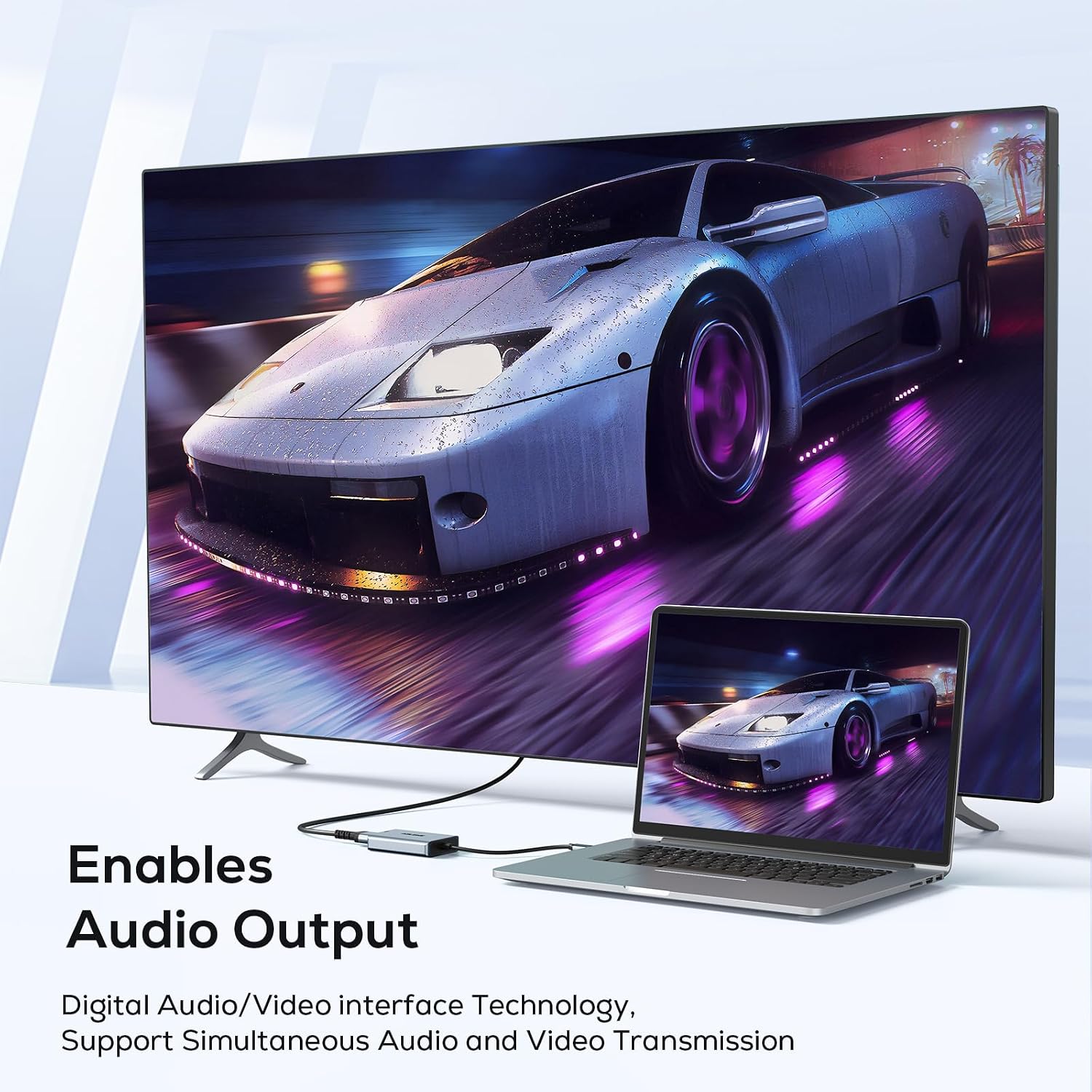
Image: Enables Audio Output. This image highlights the adapter's capability to transmit both audio and video simultaneously to an external display.
6. Specifications
| Feature | Detail |
|---|---|
| Model Number | B0FL234Q81 |
| Brand | WENTER |
| Connector Type | HDMI |
| Compatible Devices | Desktop, Laptop |
| Supported Resolution | Up to 1080P (1920x1080@60Hz) |
| USB Standard | USB 3.0 / USB 2.0 |
| Color | Grey |
| Number of Ports | 1 (HDMI) |
| Power Plug Type | No Plug (USB Powered) |
| Manufacturer | Wenter |
7. Troubleshooting
If you encounter issues with your WENTER USB to HDMI Adapter, consider the following troubleshooting steps:
- No Display Output:
- Ensure all cables (USB and HDMI) are securely connected.
- Verify that the driver is correctly installed. Re-run the installation if necessary, ensuring it's added to your security software's allow list.
- Check your computer's display settings to ensure the external monitor is detected and enabled (e.g., press WIN + P on Windows and select 'Extend' or 'Duplicate').
- Try connecting the adapter to a different USB port on your computer.
- Test with a different HDMI cable or display device if available.
- Driver Installation Issues:
- If the driver installation fails or the device is not recognized, temporarily disable your antivirus or firewall software, then attempt installation again. Remember to re-enable security software afterward.
- Ensure you are running a supported operating system (Windows 7/8/8.1/10, Mac OS, or Windows XP 32-bit).
- If the included driver is inaccessible or corrupted, contact WENTER customer support for an alternative download source.
- Poor Display Quality or Flickering:
- Ensure your computer's graphics drivers are up to date.
- Check the resolution settings on your computer. While the adapter supports 1080P, ensure your display is also set to an optimal resolution.
- Verify that you are using a USB 3.0 port for the best performance, especially for higher resolutions or refresh rates.
8. Maintenance
The WENTER USB to HDMI Adapter requires minimal maintenance. To ensure its longevity:
- Keep the adapter in a clean, dry environment.
- Avoid exposing it to extreme temperatures or direct sunlight.
- Do not attempt to disassemble or modify the device.
- Clean the exterior with a soft, dry cloth if necessary.
9. Warranty Information
This WENTER USB to HDMI Adapter comes with a 12-month warranty from the date of purchase. This warranty covers manufacturing defects and issues arising from normal use. It does not cover damage caused by misuse, accidents, unauthorized modifications, or improper installation.
Please retain your proof of purchase for warranty claims.
10. Customer Support
For further assistance, technical support, or warranty inquiries, please contact WENTER customer support through the retailer's platform or the official WENTER website. Provide your product model number (B0FL234Q81) and a detailed description of your issue to receive prompt support.