
1. Introduction
This manual provides detailed instructions for the installation, operation, and maintenance of your Hodozzy 10-Inch Double Din Android Car Radio. Please read this manual thoroughly before using the product to ensure proper function and to prevent damage.
The Hodozzy Android Car Radio features a 10-inch IPS touch screen, 4GB RAM, 128GB ROM, Wireless CarPlay, Wireless Android Auto, GPS navigation, Bluetooth, DSP, EQ, WiFi, FM RDS, and supports a backup camera. It is designed to enhance your in-car entertainment and connectivity experience.

Image 1.1: Hodozzy 10-Inch Double Din Android Car Radio with a backup camera, microphone, and a phone displaying CarPlay/Android Auto icons.
2. Package Contents
Verify that all items listed below are present in your package. If any items are missing or damaged, please contact customer support.
- Hodozzy 10-Inch Double Din Android Car Radio Unit
- Power Cable
- RCA Cable
- Rear Camera Input Cable
- GPS Antenna
- Mounting Bracket
- User Manual
- USB Cable (x2)
- Rear Camera
- Microphone

Image 2.1: Visual representation of the Hodozzy car radio unit, power cable, RCA cable, rear camera input cable, GPS antenna, mounting bracket, user manual, USB cables, rear camera, and microphone.
3. Product Overview
The Hodozzy Android Car Radio is equipped with advanced features for a superior in-car experience.
3.1 Key Components
- 10-Inch IPS Touch Screen: High-definition 1280x720 Incell panel for wide viewing angles and responsive touch.
- Android Operating System: Provides access to a wide range of applications.
- 4GB RAM + 128GB ROM: Ensures smooth multitasking and ample storage for apps and offline maps.
- Integrated GPS Module: For accurate navigation.
- Bluetooth Module: For hands-free calling and audio streaming.
- WiFi Module: For internet connectivity and hotspot functionality.
- DSP (Digital Sound Processor): For advanced audio customization.
- FM/RDS Tuner: For radio reception with station information display.

Image 3.1: Overview of the Hodozzy 10-inch Android Car Radio highlighting its core specifications and display technology.
4. Setup & Installation
Professional installation is recommended. Ensure the vehicle's power is disconnected before beginning installation.
4.1 Wiring Instructions
Refer to the wiring diagram below for proper connection of the power, audio, and video cables. Incorrect wiring can damage the unit or your vehicle's electrical system.

Image 4.1: Wiring diagram illustrating the connections for the Hodozzy car radio, including power, audio output, video output, auxiliary input, subwoofer, and microphone.
- Power Cable: Connect to the vehicle's power supply (ACC, B+, GND).
- RCA Cables: For audio output (front/rear), video output, and auxiliary input.
- Rear Camera Input: Connect the included backup camera.
- GPS Antenna: Mount in a location with a clear view of the sky.
- USB Cables: For connecting USB devices or wired CarPlay/Android Auto.
- Microphone: Connect for improved hands-free call quality.
4.2 Mounting the Unit
Use the provided mounting brackets to secure the double din unit into your vehicle's dashboard. Ensure a snug fit to prevent vibrations.

Image 4.2: Illustration showing a standard car radio unit before installation and the Hodozzy 10-inch Android Car Radio after installation, demonstrating its fit and display.
5. Operating Instructions
5.1 Power On/Off
The unit will power on automatically when the vehicle's ignition is turned on. To manually power off, press and hold the power button (if available) or turn off the vehicle's ignition.
5.2 Touch Screen Operation
The 10-inch IPS touch screen supports multi-touch gestures. Tap to select, swipe to scroll, and pinch to zoom where applicable.
5.3 Wireless CarPlay & Android Auto
Connect your smartphone wirelessly via Bluetooth or USB for seamless integration with CarPlay or Android Auto. This allows access to navigation, music, calls, and messages directly from the car radio display.
- Ensure Bluetooth is enabled on your smartphone and the car radio.
- Pair your phone with the car radio via Bluetooth.
- Once paired, select the CarPlay or Android Auto icon on the car radio's home screen.
- Follow on-screen prompts to complete the connection.

Image 5.1: Connection methods for CarPlay, Android Auto, and Mirror Link, illustrating both wired (USB) and wireless (Bluetooth) options.
5.4 GPS Navigation
The unit comes with pre-installed offline maps. You can also use online navigation apps by connecting to WiFi or a mobile hotspot.
- To use offline maps, ensure the GPS antenna is properly installed.
- For online navigation, connect the unit to a WiFi network or your phone's hotspot.
- Open your preferred navigation application from the home screen.

Image 5.2: GPS and WiFi features, demonstrating online and offline navigation capabilities, along with internet access for apps and media.
5.5 Bluetooth Functions
The built-in Bluetooth allows for hands-free calling and A2DP audio streaming.
- Pairing: Go to Bluetooth settings on the unit, enable Bluetooth, and search for your phone. Select your phone from the list and confirm pairing.
- Hands-Free Calling: Once paired, you can make and receive calls directly from the unit. The unit supports contact synchronization.
- Audio Streaming: Play music from your phone through the car's speakers via Bluetooth.

Image 5.3: Bluetooth, FM/RDS Radio, and DSP features, showing interfaces for calls, radio tuning, and sound customization.
5.6 FM/RDS Radio
Access local radio stations with enhanced clarity and view station information via RDS (Radio Data System).
- Select the "Radio" application from the home screen.
- Use the scan function to find available stations or manually tune to a frequency.
- RDS will display information such as station name and song title where available.
5.7 Steering Wheel Controls (SWC)
The unit supports integration with your vehicle's existing steering wheel controls. This feature allows you to control basic functions like volume, track skipping, and answering calls without taking your hands off the wheel.
- Navigate to the "Steering Wheel Control" settings in the unit's menu.
- Follow the on-screen instructions to program each button on your steering wheel to the corresponding function on the car radio.

Image 5.4: Rear View Camera and Steering Wheel Control features, demonstrating the camera's parking assistance view and the interface for programming steering wheel buttons.
6. Advanced Features
6.1 Digital Sound Processor (DSP) & Equalizer (EQ)
The integrated 36-band DSP and 4x50W amplifier output allow for precise audio customization. Adjust frequency bands, bass, and other sound parameters to achieve your desired acoustic experience.
- Access the "DSP" or "Equalizer" application from the home screen.
- Choose from preset EQ modes (e.g., Rock, Pop, Classical) or manually adjust the 36-band equalizer.
- Fine-tune bass, treble, balance, and fader settings.
6.2 In-Cell Screen Technology
The 1280x720 Incell panel integrates the touch layer directly with the liquid crystal layer, eliminating air gaps. This results in a clearer display, wider viewing angles, and improved touch responsiveness compared to traditional screens.
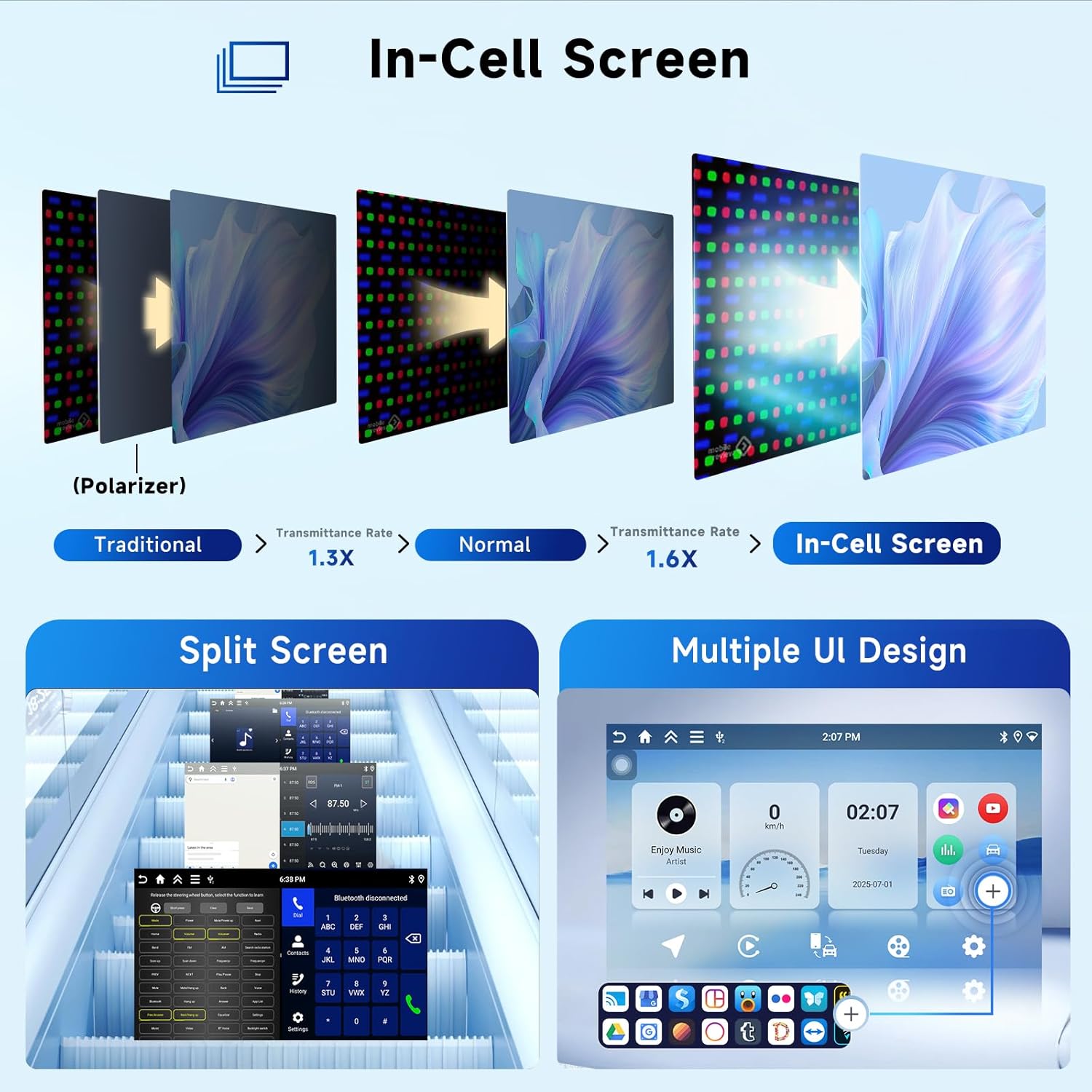
Image 6.1: Comparison of In-Cell screen technology with traditional screens, illustrating the benefits in clarity and light transmission.
6.3 Split Screen Functionality
Multitask efficiently by running two applications simultaneously on the screen. For example, use navigation on one side while controlling music on the other.
- Open the first application.
- Press and hold the recent apps button or swipe from the bottom (depending on UI) to activate split-screen mode.
- Select the second application to display on the other half of the screen.
6.4 Customizable User Interface (UI)
Choose from 15 different UI themes and customize your home screen with drag-and-drop widgets. The unit also supports day/night mode switching for optimal visibility.

Image 6.2: Multiple UI designs and adjustable app layouts, demonstrating the customization options available for the car radio's interface.
7. Maintenance
Regular maintenance ensures the longevity and optimal performance of your car radio.
- Screen Cleaning: Use a soft, lint-free cloth to gently wipe the screen. For stubborn smudges, slightly dampen the cloth with water or a screen-safe cleaner. Avoid harsh chemicals.
- Software Updates: Periodically check for OTA (Over-The-Air) software updates in the system settings to ensure you have the latest features and bug fixes.
- Environmental Conditions: Avoid exposing the unit to extreme temperatures, direct sunlight for prolonged periods, or excessive moisture.
8. Troubleshooting
If you encounter issues, refer to the following common problems and solutions before contacting customer support.
| Problem | Possible Cause | Solution |
|---|---|---|
| Unit does not power on. | Incorrect wiring; Blown fuse; Vehicle power issue. | Check power cable connections. Inspect vehicle fuses. Consult a professional installer. |
| No sound. | Volume too low; Mute activated; Speaker wiring issue; Incorrect audio source. | Increase volume. Check mute status. Verify speaker connections. Select correct audio source. |
| GPS signal lost or inaccurate. | GPS antenna obstructed or improperly installed. | Ensure GPS antenna has a clear view of the sky and is securely connected. |
| Bluetooth connection issues. | Phone not paired; Bluetooth disabled; Interference. | Ensure Bluetooth is enabled on both devices. Re-pair the phone. Move away from other wireless devices. |
| CarPlay/Android Auto not connecting. | Incorrect connection method; Phone software issue; USB cable fault. | Ensure correct wireless or wired connection. Update phone OS. Try a different USB cable. |
9. Specifications
| Feature | Detail |
|---|---|
| Model | Hodozzy [4G+128G] Android Car Radio |
| Screen Size | 10 Inch (26 cm visible diagonal) |
| Display Type | IPS Touch Screen, 1280x720 Resolution |
| Operating System | Android 15 |
| RAM | 4 GB |
| ROM (Internal Storage) | 128 GB |
| Connectivity | Bluetooth, WiFi, USB |
| Special Features | Wireless CarPlay, Wireless Android Auto, MirrorLink, GPS Navigation, DSP, EQ, FM RDS, Rear View Camera Support, Steering Wheel Control Support |
| Audio Output Power | 4 x 50W |
| Item Weight | 2.2 pounds |
| Package Dimensions | 3.94 x 3.94 x 3.94 inches |

Image 9.1: Product dimensions of the Hodozzy 10-inch car radio, including width, height, and depth.
10. Warranty & Support
Hodozzy products are designed for reliability and performance. For specific warranty details, please refer to the warranty card included with your product or visit the official Hodozzy website.
For technical assistance, troubleshooting beyond this manual, or warranty claims, please contact Hodozzy customer support through the following channels:
- Online Support: Visit the Hodozzy official website for FAQs and support contact information.
- Email Support: Refer to your product packaging or the Hodozzy website for the customer service email address.
Please have your product model number and purchase date available when contacting support.