
1. Introduction
The plplaaoo VT ER3 is a versatile 5-in-1 electromagnetic radiation detector designed to provide comprehensive environmental analysis. This device simultaneously measures radio frequency (RF) field intensity, electric field strength, magnetic field strength, temperature, and humidity. It is an essential tool for monitoring potential radiation hazards in various environments, including homes, offices, and industrial sites.
The VT ER3 features an intuitive interface with dual display modes, allowing users to easily switch between data views and trend graphs for all five parameters. Practical functions include sound alarms, data locking, radiation level assessment, and battery level indicators. Its robust design ensures reliable performance and enhanced visibility in diverse lighting conditions.

Figure 1: The plplaaoo VT ER3 Electromagnetic Radiation Detector, displaying its multi-parameter detection screen.

Figure 2: Various application scenarios for the VT ER3 detector, including monitoring near high voltage towers, in homes, offices, factories, signal towers, and microwave ovens.
2. Setup
2.1 Unpacking and Initial Inspection
Carefully remove the VT ER3 detector from its packaging. Inspect the device for any visible damage. Ensure all components are present.
2.2 Charging the Device
The device is equipped with a powerful 2000mAh rechargeable battery. Before first use, fully charge the detector using the provided Type-C charging cable.
- Connect the Type-C charging cable to the charging port on the device.
- Connect the other end of the cable to a standard USB power adapter (not included) or a computer USB port.
- The battery indicator on the display will show charging status. A full charge typically takes several hours.
- Once fully charged, disconnect the charging cable.
2.3 Powering On/Off
- To power on: Press and hold the power button (usually labeled "OK" or a dedicated power symbol) until the display illuminates.
- To power off: Press and hold the power button again until the display turns off.
3. Operating Instructions
3.1 Understanding the Display
The VT ER3 features a clear display that shows real-time readings for electric field, magnetic field, RF strength, temperature, and humidity. It also indicates alert levels and battery status.

Figure 3: The two available display styles for the VT ER3 detector. Users can switch between a detailed view with alert thresholds and a simplified numerical display by pressing the 'A' key.
3.2 Switching Display Modes
The device supports dual display modes: a data view and a trend graph view. To switch between these modes, use the designated navigation buttons (e.g., 'A' key as indicated in Figure 3, or arrow keys).

Figure 4: Trend diagrams illustrating the data change trends for RF Strength, Humidity, Electric Field, Magnetic Field, and Temperature over time.
3.3 Customizing Settings
The VT ER3 allows for various customizable settings to tailor the device to your preferences. Access the settings menu to adjust parameters such as sensor calibration, alarm thresholds, backlight brightness, power-off timers, screen-off timers, sound settings, time settings, and language.
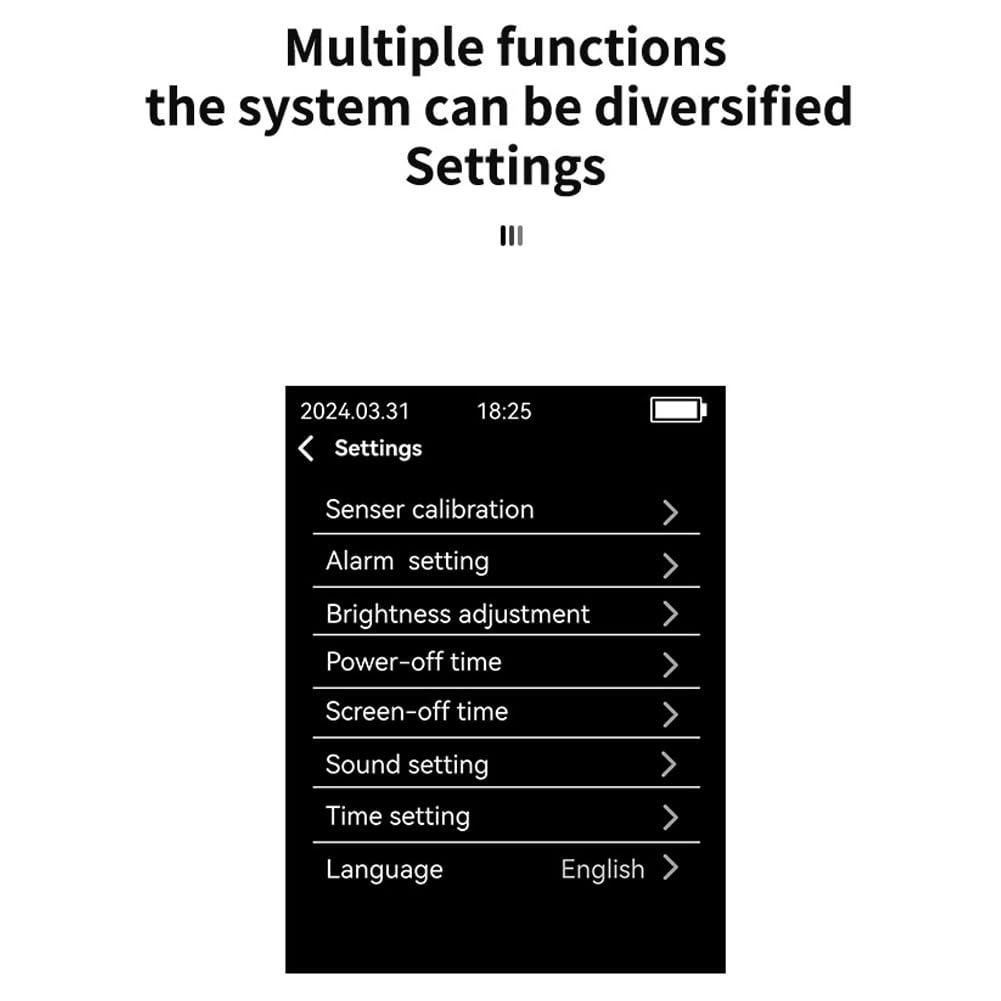
Figure 5: The settings menu of the VT ER3 detector, showing options for sensor calibration, alarm setting, brightness adjustment, power-off time, screen-off time, sound setting, time setting, and language.
3.4 Setting Alarm Thresholds
The device features customizable alarm thresholds. When radiation levels exceed the set limits, the display will turn red, and an audible alarm may sound (if enabled) to alert you to potentially hazardous conditions.
- Navigate to the "Alarm setting" option in the settings menu.
- Adjust the threshold values for Electric Field, Magnetic Field, and RF Strength as needed.
- Save your changes.
3.5 Data Locking
The data locking feature allows you to freeze the current readings on the screen for detailed observation. Consult the on-screen prompts or the device's physical buttons for activating and deactivating this function.
4. Key Features
- 5-in-1 Comprehensive Detection: Measures radio frequency field intensity, electric field strength, magnetic field strength, temperature, and humidity simultaneously.
- User-Friendly Multifunctional Design: Intuitive interface with dual display modes (data view and trend graphs), sound alarms, data locking, radiation level assessment, and battery level indicators.
- Long-Lasting Battery Life: Equipped with a 2000mAh rechargeable battery and a convenient Type-C charging port for extended usage.
- Customizable Settings and Alerts: Adjustable sensor calibration, backlight brightness, shutdown timers, language preferences, and alarm thresholds with visual (red display) and audible alerts.
- Versatile Applications: Suitable for monitoring electromagnetic radiation levels in industrial sites, offices, homes, and near household appliances.
5. Specifications
| Parameter | Value |
|---|---|
| Model Number | plplaaoo4fhaqe0nz3-3B |
| Detection Capabilities | Electric Field, Magnetic Field, RF Strength, Temperature, Humidity |
| Battery | 2000mAh Rechargeable |
| Charging Port | Type-C |
| Package Dimensions | 6.3 x 3.94 x 1.97 inches |
| Item Weight | 8.4 ounces |
| Manufacturer | plplaaoo |
5.1 Measurement Ranges and Accuracy

Figure 6: Details on the frequency range and test accuracy for power density, electric field intensity, and magnetic field intensity.
- Power Density Frequency Range: 50MHz - 5GHz
- Electric Field Intensity Frequency Range: 20Hz - 100MHz
- Magnetic Field Intensity Frequency Range: 20Hz - 1MHz
- Electric Field Intensity Accuracy: 0.1 V/m
- RF Strength Accuracy: 0.01 mW/m²
- Magnetic Field Intensity Accuracy: 0.01 µT
6. Maintenance
6.1 Cleaning the Device
To maintain optimal performance and appearance, clean the device regularly.
- Use a soft, dry cloth to wipe the exterior of the detector.
- Do not use abrasive cleaners, solvents, or harsh chemicals, as these can damage the device's surface or internal components.
- Ensure no liquid enters the device openings.
6.2 Storage
When not in use for extended periods, store the device in a cool, dry place, away from direct sunlight and extreme temperatures. It is recommended to partially charge the battery before long-term storage to preserve battery health.
6.3 Battery Care
To prolong battery life:
- Avoid fully discharging the battery frequently.
- Do not expose the device to high temperatures, as this can degrade battery performance.
- Use only the provided Type-C cable or a compatible high-quality charging cable.
7. Troubleshooting
7.1 Device Does Not Power On
- Check Battery: Ensure the battery is sufficiently charged. Connect the device to a power source using the Type-C cable and allow it to charge for at least 30 minutes before attempting to power on again.
- Power Button: Ensure you are pressing and holding the power button for a few seconds until the display illuminates.
7.2 Inaccurate Readings
- Sensor Calibration: Navigate to the "Sensor calibration" option in the settings menu and perform a calibration if available.
- Environmental Factors: Ensure the device is not near strong magnetic fields, large metal objects, or other sources of interference that could affect readings.
- Obstructions: Ensure the sensors are not obstructed or dirty.
7.3 Alarm Not Functioning
- Alarm Settings: Verify that the alarm function is enabled and the threshold levels are set correctly in the "Alarm setting" menu.
- Sound Settings: Check the "Sound setting" menu to ensure the alarm volume is not muted or set too low.
7.4 Display Issues (No Backlight, Screen Off)
- Backlight Brightness: Adjust the "Brightness adjustment" in the settings menu.
- Screen-Off Timer: Check the "Screen-off time" setting. The screen may be turning off automatically due to inactivity.
8. Warranty and Support
For warranty information and technical support, please refer to the documentation provided with your purchase or contact plplaaoo customer service. Keep your purchase receipt as proof of purchase.
For further assistance, you may visit the plplaaoo Store on Amazon.