
SHOPTIME Motorola Moto Tab G62
SHOPTIME Smart Watch BT OPE User Manual
Model: Motorola Moto Tab G62
1. Introduction
Welcome to the user manual for your new SHOPTIME Smart Watch BT OPE. This guide provides essential information on setting up, operating, maintaining, and troubleshooting your device to ensure optimal performance and a seamless user experience. Please read this manual thoroughly before using your smartwatch.
The Crown Smartwatch features a stunning 1.95-inch HD display with 900 nits brightness, offering exceptional clarity. It supports BT Calling 5.2 and includes a functional rotating crown for intuitive navigation. Crafted with a premium zinc alloy frame, it combines durability with style. Advanced health monitoring features such as SpO2 tracking are also integrated.
2. What's in the Box
- 1 x 3808 Smart Watch
- 1 x Charging Cable
- 1 x User Manual
3. Setup Guide
3.1 Initial Charging
Before first use, fully charge your smartwatch. Connect the charging cable to the charging pins on the back of the watch and to a standard USB power adapter (not included). The watch display will indicate charging status.
3.2 Power On/Off
- To Power On: Press and hold the crown button for a few seconds until the screen lights up.
- To Power Off: Press and hold the crown button, then select 'Power Off' on the screen.
3.3 App Download and Pairing
To unlock the full features of your smartwatch, download the companion application on your smartphone. Search for the official SHOPTIME Smart Watch app (or similar, as indicated in the packaging) on the Google Play Store or Apple App Store.
- Download and install the app on your smartphone.
- Ensure Bluetooth is enabled on your smartphone.
- Open the app and follow the on-screen instructions to create an account or log in.
- Select 'Add Device' or 'Pair Device' within the app.
- The app will search for your smartwatch. Select 'Motorola Moto Tab G62' or the corresponding device name when it appears.
- Confirm the pairing request on both your phone and smartwatch if prompted.
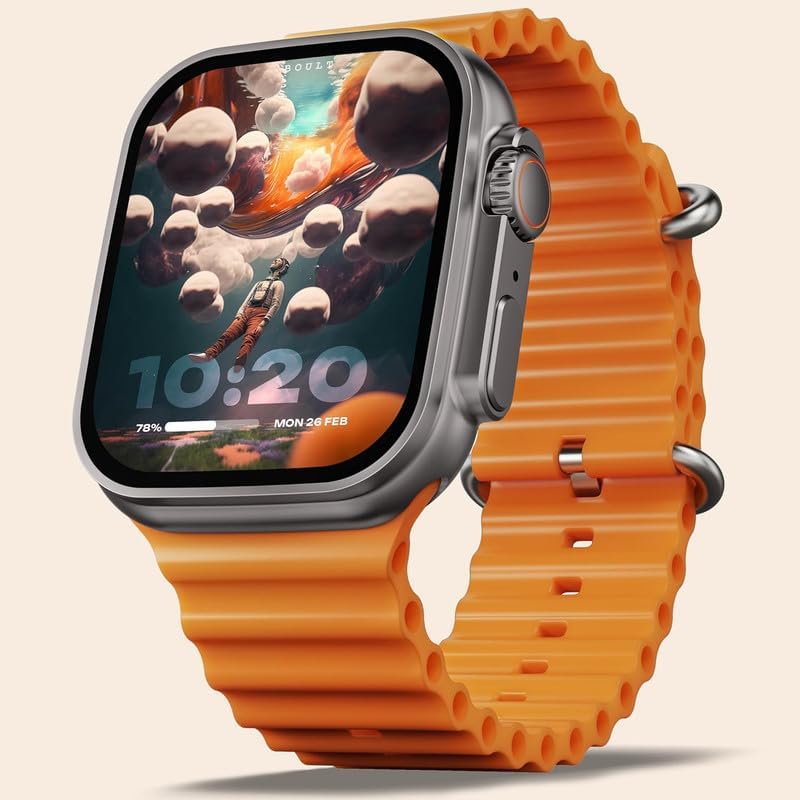
Image: The SHOPTIME Smart Watch BT OPE, featuring an orange strap and a vibrant display showing the time and a unique background.
4. Operating Instructions
4.1 Display and Navigation
Your smartwatch features a 1.95-inch HD display with 900 nits brightness for clear visibility even in bright sunlight. Navigation is primarily done via touch gestures and the functional rotating crown.
- Touch Screen: Swipe up, down, left, or right to navigate through menus and notifications. Tap to select items.
- Rotating Crown: Rotate the crown to scroll through lists, zoom in/out, or switch watch faces. Press the crown to return to the home screen or access the app menu.
- Side Button: The dedicated side button can be customized for quick access to specific functions, such as sports modes.
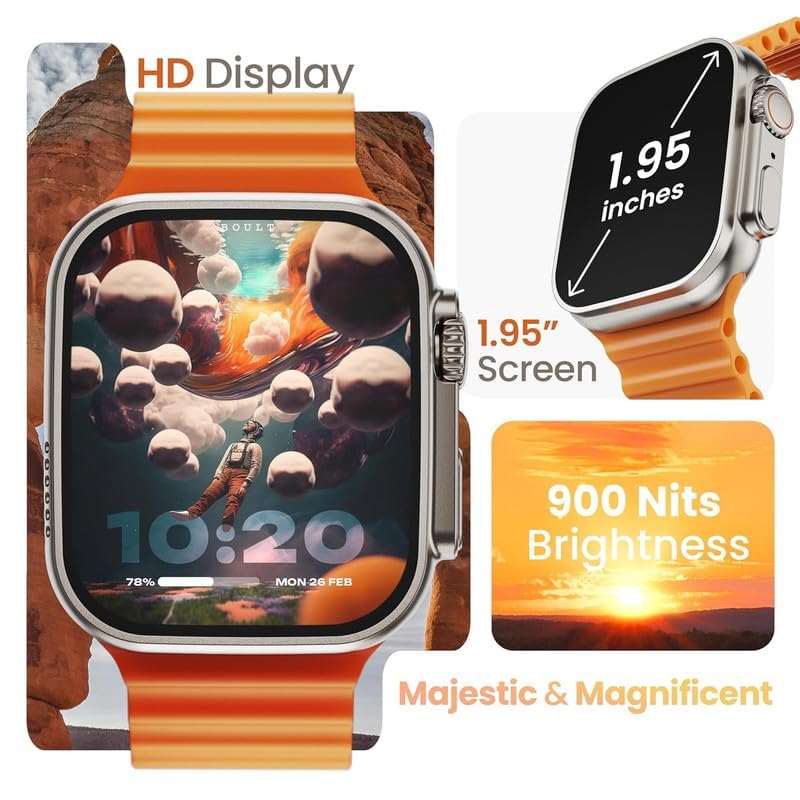
Image: A detailed view of the smartwatch's 1.95-inch HD display, emphasizing its size and high brightness for outdoor visibility.
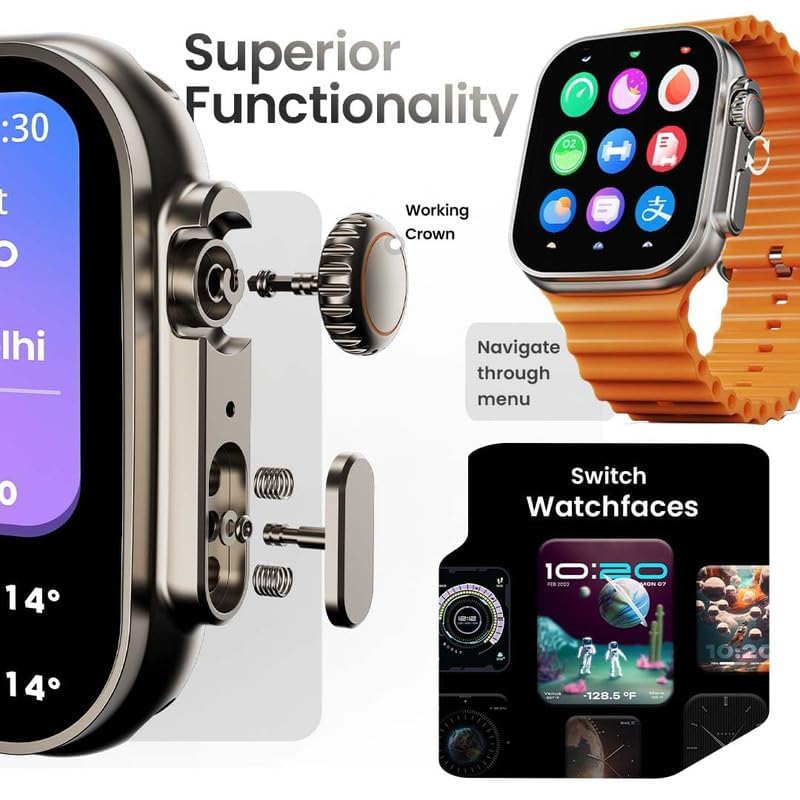
Image: An illustration demonstrating the functionality of the rotating crown for menu navigation and changing watch faces.
4.2 Bluetooth Calling
With its built-in speaker and microphone, your smartwatch allows you to make and receive calls directly from your wrist.
- Answering Calls: When a call comes in, tap the green phone icon on the watch screen to answer.
- Making Calls: Access the dial pad or contact list on your watch to initiate a call. Ensure your watch is connected to your phone via Bluetooth.
- Rejecting Calls: Tap the red phone icon to reject an incoming call.
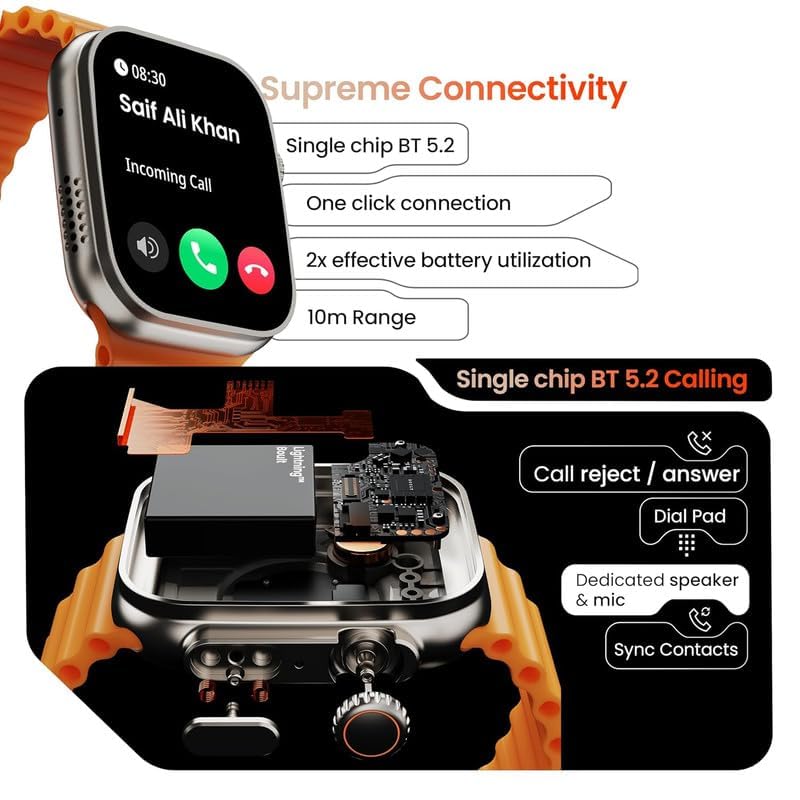
Image: The smartwatch screen displaying an incoming call, alongside information on its Bluetooth 5.2 calling capabilities and range.
4.3 Health Monitoring
The smartwatch is equipped with advanced sensors to monitor your health metrics.
- SpO2 Monitoring: Measures your blood oxygen saturation levels.
- Heart Rate Monitoring: Provides 24/7 heart rate tracking.
- Sleep Analysis: Tracks your sleep patterns and quality.
- Sedentary Alerts: Reminds you to move after periods of inactivity.
Access these features through the health section on your watch or the companion app for detailed insights.
4.4 Sports Modes
The smartwatch supports over 100 sports modes to track your workouts. From running to yoga, select the appropriate mode to get real-time metrics and performance insights.
- Accessing Sports Modes: Swipe to the sports mode menu or use the dedicated side button if configured.
- Starting a Workout: Select your desired activity and tap to start. The watch will begin tracking duration, calories, steps, and heart rate.
- Ending a Workout: Swipe right or press the crown button to pause/end the workout.
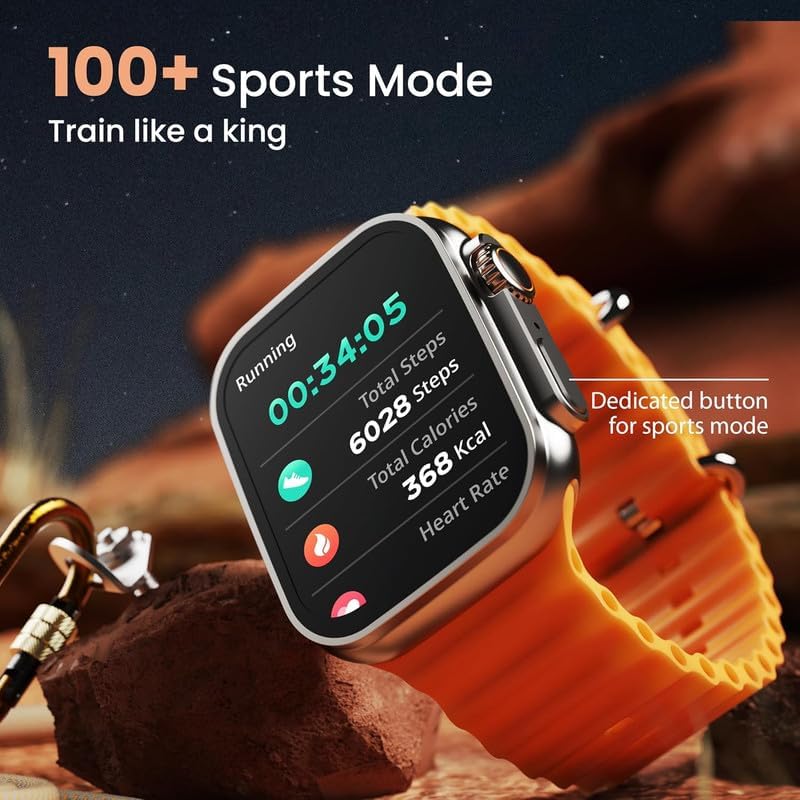
Image: The smartwatch screen displaying active running data, including time, steps, calories, and heart rate, demonstrating its sports tracking capabilities.
4.5 Watch Faces & Customization
Personalize your smartwatch with over 100 cloud-based watch faces and various UI styles.
- Changing Watch Faces: Long-press the home screen, then swipe left or right to browse available watch faces. Tap to select. More options are available through the companion app.
- UI Styles: Explore different UI layouts in the watch settings to find your preferred interface.
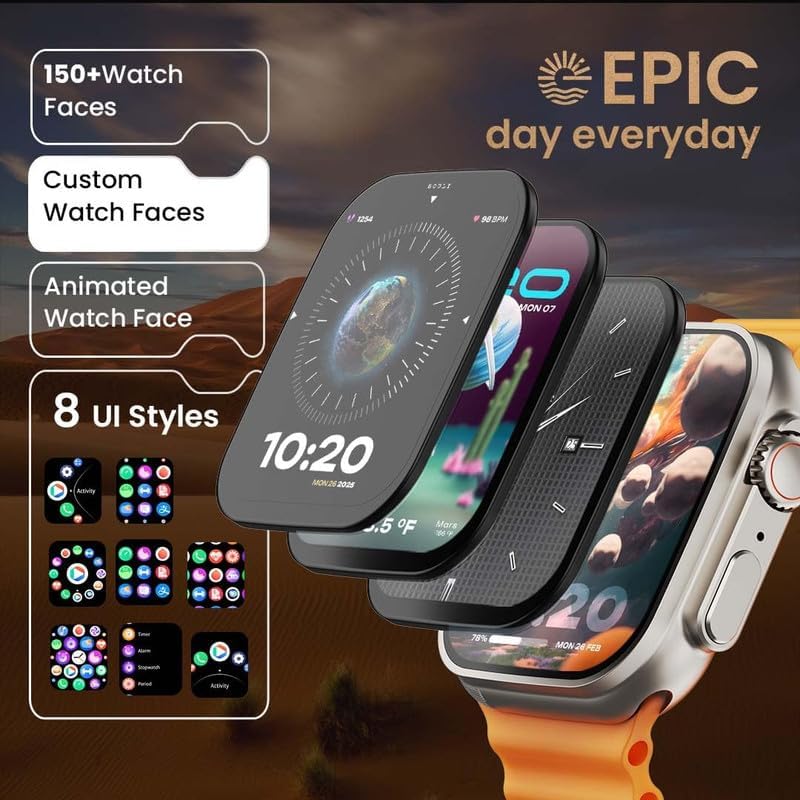
Image: A collage of smartwatch screens showcasing a variety of watch faces and different user interface styles available for customization.
4.6 AI Voice Assistant
Utilize the integrated AI Voice Assistant for hands-free control. This feature allows you to set reminders, check weather, or control smart home devices (if compatible) using voice commands.
- Activating Voice Assistant: Typically, a long press of the crown button or a specific gesture will activate the voice assistant. Refer to your watch settings for exact activation method.
- Using Commands: Once activated, speak your command clearly into the watch's microphone.
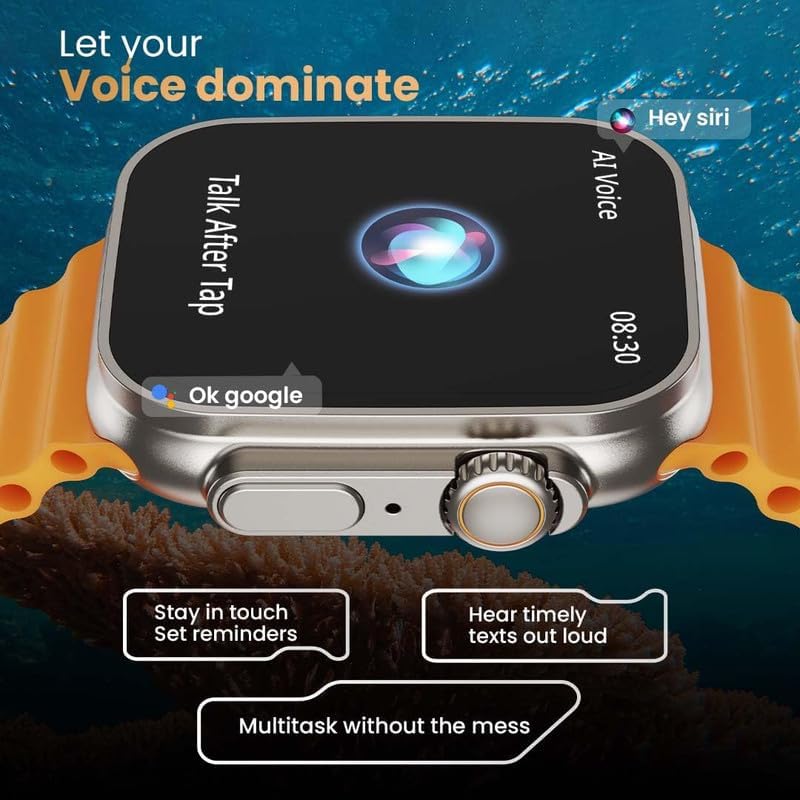
Image: The smartwatch screen displaying the AI Voice Assistant interface, ready for voice commands like 'Hey Siri' or 'Ok Google'.
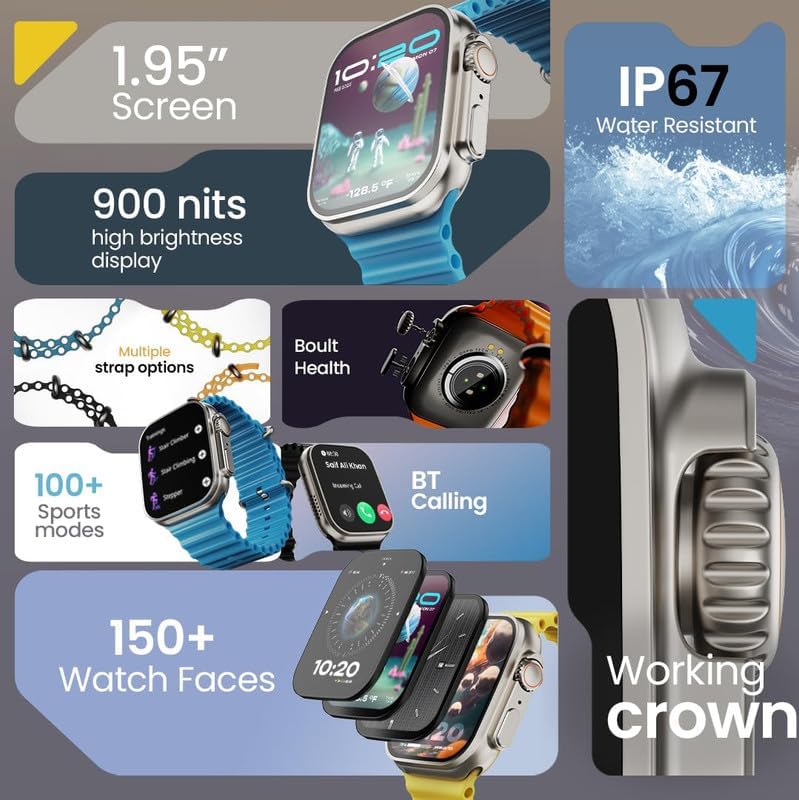
Image: A comprehensive visual summary of the smartwatch's key features, including display size, water resistance, brightness, and various functionalities.
5. Maintenance
5.1 Cleaning Your Smartwatch
Regular cleaning helps maintain the appearance and functionality of your device.
- Wipe the screen and body with a soft, lint-free cloth.
- For stubborn smudges, slightly dampen the cloth with water. Avoid using harsh chemicals or abrasive materials.
- Clean the charging contacts periodically with a dry cloth to ensure good connection.
5.2 Water Resistance (IP67)
Your smartwatch is rated IP67, meaning it is protected from dust and can withstand immersion in water up to 1 meter for up to 30 minutes. While it is suitable for daily splashes, hand washing, and light rain, avoid using it during swimming, showering with hot water, or prolonged submersion.
5.3 Battery Care
- Charge your device regularly to maintain battery health.
- Avoid fully discharging the battery frequently.
- Do not expose the watch to extreme temperatures (hot or cold) as this can degrade battery performance.
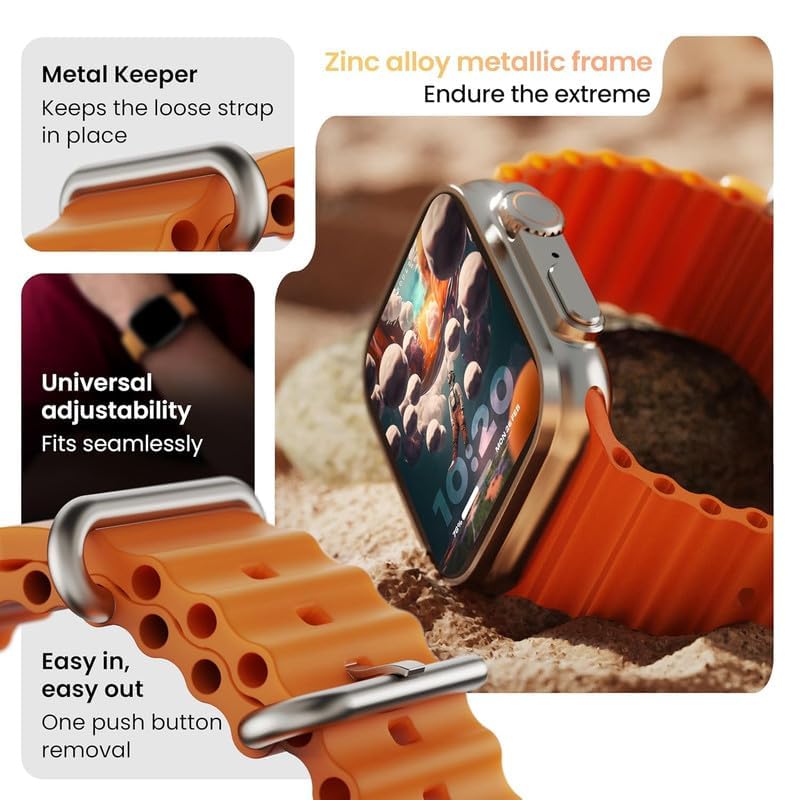
Image: A detailed view of the smartwatch's strap and frame, showcasing the durable zinc alloy metallic frame and the convenient strap removal mechanism.
6. Troubleshooting
If you encounter issues with your smartwatch, try the following solutions:
- Device not turning on: Ensure the watch is fully charged. Connect it to the charger for at least 30 minutes.
- Bluetooth connection issues:
- Ensure Bluetooth is enabled on both your phone and watch.
- Restart both your phone and watch.
- Forget the device in your phone's Bluetooth settings and re-pair through the app.
- Ensure the watch is within the 10-meter Bluetooth range of your phone.
- Inaccurate health data: Ensure the watch is worn snugly on your wrist, about one finger's width above the wrist bone. Clean the sensors on the back of the watch.
- Display not responding: Try restarting the watch. If the issue persists, ensure the screen is clean and dry.
- Notifications not appearing: Check notification settings in the companion app and on your phone to ensure permissions are granted for the app to send notifications.
If the problem persists after trying these steps, please contact customer support.
7. Specifications
| Feature | Specification |
|---|---|
| Brand | SHOPTIME |
| Model Name | Motorola Moto Tab G62 |
| Screen Size | 1.95 inches |
| Brightness | 900 Nits |
| Connectivity | Bluetooth 5.2 |
| Frame Material | Zinc Alloy |
| Strap Material | Silicone |
| Water Resistance | IP67 |
| Item Weight | 70 g |
| Manufacturer | SHOPTIME |
8. Warranty and Support
8.1 Warranty Information
This SHOPTIME Smart Watch BT OPE comes with a standard manufacturer's warranty. Please refer to the warranty card included in your product packaging for specific terms, conditions, and duration of the warranty. Keep your purchase receipt as proof of purchase for warranty claims.
8.2 Customer Support
For any technical assistance, product inquiries, or warranty claims, please contact SHOPTIME customer support. You can typically find contact information on the official SHOPTIME website or on the product packaging.
Ask a question about this manual
Ask about setup, troubleshooting, compatibility, parts, safety, or missing instructions. Manuals+ will review the question and use this page’s manual context to help answer it.