
1. Introduction
This manual provides comprehensive instructions for the Hipipooo MAXo Mini Rugged Smartphone. Please read this manual carefully before using your device to ensure proper operation and to maximize its lifespan. Keep this manual for future reference.
2. Safety Information
- Do not attempt to disassemble or modify the device.
- Use only approved chargers and accessories.
- Avoid exposing the device to extreme temperatures or direct sunlight for prolonged periods.
- Ensure all port covers are securely closed to maintain IP68 water and dust resistance.
- Keep the device away from medical devices and pacemakers.
- Dispose of the device and its battery responsibly according to local regulations.
3. Device Overview
The Hipipooo MAXo is a compact and durable smartphone designed for reliability in various environments.
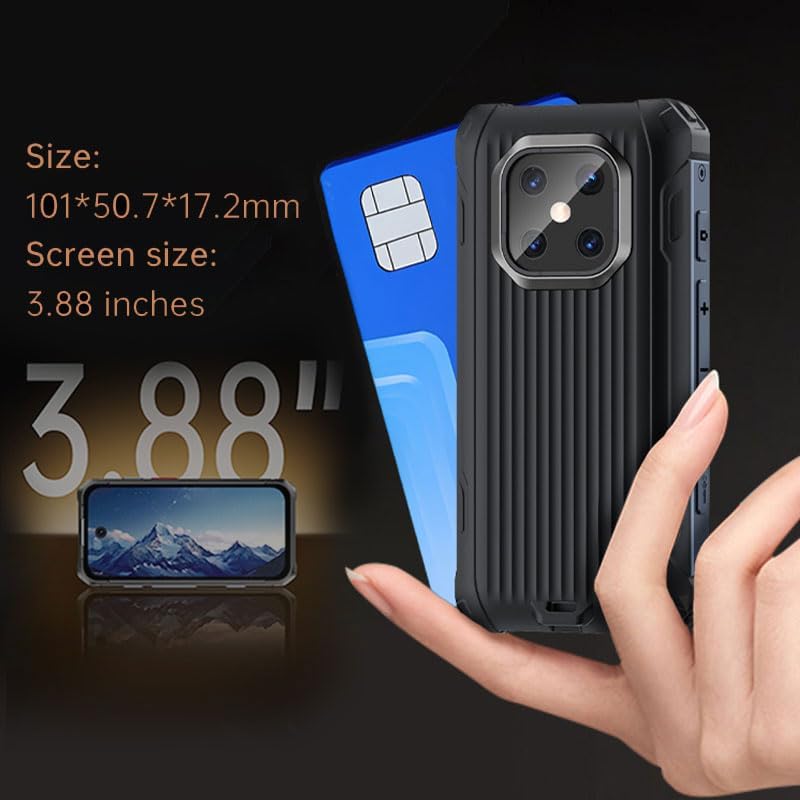
Image: The Hipipooo MAXo smartphone demonstrating its compact dimensions (101 x 50.7 x 17.2 mm) and 3.88-inch screen size, alongside a SIM card for scale.

Image: The Hipipooo MAXo smartphone shown partially submerged in water, illustrating its IP68 waterproof rating, capable of withstanding water depths of over 1.5 meters.

Image: The Hipipooo MAXo smartphone showcasing its rugged, drop-shock proof construction, designed to endure harsh environments and accidental drops up to 1.5 meters.
Key Features:
- Compact Size: Dimensions of 101 x 50.7 x 17.2 mm, with a 3.88-inch screen, designed for portability.
- IP68 Rated: Water, dust, and drop-resistant for use in challenging conditions.
- Powerful Camping Light: Integrated bright light for outdoor activities.
- Dual SIM Support: Accommodates two SIM cards for flexible connectivity.
- Facial Recognition: Secure and convenient unlocking method.
- OTG Functionality: Supports On-The-Go connections for external devices.
4. Setup
4.1. Installing SIM/SD Card
- Locate the SIM/SD card tray on the side of the device.
- Use the provided SIM ejector tool to open the tray.
- Carefully place your Nano-SIM cards and/or microSD card into the designated slots. Ensure correct orientation.
- Gently push the tray back into the device until it is flush.
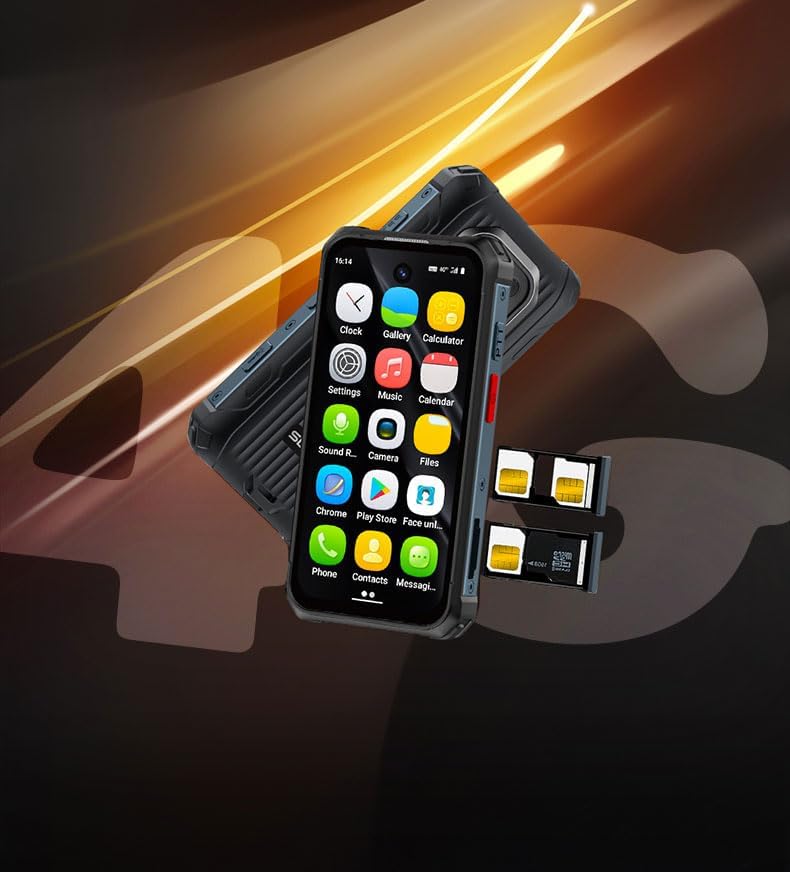
Image: The smartphone displaying its dual SIM card slots and a dedicated slot for a microSD card, allowing for expanded storage up to 256GB.
4.2. Charging the Device
Before first use, fully charge the device. Use the included Type-C charging cable and a compatible power adapter.
- Connect the Type-C cable to the charging port at the bottom of the phone.
- Connect the other end of the cable to a power adapter and plug it into a wall outlet.
- The charging indicator will appear on the screen.
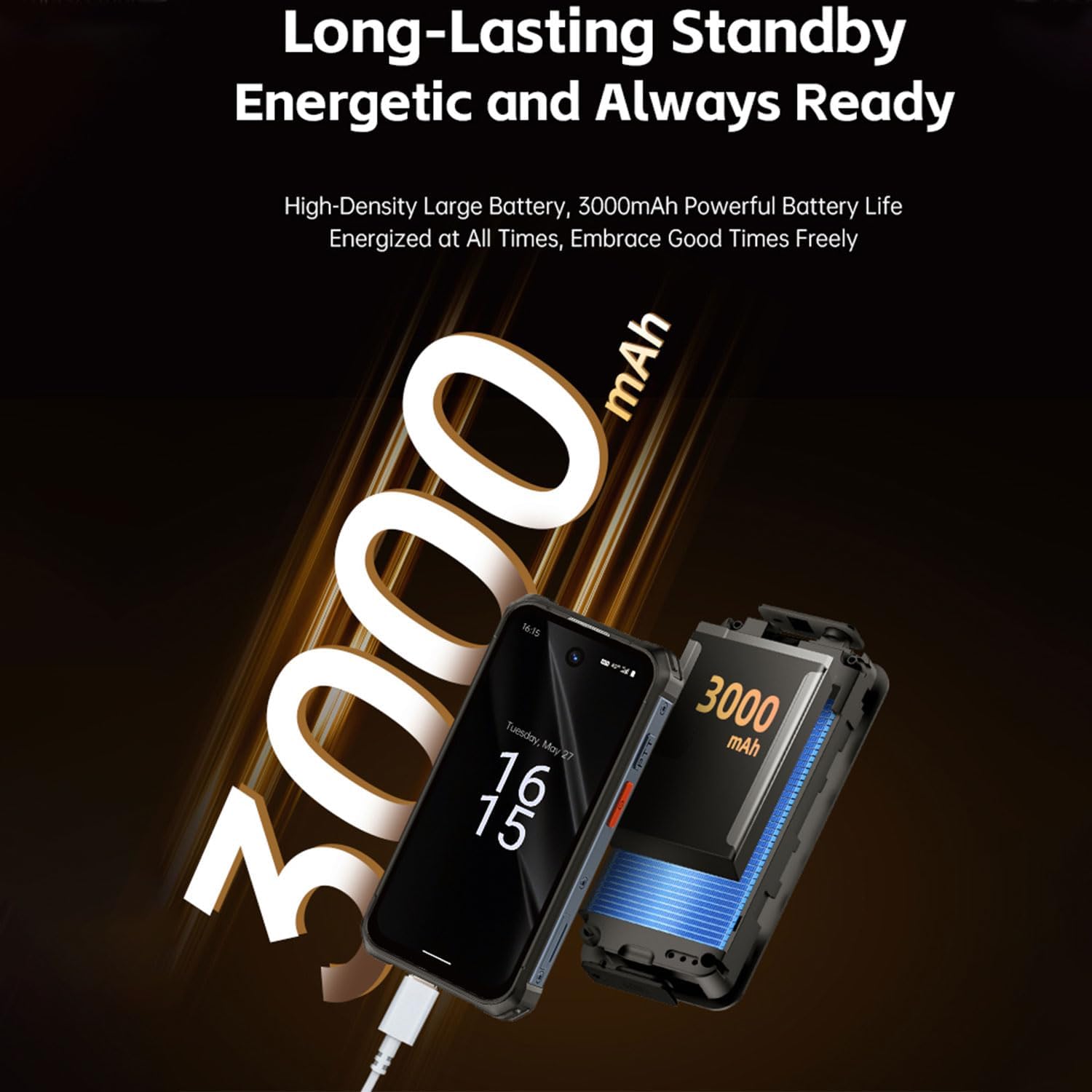
Image: The Hipipooo MAXo smartphone connected to a charger, illustrating its 3000mAh high-density battery designed for long-lasting standby and usage.
4.3. Powering On/Off
- To Power On: Press and hold the Power button until the screen lights up.
- To Power Off: Press and hold the Power button, then select "Power off" from the options.
- To Restart: Press and hold the Power button, then select "Restart" from the options.
5. Operating Instructions
5.1. Basic Navigation
The device runs on Android 12.0. Navigate using touch gestures: tap to select, swipe to scroll, pinch to zoom.
5.2. Making Calls and Sending Messages
- Open the "Phone" app to dial numbers or select contacts.
- Open the "Messages" app to compose and send SMS/MMS.
5.3. Internet Connectivity
- Wi-Fi: Go to Settings > Network & internet > Wi-Fi to connect to available networks.
- Mobile Data: Go to Settings > Network & internet > Mobile network to enable or disable mobile data.
5.4. Using the Camping Light
The Hipipooo MAXo features a powerful integrated camping light.
- Locate the dedicated side-key for the camping light (if available, otherwise access via quick settings).
- Press the key to turn the light on/off.
- Alternatively, access the quick settings panel by swiping down from the top of the screen and tap the flashlight icon.

Image: The Hipipooo MAXo smartphone demonstrating its powerful camping light feature, capable of illuminating dark outdoor environments.
5.5. Facial Recognition
Set up facial recognition for quick and secure unlocking.
- Go to Settings > Security & privacy > Face unlock.
- Follow the on-screen instructions to register your face.
- Ensure good lighting conditions during registration.

Image: A user unlocking the Hipipooo MAXo smartphone using the face unlock feature, highlighting its privacy protection and secure encryption capabilities.
5.6. OTG (On-The-Go) Functionality
The device supports OTG, allowing you to connect USB peripherals like flash drives or keyboards.
- Connect an OTG adapter (not included) to the phone's Type-C port.
- Plug your USB device into the OTG adapter.
- The phone will recognize the connected device.
6. Maintenance
6.1. Cleaning the Device
- Wipe the screen and body with a soft, lint-free cloth.
- For stubborn dirt, slightly dampen the cloth with water or a screen cleaner.
- Do not use harsh chemicals or abrasive materials.
6.2. Battery Care
- Avoid fully discharging the battery frequently.
- Do not leave the device charging for excessively long periods after it's full.
- Store the device in a cool, dry place if not used for extended periods.
6.3. Software Updates
Regularly check for software updates to ensure optimal performance and security.
- Go to Settings > System > System update.
- Follow the on-screen prompts to download and install any available updates.
7. Troubleshooting
| Problem | Possible Solution |
|---|---|
| Device won't turn on | Ensure the battery is charged. Connect to a charger for at least 30 minutes. |
| Cannot connect to Wi-Fi | Check if Wi-Fi is enabled. Restart your router. Forget the network and reconnect. |
| Poor signal reception | Check SIM card installation. Move to an area with better network coverage. |
| Apps are crashing or freezing | Clear app cache (Settings > Apps > [App Name] > Storage & cache > Clear cache). Restart the device. |
| Facial recognition not working | Ensure sufficient lighting. Re-register your face in settings. Clean the front camera. |
8. Specifications

Image: A visual summary of the Hipipooo MAXo smartphone's key product parameters, including system, size, screen, charging, battery, CPU, and frequency bands.
| Feature | Detail |
|---|---|
| Brand | Hipipooo |
| Model Name | MAXo |
| Operating System | Android 12.0 |
| Screen Size | 3.88 Inches |
| Resolution | 384 x 854 TFT |
| Dimensions (L x W x H) | 101 x 50.7 x 17.2 mm |
| CPU Model | Cortex A7 (Octa-core 2.0 GHz) |
| RAM | 6 GB |
| Internal Storage | 128 GB |
| Expandable Storage | Supports microSD up to 256 GB |
| Battery Capacity | 3000 mAh (Lithium-ion) |
| Charging Method | Type-C |
| Connectivity | GSM, LTE (4G) |
| Network Bands | GSM850/900/1800/1900, WCDMA/B1/B2/B4/B5/B8, FDD-B1/B2/B3/B4/B5/B7/B8/B12/B17/B20/B28/B28A/B66, TDD-B34/B38/B39/B40/B41 |
| Water/Dust Resistance | IP68 |
| Wireless Carrier | All carriers (Unlocked) |
9. Warranty and Support
For warranty information and customer support, please refer to the documentation included with your purchase or visit the official Hipipooo website. Keep your proof of purchase for warranty claims.
- Warranty Period: Please check your regional warranty card or retailer information.
- Contact Support: Refer to the contact details provided by your seller or on the manufacturer's website.


