
1. Overview
This manual provides comprehensive instructions for the Generic WiFi Range Extender, a dual-band wireless repeater designed to expand your existing Wi-Fi network coverage. It supports both 2.4GHz and 5GHz bands, offering flexible connectivity and improved signal strength to eliminate dead zones in your home or office.

Image: The Generic WiFi Range Extender, a compact white device with four adjustable antennas, designed to boost wireless signal.
2. What's in the Box
- 1 x WiFi Extender Unit
3. Product Features
- Dual Band Technology: Operates on both 2.4GHz and 5GHz frequencies for versatile connectivity and enhanced wireless coverage.
- Fast Speeds: Achieves data transfer rates up to 300Mbps, suitable for streaming, gaming, and general internet use across multiple devices.
- Extended Coverage: Equipped with four high-performance antennas to significantly boost signal range and eliminate Wi-Fi dead zones.
- Easy Setup: Features a simple plug-and-play installation process with LED indicators for optimal placement and signal strength monitoring.
- Universal Compatibility: Works seamlessly with any standard Wi-Fi router or gateway device, supporting simultaneous connections for various devices.

Image: The WiFi Extender shown with its signal effectively penetrating walls, illustrating its strong penetrability and extended coverage capabilities.

Image: An internal view of the WiFi Extender highlighting its central processor, with overlays indicating 76% wide coverage and 74% faster performance.
4. Setup Instructions
The Generic WiFi Range Extender is designed for simple and quick setup. Follow these steps to extend your Wi-Fi network:
4.1. Powering On
- Plug the WiFi Extender into a power outlet in the same room as your existing router.
- Wait for the power indicator light to turn on, indicating the device is ready.
4.2. Connecting via WPS (Recommended)
WPS (Wi-Fi Protected Setup) is the easiest way to connect your extender to your router.
- Press the WPS button on your existing Wi-Fi router.
- Within two minutes, press the WPS button on the WiFi Extender.
- The indicator lights on both devices should flash and then turn solid, indicating a successful connection.
- Once connected, unplug the extender and move it to a location between your router and the area where you need improved Wi-Fi coverage. Ensure the signal strength indicator on the extender shows a good connection.

Image: Two individuals gaming, with the WiFi Extender visible in the background, illustrating its role in providing a stable connection for entertainment.
4.3. Connecting via Web Browser (Alternative Method)
If WPS is not available or fails, you can set up the extender using a web browser.
- Plug the WiFi Extender into a power outlet near your computer or smartphone.
- Connect your computer or smartphone to the extender's default Wi-Fi network (e.g., "WiFi_Extender" or similar, usually found on a label on the device). No password is required initially.
- Open a web browser and enter the default IP address (e.g., 192.168.1.254 or repeater.net) as specified in the device's small instruction leaflet.
- Follow the on-screen instructions to select your existing Wi-Fi network and enter its password.
- Once configured, unplug the extender and relocate it to an optimal position.
5. Operating Modes
The Generic WiFi Range Extender supports two primary operating modes:
5.1. Repeater Mode (Default)
In Repeater Mode, the device extends the coverage of your existing wireless network. It receives the Wi-Fi signal from your main router and re-broadcasts it, effectively expanding the range of your Wi-Fi.
5.2. Access Point (AP) Mode
In AP Mode, the extender converts a wired internet connection into a wireless access point. This is useful if you have an Ethernet port available but need to provide Wi-Fi connectivity in that area.

Image: A diagram illustrating the Repeater Mode, where the extender wirelessly extends a router's signal, and AP Mode, where it converts a wired router connection into a wireless signal.
6. Maintenance
To ensure optimal performance and longevity of your WiFi Range Extender, consider the following maintenance tips:
- Placement: Position the extender in an open area, away from obstructions like large metal objects, thick walls, or other electronic devices that may cause interference.
- Cleaning: Keep the device clean and free from dust. Use a soft, dry cloth to wipe the exterior. Do not use liquid cleaners.
- Ventilation: Ensure the ventilation holes are not blocked to prevent overheating. The device is designed with good heat dissipation.
- Firmware Updates: Periodically check the manufacturer's website for any available firmware updates. Updating firmware can improve performance, add new features, and fix bugs.
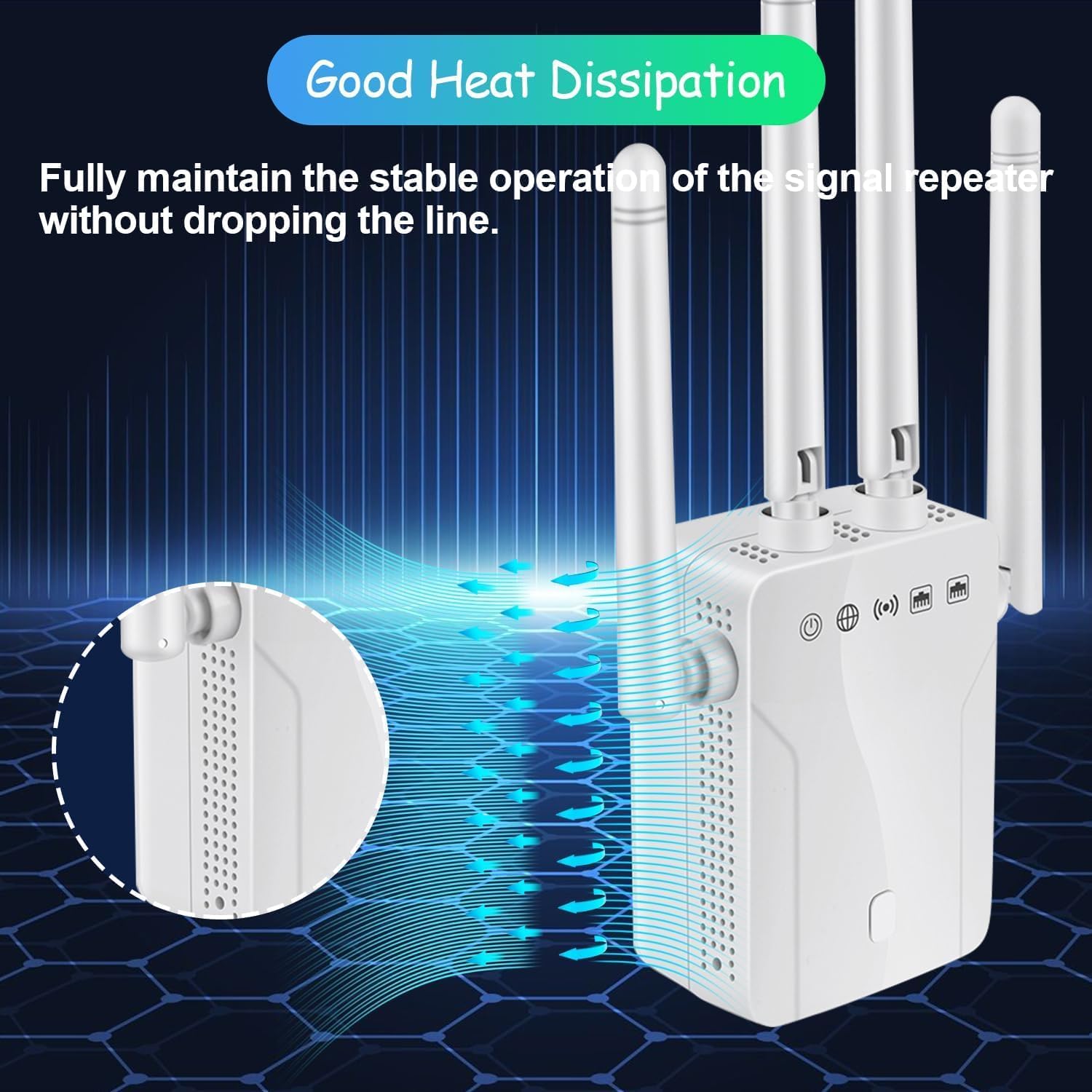
Image: A close-up view of the WiFi Extender highlighting its ventilation design, indicating good heat dissipation for stable operation.
7. Troubleshooting
If you encounter issues with your WiFi Range Extender, refer to the following common problems and solutions:
7.1. No Internet Access or Weak Signal
- Check Placement: Ensure the extender is placed within the range of your main router's Wi-Fi signal. The ideal location is halfway between your router and the Wi-Fi dead zone.
- Signal Indicators: Observe the LED indicators on the extender. If they indicate a poor signal, move the extender closer to your router.
- Router Connection: Verify that your main router is working correctly and providing internet access.
- Re-configure: Try re-configuring the extender using either the WPS method or the web browser method.
7.2. Cannot Connect to Extender's Wi-Fi
- Correct Network Name: Ensure you are connecting to the correct extended Wi-Fi network (often your original network name with "_EXT" or similar suffix).
- Password: Double-check that you are entering the correct Wi-Fi password for your extended network. It is usually the same as your main router's password unless you changed it during setup.
- Restart Devices: Restart both your extender and the device you are trying to connect (e.g., smartphone, laptop).
7.3. Slow Speed After Connecting to Extender
- Optimal Placement: The extender might be too far from the main router, receiving a weak signal to extend. Relocate it closer to the router while still covering the desired area.
- Interference: Reduce interference from other electronic devices (microwaves, cordless phones, Bluetooth devices) by moving the extender or interfering devices.
- Band Selection: If your devices support 5GHz, try connecting to the 5GHz extended network for potentially faster speeds, especially for bandwidth-intensive tasks.
7.4. Extender Requires Wired Connection (Misconception)
The Generic WiFi Range Extender is primarily a wireless repeater. While it supports an Access Point (AP) mode that uses a wired Ethernet connection from your router to create a new wireless network, its main function is to extend an existing wireless signal without wires. If you are experiencing issues, ensure it is configured in Repeater Mode for wireless extension.
8. Specifications
| Brand | Generic |
| Wireless Communication Standard | 802.11ax |
| Data Transfer Rate | 300 Megabits Per Second |
| Frequency Band Class | Dual-Band (2.4 GHz and 5 GHz) |
| Special Feature | WPS Button |
| Compatible Devices | Router |
| Range | Up to 150 feet |
| Connector Type | RJ45 |
| Item Dimensions (D x W x H) | 0.5"D x 1.5"W x 2.5"H |
9. Warranty Information
This Generic WiFi Range Extender comes with a 1-year warranty from the date of purchase. This warranty covers manufacturing defects and malfunctions under normal use. Please retain your proof of purchase for warranty claims.
The warranty does not cover damage caused by misuse, accidents, unauthorized modifications, or improper installation.
10. Customer Support
For further assistance, technical support, or warranty inquiries, please refer to the contact information provided with your product packaging or visit the manufacturer's official website.
When contacting support, please have your product model number (B0FKRCCK8T) and a detailed description of your issue ready.