
Kenowa HD-238
Kenowa 23.8" Portable Monitor (Model HD-238) User Manual
Comprehensive Guide for Setup, Operation, and Maintenance
1. Introduction
Thank you for choosing the Kenowa 23.8" Portable Monitor (Model HD-238). This manual provides essential information to help you set up, operate, and maintain your monitor. Please read it thoroughly before use and keep it for future reference.
Safety Precautions:
- Do not expose the monitor to rain or moisture.
- Avoid placing the monitor near heat sources or in direct sunlight.
- Use only the provided power adapter and cables.
- Do not attempt to disassemble or repair the monitor yourself.
- Keep out of reach of children.
2. Package Contents
Verify that all items are present in the package:
- Kenowa 23.8" Portable Monitor (HD-238) x1
- DC Powered Cable (12V 3A) x1
- HDMI to HDMI Cable x1
- Type-C to Type-C Cable x1
- USB to Type-C Cable x1
- User Manual x1

Image: Contents of the Kenowa 23.8" Portable Monitor package.
3. Product Overview
3.1 Monitor Features
- Display: 23.8-inch IPS FHD (1920x1080p) panel.
- Refresh Rate: Up to 200Hz, with FreeSync technology for smooth visuals.
- Color Gamut: 100% sRGB for accurate color reproduction.
- Viewing Angle: 178° wide viewing angle.
- Brightness: 300 cd/m².
- Audio: Built-in dual speakers.
- Design: Ultra-thin (0.35 inch) and lightweight (5.07 lbs / 2.3 kg).
- Stand: Integrated adjustable stand (0-90° tilt) and 75x75mm VESA mount compatibility.
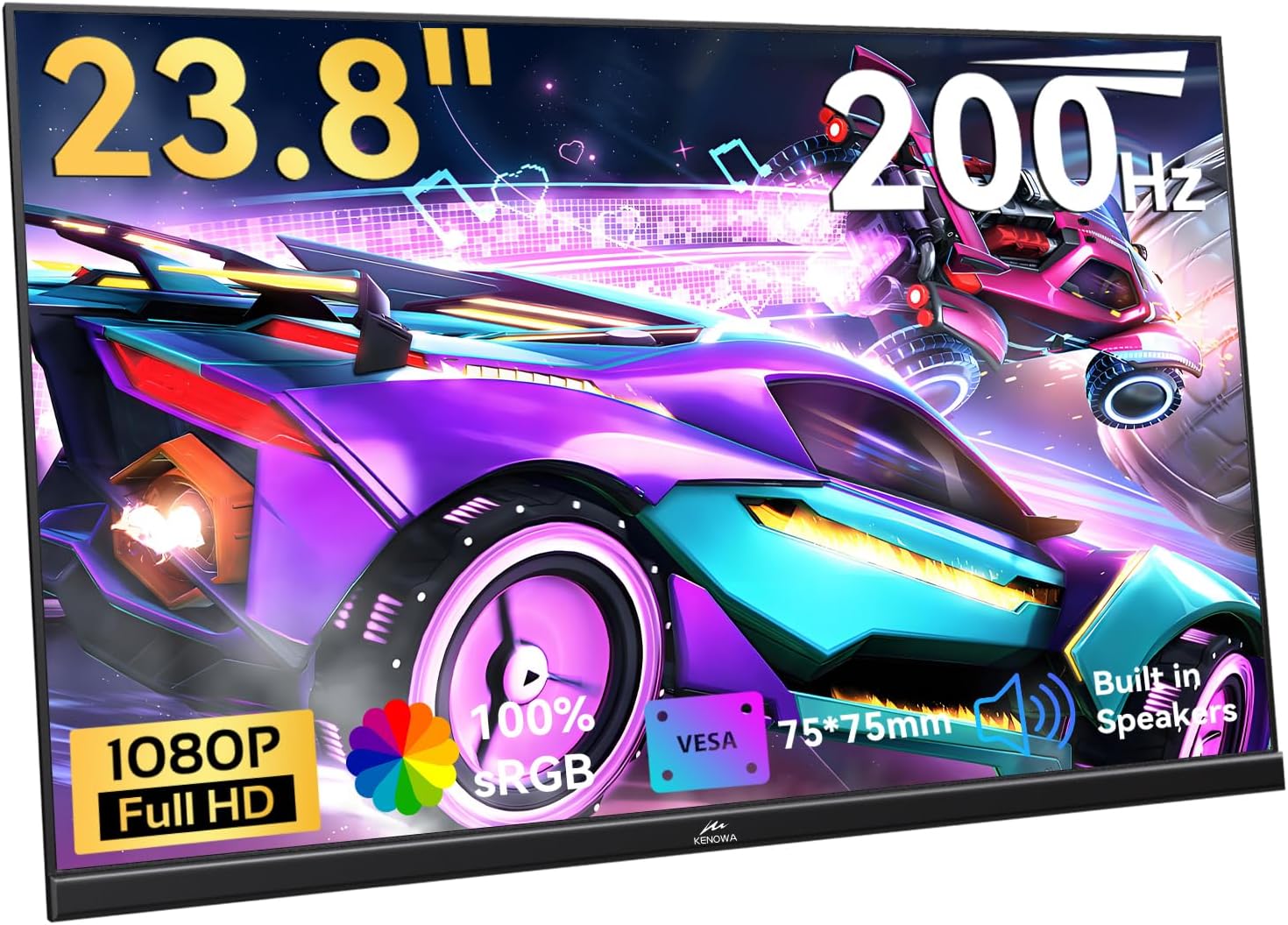
Image: Front view of the Kenowa 23.8" Portable Monitor.

Image: Physical dimensions and weight of the monitor.
3.2 Ports and Controls
The monitor features various ports and control buttons for connectivity and settings adjustment.

Image: Detailed view of the monitor's ports and control buttons.
- Left Side:
- USB Port (for peripherals)
- Brightness Shortcuts+ (Up button)
- Menu/ON/OFF/Switching Button (Middle button)
- Volume Shortcuts- (Down button)
- Right Side:
- 3.5mm Headphone Port
- Type-C 3.1 Signal Port (Full-featured USB-C)
- Standard HDMI Signal Port
- DC Powered Port (12V, 3A)
4. Setup Instructions
4.1 Powering the Monitor
Connect the provided DC power cable to the DC Powered Port on the monitor and plug the adapter into a power outlet. A DC power supply is required for full performance output.
4.2 Connecting to Devices
The Kenowa portable monitor supports both USB-C and HDMI connections.
4.2.1 USB-C Connection (Laptop/Smartphone)
For devices with a full-featured Type-C 3.1 (USB-C 3.1) port that supports video output:
- Connect the DC power supply to power the monitor.
- Use the provided Type-C to Type-C cable to connect your laptop or smartphone to the monitor's Type-C 3.1 Signal Port.
Note: Your device must support USB-C video output.
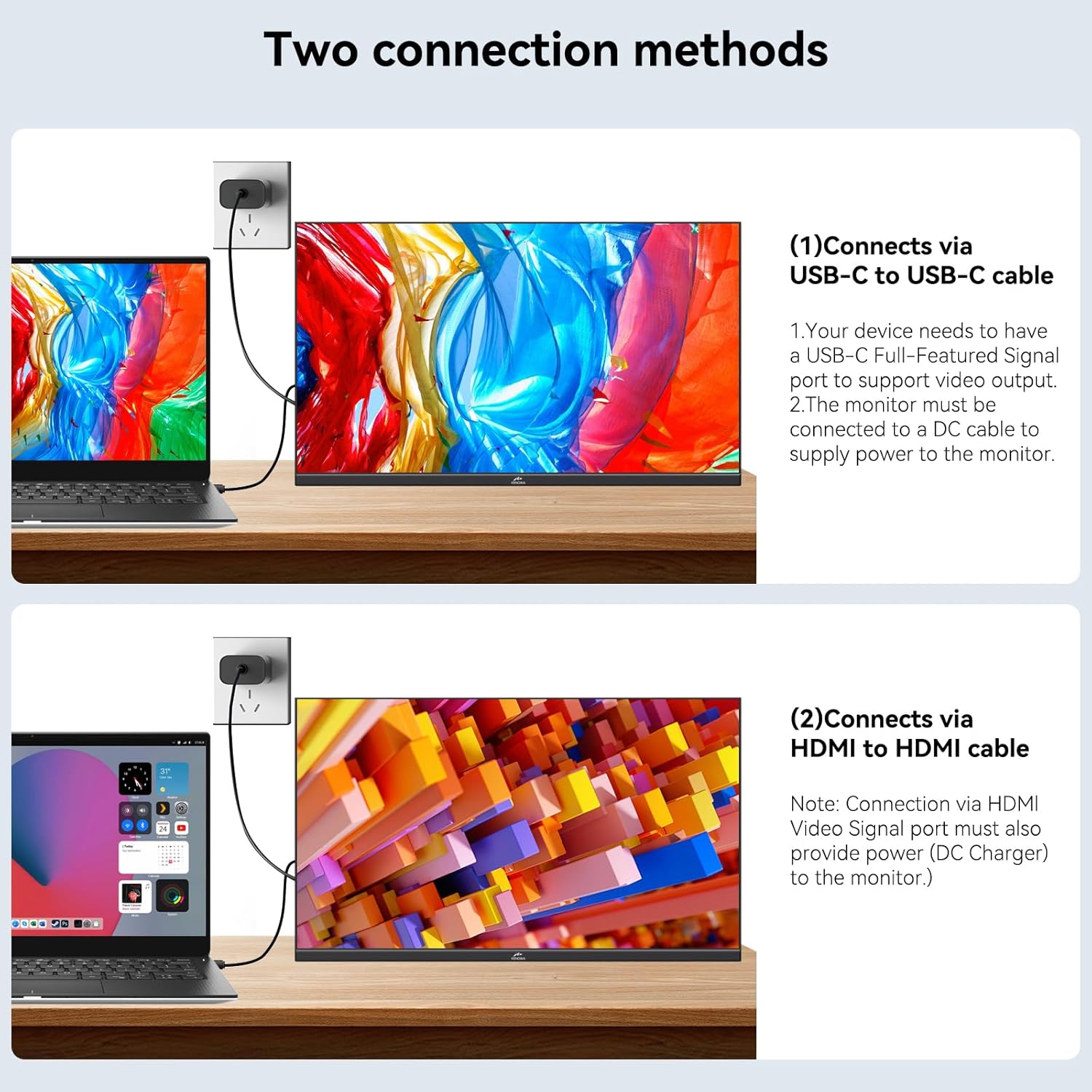
Image: Illustration of USB-C and HDMI connection methods.
Video: Demonstrates connecting a smartphone via USB-C and activating Dex mode.
4.2.2 HDMI Connection (Laptop/PC/Gaming Console)
For devices with an HDMI output (e.g., laptops, desktop PCs, PS4/PS5, Xbox, Nintendo Switch):
- Connect the DC power supply to power the monitor.
- Use the provided HDMI to HDMI cable to connect your device to the monitor's Standard HDMI Signal Port.
Note: When connecting via HDMI, ensure the monitor is also powered by the DC adapter.
Video: Overview of the Kenowa 23.8" Portable Monitor, highlighting its features and connectivity.
5. Operating Instructions
5.1 Adjusting the Stand
The integrated stand allows for 0-90° tilt adjustment. Gently pull out the stand from the back of the monitor and adjust it to your desired viewing angle. For VESA mounting, ensure you have a compatible 75x75mm VESA mount (sold separately).

Image: The monitor's adjustable stand and VESA mounting points.
5.2 On-Screen Display (OSD) Menu
Use the control buttons on the left side of the monitor to navigate and adjust settings in the OSD menu.
- Press the Menu/ON/OFF/Switching Button to open the OSD menu.
- Use the Brightness Shortcuts+ (Up) and Volume Shortcuts- (Down) buttons to navigate through menu options and adjust values.
- Press the Menu/ON/OFF/Switching Button again to confirm selections or exit sub-menus.
Common adjustable settings include:
- Brightness and Contrast
- Volume (for built-in speakers or connected headphones)
- Color Temperature
- Eco Mode
- Overdrive
- Input Source Selection
5.3 Display Modes
Depending on your connected device and operating system, you can utilize different display modes:
- Mirror Mode: Duplicates your primary screen's content onto the portable monitor.
- Extend Mode: Extends your desktop workspace, allowing you to have different content on each screen.
- Second Screen Mode: Uses only the portable monitor as the display.
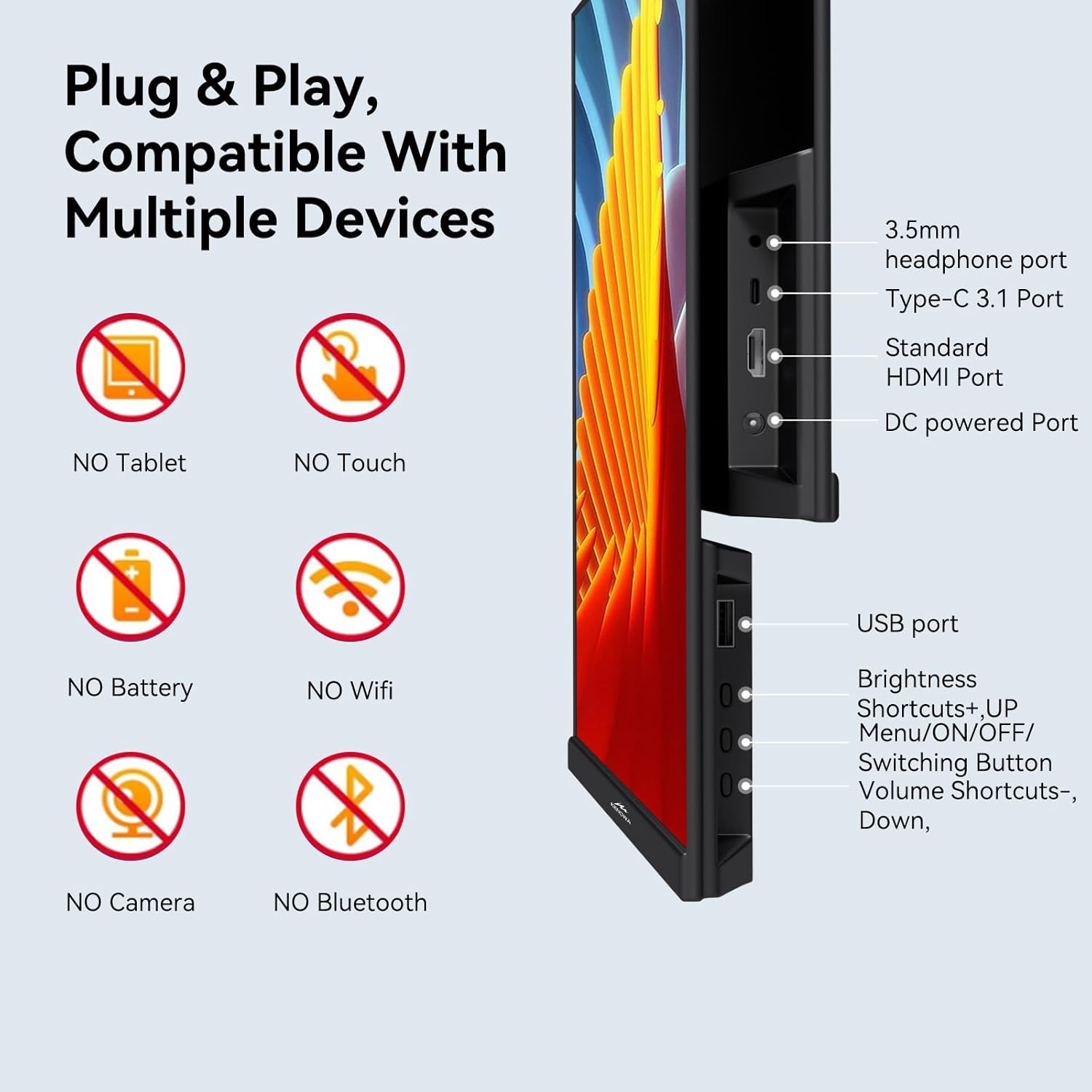
Image: Examples of Mirror, Extended, and Gaming display modes.
6. Maintenance
- Cleaning: Use a soft, lint-free cloth to gently wipe the screen and exterior. Do not use abrasive cleaners or solvents.
- Storage: When not in use, store the monitor in a cool, dry place, away from direct sunlight and extreme temperatures.
- Handling: Avoid dropping or subjecting the monitor to strong impacts.
7. Troubleshooting
| Problem | Possible Cause | Solution |
|---|---|---|
| No display/Black screen | No power or incorrect cable connection. |
|
| "No Signal" message | Incorrect input source selected or no signal from device. |
|
| Screen flickering or unstable image | Cable issue or refresh rate mismatch. |
|
| No audio | Volume too low or incorrect audio output selected. |
|
8. Specifications
| Feature | Detail |
|---|---|
| Model Number | HD-238 |
| Screen Size | 23.8 Inches |
| Panel Type | IPS |
| Resolution | FHD 1080p (1920 x 1080 Pixels) |
| Refresh Rate | 200Hz (supports 120Hz, 144Hz, 180Hz) |
| Adaptive Sync | FreeSync |
| Aspect Ratio | 16:9, 4:3 |
| Color Gamut | 100% sRGB |
| Brightness | 300 cd/m² |
| Viewing Angle | 178° |
| Speakers | Built-in Dual Speakers |
| Connectivity | 1x Type-C 3.1 (Full-featured), 1x Standard HDMI, 1x USB, 1x 3.5mm Audio, 1x DC Power |
| Power Input | 12V 3A (DC) |
| Product Dimensions | 9.72 x 17.09 x 0.66 inches |
| Item Weight | 5.07 pounds (2.3 kg) |
| VESA Mount | 75x75mm (mount sold separately) |
9. Warranty and Support
For warranty information and technical support, please refer to the official Kenowa website or contact their customer service. Keep your purchase receipt as proof of purchase for warranty claims.
Manufacturer: Shenzhen Kenowa Electronics Co., LTD