
Introduction
This manual provides detailed instructions for the safe and effective use of your Ploomen 4K Digital Camera (Model DC03). Please read this manual thoroughly before operating the camera and retain it for future reference. This camera is designed for capturing high-quality photos and videos, offering features suitable for beginners and content creators.

Image: Front view of the Ploomen 4K Digital Camera DC03.
Setup
What's in the Box
Verify that all items are present in the package:
- Ploomen 4K Digital Camera DC03
- 64GB SD Card
- Rechargeable Battery (x2)
- USB Charging Cable
- Camera Strap
- Cleaning Cloth
- Instruction Manual
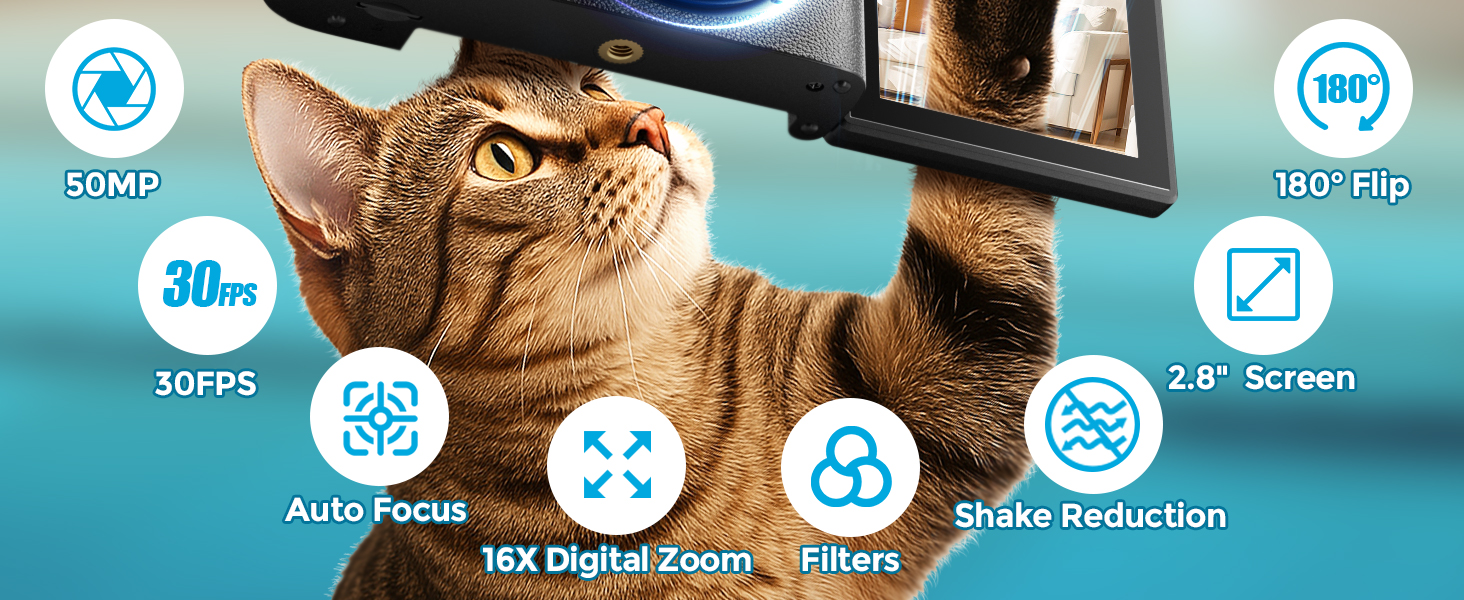
Image: The Ploomen 4K Digital Camera and its included accessories, such as the 64GB SD card, charging cable, and camera strap.
Battery Installation
- Locate the battery compartment cover on the bottom of the camera.
- Slide the latch to open the cover.
- Insert the rechargeable battery into the compartment, ensuring the correct orientation (match the contacts).
- Close the battery compartment cover until it clicks securely into place.
SD Card Installation
- Open the battery compartment cover. The SD card slot is usually located next to the battery.
- Insert the 64GB SD card into the slot with the metal contacts facing down, until it clicks into place.
- Close the battery compartment cover.

Image: The Ploomen 4K Digital Camera highlighting the 64GB SD card and long-lasting battery for extended use.
Charging the Battery
- Connect the USB charging cable to the camera's USB-C port.
- Plug the other end of the cable into a USB power adapter (not included) or a computer's USB port.
- The charging indicator light will illuminate (usually red) during charging and turn off when fully charged.
Initial Power On & Formatting SD Card
- Press and hold the Power button to turn on the camera.
- Upon first use, it is recommended to format the SD card. Navigate to the 'Setup' menu using the directional buttons.
- Select 'Format' and confirm to erase all data on the SD card and prepare it for use with the camera.
Operating the Camera
Power On/Off
- To power on, press and hold the Power button until the screen illuminates.
- To power off, press and hold the Power button until the screen turns off.
Basic Photo & Video Capture
- Use the 'Mode' button to switch between Photo and Video modes.
- In Photo mode, press the Shutter button halfway to focus, then fully press to capture a photo.
- In Video mode, press the Record button to start recording, and press it again to stop.
Video: An overview of the Ploomen 4K Digital Camera's features and capabilities, including its 4K video recording.
Using the 2.8" 180° Flip Screen
The camera features a 2.8-inch IPS screen that can rotate 180 degrees. This is ideal for:
- Vlogging: Easily monitor your framing while recording yourself.
- Selfies: Perfect for taking self-portraits or group photos with you in the shot.
- Creative Angles: Capture shots from high or low angles with ease.
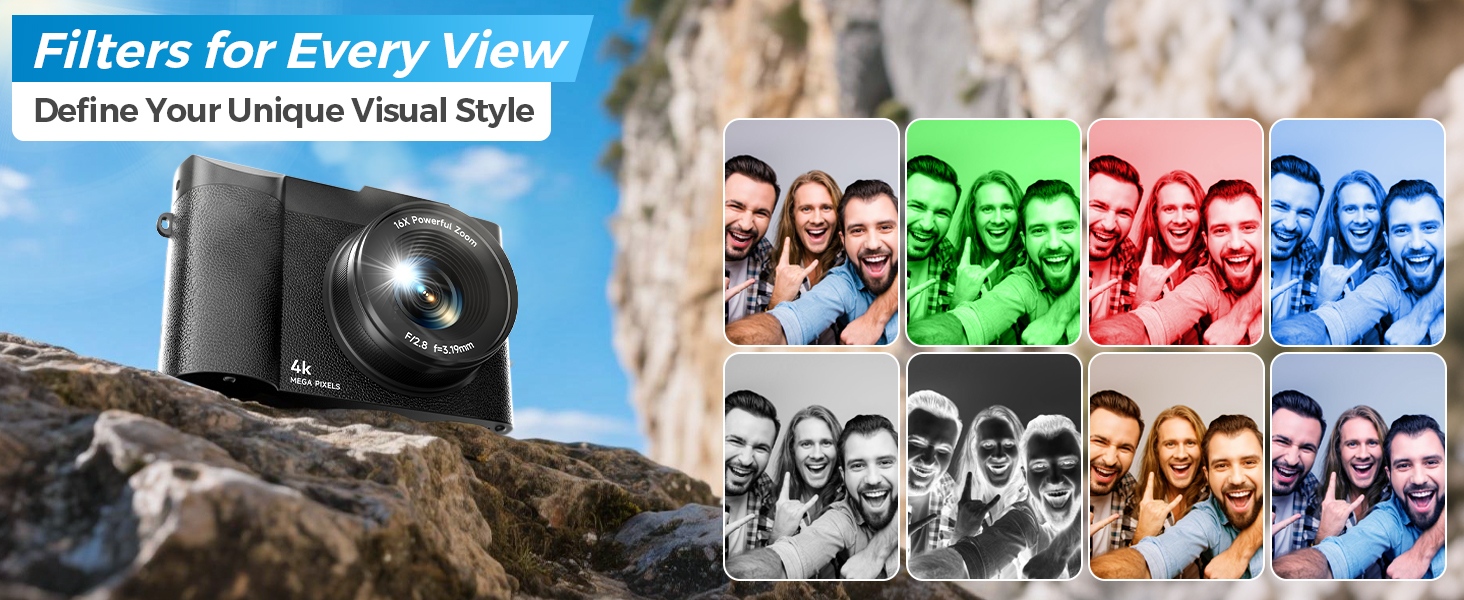
Image: A person using the 180-degree flip screen of the Ploomen 4K Digital Camera to take a selfie, demonstrating its versatility.
Zoom Functionality
The camera supports 16X digital zoom. Use the 'W' (Wide) and 'T' (Telephoto) buttons to zoom in and out, allowing you to capture distant subjects.

Image: The Ploomen 4K Digital Camera showcasing its 16X digital zoom capability, with examples of 4X, 8X, and 16X zoom on a subject.
Focus Modes
The camera offers various focusing modes:
- Automatic AF (AF-A): The camera automatically selects the optimal focus mode.
- Fixed Focus: Maintains a constant focus distance. This mode is often recommended for stable video recording to prevent focus hunting.
- Macro Shooting: For close-up shots (within 10 cm - 20 inches). Access this via the system settings.
Flash Settings
The camera includes a built-in flash for low-light conditions. Access flash settings via the menu to choose between automatic flash or forced flash on/off.

Image: A comparison showing a portrait taken with the flash off (darker) and with the flash on (brighter), illustrating the camera's flash capability.
Filters and Special Effects
Enhance your photos and videos with various built-in filters and special effects. Navigate through the menu to select options like B&W, Warm, Cool, Sunset, and more.
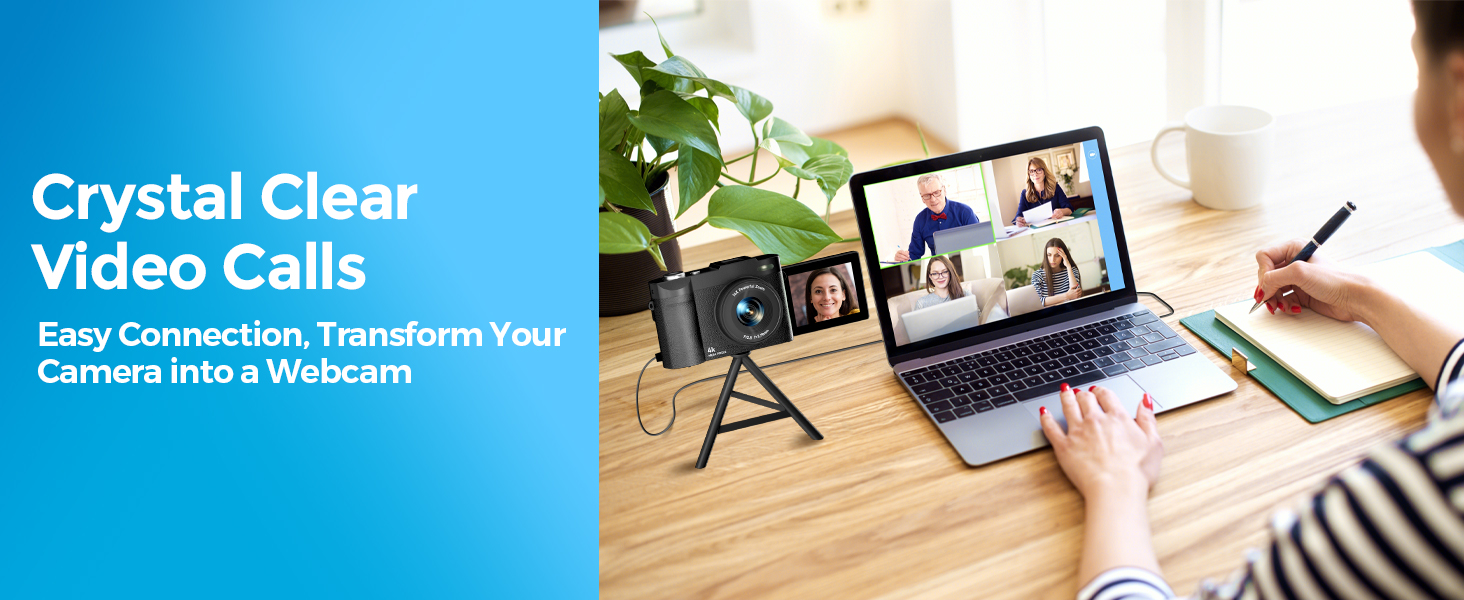
Image: The Ploomen 4K Digital Camera displaying different filter options such as B&W, Warm, Cool, and Sunset, applied to a photo of people.
Webcam Mode
Connect the camera to your computer via the USB-C cable to use it as a webcam for video calls or live streaming. The camera will prompt you to select 'PC Camera' mode.

Image: The Ploomen 4K Digital Camera set up on a tripod and connected to a laptop, functioning as a webcam for a video conference.
Menu Navigation
Use the 'MENU' button to access the camera's settings. Navigate through options using the directional buttons and confirm selections with the 'OK' button.
Maintenance
Cleaning
- Use the provided cleaning cloth to gently wipe the lens and screen.
- For stubborn smudges, use a lens cleaning solution specifically designed for camera optics.
- Keep the camera body clean and free from dust and debris.
Battery Care
- Store batteries in a cool, dry place when not in use.
- Avoid fully discharging the battery frequently to prolong its lifespan.
- If storing for extended periods, charge the battery to about 50% capacity.
Storage
When not in use, store the camera in a dry, dust-free environment, preferably in its protective pouch or a camera bag.
Troubleshooting
- Camera not turning on: Ensure the battery is correctly inserted and fully charged.
- SD card error: Reformat the SD card via the camera's menu. If the issue persists, try a different compatible SD card.
- Blurry images/video: Check your focus mode. For video, consider using Fixed Focus. Ensure sufficient lighting.
- Image/Video Shake: Activate the 'Shake Reduction' feature in the camera settings.
- Webcam mode not connecting: Ensure the USB cable is securely connected and 'PC Camera' mode is selected on the camera. Try a different USB port on your computer.
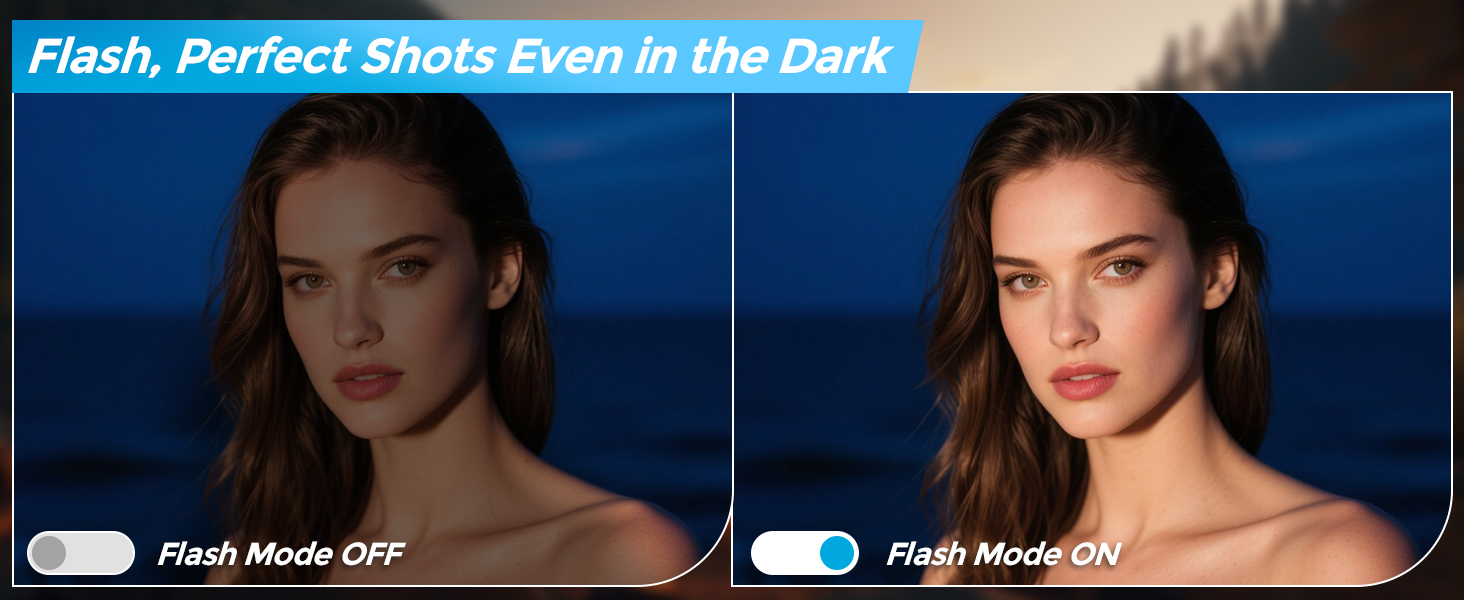
Image: A split image showing a blurry photo on the left (Shake Reduction OFF) and a clear photo on the right (Shake Reduction ON), illustrating the effectiveness of the feature.
Specifications
| Feature | Detail |
|---|---|
| Brand | Ploomen |
| Model Name | DC03 |
| Effective Still Resolution | 50 MP |
| Video Resolution | 2160p (4K) |
| Digital Zoom | 16 x |
| Screen Size | 2.8 Inches |
| Display Type | LCD (Articulating) |
| Photo Sensor Technology | CMOS |
| Image Stabilization | Digital |
| Memory Storage Capacity | 64 GB (SD Card Included) |
| Connectivity Technology | USB |
| Item Weight | 0.3 Kilograms |
| Color | Black |
| Has Self-Timer | Yes |
| Autofocus | Yes (Contrast Detection) |
Warranty and Support
Warranty Information
Specific warranty details are not provided in the available product information. Please refer to the product packaging or contact Ploomen customer service for warranty terms and conditions.
Customer Support
For further assistance, technical support, or inquiries, please refer to the contact information provided on the product packaging or the official Ploomen website.