
Introduction
This manual provides essential instructions for setting up, operating, maintaining, and troubleshooting your BLU G35 smartphone. Please read this guide thoroughly to ensure optimal performance and longevity of your device.

Image: Front and back view of the BLU G35 smartphone in grey.
1. Setup
1.1 Unboxing and Package Contents
Verify that all items are present in the package. The standard BLU G35 package includes:
- BLU G35 Smartphone
- Rugged Case
- Charger
- USB Type-C Cable
- Quick Guide
- Sticker
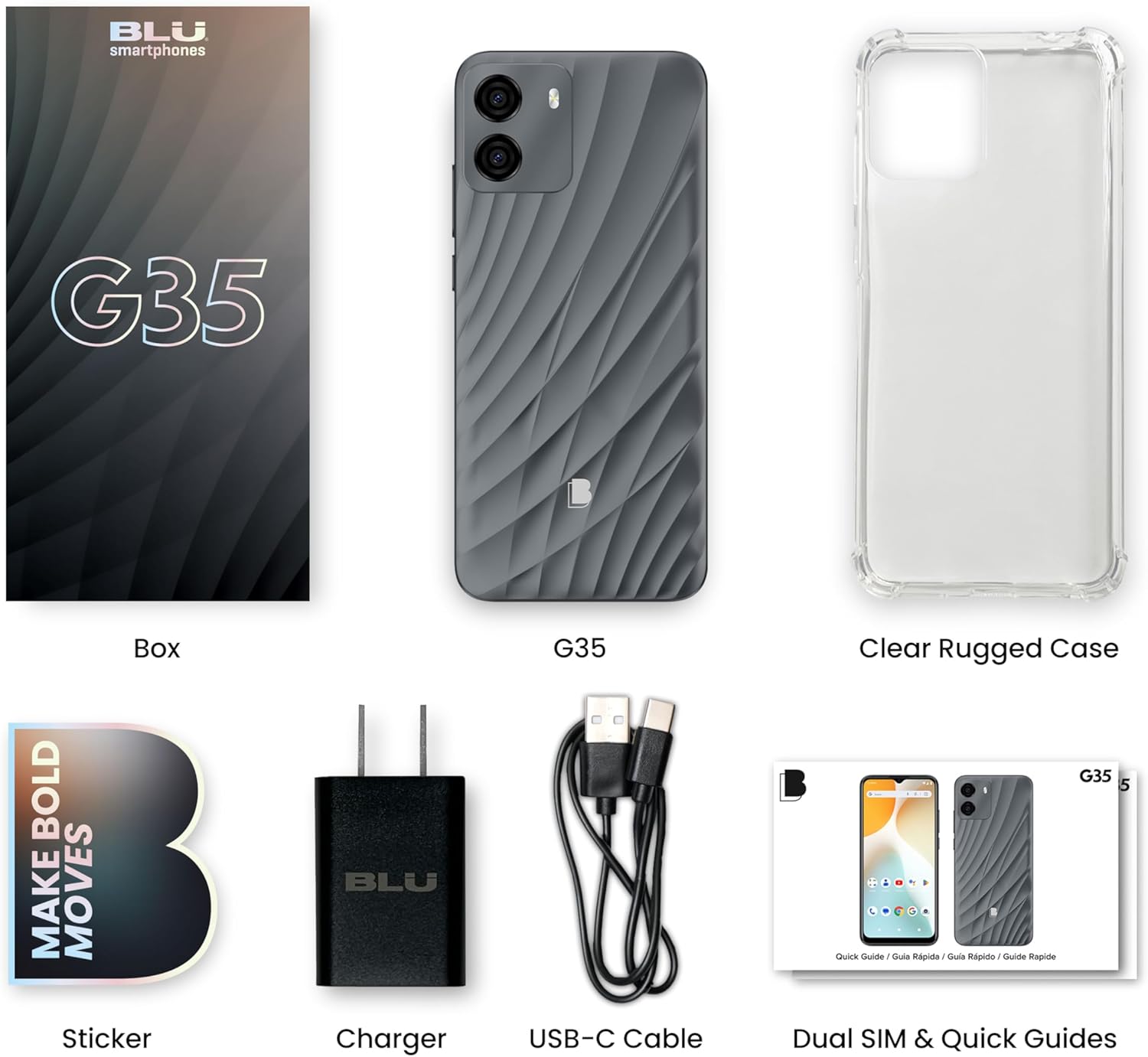
Image: All components included in the BLU G35 retail package.
1.2 SIM Card Installation
The BLU G35 supports GSM networks. To install your SIM card(s):
- Locate the SIM card tray on the side of the device.
- Insert the SIM ejector tool (not included, typically comes with SIM cards or can be a paperclip) into the small hole next to the tray to open it.
- Place your Nano-SIM card(s) into the tray with the gold contacts facing down. The G35 supports dual SIM functionality.
- Carefully reinsert the tray into the phone.
Note: This device is unlocked and compatible with GSM carriers such as T-Mobile, Metro PCS, AT&T, Cricket, and Mint Mobile. It is not compatible with CDMA networks like Verizon. Please confirm network compatibility with your carrier.
1.3 Initial Power On and Setup
- Press and hold the Power button (located on the right side of the phone) until the BLU logo appears.
- Follow the on-screen prompts to select your language, connect to Wi-Fi, and set up your Google account.
- You will be guided through setting up security features, including A.I. Face ID.
2. Operating Instructions
2.1 Basic Device Functions
- Power On/Off: Press and hold the Power button. Select "Power off" or "Restart" from the menu.
- Volume Control: Use the Volume Up and Volume Down buttons on the right side of the device.
- Screen Lock/Unlock: Press the Power button briefly to lock or unlock the screen.
2.2 Display and Navigation
The BLU G35 features a 6.5-inch HD+ Infinity Display (720 x 1600 resolution, 269ppi). Navigation is primarily touch-based.
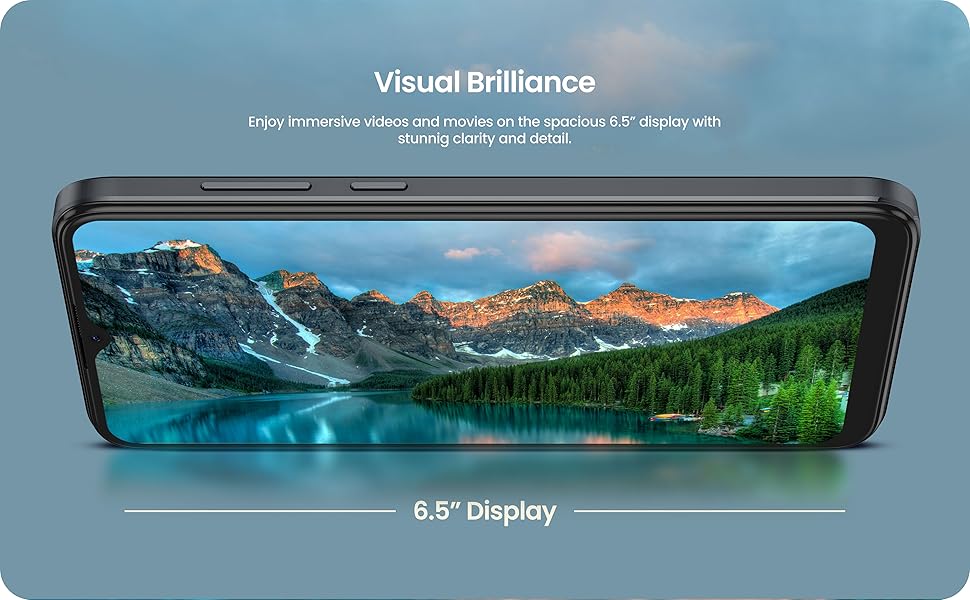
Image: The BLU G35 display showcasing a vibrant image, highlighting its 6.5-inch screen size.
- Home Screen: Swipe left or right to access different home screen panels.
- App Drawer: Swipe up from the bottom of the screen to access all installed applications.
- Notifications & Quick Settings: Swipe down from the top of the screen to view notifications and quick settings toggles.
2.3 Camera Usage
The G35 is equipped with a dual rear camera (8MP main sensor) and a 5MP front-facing selfie camera.
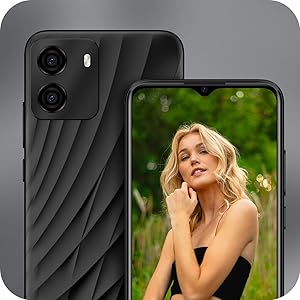
Image: Close-up of the BLU G35's rear camera module and a view of the front display.
- Open the Camera application from your home screen or app drawer.
- Tap the shutter button to take a photo.
- Switch between front and rear cameras using the camera toggle icon.
- Explore different modes like Portrait, Video, and Panorama if available in the camera app.
2.4 Security Features: A.I. Face ID
The BLU G35 includes A.I. Face ID for convenient and secure unlocking.
- Go to Settings > Security > Face Unlock.
- Follow the on-screen instructions to register your face.
- Ensure good lighting and hold the phone at eye level during registration.
2.5 Performance and Multitasking
Powered by an efficient octa-core processor and 3GB RAM, the G35 is designed for smooth performance across various tasks.
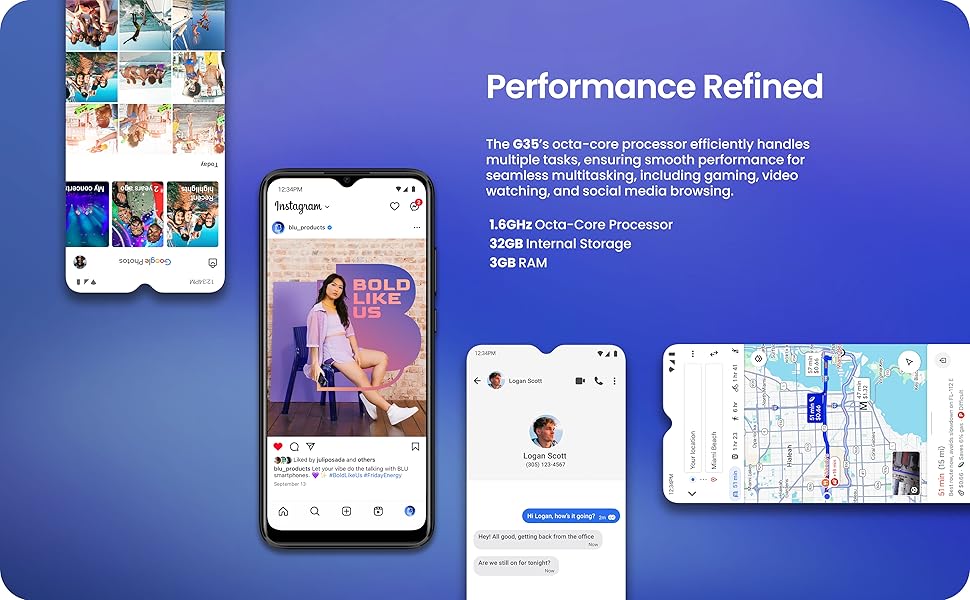
Image: The BLU G35 screen showing various applications, demonstrating its multitasking capabilities.
- Switching Apps: Swipe up from the bottom of the screen and hold to view recent applications. Tap an app to switch, or swipe it away to close.
- Optimizing Performance: Close unused applications running in the background to free up RAM.
3. Maintenance
3.1 Battery Care
The BLU G35 is equipped with a 5000mAh battery. To maximize battery life:
- Avoid extreme temperatures.
- Use the provided charger and USB Type-C cable.
- Do not leave the phone charging for extended periods after it reaches 100%.
- Adjust screen brightness and disable unnecessary features (e.g., Bluetooth, GPS) when not in use.
3.2 Cleaning Your Device
Use a soft, lint-free cloth to clean the screen and body of the phone. Avoid abrasive materials or harsh chemicals.
3.3 Software Updates
Regularly check for and install software updates to ensure your device has the latest features, security patches, and performance improvements. Go to Settings > System > System update.

Image: The Android 14 operating system logo, indicating the phone's software version.
4. Troubleshooting
4.1 Common Issues and Solutions
- Device not powering on: Ensure the battery is charged. Connect the charger and wait a few minutes before attempting to power on.
- Network connectivity issues:
- Check if your SIM card is properly inserted.
- Verify that mobile data is enabled in Quick Settings.
- Restart the device.
- Confirm with your carrier that your plan is active and the device is compatible.
- Applications crashing or freezing:
- Close and reopen the application.
- Clear the app's cache (Settings > Apps > [App Name] > Storage & cache > Clear cache).
- Restart the phone.
- Short battery life:
- Reduce screen brightness.
- Disable Wi-Fi, Bluetooth, and GPS when not in use.
- Close background applications.
- Check battery usage in Settings to identify power-hungry apps.
4.2 Factory Reset
If you experience persistent issues, a factory reset may resolve them. Warning: This will erase all data on your phone. Back up important data before proceeding.
- Go to Settings > System > Reset options.
- Select Erase all data (factory reset).
- Confirm your decision and enter your PIN/password if prompted.
5. Specifications
| Feature | Detail |
|---|---|
| Model Name | G35 |
| Item Model Number | G1110UU |
| Display | 6.5" HD+ Infinity Display (720 x 1600 resolution, 269ppi) |
| Operating System | Android 14 |
| Processor | Octa-core (1.6GHz ARM Cortex-A55) |
| RAM | 3GB |
| Internal Storage | 32GB |
| Rear Camera | Dual 8MP Camera with LED Flash |
| Front Camera | 5MP Selfie Camera |
| Battery Capacity | 5000mAh |
| Connectivity | 4G LTE, Wi-Fi, Bluetooth, USB Type-C |
| Wireless Carrier Compatibility | Unlocked GSM (T-Mobile, AT&T, Metro PCS, Cricket, Mint Mobile) |
| Security | A.I. Face ID |
| Dimensions | 7.52 x 3.7 x 2.01 inches (Package) |
| Weight | 12.6 ounces |
| Included Components | Phone Case, Charger, USB Type-C Cable |
6. Warranty and Support
6.1 Warranty Information
The BLU G35 comes with a US Warranty. Specific terms and conditions of the warranty are typically provided with your purchase documentation or can be found on the official BLU Products website. Please retain your proof of purchase for warranty claims.
6.2 Customer Support
For technical assistance, troubleshooting beyond this manual, or warranty inquiries, please contact BLU Products customer support. Visit the official BLU website for contact information and support resources.
You can visit the BLU Store on Amazon for more product information.


