
Samsung LS27FM503ENXZA
Samsung 27-Inch M5 (M50F) Series FHD Smart Monitor User Manual
Model: LS27FM503ENXZA
1. Introduction
This manual provides essential information for the safe and efficient use of your Samsung 27-Inch M5 (M50F) Series FHD Smart Monitor. Please read these instructions thoroughly before operating the device and retain them for future reference.

Image: Front view of the Samsung 27-Inch M5 Smart Monitor, displaying a smart TV interface with streaming applications and content recommendations.
2. What's in the Box
Verify that all components are present upon unpacking:
- Samsung 27-Inch M5 Smart Monitor
- Power Cable
- HDMI Cable
- Remote Control
- Stand Components (Base and Neck)
3. Setup
3.1 Physical Assembly
- Carefully remove the monitor and stand components from the packaging.
- Attach the stand neck to the monitor panel, ensuring it clicks securely into place.
- Connect the stand base to the stand neck and tighten the screw at the bottom of the base.
- Place the assembled monitor on a stable, flat surface.
3.2 Connecting Cables
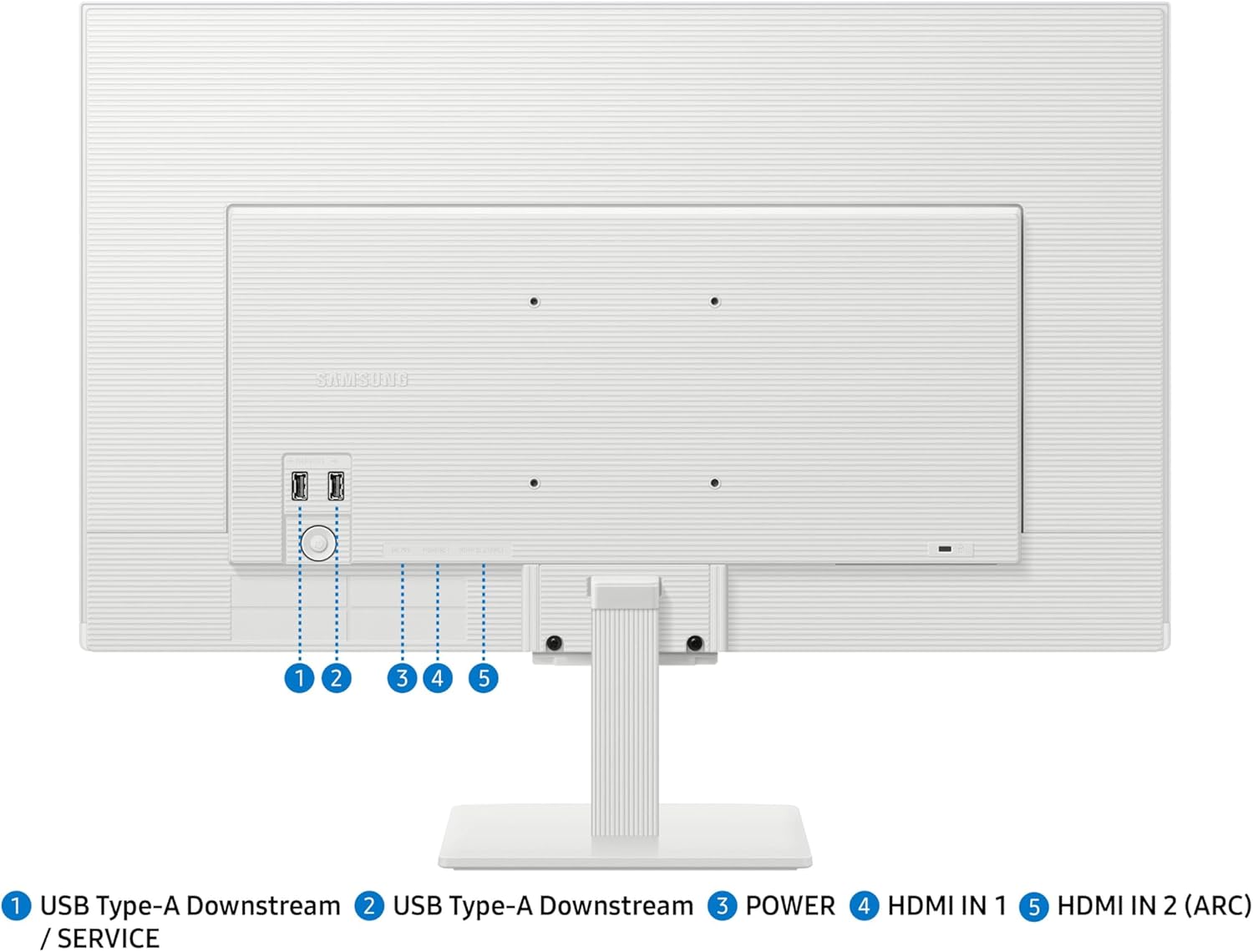
Image: Rear view of the Samsung M5 Smart Monitor highlighting the various input and output ports.
- Connect the power cable to the monitor's power input and then to a wall outlet.
- For external devices, connect the HDMI cable from your device to an HDMI IN port on the monitor.
- USB devices can be connected to the USB Type-A Downstream ports.
3.3 Initial Power-On and Network Setup
- Press the power button on the monitor or remote control to turn on the device.
- Follow the on-screen prompts to select your language, region, and accept terms and conditions.
- Connect the monitor to your Wi-Fi network by selecting your network and entering the password. An internet connection is required for smart features.
- Sign in to your Samsung account or create one to access the full range of smart features, including streaming services and smart home functionality.
4. Operating the Monitor
4.1 Smart TV Apps
Access your favorite streaming applications directly from the monitor's home screen. Navigate using the remote control to browse and select content.

Image: The Samsung Smart Monitor M5 showcasing its Smart TV Apps interface, providing instant access to streaming content.
4.2 Endless Free Content (Samsung TV Plus)
Tune into a variety of free channels, including Samsung TV Plus, for news, sports, movies, and more. New content is added regularly.

Image: A visual representation of the diverse free content available through Samsung TV Plus.
4.3 Gaming Hub
Access the Samsung Gaming Hub to play games from top streaming partners without needing a PC or console. A separate controller may be required for certain games.

Image: The Samsung Gaming Hub interface on the monitor, showing a selection of games.
4.4 Adaptive Sound
The monitor features Adaptive Sound, which analyzes audio scenes in real-time to optimize sound output based on the content type, providing a tailored listening experience.

Image: Graphic illustrating how Adaptive Sound adjusts audio for different content.
4.5 Screen Mirroring
Effortlessly stream content from your mobile device to the monitor. This feature allows you to view videos, photos, and documents on a larger screen.

Image: A demonstration of screen mirroring from a smartphone to the Samsung Smart Monitor M5.
4.6 Connecting External Devices
The monitor includes multiple ports for connecting various external devices, such as gaming consoles, laptops, or USB storage devices, for a streamlined setup.

Image: A detailed diagram illustrating the various connection ports available on the monitor.
5. Maintenance
5.1 Cleaning the Monitor
- Always unplug the monitor before cleaning.
- Use a soft, lint-free cloth slightly dampened with water or a specialized screen cleaner.
- Do not spray cleaner directly onto the screen.
- Avoid using abrasive cleaners, waxes, or solvents.
5.2 General Care
- Keep the monitor away from direct sunlight, heat sources, and excessive dust.
- Ensure proper ventilation around the monitor to prevent overheating.
- Avoid placing heavy objects on the monitor or its cables.
6. Troubleshooting
If you encounter issues with your monitor, refer to the table below for common problems and solutions.
| Problem | Possible Solution |
|---|---|
| No power / Monitor does not turn on | Check if the power cable is securely connected to both the monitor and the power outlet. Ensure the power outlet is functional. |
| No image on screen | Verify that the HDMI cable is correctly connected to both the monitor and the source device. Select the correct input source using the remote control. |
| Picture is blurry or distorted | Check the resolution settings on your source device. Ensure the monitor's display settings are optimal. |
| No sound | Check the volume level on both the monitor and the source device. Ensure the audio output is correctly configured on your source device. |
| Remote control not working | Replace the batteries in the remote control. Ensure there are no obstructions between the remote and the monitor. |
| Cannot connect to Wi-Fi | Ensure your Wi-Fi router is on and within range. Re-enter the Wi-Fi password carefully. Restart the monitor and router. |
7. Specifications
Key technical specifications for the Samsung 27-Inch M5 (M50F) Series FHD Smart Monitor:
| Feature | Detail |
|---|---|
| Model Number | LS27FM503ENXZA |
| Screen Size | 27 Inches |
| Screen Resolution | 1920 x 1080 Pixels (FHD 1080p) |
| Aspect Ratio | 16:9 |
| Screen Surface | Matte |
| Item Weight | 8.37 pounds |
| Product Dimensions (LxWxH) | 7.89 x 24.12 x 18.42 inches |
| Voltage | 240 Volts |
| USB 3.0 Ports | 1 |
| Connectivity | HDMI, USB |
| Special Features | Streaming TV, Speakers, HDR10, Gaming Hub, Workout Tracker, Vision Accessibility Tools |
8. Warranty and Support
Your Samsung Smart Monitor is covered by a limited warranty. For detailed warranty information, product registration, and technical support, please visit the official Samsung support website or contact customer service.
Online Support: www.samsung.com/us/support/
Please have your model number (LS27FM503ENXZA) and serial number ready when contacting support.
9. Safety Information
To reduce the risk of electric shock, fire, and injury, observe the following safety precautions:
- Do not expose the monitor to rain or moisture.
- Do not open the monitor casing; refer all servicing to qualified personnel.
- Ensure the monitor is placed on a stable surface to prevent it from falling.
- Use only the power cord and adapter supplied with the monitor.
- Keep the monitor away from strong magnetic fields.
- Unplug the monitor during lightning storms or when unused for long periods.