Introduction
The Samsung Smart Monitor M5 (M50F) is designed as an all-in-one display solution, functioning as both a streaming TV and a desktop monitor. This device allows users to stream content directly, access live TV channels, and enhance multitasking capabilities using a single mouse and keyboard across connected devices. It integrates the Samsung Gaming Hub for instant gameplay without requiring a separate PC or console. The monitor also provides a Workspace for efficient access to work tools and features multiple ports, including USB-C, to simplify connectivity. Additionally, it incorporates a SmartThings IoT hub for managing smart home devices.
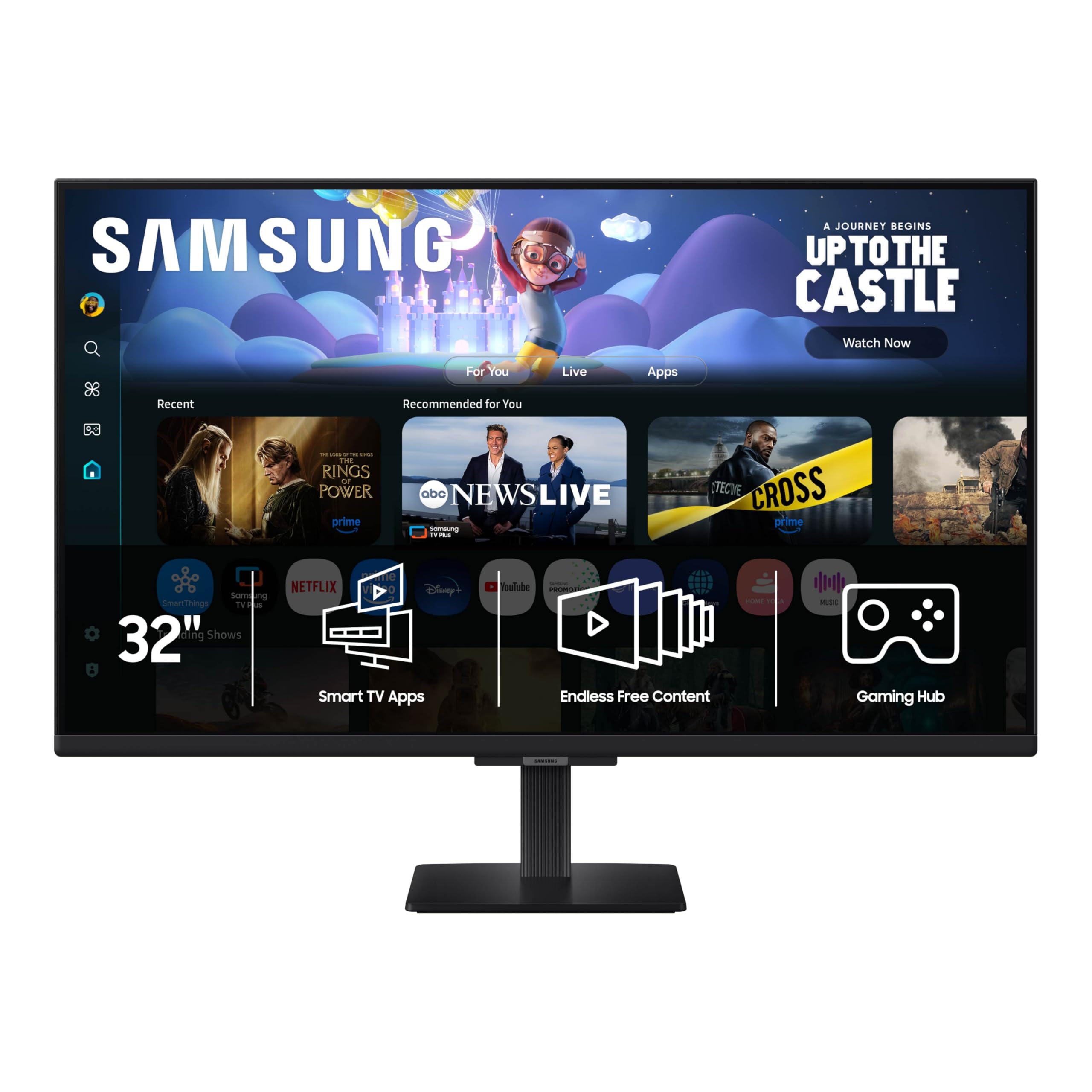
Figure 1: Samsung 32-Inch M5 Smart Monitor with remote control, showcasing smart TV apps, endless free content, and Knox Security features.
What's in the Box
Verify that all components are present in the packaging:
- Power Cable
- HDMI Cable
- Remote Control
- Stand
Setup
1. Assembling the Stand
Carefully attach the monitor stand to the display panel. Ensure all screws are securely fastened to prevent instability. Refer to the included quick setup guide for detailed diagrams.
2. Connecting Power and Input Devices
Connect the power cable to the monitor and a wall outlet. Use the provided HDMI cable to connect your computer or other devices to the monitor's HDMI input ports. Additional devices can be connected via the USB Type-A downstream ports.
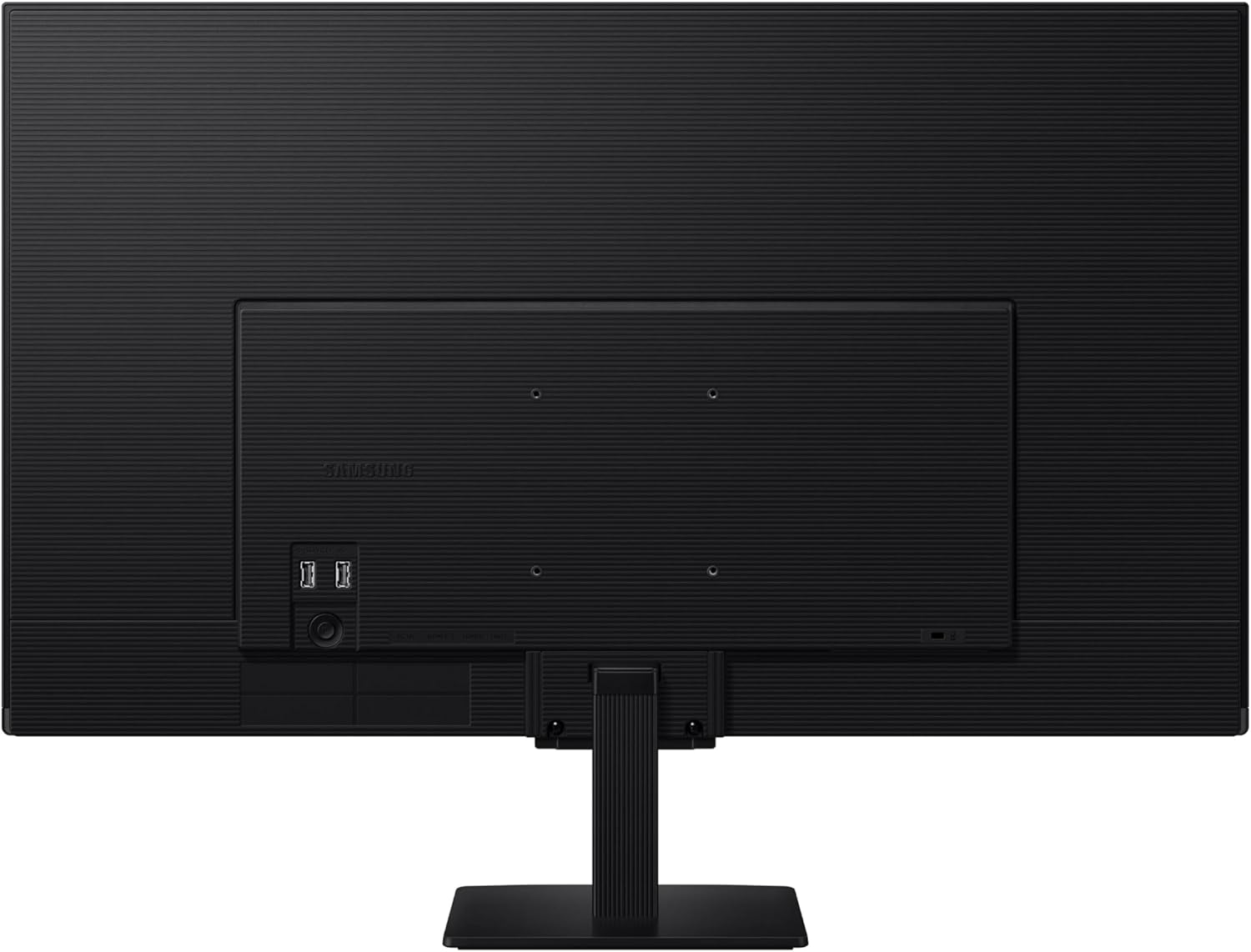
Figure 2: Rear panel connections, including USB, power, and HDMI ports.

Figure 3: Overall rear view of the monitor, showing the stand and port area.
3. Initial Power On and Network Connection
Press the power button on the remote control or the monitor. Follow the on-screen instructions to select your language, connect to a Wi-Fi network, and complete the initial setup. A stable internet connection is required to access smart features and streaming services.
4. Remote Control Pairing
The remote control should automatically pair with the monitor upon first use. If not, refer to the remote control section in the full user manual for manual pairing instructions.
Video 1: Demonstrates the setup process, including connecting cables and navigating the initial smart monitor interface. This video highlights the monitor's versatility as both an office display and an entertainment hub.
Operating the Smart Monitor
1. Smart Hub Navigation
The Smart Monitor features a Smart Hub interface, providing quick access to streaming applications, live TV, and connected devices. Use the remote control's directional pad and select button to navigate through menus and launch applications.

Figure 4: The Smart Hub interface, showing a selection of streaming applications.

Figure 5: Smart TV Apps section, providing instant access to streaming content.
2. Streaming and Entertainment
Access pre-installed streaming apps like Netflix, YouTube, Disney+, and Prime Video directly from the Smart Hub. The monitor also supports Samsung TV Plus, offering a variety of free channels including news, sports, and movies.

Figure 6: Endless Free Content available through Samsung TV Plus.
3. Gaming Hub
Utilize the integrated Samsung Gaming Hub to play games from top streaming partners without the need for a PC or console. Navigate to the Gaming Hub section in the Smart Hub to explore available titles.
4. Adaptive Sound
The monitor features Adaptive Sound technology, which analyzes audio scenes in real-time and optimizes sound output based on the content type for an immersive listening experience.
5. Workspace and Connectivity
The Workspace feature provides quick access to productivity tools. Connect your computer via HDMI or use wireless screen mirroring from compatible mobile devices to display content on the monitor.
Video 2: Shows the monitor being used as a secondary display for a laptop, demonstrating remote control navigation within a web browser. This highlights its functionality as a versatile display for both work and entertainment.
Maintenance
1. Cleaning the Screen
To clean the screen, gently wipe it with a soft, lint-free cloth. For stubborn marks, lightly dampen the cloth with water or a specialized screen cleaner. Avoid using harsh chemicals, abrasive materials, or direct spraying of liquids onto the screen.
2. General Care
Keep the monitor in a well-ventilated area, away from direct sunlight, heat sources, and excessive dust. Avoid placing heavy objects on the monitor or its cables. Ensure cables are not kinked or pinched.
3. Software Updates
Periodically check for and install software updates to ensure optimal performance and access to the latest features. Updates can typically be found in the monitor's settings menu under 'Support' or 'Software Update'.
Troubleshooting
No Power / No Display
- Ensure the power cable is securely connected to both the monitor and a working power outlet.
- Check if the power indicator light on the monitor is on.
- Press the power button on the remote or monitor.
No Signal from Connected Device
- Verify that the HDMI cable is firmly connected to both the monitor and the source device.
- Select the correct input source on the monitor using the remote control.
- Ensure the source device (e.g., computer) is powered on and outputting a signal.
Remote Control Not Responding
- Check the batteries in the remote control and replace them if necessary.
- Ensure there are no obstructions between the remote control and the monitor.
- If the issue persists, try re-pairing the remote control according to the full user manual.
Network Connection Issues
- Verify that your Wi-Fi router is powered on and functioning correctly.
- Restart the monitor and your Wi-Fi router.
- Check the network settings on the monitor to ensure the correct Wi-Fi network is selected and the password is entered accurately.
Specifications
| Feature | Detail |
|---|---|
| Brand | Samsung |
| Model Number | LS32FM502ENXZA |
| Screen Size | 32 Inches |
| Resolution | FHD 1080p (1920x1080) |
| Aspect Ratio | 16:9 |
| Item Weight | 10.36 pounds |
| Product Dimensions (LxWxH) | 7.87 x 28.16 x 20.7 inches |
| Color | Black |
| Voltage | 240 Volts |
| USB Ports | 1 x USB 3.0 (Type-A Downstream) |
| HDMI Ports | 2 (HDMI IN 1, HDMI IN 2 (ARC)) |
| Screen Surface Description | Matte |

Figure 7: Physical dimensions of the Samsung 32-Inch M5 Smart Monitor.
Warranty and Support
This Samsung Smart Monitor is covered by a manufacturer's warranty. For specific warranty terms, conditions, and duration, please refer to the warranty card included in your product packaging or visit the official Samsung support website.
For technical assistance, troubleshooting, or service requests, please contact Samsung Customer Support. You can find contact information on the Samsung website or in your product documentation.

Figure 8: Samsung Knox Security features for data protection.


