
CHOEZON MDS05UDBB
CHOEZON MDS05UDBB 55-inch TV Stand User Manual
Model: MDS05UDBB | Brand: CHOEZON
Introduction
This manual provides comprehensive instructions for the assembly, operation, and maintenance of your CHOEZON MDS05UDBB 55-inch TV Stand. This modern media console is designed to accommodate TVs up to 65 inches and features RGB LED lighting, a built-in power outlet, adjustable glass shelves, and ample open storage. Please read this manual carefully before assembly and use to ensure proper function and longevity of your product.
Setup Instructions
1. Unpacking and Component Check
Carefully unpack all components from the packaging. Verify that all parts listed in the included assembly guide are present and undamaged. If any parts are missing or damaged, do not proceed with assembly and contact customer support.
2. Assembly
Follow the step-by-step instructions provided in the separate assembly guide included with your TV stand. Ensure all screws and fasteners are securely tightened. It is recommended to assemble the unit on a soft, clean surface to prevent scratches.

Figure 1: Product Dimensions and TV Compatibility. This image illustrates the overall dimensions of the CHOEZON MDS05UDBB TV stand (140cm/55 inches long, 48.5cm/19.1 inches high) and indicates its compatibility with TVs up to 65 inches, showing various TV sizes (43", 50", 55", 65") for reference.
3. Placement
Place the assembled TV stand on a flat, stable surface. Ensure there is adequate space around the unit for ventilation and cable management. Avoid placing the stand in direct sunlight or near heat sources.
4. Power Connection
Connect the power cord from the built-in power strip to a standard wall outlet. Ensure the outlet is easily accessible and not overloaded. The power strip provides 2 AC outlets, 1 USB-A port, and 1 Type-C port.
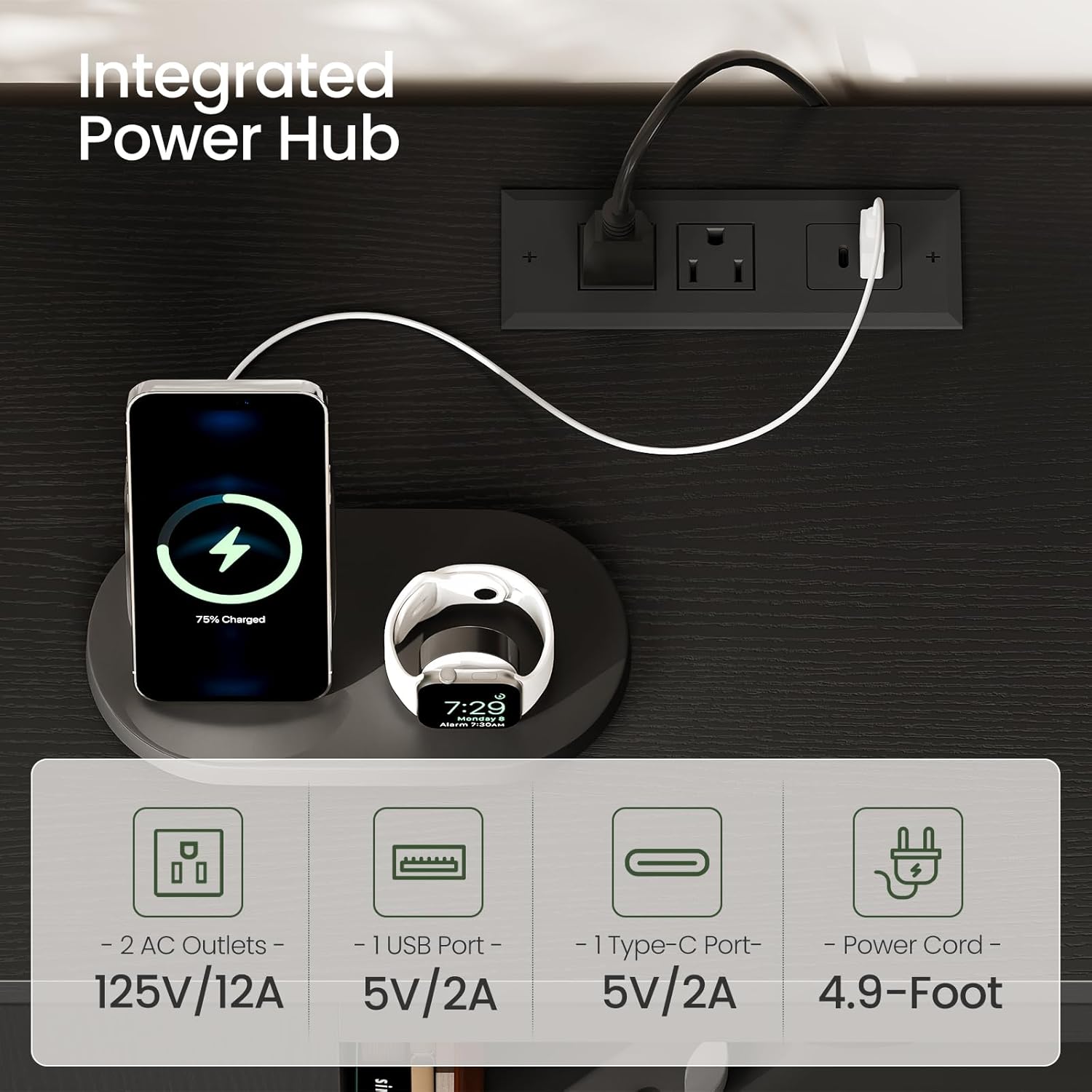
Figure 2: Integrated Power Hub. This image displays the built-in power strip, which includes two 125V/12A AC outlets, one 5V/2A USB-A port, and one 5V/2A Type-C port, along with its 4.9-foot power cord.
5. LED Light Installation (if not pre-installed)
If the LED light strips are not pre-installed, carefully attach them to the designated areas within the stand using the adhesive backing. Connect the LED light controller to the power source as instructed in the LED light kit manual.
Operating Instructions
1. Using the Built-in Power Outlet
The integrated power strip allows you to conveniently charge devices or power electronics directly from the TV stand. Simply plug your devices into the available AC outlets, USB-A port, or Type-C port.
- AC Outlets: 125V/12A (for standard electronics).
- USB-A Port: 5V/2A (for charging smartphones, tablets, etc.).
- Type-C Port: 5V/2A (for charging compatible devices).
Caution: Do not exceed the maximum power rating of the outlets. Avoid plugging in high-power appliances that may overload the circuit.
2. Controlling the RGB LED Lights
The RGB LED lights are controlled via the included remote control. Point the remote at the LED receiver (usually a small sensor connected to the light strip) to operate.
- Power On/Off: Press the power button on the remote.
- Color Selection: Choose from 20 color options using the color buttons.
- Dynamic Modes: Select from 22 dynamic modes (e.g., flash, fade, strobe) to create different effects.
- Brightness Adjustment: Use the brightness up/down buttons to adjust the light intensity (5 levels available).

Figure 3: Customizable LED Lighting. This image illustrates the TV stand with its RGB LED lights set to a vibrant purple, highlighting the remote control with options for 20 colors, 5 brightness levels, and 22 dynamic modes.
3. Adjusting Glass Shelves
The TV stand features two adjustable glass shelves, allowing you to customize the storage space to fit various items like gaming consoles, media players, or decorative objects. To adjust a shelf:
- Carefully remove any items from the shelf.
- Lift the glass shelf slightly and slide it out from its current supports.
- Relocate the shelf supports to the desired height. Ensure they are securely seated in the pre-drilled holes.
- Carefully place the glass shelf back onto the new supports.

Figure 4: Adjustable Glass Shelves. This image shows the adjustable glass shelves within the TV stand, with an inset diagram illustrating three possible height positions for customization.
4. Utilizing Open Storage and Cable Management
The stand offers ample open storage compartments for your media devices and accessories. Use the integrated cable management cutouts at the back of the stand to route and organize cables, reducing clutter and ensuring a tidy appearance.

Figure 5: Open Side Compartments. This image provides a view of the open side compartments, demonstrating their utility for storing books, baskets, and other media accessories, with an external power adapter plugged into a wall outlet.
Maintenance
1. Cleaning
- Dust the TV stand regularly with a soft, dry cloth.
- For spills or stubborn marks, use a slightly damp cloth with a mild, non-abrasive cleaner. Wipe dry immediately.
- Avoid using harsh chemicals, abrasive cleaners, or polishes that may damage the finish.
- Clean glass shelves with a glass cleaner and a soft cloth.
2. General Care
- Do not place hot items directly on the surface without protection.
- Avoid dragging heavy objects across the surface to prevent scratches.
- Periodically check all fasteners and tighten if necessary to ensure stability.
Troubleshooting
LED Lights Not Working
- Check Power Connection: Ensure the LED light strip and its controller are securely plugged into the power source and the wall outlet.
- Remote Control Battery: Replace the battery in the remote control if the lights do not respond.
- Remote Sensor: Ensure the remote control is pointed directly at the LED receiver and there are no obstructions.
- Light Strip Connection: Verify that the LED strip is properly connected to the controller.
Power Outlets Not Functioning
- Check Wall Outlet: Ensure the wall outlet itself is working by plugging in another device.
- Power Strip Connection: Verify that the TV stand's power cord is fully inserted into the wall outlet.
- Overload: Unplug some devices from the power strip to check if it was overloaded. The power strip may have an internal fuse or circuit breaker that needs to be reset (if applicable, consult the power strip's specific instructions).
Stand Instability
- Level Surface: Ensure the TV stand is placed on a completely flat and level surface.
- Tighten Fasteners: Re-check and tighten all assembly screws and bolts.
- Weight Distribution: Ensure weight is evenly distributed on the stand and shelves.
Product Specifications
| Feature | Detail |
|---|---|
| Brand | CHOEZON |
| Model Number | MDS05UDBB |
| Color | Black |
| Dimensions (L x W x H) | 140 cm x 41.91 cm x 48.5 cm (approx. 55" x 16.5" x 19.1") |
| Item Weight | 21.6 kg (approx. 47.6 lbs) |
| TV Size Compatibility | Up to 65 inches |
| Power Outlets | 2 x AC (125V/12A), 1 x USB-A (5V/2A), 1 x Type-C (5V/2A) |
| LED Lighting | RGB, 20 Color Options, 22 Dynamic Modes, 5 Brightness Levels |
| Shelves | 2 Adjustable Glass Shelves |
| Assembly Required | Yes |
Warranty and Support
For warranty information, please refer to the documentation included with your purchase or visit the official CHOEZON website. If you encounter any issues or require assistance, please contact CHOEZON customer support. Have your model number (MDS05UDBB) and purchase details ready when contacting support.
Online Support: Visit the CHOEZON Store on Amazon
Ask a question about this manual
Ask about setup, troubleshooting, compatibility, parts, safety, or missing instructions. Manuals+ will review the question and use this page’s manual context to help answer it.