Introduction
Welcome to the user manual for your Lenovo Tab M9 Android 12 Tablet. This document provides essential information to help you get started, operate, maintain, and troubleshoot your device. The Lenovo Tab M9 combines portability with performance, featuring a 9-inch HD IPS display, Dolby Atmos audio, and an Octa-core MediaTek Helio G80 processor. It comes with 3GB RAM and 96GB of storage (32GB internal + 64GB microSD card), making it suitable for various tasks from streaming to light gaming. Enhanced with features like Google Lens and facial recognition, and bundled with a folio case, screen film, and stylus pen, this tablet is designed for a versatile user experience.
What's in the Box
Upon unboxing your Lenovo Tab M9, please ensure all the following items are present:
- Lenovo Tab M9 Android 12 Tablet
- 64GB MicroSD Card (pre-installed or separate)
- Folio Case
- Screen Protector Film
- Stylus Pen
- USB-C Charging Cable
- Power Adapter
- Quick Start Guide (may be included separately)
Setup
1. Initial Charging and Power On
Before first use, it is recommended to fully charge your tablet. Connect the USB-C charging cable to the tablet's USB-C port and the power adapter, then plug it into a wall outlet. The battery indicator on the screen will show charging status. Once sufficiently charged, press and hold the power button (usually located on the side) until the Lenovo logo appears.
2. Basic Setup Steps
Follow the on-screen prompts to complete the initial setup:
- Language Selection: Choose your preferred language.
- Wi-Fi Connection: Select your Wi-Fi network and enter the password to connect to the internet.
- Google Account: Sign in with your Google account or create a new one. This is essential for accessing the Google Play Store and other Google services.
- Date and Time: Set the correct date and time, or allow the tablet to set it automatically via the network.
- Security: Set up a screen lock (PIN, pattern, password, or facial recognition) to protect your device.
3. Installing Accessories
Your tablet comes with a folio case, screen protector, and stylus pen.
- Screen Protector: Carefully apply the screen protector film to the tablet's display, ensuring no dust or air bubbles.
- Folio Case: Insert the tablet into the folio case for protection and to enable stand functionality.
- MicroSD Card: If not pre-installed, locate the microSD card slot (refer to the physical overview image) and insert the 64GB microSD card for expanded storage.

Image: Lenovo Tab M9 tablet with its folio case open, showcasing the display. This illustrates the tablet ready for use with its protective cover.
Operating the Tablet
1. Navigation and User Interface
The Lenovo Tab M9 runs on Android 12. Navigate using touch gestures: swipe up for the app drawer, swipe down for notifications and quick settings, tap to open apps, and pinch to zoom.
2. Display and Audio
The 9-inch HD IPS display (1340x800 resolution) provides clear visuals. Audio is enhanced by Dolby Atmos through dual speakers, offering an immersive sound experience for media consumption.
3. Camera Usage
The tablet features an 8.0MP rear camera and a 2.0MP front camera. Open the Camera app to take photos or record videos. The front camera is suitable for video calls.
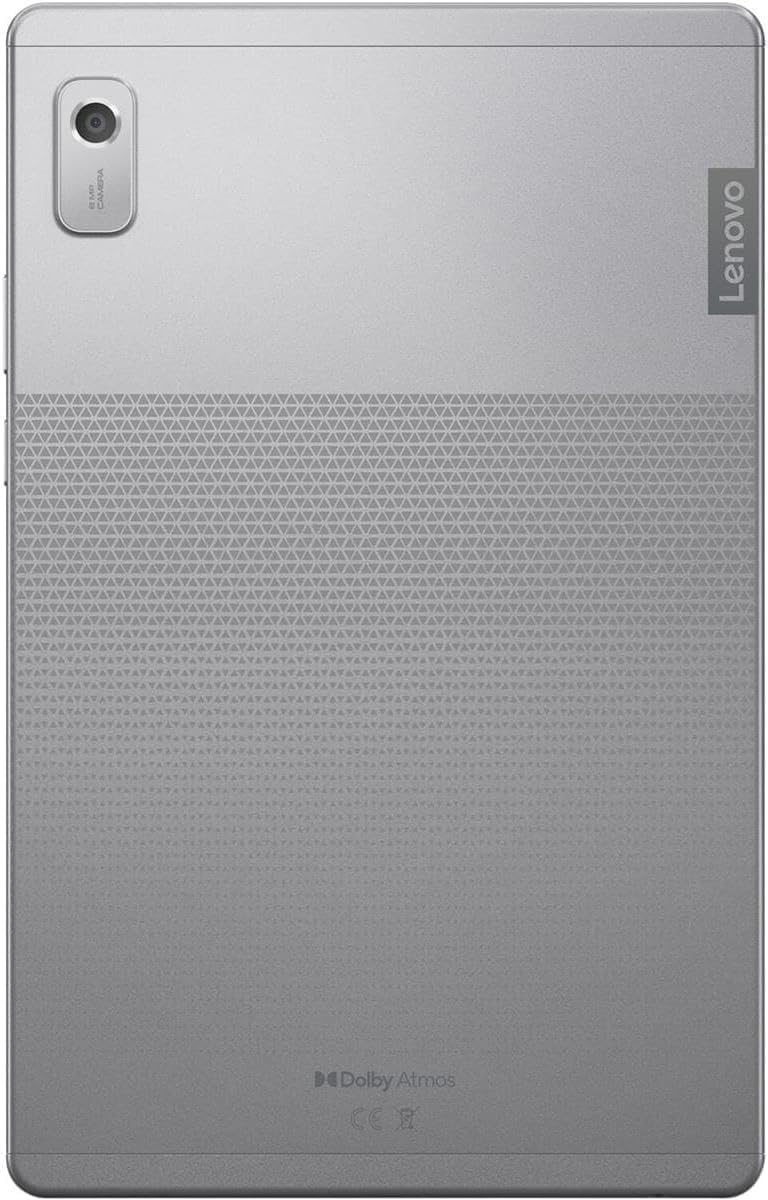
Image: The back of the Lenovo Tab M9 tablet, highlighting the rear camera and the Dolby Atmos logo, indicating its audio capabilities.
4. Connectivity
Connect to the internet via Wi-Fi 5 (802.11ac). Bluetooth 5.1 allows connection to wireless headphones, speakers, and other compatible accessories.
5. Battery Management
The integrated 5100mAh battery provides up to 13 hours of video playback. To optimize battery life, adjust screen brightness, close unused apps, and enable battery saver mode when needed.
6. Smart Features
Utilize Google Lens for real-time translation, object identification, and smart text selection. Facial recognition provides a quick and secure way to unlock your tablet.

Image: The Lenovo Tab M9 tablet positioned in its folio case, illustrating how the case can act as a stand. The side view reveals the USB-C port and headphone jack.
Maintenance
1. Cleaning the Tablet
Use a soft, lint-free cloth to clean the screen and body of the tablet. For stubborn smudges, slightly dampen the cloth with water or a screen-cleaning solution. Avoid harsh chemicals or abrasive materials.
2. Battery Care
To prolong battery lifespan, avoid extreme temperatures. Do not leave the tablet fully charged or fully discharged for extended periods. Use the provided charger for optimal performance.
3. Software Updates
Regularly check for and install system updates. These updates often include security patches, performance improvements, and new features. Go to Settings > System > System update to check for updates.
4. Storage Management
Monitor your storage usage (32GB internal, expandable with 64GB microSD). Regularly delete unnecessary files, uninstall unused apps, and move large media files to the microSD card or cloud storage to maintain optimal performance.
Troubleshooting
This section addresses common issues you might encounter with your Lenovo Tab M9.
- Tablet does not power on: Ensure the tablet is charged. Connect it to the charger for at least 30 minutes, then try pressing and holding the power button for 10-15 seconds.
- Wi-Fi connection issues: Check if Wi-Fi is enabled in settings. Restart your tablet and your Wi-Fi router. Ensure you are within range of the Wi-Fi signal and have entered the correct password.
- Slow performance or apps crashing: Close unused apps running in the background. Clear app caches (Settings > Apps > [App Name] > Storage > Clear cache). Ensure you have sufficient free storage space. A system update might also resolve performance issues.
- Screen unresponsive: Try restarting the tablet by holding the power button until it reboots. If the issue persists, ensure the screen is clean and free from damage.
- Battery drains quickly: Reduce screen brightness, disable unnecessary features like Bluetooth or GPS when not in use, and identify power-hungry apps in battery usage settings.
- Factory Reset: As a last resort for persistent software issues, you can perform a factory reset. Warning: This will erase all data on your tablet. Back up important data before proceeding. Go to Settings > System > Reset options > Erase all data (factory reset).
Specifications
Below are the key technical specifications for the Lenovo Tab M9 tablet:
| Feature | Specification |
|---|---|
| Model Name | Lenovo Tab M9 |
| Display | 9-inch HD IPS (1340x800) 400nits Anti-fingerprint, Touch |
| Processor | MediaTek Helio G80 Octa-core (2x A75 @2.0GHz + 6x A55 @1.8GHz) |
| Graphics Coprocessor | Integrated Arm Mali-G52 MC2 GPU |
| RAM | 3GB LPDDR4x |
| Storage | 32GB Internal + 64GB MicroSD Card (Total 96GB) |
| Operating System | Android 12 (or Later) |
| Cameras | Front 2.0MP / Rear 8.0MP |
| Audio | Dual speakers optimized with Dolby Atmos |
| Battery | Integrated 5100mAh (Up to 13 hours video playback) |
| Wireless Connectivity | Wi-Fi 5 (802.11ac 1x1), Bluetooth 5.1 |
| Ports | 1x USB-C 2.0 (data transfer, charging, digital headset), 1x 3.5mm headphone/microphone jack, 1x Micro SD Card slot |
| Dimensions (LxWxH) | 8.48 x 5.38 x 0.31 inches |
| Weight | 0.76 lbs (approx. 1.87 pounds listed in specifications, using product description value) |
| Color | Arctic Grey |

Image: A detailed side view of the Lenovo Tab M9 tablet, illustrating the placement of the USB-C port, 3.5mm headphone jack, and microphone opening.
Warranty and Support
1. Product Warranty
Your Lenovo Tab M9 tablet is covered by a standard limited warranty. Specific warranty terms and conditions may vary by region and retailer. Please refer to the warranty card included with your product or visit the official Lenovo support website for detailed information regarding warranty coverage, duration, and service procedures.
2. Technical Support
For technical assistance, troubleshooting beyond this manual, or service requests, please contact Lenovo customer support. You can find contact information, FAQs, and additional resources on the official Lenovo support website. When contacting support, please have your tablet's model number (Tab M9) and serial number ready.
Lenovo Support Website: support.lenovo.com


