
Introduction
This manual provides detailed instructions for the setup, operation, and maintenance of your Matast 1.91-inch Smart Watch. Please read this manual thoroughly before using the device to ensure proper function and to maximize your user experience. Keep this manual for future reference.

Figure 1: Matast 1.91-inch Smart Watch. This image shows the watch displaying various metrics like steps, calories, distance, heart rate, and battery percentage, alongside a phone dialer interface.
1. Setup
1.1 Package Contents
Ensure all items are present in the package:
- Matast 1.91-inch Smart Watch
- Magnetic charging cable
- User Manual (this document)
1.2 Initial Charging
Before first use, fully charge the smart watch. Connect the magnetic charging cable to the charging points on the back of the watch and plug the USB end into a standard USB power adapter (not included).
- Charging Time: Approximately 2 hours for a full charge.
- Battery Life: Up to 7 days of normal use, 30 days standby time.
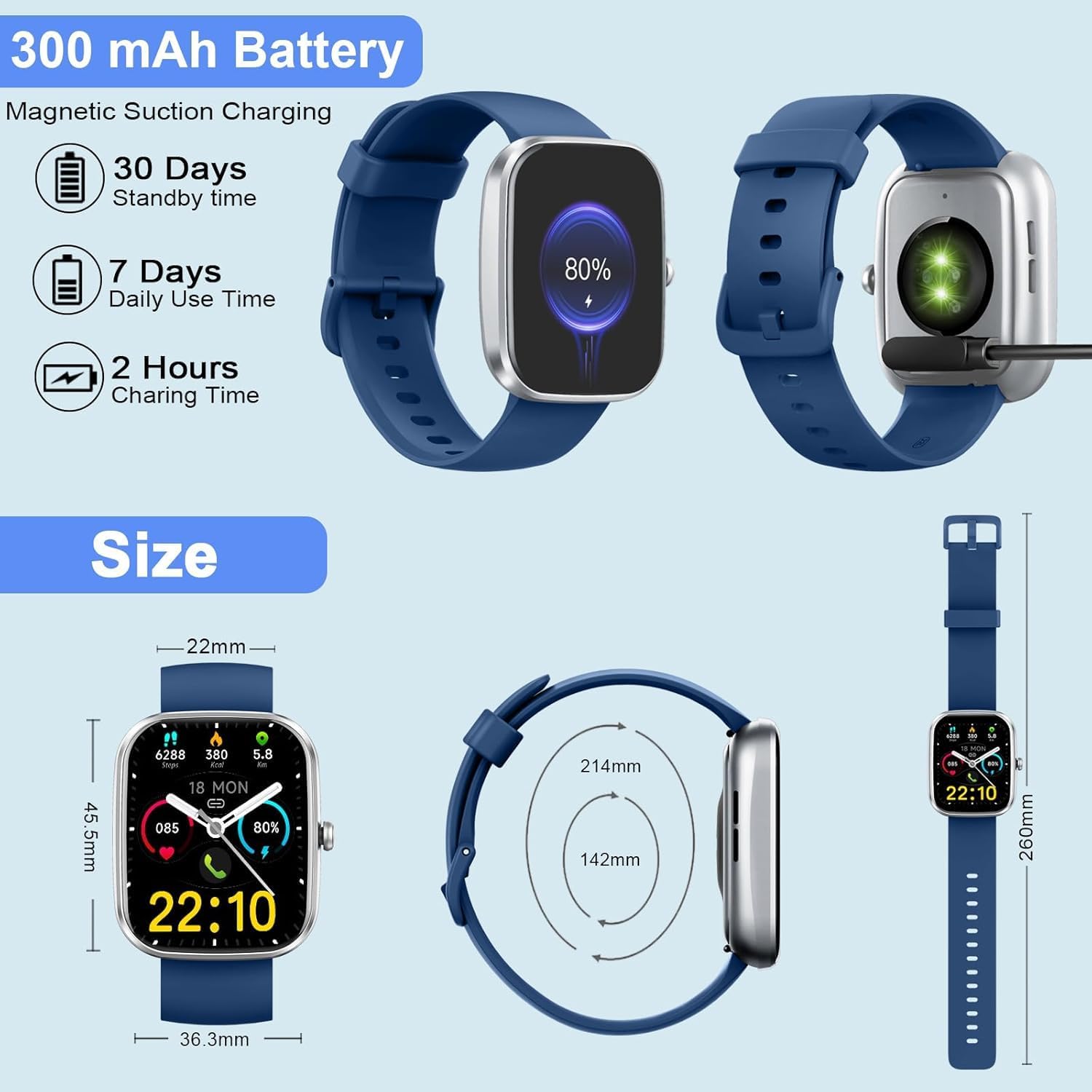
Figure 2: Charging the Matast Smart Watch. This image illustrates the magnetic charging cable connecting to the watch, along with battery specifications and dimensions.
1.3 App Download and Pairing
To unlock the full functionality of your smart watch, download and install the "Gloryfit" app on your smartphone. The watch is compatible with iOS 9.0 and above, and Android 6.0 and above devices.
- Download the App: Search for "Gloryfit" in your smartphone's app store (Apple App Store for iOS, Google Play Store for Android) and install it.
- Enable Bluetooth: Turn on Bluetooth on your smartphone.
- Open Gloryfit App: Launch the "Gloryfit" app and follow the on-screen instructions to create an account or log in.
- Pair the Watch: In the app, navigate to the device pairing section. The app will search for available devices. Select "T60" (or similar device ID) from the list to connect.
- Confirm Pairing: Confirm the pairing request on both your phone and the smart watch if prompted.
For Bluetooth call functionality, an additional pairing step may be required for iOS devices (iOS 13.0 and below) after the initial app binding. Go to your phone's Bluetooth settings, find "T60" (or similar audio device ID), and connect to it.

Figure 3: App Download and Pairing Process. This image illustrates the steps to download the Gloryfit app, enable Bluetooth, search for the device, and complete the binding process for both iOS and Android, including the separate audio Bluetooth connection for older iOS versions.
2. Operating Instructions
2.1 Basic Navigation
- Touch Screen: Swipe left, right, up, or down to navigate through menus and functions. Tap to select an option.
- Side Button: Press the side button to return to the home screen or to wake/sleep the display.
- Raise to Wake: The screen will automatically light up when you raise your wrist.
2.2 Bluetooth Call and Message Alerts
Once connected via Bluetooth, the smart watch allows you to manage calls and receive notifications directly on your wrist.
- Making/Answering Calls: Use the integrated HD speaker and microphone to answer incoming calls or dial numbers directly from the watch. You can also view call history and store contacts.
- Message Notifications: Receive alerts for social media messages (e.g., WhatsApp, Twitter, Facebook, Instagram) and other app notifications.

Figure 4: Bluetooth Call Functionality. This image demonstrates the ability to make and answer calls directly from the watch, along with receiving smart notifications from various social media platforms.
2.3 Customizing Watch Faces
Personalize your smart watch with a variety of watch faces available through the "Gloryfit" app.
- Download Watch Faces: Access the watch face store within the "Gloryfit" app to browse and download over 100 personalized watch faces.
- Set as Desktop: Select your preferred watch face to set it as the main display.

Figure 5: Customizable Watch Faces. This image highlights the 1.91-inch HD colorful screen and a selection of over 100 watch faces available through the GloryFit app, allowing users to customize their watch's appearance.
2.4 Sports Modes and Activity Tracking
The smart watch supports over 110 sports modes to track your physical activities comprehensively.
- Select a Sport: Navigate to the sports mode menu on the watch and select your desired activity (e.g., running, cycling, walking, basketball, yoga, football).
- Activity Data: The watch will record data such as steps, distance, and calories burned.
- IP68 Waterproof: The watch is IP68 waterproof, suitable for daily activities like hand washing or exercising in the rain. Note: Not recommended for use in hot water or seawater.
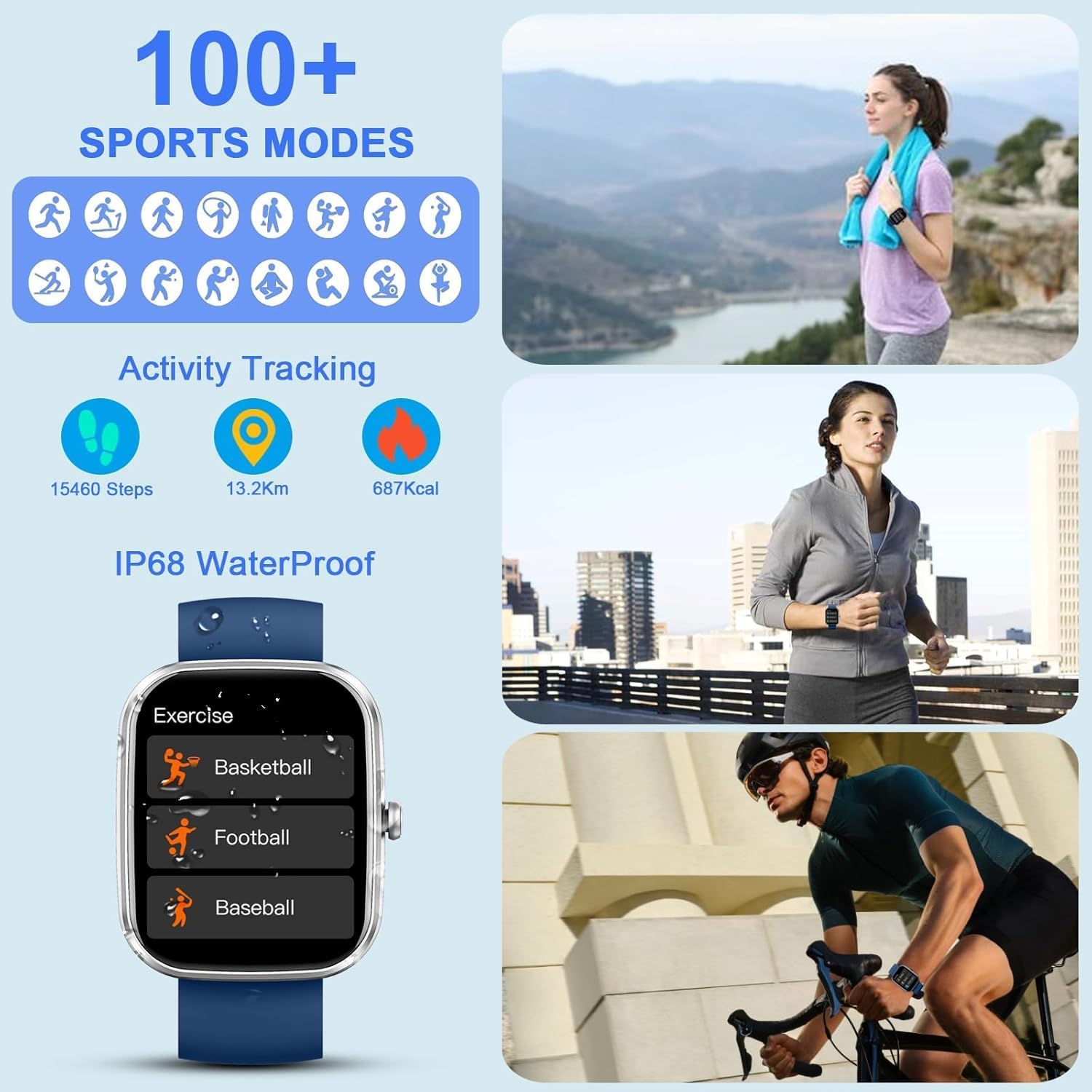
Figure 6: 100+ Sports Modes and Activity Tracking. This image shows the watch interface for selecting exercises like basketball, football, and baseball, alongside visual representations of various sports activities and activity tracking metrics (steps, distance, calories).
2.5 Health Monitoring
The smart watch is equipped with high-performance sensors to monitor key health metrics.
- Heart Rate Monitor: Continuously monitors your heart rate 24 hours a day. View real-time data on the watch or in the "Gloryfit" app.
- Sleep Tracker: Analyzes your sleep patterns, including deep sleep, light sleep, and awake times. Synchronize data to the "Gloryfit" app for detailed insights.
- SpO2 Monitor: Measures blood oxygen levels.

Figure 7: Heart Rate and Sleep Monitoring. This image displays the watch's interface for heart rate and blood oxygen monitoring, along with a detailed sleep tracking report showing deep, light, and awake sleep durations.
2.6 Additional Functions
The Matast Smart Watch offers a range of other useful features:
- Weather Forecast: Get real-time weather updates.
- Music Control: Control music playback on your smartphone.
- Sedentary Reminder: Receive alerts to move after periods of inactivity.
- Stopwatch & Timer: Built-in tools for timing activities.
- Alarm Clock: Set alarms directly from your watch.
- Find Phone: Locate your paired smartphone.
- Female Cycle Tracking: Monitor and track menstrual cycles.
- Camera Control: Remotely control your phone's camera.
- Breathing Exercises: Guided breathing sessions for relaxation.
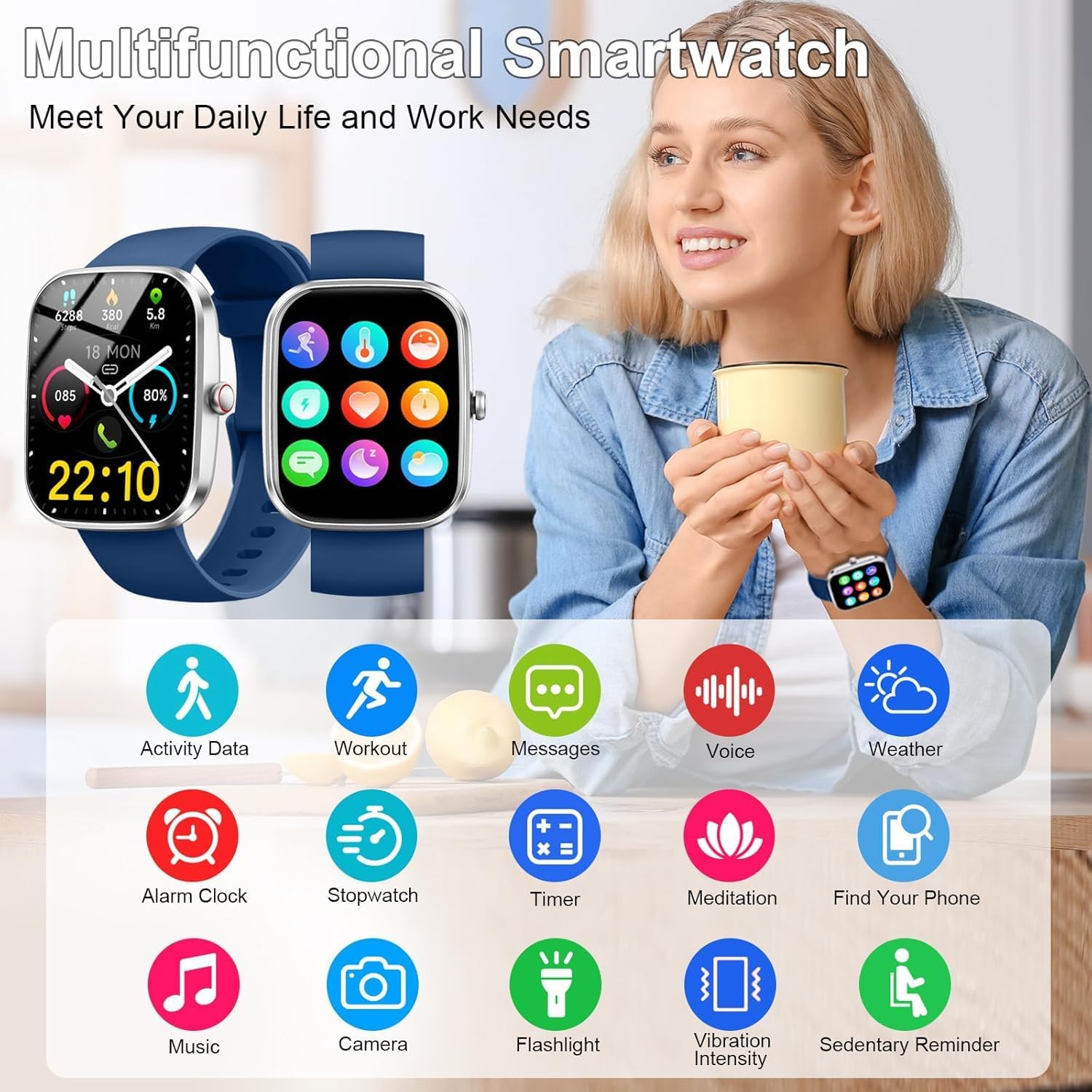
Figure 8: Multifunctional Smart Watch Features. This image showcases a wide array of icons representing the watch's diverse functions, including activity data, workout modes, message alerts, voice control, weather, alarm clock, stopwatch, timer, meditation, find phone, music control, camera control, flashlight, vibration intensity, and sedentary reminder.
3. Maintenance
3.1 Cleaning the Device
Regular cleaning helps maintain the watch's appearance and functionality.
- Wipe the screen and strap with a soft, damp, lint-free cloth.
- Avoid using harsh chemicals, abrasive cleaners, or solvents.
- Ensure the charging contacts are clean and dry before charging.
3.2 Water Resistance
The Matast Smart Watch has an IP68 water resistance rating. This means it is protected against dust ingress and can withstand immersion in water up to 1.5 meters for up to 30 minutes.
- Suitable for daily use, such as washing hands, showering (cold water), or exercising in the rain.
- Do not use in hot water, saunas, steam rooms, or seawater, as this may compromise the water resistance.
- Avoid pressing buttons underwater.
- Dry the watch thoroughly after exposure to water.
3.3 Battery Care
- Avoid extreme temperatures, which can affect battery life.
- Charge the watch regularly; do not let the battery completely drain for extended periods.
- Use only the provided magnetic charging cable.
4. Troubleshooting
If you encounter issues with your Matast Smart Watch, refer to the following common solutions:
4.1 Watch Not Turning On
- Ensure the watch is fully charged. Connect it to the charger for at least 30 minutes.
- Press and hold the side button for 10-15 seconds to attempt a forced restart.
4.2 Unable to Pair with Phone
- Make sure Bluetooth is enabled on your phone.
- Ensure the "Gloryfit" app is installed and running.
- Check if the watch is within the Bluetooth range of your phone (typically 10 meters).
- Restart both your phone and the smart watch.
- If previously paired, try unpairing the watch from your phone's Bluetooth settings and then re-pairing through the "Gloryfit" app.
- For iOS devices, remember to connect the audio Bluetooth separately if experiencing call issues.
4.3 Inaccurate Health Data
- Ensure the watch is worn snugly on your wrist, but not too tight.
- Clean the sensors on the back of the watch.
- Avoid excessive movement during measurements.
- Note that smart watches are not medical devices and readings are for reference only.
4.4 Notifications Not Received
- Verify that the watch is successfully paired with your phone.
- Check notification permissions for the "Gloryfit" app in your phone's settings.
- Ensure notification settings are enabled within the "Gloryfit" app for specific applications.
- Confirm that "Do Not Disturb" mode is not active on either your phone or watch.
5. Specifications
| Feature | Detail |
|---|---|
| Model | B0FKGMP2HL |
| Brand | Matast |
| Screen Size | 1.91 Inches |
| Operating System | Wear OS 3.0 |
| Connectivity | Bluetooth |
| Water Resistance | IP68 |
| Battery Type | Lithium Polymer |
| Charging Time | Approx. 2 hours |
| Typical Use Time | 5-7 days |
| Standby Time | Approx. 30 days |
| Compatibility | iOS 9.0 and above, Android 6.0 and above |
| Health Monitoring | Heart Rate, Sleep, SpO2 |
| Sports Modes | 110+ |
| Item Weight | 8.8 ounces (0.25 Kilograms) |
| Package Dimensions | 6.89 x 3.74 x 0.75 inches |
6. Warranty and Support
6.1 Warranty Information
For detailed warranty information regarding your Matast Smart Watch, please refer to the warranty card included with your purchase or visit the official Matast website. Warranty terms and conditions may vary by region and retailer.
6.2 Customer Support
If you require further assistance, have questions, or encounter issues not covered in this manual, please contact Matast customer support. Contact details can typically be found on the official Matast website or on your product packaging.
When contacting support, please have your product model (B0FKGMP2HL) and purchase information ready.