
1. Introduction
This manual provides comprehensive instructions for the setup, operation, maintenance, and troubleshooting of your Scangle D2A Point-of-Sale (POS) System. The D2A is an integrated terminal featuring a 14.1-inch main touch display, a 10.1-inch secondary display, and a built-in 80mm thermal printer, running on the Android 11 operating system.

Image 1.1: Front view of the Scangle D2A POS System.
2. Package Contents
Please verify that all items listed below are included in your package:
- 1 x Scangle D2A Android 11 POS System (main unit with 14.1-inch touch monitor and built-in 80mm autocutter thermal printer)
- 1 x Power Cable with Adapter
- 1 x User Manual (this document)
- 1 x Roll of Thermal Printer Paper
3. Product Overview
The Scangle D2A POS System is designed for efficient point-of-sale operations. It integrates essential components into a compact unit.
3.1 Key Components
- Main Display: A 14.1-inch Full HD (1920x1080) capacitive touch screen for operator use.
- Secondary Display: A 10.1-inch display, typically facing the customer.
- Built-in Thermal Printer: An 80mm autocutter thermal printer for receipts.
- Connectivity: Integrated Wi-Fi (2.4/5G) and Bluetooth 4.2.
- Ports: Multiple USB, Serial (COM), RJ12, LAN, VGA, and Audio output ports for peripheral connections.

Image 3.1: Labeled components of the Scangle D2A POS System.
3.2 Adjustable Displays
Both the main and secondary displays feature adjustable angles, allowing for optimal viewing and ergonomic positioning.

Image 3.2: Adjustable display angles.
4. Setup Instructions
4.1 Power Connection
- Connect the power adapter to the DC-IN port on the back of the POS system.
- Plug the power cable into a standard electrical outlet.
- Press the power button, usually located on the side or back of the unit, to turn on the system.
4.2 Loading Thermal Printer Paper
The built-in thermal printer uses 80mm x 70mm thermal paper rolls.
- Locate the printer cover release latch, typically on the side of the printer unit.
- Open the printer cover.
- Insert the thermal paper roll with the paper feeding from the bottom and the thermal side facing the print head.
- Pull a small amount of paper out past the cutter.
- Close the printer cover firmly until it latches.
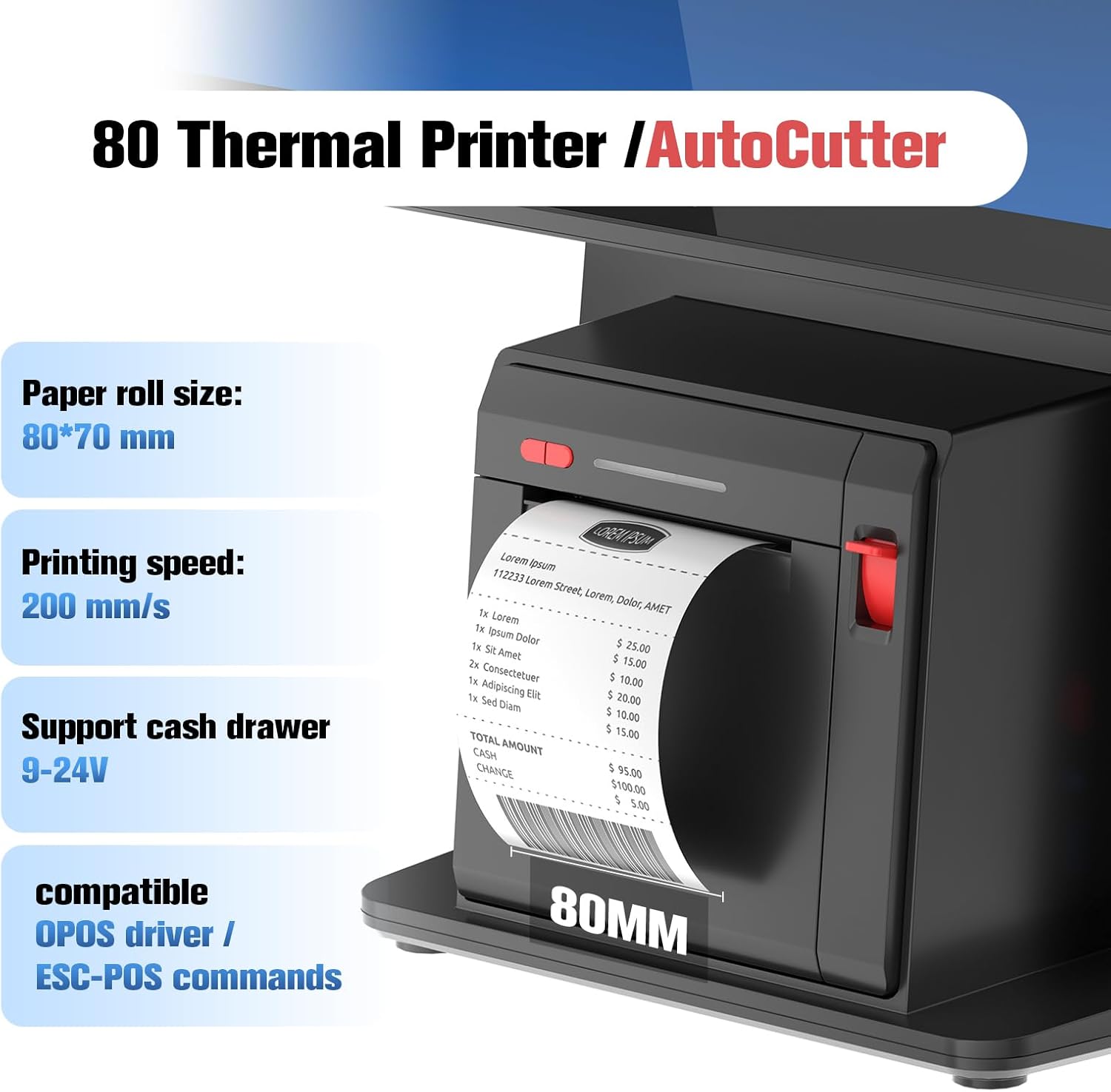
Image 4.1: Details of the 80mm thermal printer.
4.3 Connecting Peripherals
The system offers various ports for connecting external devices:
- USB Ports: For keyboards, mice, barcode scanners, or other USB devices.
- LAN Port: For wired network connection.
- RJ12 Port: Typically used for connecting a cash drawer (9-24V).
- Serial (COM) Port: For specific legacy peripherals.
- VGA Port: For an external monitor, if needed.
5. Operating Instructions
5.1 Initial Boot-up and Android Setup
Upon first power-on, the system will guide you through the standard Android 11 setup process, including language selection, Wi-Fi connection, and Google account login. Follow the on-screen prompts.
5.2 Using the Touch Screen
The main display features 10-point capacitive touch technology, supporting various gestures for navigation and interaction.
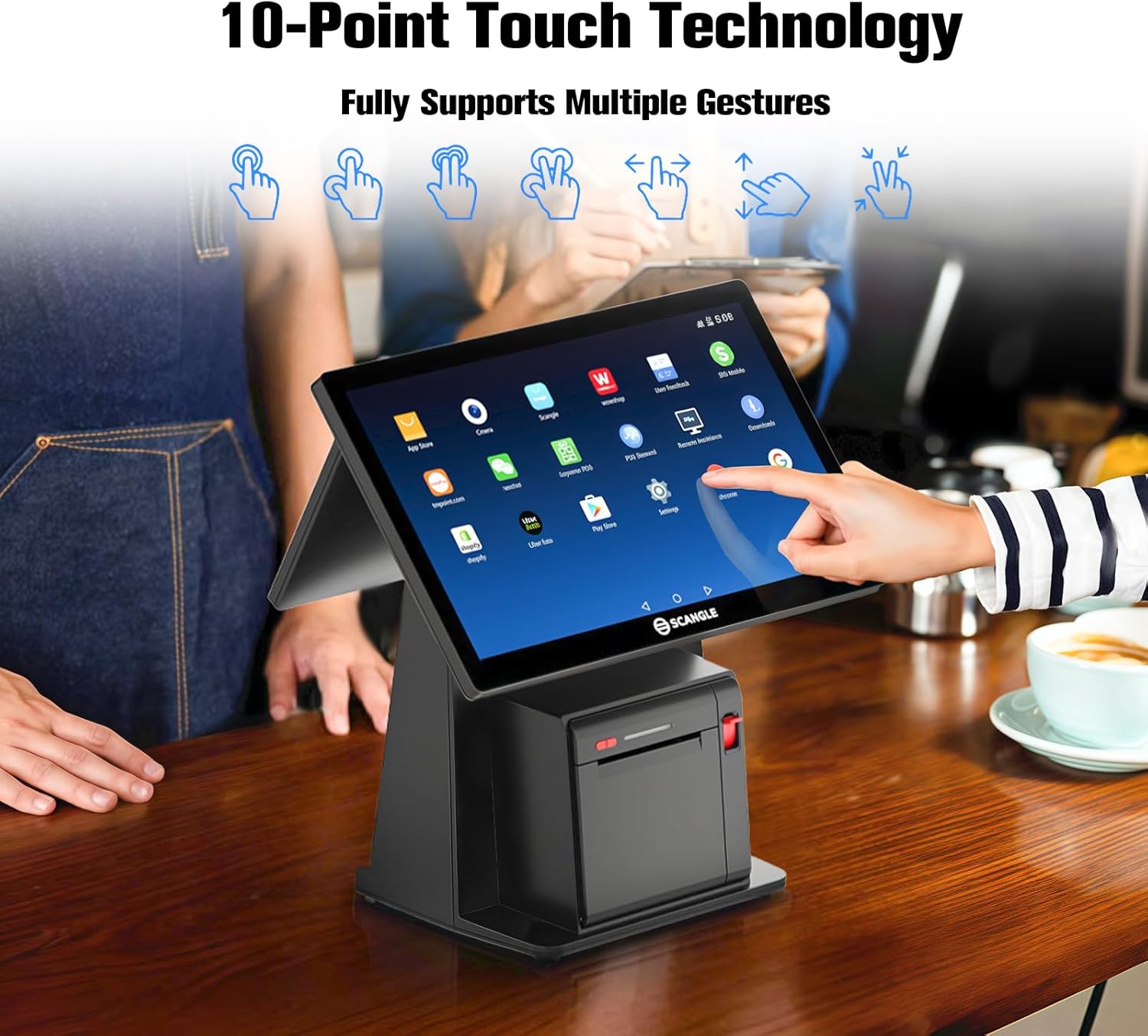
Image 5.1: 10-Point Touch Technology supports multiple gestures.
5.3 POS Software
The Scangle D2A is compatible with various Android POS applications available on Google Play, such as Loyverse POS, Uber Eats, and Shopify. Download and install your preferred POS software from the Google Play Store.
5.4 Printing Receipts
Receipt printing is managed by your installed POS software. Ensure the printer has paper and is properly configured within your application settings.
6. Maintenance
6.1 Cleaning the System
- Screens: Use a soft, lint-free cloth slightly dampened with a screen cleaner or water. Avoid harsh chemicals.
- Body: Wipe the aluminum stand and plastic components with a soft, dry or slightly damp cloth.
- Ensure the system is powered off and unplugged before cleaning.
6.2 Printer Maintenance
- Paper Replacement: Refer to Section 4.2 for instructions on loading thermal paper.
- Clearing Jams: If a paper jam occurs, power off the system, open the printer cover, carefully remove any jammed paper, and then close the cover.
- Print Head Cleaning: If print quality degrades, gently wipe the thermal print head with an alcohol swab (ensure the system is off and cooled down).
6.3 Software Updates
Regularly check for and install system updates for Android 11 and your installed POS applications to ensure optimal performance and security.
7. Troubleshooting
This section addresses common issues you might encounter with your Scangle D2A POS System.
7.1 Power Issues
- System does not turn on: Ensure the power cable is securely connected to both the system and the power outlet. Verify the outlet is functional.
- System unexpectedly shuts down: Check for stable power supply. If the issue persists, contact support.
7.2 Display Issues
- Screen is blank: Ensure the system is powered on. Check display settings in Android.
- Touch screen unresponsive: Restart the system. If the problem continues, ensure the screen is clean and free of obstructions.
7.3 Printer Issues
- Printer not printing: Check if paper is loaded correctly (refer to Section 4.2). Verify printer settings within your POS application.
- Poor print quality: Clean the print head (refer to Section 6.2). Ensure you are using high-quality thermal paper.
7.4 Connectivity Issues
- Wi-Fi connection unstable: Ensure the system is within range of your Wi-Fi router. Restart the router and the POS system.
- Peripheral not recognized: Ensure the peripheral is correctly connected to the appropriate port. Restart the system and the peripheral.
8. Specifications
| Feature | Specification |
|---|---|
| Model Number | D2A |
| Operating System | Android 11 |
| CPU | RK3568 Quad-core Processor |
| RAM | 4GB |
| ROM | 64GB |
| Main Screen | 14.1 inch FHD (1920*1080) 10-point Capacitive Touch |
| Secondary Screen | 10.1 inch (Resolution not specified, typically 1280x800) |
| Printer | Built-in 80mm Autocutter Thermal Printer |
| Printing Speed | Up to 160mm/sec (Note: Image 4.1 states 200mm/s, using the more conservative value from description) |
| Paper Size | 80mm x 70mm Thermal Paper Roll |
| Connectivity | Wi-Fi 2.4/5G, Bluetooth 4.2 |
| Ports | 5x USB, 1x Serial (COM), 1x RJ12, 1x LAN, 1x VGA, 1x Audio Output |
| Body Material | Aluminium stand |
| Item Weight | 13.2 pounds (approx. 5.99 kg) |
| Package Dimensions | 17.32 x 16.54 x 10.24 inches |
| Included Components | POS Terminal, Power Adapter, Thermal Paper Roll |
| UPC | 702408190757 |
9. Warranty and Support
The Scangle D2A POS System comes with a 30-day money-back guarantee. For any questions, technical assistance, or warranty claims, please contact the seller directly. Support is available 24/7.