
1. Product Overview
This manual provides instructions for the Hodozzy Android Car Radio, designed for Peugeot 207 models manufactured between 2005 and 2015. This unit features a 9-inch in-cell screen, Android operating system, and supports various connectivity options.
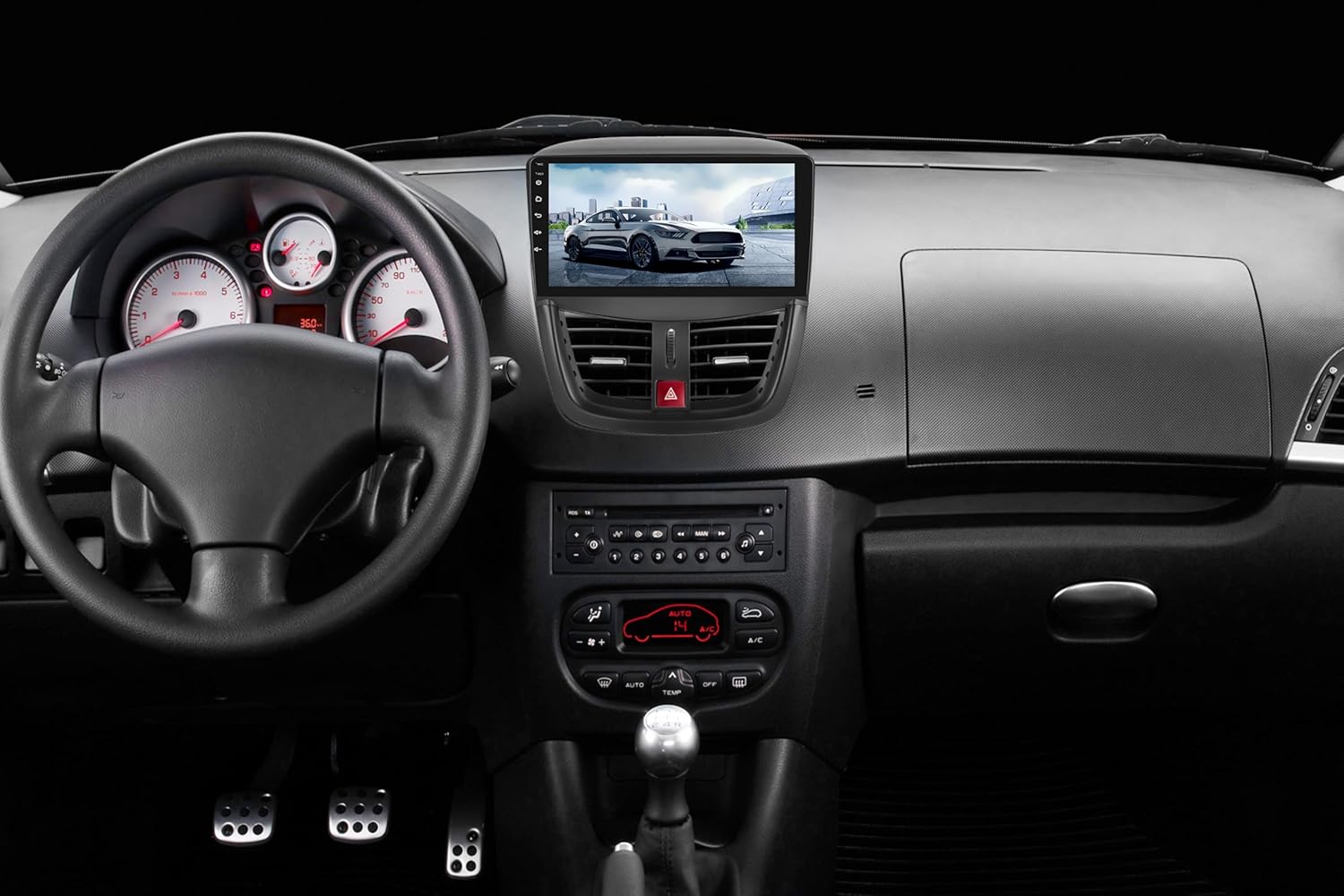
Image: Hodozzy Car Radio installed in a Peugeot 207 dashboard, showing the 9-inch screen integrated into the vehicle's interior.
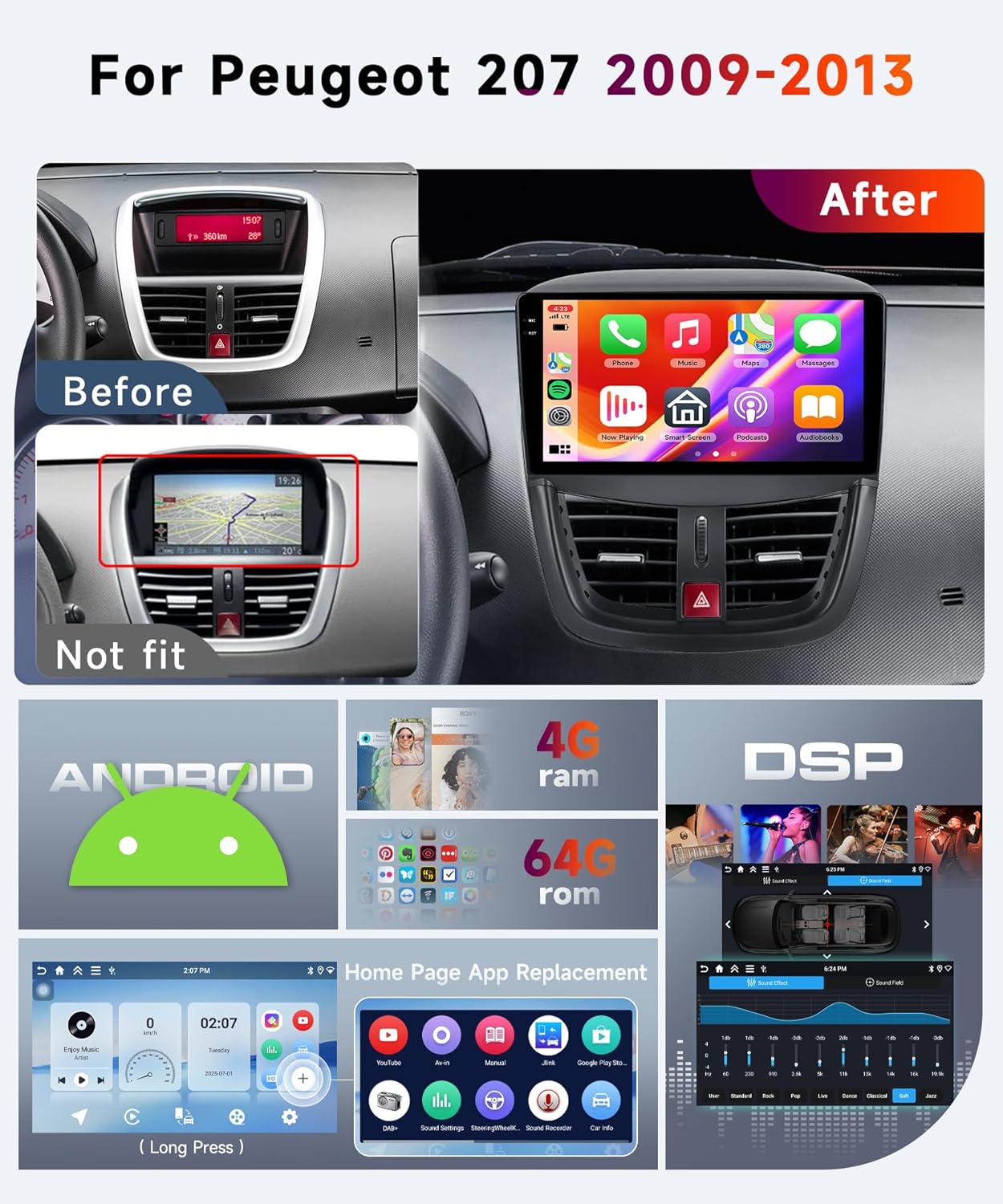
Image: Before and after installation comparison, showing the integration of the Hodozzy car radio into a Peugeot 207 dashboard. The image also displays the Android user interface, 4GB RAM, 64GB ROM, and DSP audio processing capabilities.
Key Features:
- Operating System: Android with 4GB RAM and 128GB ROM.
- Display: 9-inch In-Cell screen with 1280 x 720 resolution.
- Connectivity: Wireless CarPlay, Android Auto, Bluetooth 5.0, Wi-Fi, USB.
- Navigation: Built-in GPS receiver with support for offline and online maps.
- Audio: FM/RDS radio, 32-band EQ tuning, 4 x 45W output.
- Integration: Steering wheel control support, AHD/CVBS rear view camera input, split screen function, mirror link.
2. Setup and Installation
2.1 Unboxing and Components
Before installation, verify that all components are present in the package. The main unit and various cables are included.

Image: A visual representation of the product list, showing the main head unit, various power and audio cables, USB cables, RCA cables, radio antenna, GPS antenna, external microphone, installation tool, and a rear view camera.
2.2 Frame Installation
Follow these steps to assemble the radio frame for your Peugeot 207.
- Identify the separate frame components.
- Attach the smaller frame pieces to the main unit's bezel.
- Secure the assembled frame to ensure a snug fit.

Image: A five-step diagram illustrating the assembly process of the car radio's plastic frame, showing how different parts snap together to form the complete bezel.
2.3 Wiring Connections
Connect the provided wiring harnesses to the car radio and your vehicle's existing wiring. Ensure all connections are secure.

Image: A close-up of the main wiring harness, showing the multi-pin connector that plugs into the car radio unit, with individual wires color-coded for different functions.

Image: An additional wiring harness with a smaller connector, indicating connections for specific functions such as steering wheel controls or external accessories.

Image: A third wiring harness, possibly for power or speaker connections, with a detailed view of its connector pins.
Refer to your vehicle's wiring diagram if you are unsure about specific connections. Professional installation is recommended.
3. Operating Instructions
3.1 CarPlay and Android Auto
The unit supports both wireless CarPlay and Android Auto. Connect your Apple or Android smartphone via wireless Bluetooth or a USB data cable to access compatible applications.

Image: A split screen view demonstrating the CarPlay interface on the left, displaying navigation and music, and the Android Auto interface on the right, showing maps and media playback. Both wired and wireless connection options are indicated.
3.2 Bluetooth 5.0
Pair your mobile phone via Bluetooth for hands-free calling and audio streaming. The unit supports contact synchronization.
- Enable Bluetooth on your phone and the car radio.
- Search for available devices on your phone and select the car radio.
- Confirm the pairing code if prompted.

Image: The top section shows the Bluetooth 5.0 interface with phone call and music playback screens. The bottom section displays the FM/RDS radio interface, showing frequency tuning and preset stations, along with small images depicting various radio listening scenarios.
3.3 FM/RDS Radio
Access FM radio stations with RDS functionality. The unit can automatically search for stations or allow manual tuning.
- Navigate to the Radio application on the main screen.
- Use the search function to find available stations (87.5 MHz-107.5 MHz).
- Save preferred stations as presets.
3.4 GPS Navigation and Wi-Fi
The unit includes a built-in GPS receiver. Connect to Wi-Fi or a mobile hotspot to download map data or use online navigation applications.
- Connect to a Wi-Fi network via the settings menu.
- Download offline maps using the "Here We Go" app or other compatible navigation apps.
- Use online map services when connected to the internet.
3.5 Split Screen and Mirror Link
The split screen function allows two applications to run simultaneously. Mirror Link enables screen mirroring from your smartphone.
- Split Screen: Activate from the recent apps menu or by long-pressing an app icon.
- Mirror Link: Connect your phone via USB or Wi-Fi. Android phones support two-way control; iOS phones support one-way control.
3.6 Steering Wheel Control and Rear View Camera
The unit supports integration with your vehicle's steering wheel controls. A rear view camera input is also available.

Image: The top section displays a rear view camera feed with parking guidelines. The bottom section shows the steering wheel control learning interface, allowing users to assign functions like answering calls, adjusting volume, and switching songs to their steering wheel buttons.
- Steering Wheel Control: Access the steering wheel control settings to program functions.
- Rear View Camera: Connect a compatible AHD/CVBS camera. The display automatically switches to the camera view when reversing.
4. Maintenance
Regular maintenance ensures optimal performance and longevity of your car radio.
- Screen Cleaning: Use a soft, lint-free cloth to clean the screen. Avoid abrasive cleaners.
- Software Updates: Periodically check for software updates to improve performance and add new features.
- Environmental Conditions: Operate the unit within the specified temperature range (-20°C to 75°C).
5. Troubleshooting
This section addresses common issues you might encounter.
- No Power:
- Check all power connections and fuses.
- Ensure the vehicle's ignition is on.
- No Sound:
- Verify speaker connections.
- Check volume levels and mute settings.
- Ensure the correct audio source is selected.
- Bluetooth Connection Issues:
- Ensure Bluetooth is enabled on both devices.
- Delete previous pairings and attempt to re-pair.
- Restart both the phone and the car radio.
- GPS Signal Loss:
- Ensure the GPS antenna is properly installed and has a clear view of the sky.
- Move to an open area away from tall buildings or dense foliage.
- Touch Screen Unresponsive:
- Perform a soft reset of the unit (refer to the device settings for reset options).
- Ensure the screen is clean and free of debris.
If issues persist, contact customer support or consult a qualified technician.
6. Specifications
| Feature | Detail |
|---|---|
| System | Android |
| CPU | RK3326S, 4 Cores |
| Memory (RAM+ROM) | 4GB RAM + 128GB ROM |
| Screen Size | 9 inches |
| Screen Resolution | 1280 x 720 |
| Output Power | 4 x 45W |
| Bluetooth Version | 5.0 |
| Radio Band | FM/RDS (87.5 MHz-107.5 MHz) |
| Working Temperature | -20°C to 75°C |
| Return Input | AHD/CVBS |
| CarPlay/Android Auto | Wireless connection only |
| Mirror Link | Wireless connection only |
| USB Interface | Double USB |
| Dimensions (Product) | 5.5D x 29W x 21.5H cm |
| Item Weight | 1 Kilogram |

Image: A visual explanation of the 1280*720 In-Cell Capacitive Touch Screen, highlighting its thinner design, better display quality, and more sensitive touch response compared to on-cell screens, with details on light transmittance and sRGB coverage.

Image: A screenshot of the car radio's audio settings, showing the Built-in DSP (Digital Sound Processor) and a 48-band Equalizer (EQ) interface with various sound presets like User, Standard, Rock, Pop, Live, Dance, Classical, Soft, and Jazz, allowing for detailed audio customization.
7. Warranty and Support
For warranty information, technical support, or service inquiries, please refer to the warranty card included with your product or contact Hodozzy customer service directly. Details can typically be found on the manufacturer's official website or through your purchase platform.
Factory Default Keyword: 8317 (for system settings access)


