
1. Introduction
Thank you for choosing the X5 Wireless Indoor Security Camera. This manual provides detailed instructions for setting up, operating, and maintaining your camera to ensure optimal performance and security monitoring. The X5 camera is designed for versatile surveillance, offering high-definition video, night vision, and remote access capabilities suitable for various indoor and outdoor environments.
2. Package Contents
Please verify that all items listed below are included in your package. If any items are missing or damaged, please contact your retailer.
- 5 x X5 Wireless Security Camera
- 1 x TF Card (capacity may vary)
- 1 x Charging Cable
- 1 x Mounting Bracket

Image: Contents of the X5 Wireless Security Camera package, including multiple cameras and accessories.
3. Product Features
The X5 Wireless Security Camera offers a range of features designed for comprehensive surveillance:
- Crystal-Clear 1080P HD Monitoring: Captures sharp, detailed video footage.
- 160° Wide-Angle Lens: Provides an expansive field of view to minimize blind spots.
- Advanced Night Vision: Ensures reliable monitoring in low-light conditions.
- Motion Detection: Automatically detects movement and can trigger recording.
- Loop Recording: Continuously records, overwriting the oldest footage when the memory card is full.
- Audio/Video Recording: Integrated functionality to capture both visual and auditory details.
- Smart Remote Monitoring: Access live feeds and recorded footage from your smartphone or tablet via a dedicated app.
- Wi-Fi Connectivity: Supports connection via Wi-Fi hotspot or to a router for remote viewing.
- Multi-User Real-Time Sharing: Allows multiple authorized users to view the camera feed simultaneously.
- 2-Way Audio: Enables communication through the camera (if supported by app functionality).
- Battery Powered: Offers flexible placement options without constant power connection.

Image: Key features of the X5 camera, including 1080p HD, Wi-Fi, and app compatibility.
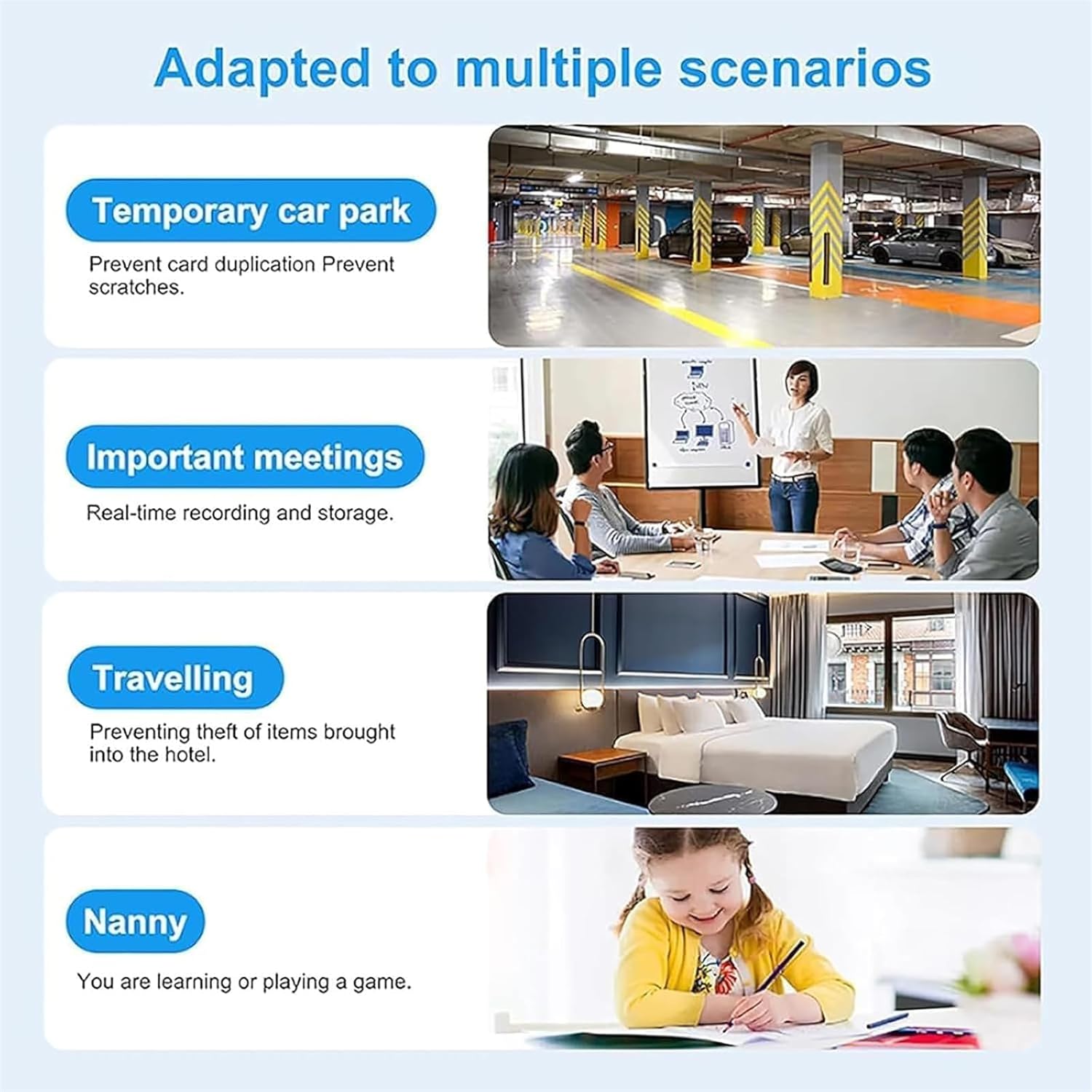
Image: Examples of various scenarios where the X5 camera can be effectively utilized for surveillance.
4. Setup Guide
Follow these steps to set up your X5 Wireless Security Camera:
- Charge the Camera: Before first use, fully charge the camera using the provided charging cable. Connect the cable to the camera's charging port and a standard USB power adapter (not included).
- Insert TF Card: Locate the TF card slot on the camera and gently insert the provided TF card until it clicks into place. This card is essential for storing recorded footage.
- Download the App: Search for the official companion application on your smartphone's app store (iOS or Android). Download and install the application.
- Power On the Camera: Press and hold the power button until the indicator light illuminates.
- Connect to Wi-Fi:
- Hotspot Mode: For direct connection, enable the camera's Wi-Fi hotspot (refer to app instructions for activation). Connect your phone to this hotspot.
- Router Mode: For remote viewing, follow the in-app instructions to connect the camera to your home or office Wi-Fi network. Ensure your Wi-Fi network is 2.4GHz, as 5GHz networks may not be supported.
- Add Camera to App: Open the app, create an account if necessary, and follow the prompts to add your new camera. This usually involves scanning a QR code on the camera or manually entering its ID.
- Mount the Camera: Use the included mounting bracket to securely position the camera in your desired location. Ensure the camera has a clear line of sight to the area you wish to monitor.

Image: Illustration of Wi-Fi (Hotspot) and APP Remote View connectivity for the X5 camera.
5. Operating Instructions
Once your camera is set up, you can utilize its various functions through the mobile application:
- Live View: Open the app and select your camera to view the live video feed in real-time.
- Remote Monitoring: Check the live streaming video from anywhere in the world once the camera is connected to the internet in Remote/IP mode.
- Recording: The camera supports continuous loop recording to the TF card. You can also manually initiate recording via the app.
- Motion Detection Alerts: Enable motion detection in the app settings. You will receive notifications on your smartphone when motion is detected.
- Night Vision: The camera automatically switches to night vision mode in low-light conditions.
- Two-Way Audio: If available, use the microphone and speaker icons in the app to communicate through the camera.
- Video Playback: Access recorded footage stored on the TF card through the app. You can browse by date and time and download clips to your phone.
- Multi-User Sharing: Share access to your camera's live feed with family members or trusted individuals through the app's sharing features.
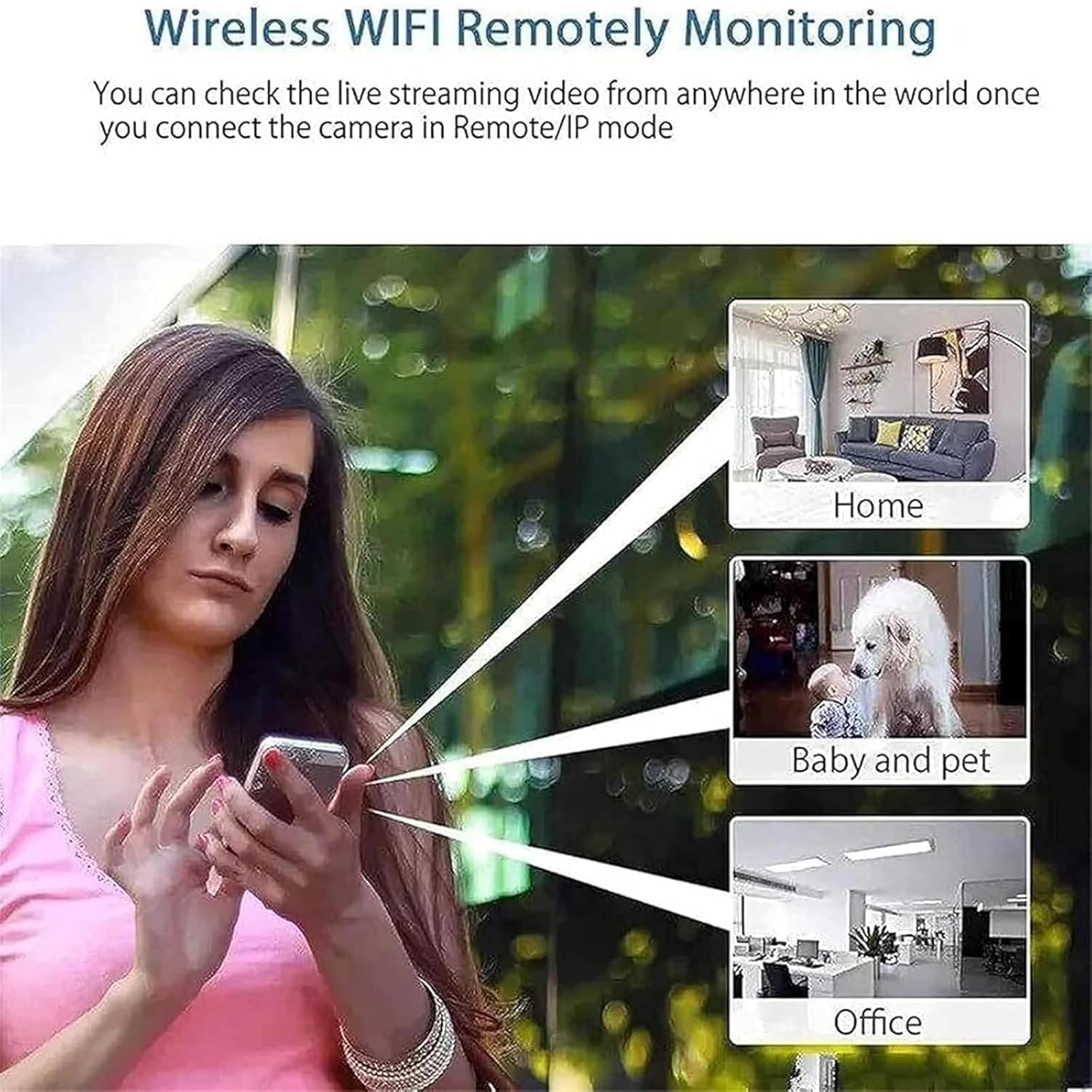
Image: Demonstrating wireless Wi-Fi remotely monitoring capabilities from various locations.
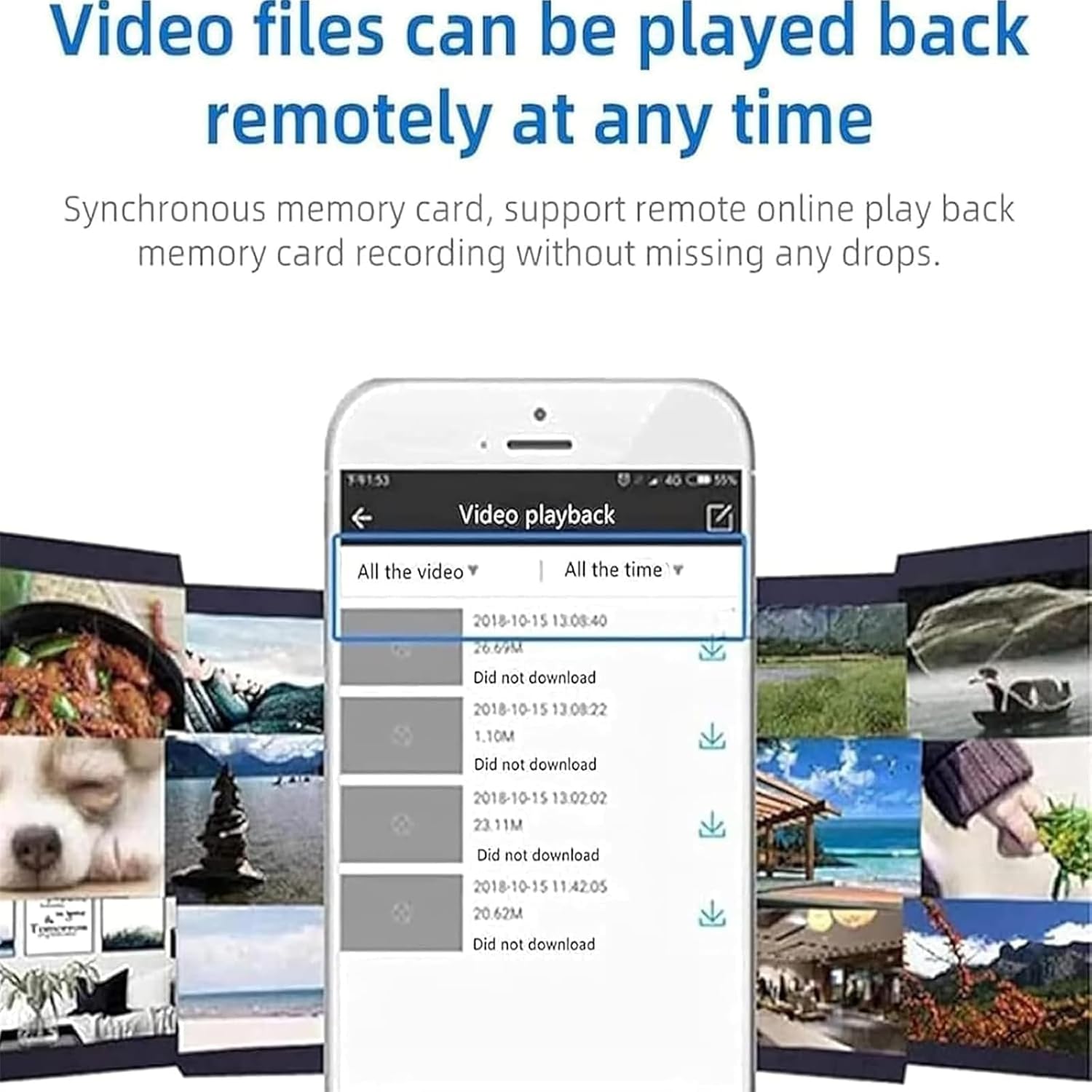
Image: Remote video file playback interface on a smartphone.

Image: Illustration of multi-user real-time sharing feature.
6. Maintenance
Proper maintenance ensures the longevity and optimal performance of your X5 camera:
- Cleaning: Use a soft, dry cloth to clean the camera lens and body. Avoid using liquid cleaners or abrasive materials.
- Battery Care: For battery-powered cameras, avoid extreme temperatures that can degrade battery life. Recharge the camera regularly, even if not in constant use, to maintain battery health.
- Firmware Updates: Periodically check the companion app for any available firmware updates for your camera. Updates can improve performance and add new features.
- Storage: When not in use for extended periods, store the camera in a cool, dry place away from direct sunlight and moisture.
- TF Card Management: Regularly back up important footage from the TF card. Format the TF card periodically through the app to maintain its performance and free up space.
7. Troubleshooting
If you encounter issues with your X5 Wireless Security Camera, refer to the following common problems and solutions:
- Camera Not Powering On:
- Ensure the camera is fully charged. Connect it to a power source and wait for the charging indicator.
- Press and hold the power button for a few seconds.
- Cannot Connect to Wi-Fi:
- Verify your Wi-Fi network is 2.4GHz. The camera may not support 5GHz networks.
- Ensure the Wi-Fi password is entered correctly in the app.
- Move the camera closer to the Wi-Fi router to improve signal strength.
- Restart both the camera and your Wi-Fi router.
- No Video Feed in App:
- Check your internet connection on your smartphone.
- Ensure the camera is connected to Wi-Fi and has a stable internet connection.
- Restart the app and the camera.
- Motion Detection Not Working:
- Verify that motion detection is enabled in the app settings.
- Adjust the motion detection sensitivity settings in the app.
- Ensure there are no obstructions blocking the camera's view.
- Poor Night Vision Quality:
- Ensure the camera lens is clean.
- Check for any reflective surfaces close to the camera that might interfere with infrared illumination.
- TF Card Not Recording:
- Ensure the TF card is properly inserted.
- Check if the TF card is full; format it if necessary (back up data first).
- Verify recording settings in the app.
8. Specifications
| Feature | Specification |
|---|---|
| Model Number | 03 |
| Brand | Generic |
| Indoor/Outdoor Usage | Outdoor (Suitable for Indoor and Outdoor) |
| Material | ABS |
| Color | Black |
| Lens Angle | 160 degree wide angle |
| Video Format | MP4 |
| Video Resolution | 1920*1080P (1080p) |
| Product Dimensions (L x W x H) | 1.4 x 1.6 x 1.4 inches (3.5 x 3.5 x 4 cm) |
| Power Source | Battery Powered |
| Connectivity Protocol | Wi-Fi |
| Connectivity Technology | Wireless |
| Controller Type | Apple HomeKit |
| Mounting Type | Wall Mount |
| Special Feature | 2-Way Audio, Night Vision, Motion Detection |
| Included Components | Charging Cable |
9. Warranty and Support
For warranty information, please refer to the documentation provided with your purchase or contact the retailer directly. For technical support or further assistance, please reach out to the product manufacturer or your point of purchase.