
1. Product Overview
This manual provides instructions for the LEXXSON Wireless Carplay Android Auto Adapter, Model RM-BZBK03. This device integrates wireless Apple CarPlay and Android Auto functionality into compatible Mercedes Benz vehicles equipped with the NTG 4.5 system.
1.1 Compatibility
The adapter is compatible with the following Mercedes Benz models from 2012-2015 that feature the NTG 4.5 system and a Harman Becker slot in the glove box:
- A-Class (2012-2015)
- B-Class (2011-2015)
- C-Class (2011-2014)
- CLA (2012-2012)
- CLS-Class (2012-2014)
- GLA (2012-2015)
- GLK (2012-2015)
- ML/GL (2011-2016)
- SLK (2011-2015)
Important Note: Before purchasing and installing, confirm that your vehicle's glove box has a Harman Becker slot. The adapter will not function without this slot.
1.2 Key Features
- Wireless Apple CarPlay and Android Auto support.
- Supports navigation, HD Rear camera, music, and phone functions.
- Built-in 2.4G and 5.8G Wi-Fi for stable connection.
- Bluetooth 5.0 technology.
- Retains original NTG system display and controls (rotary controller, steering wheel controls, voice control).
- Plug-and-play installation, non-destructive.
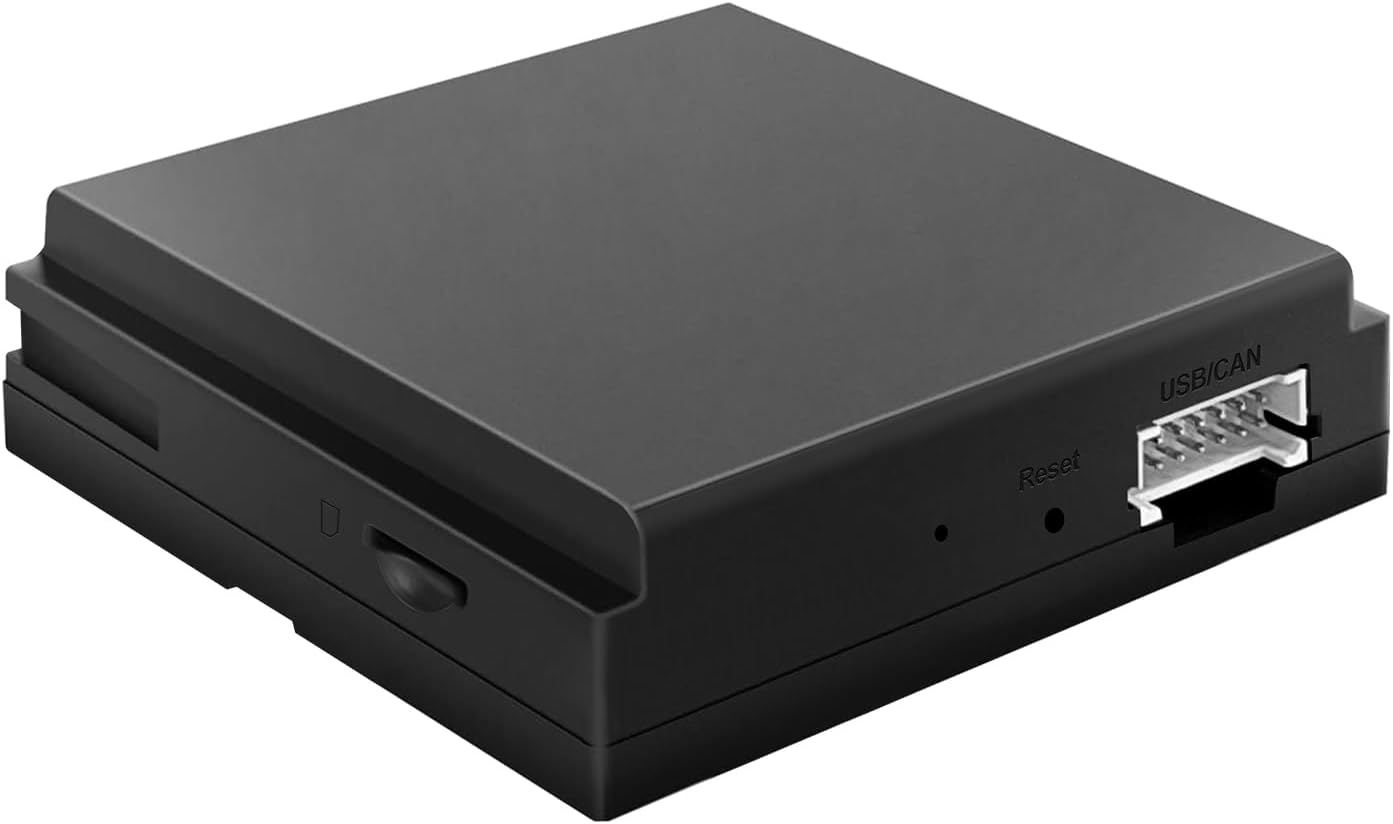
Image 1.1: The LEXXSON Wireless Carplay Android Auto Adapter unit.

Image 1.2: Mercedes Benz 8-inch screen displaying Apple CarPlay and Android Auto icons, indicating system compatibility.

Image 1.3: A visual representation of compatible Mercedes Benz models for the NTG 4.5 system, along with a crucial note about the Harman Becker slot.
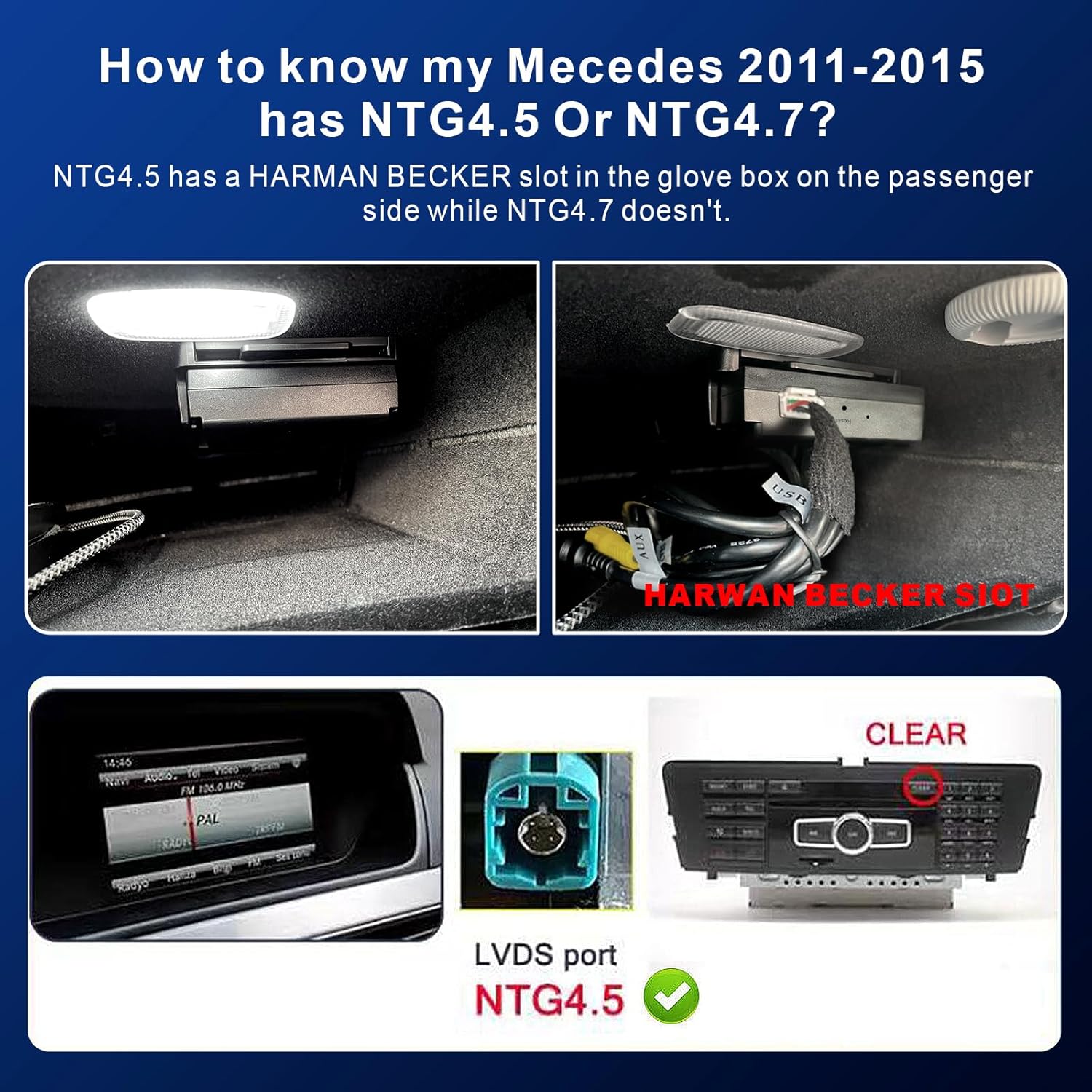
Image 1.4: Instructions on how to determine if your Mercedes Benz (2011-2015) has an NTG 4.5 system by checking for the Harman Becker slot in the glove box and the LVDS port.
2. Setup and Installation
2.1 Pre-Installation Check
Before beginning installation, ensure your vehicle is compatible as outlined in Section 1.1. Specifically, verify the presence of a Harman Becker slot in your glove box. If this slot is not present, the adapter will not function.
2.2 What's in the Box
- LEXXSON Wireless Carplay Android Auto Decoder Unit
- Required Connection Cables
2.3 Basic Installation Steps
The installation is designed to be plug-and-play and non-destructive. For detailed visual guidance, refer to the product installation videos and diagrams.
- Locate the Harman Becker socket in your vehicle's glove box.
- Align and plug the decoder unit into the Harman Becker socket.
- Connect the necessary cables from the decoder to your vehicle's system as per the wiring diagram.
- Ensure all connections are secure.

Image 2.1: Diagram showing the dimensions of the LEXXSON adapter and a simplified connection process into the Harman Becker socket, along with a USB expansion cable.
Video 2.1: This video demonstrates the Bluetooth connection steps required for the LEXXSON adapter to integrate with the Mercedes Benz NTG 4.5 system, showing how to pair a phone and access the Becker interface.
3. Operating Instructions
3.1 Initial Bluetooth Connection
Before using wireless CarPlay or Android Auto, establish a Bluetooth connection between your phone and the adapter. This is crucial for audio functionality.
- On your car's stereo, navigate to the Audio menu and select "Bluetooth audio."
- Choose "Connect via BT audio device" and search for "MB Bluetooth."
- On your smartphone, enable Bluetooth and search for available devices. Select "MB Bluetooth" and confirm the pairing code.
- Once connected, press the "NAVI" button on your car's console to enter the adapter's interface.
3.2 Wireless CarPlay Connection
- Ensure your iPhone's Wi-Fi and Bluetooth are enabled.
- Pair your iPhone with the adapter's Bluetooth (e.g., "BK-xxxx"). Allow all requests.
- On the car's screen, select the CarPlay icon. CarPlay should connect wirelessly within a few seconds.
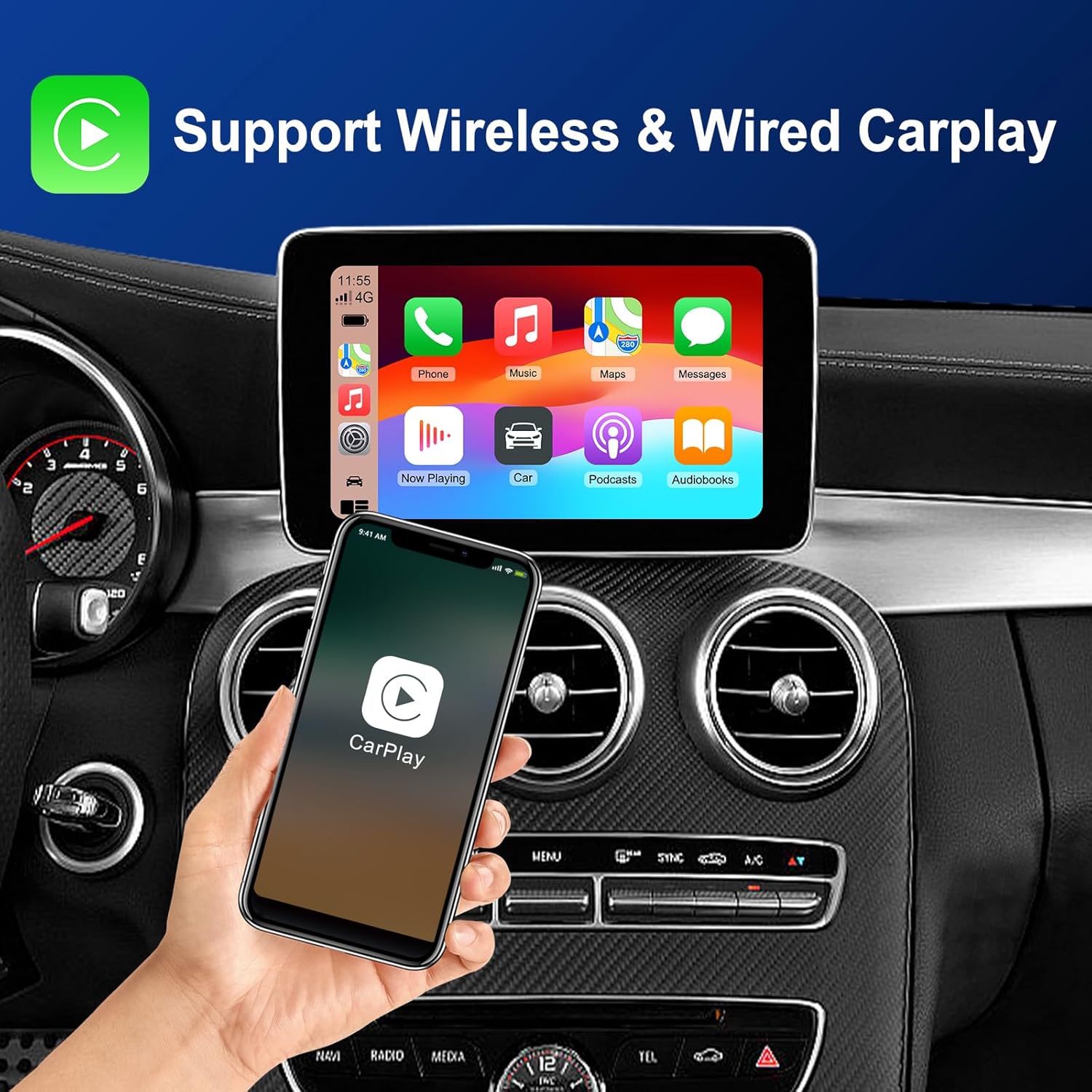
Image 3.1: The vehicle's display showing the Apple CarPlay interface, indicating successful wireless connection and functionality.
3.3 Wireless Android Auto Connection
- Ensure your Android phone's Wi-Fi and Bluetooth are enabled.
- Pair your Android phone with the adapter's Bluetooth (e.g., "BK-xxxx"). Accept any pairing requests and permissions.
- On the car's screen, select the Android Auto icon. Android Auto should connect wirelessly within a few seconds.

Image 3.2: The vehicle's display showing the Android Auto interface, demonstrating wireless connectivity and access to Android Auto features.
3.4 Control Methods
The adapter allows you to control CarPlay and Android Auto using your vehicle's existing controls:
- Steering Wheel Controls: Use the buttons on your steering wheel to navigate menus, adjust volume, and manage calls.
- OEM Knob Control: The factory rotary controller can be used for menu selection and navigation.
- Voice Control: Activate Siri or Google Assistant by saying "Hey Siri..." or the corresponding Android Auto voice command to control functions hands-free.

Image 3.3: A collage illustrating the various control methods available for the integrated system, including steering wheel controls, original car touch screen control, OEM knob control, and Siri voice control.
Video 3.1: This video demonstrates the connection process for both Apple CarPlay and Android Auto, showcasing how to pair a smartphone and utilize features like music, phone calls, and navigation on the Mercedes Benz NTG 4.5 system.
4. Maintenance
The LEXXSON Wireless Carplay Android Auto Adapter is designed for minimal maintenance. Keep the unit free from dust and moisture. Avoid exposing it to extreme temperatures. Periodically check cable connections to ensure they remain secure.
4.1 Software Updates
Software updates may be released periodically to improve performance or add new features. Refer to the manufacturer's website or contact customer support for information on how to perform software updates using the USB expansion port.
5. Troubleshooting
If you encounter issues with your LEXXSON adapter, please refer to the following common troubleshooting steps:
- No Power: Ensure all cables are securely connected. Check your vehicle's fuse box if necessary.
- No CarPlay/Android Auto Connection:
- Verify your phone's Bluetooth and Wi-Fi are enabled.
- Ensure your phone is paired with the adapter's Bluetooth.
- Restart your phone and the vehicle's infotainment system.
- Confirm that the Harman Becker slot is present and the adapter is correctly inserted.
- No Audio: Ensure your phone is connected via Bluetooth to the adapter and the car's audio source is set to Bluetooth audio.
- Intermittent Connection: Check for strong Wi-Fi and Bluetooth signals. Avoid placing obstructions near the adapter or your phone.
If problems persist, contact LEXXSON customer support for further assistance.
6. Specifications
| Feature | Specification |
|---|---|
| Brand | LEXXSON |
| Model Number | RM-BZBK03 |
| Item Weight | 1.9 pounds |
| Package Dimensions | 6.2 x 5.1 x 1.96 inches |
| Connectivity | 2.4G & 5.8G Wi-Fi, Bluetooth 5.0 |
| Compatibility | Mercedes Benz A/B/C/E/CLA/GLK/ML/SLD (2012-2015) with NTG 4.5 System and Harman Becker slot |
7. Warranty and Support
7.1 Warranty Information
Please refer to the product packaging or the official LEXXSON website for detailed warranty information. Typically, products are covered by a manufacturer's warranty against defects in materials and workmanship.
7.2 Customer Support
For technical assistance, troubleshooting, or any product-related inquiries, please contact LEXXSON customer support. Contact details can usually be found on the product packaging, the manufacturer's website, or your purchase platform.