
Rimoody 6G+128G 8 Core Wireless Carplay Android Car Radio
Rimoody Android Car Radio User Manual for Citroen C5 (2008-2017)
Model: 6G+128G 8 Core Wireless Carplay Android Car Radio
1. Introduction
This manual provides comprehensive instructions for the installation, operation, and maintenance of your Rimoody Android Car Radio, specifically designed for Citroen C5 models manufactured between 2008 and 2017. Please read this manual thoroughly before installation and use to ensure proper functionality and to maximize your device's performance.
The system features an 8-core processor, 6GB RAM, and 128GB internal storage, offering a responsive and feature-rich in-car entertainment and navigation experience.

Image 1.1: The Rimoody Android Car Radio main unit, showcasing its large display and the included accessories such as a rear camera and external microphone.
2. What's in the Box
Verify that all components are present before beginning installation:
- Rimoody Android Car Radio Main Unit
- GPS Antenna
- RCA Cable Set
- Canbus Decoder
- USB Cable(s)
- Power Cable
- Radio Antenna & USB Adapter Cable
- Rear View Camera & Microphone
- Installation Tools
- User Manual (this document)
- Mounting Accessories (brackets, screws)

Image 2.1: An illustration of the package contents, including the main unit, various cables, GPS antenna, Canbus, camera, and installation tools.
3. Setup and Installation
Compatibility: This unit is designed for Citroen C5 models from 2008 to 2017. Ensure your vehicle's dashboard matches the "Before" image provided below for proper fitment.
Image 3.1: Comparison of the Citroen C5 dashboard before and after the installation of the Rimoody Android Car Radio, showing the integrated appearance.
3.1. Disassembly of Original Unit
Follow these steps carefully to remove the existing car radio:
- Use a prying tool to detach the original white trim.
- Unscrew the two screws securing the original frame beneath the trim.
- Gently pry open the original frame.
- Disconnect the emergency button wiring.
- Remove the entire frame.
- Use a screwdriver to unscrew the four screws securing the original display on both sides.
- Remove the display and disconnect its wiring.
- Insert the removal tool into the four small holes on both sides of the original radio.
- Remove the radio and disconnect its wiring.

Image 3.2: Visual guide illustrating the disassembly process of the original car radio, showing tools and removal points.
3.2. Installation of New Unit
Important: If the wiring harness does not match, contact customer service to request the correct wiring harness.
- Install the new radio into the new frame.
- Tighten the 4 screws on the back of the unit.
- Attach the air vents to the new frame and secure the brackets.
- Tighten the 4 screws on both sides of the brackets.
- Connect the new radio to the corresponding vehicle wiring harness.
- Ensure the protocol box (Canbus) is properly connected.
- Install the new radio back into the vehicle.
- Tighten the 2 screws at the top to secure the unit.
After installation, perform a functional test of all features before fully reassembling the dashboard.
4. Operating Instructions
4.1. Wireless Carplay, Android Auto, and Mirror Link
The unit supports both wireless and wired Carplay, Android Auto, and Mirror Link functionalities. Connect your smartphone to access navigation, music, calls, and other apps directly on the car radio display.
- Carplay: For iPhone users, connect via USB or Bluetooth for wireless Carplay.
- Android Auto: For Android users, connect via USB or Bluetooth for wireless Android Auto.
- Mirror Link: Cast your phone's screen directly to the car radio display.

Image 4.1: Display showing the integration of Wireless Carplay, Android Auto, and Mirror Link, enabling smartphone features on the car radio.
4.2. GPS Navigation and WiFi
The system includes an integrated GPS module for navigation and supports WiFi connectivity for online services.
- Offline Maps: Pre-loaded maps allow navigation without an internet connection.
- Online Maps: Connect to WiFi (e.g., via mobile hotspot) to access real-time traffic updates and online mapping services.
- WiFi Connectivity: Use WiFi to browse the internet, stream media, and download apps from the Google Play Store.

Image 4.2: The car radio display showing GPS navigation with both offline and online map capabilities, alongside an example of YouTube streaming via WiFi.
4.3. Bluetooth Functions
Pair your mobile phone via Bluetooth for hands-free calling and audio streaming.
- Phone Call: Make and receive calls directly from the car radio interface.
- Music Streaming: Play audio from your phone through the car's speakers.
- Sync Contacts: Access your phone's contact list on the car radio.
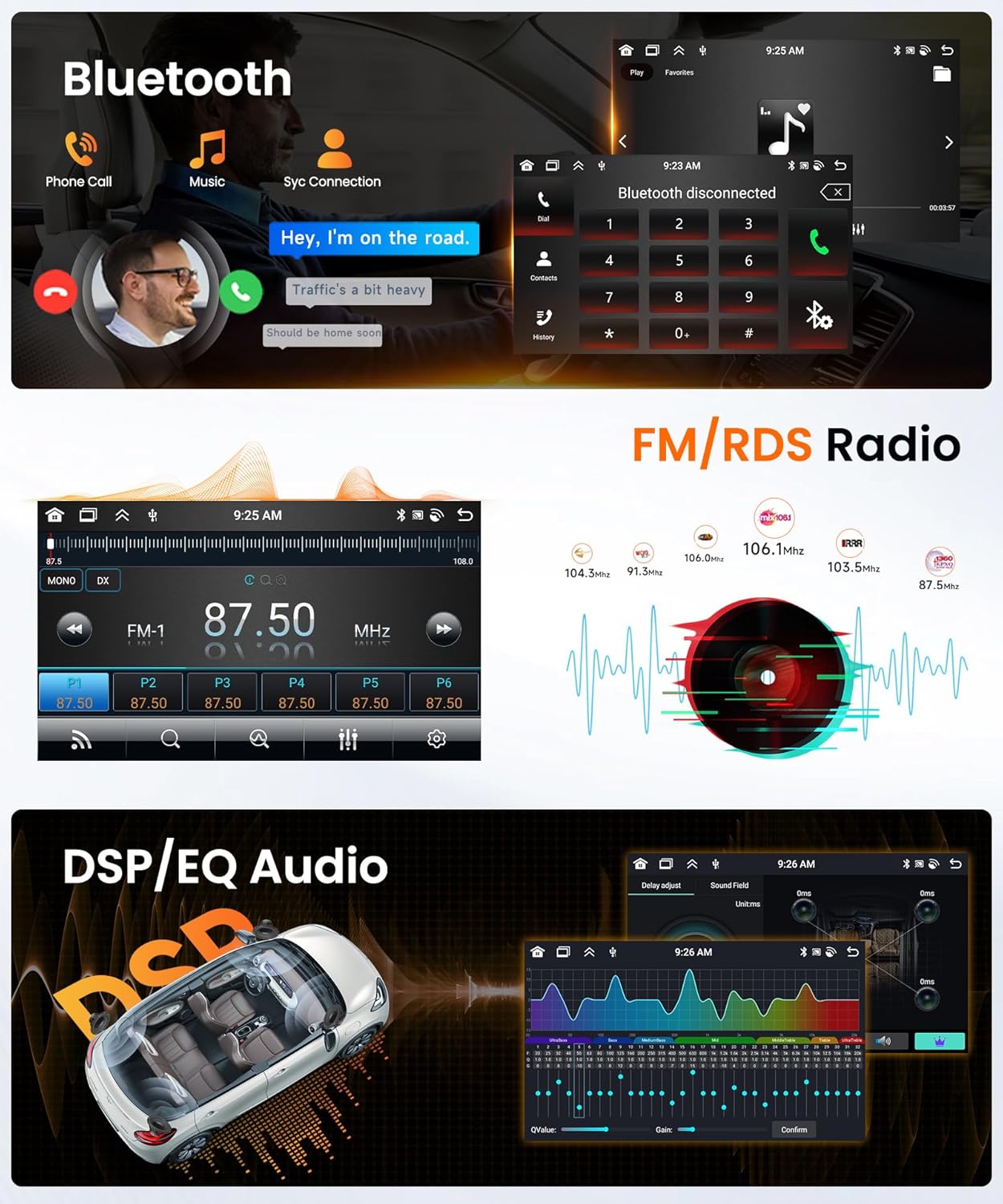
Image 4.3: Screenshots demonstrating the Bluetooth calling interface, FM/RDS radio tuner, and the Digital Sound Processor (DSP) with Equalizer (EQ) settings.
4.4. FM/RDS Radio
Tune into your favorite radio stations with the built-in FM/RDS tuner. RDS (Radio Data System) provides additional information such as station name and program type.
4.5. DSP/EQ Audio Settings
Customize your audio experience using the Digital Sound Processor (DSP) and Equalizer (EQ) settings. Adjust sound fields, balance, fader, and specific frequency bands to match your preferences.
4.6. Rear View Camera
The included rear view camera provides a clear image of the area behind your vehicle when reversing. The display automatically switches to the camera feed when the vehicle is put into reverse gear.
- HD AHD Image: High-definition video feed for clarity.
- Night Vision: Enhanced visibility in low-light conditions.
- Waterproof: Durable design for outdoor use.

Image 4.4: The car radio screen displaying the rear view camera feed with parking guidelines, and the interface for programming steering wheel controls.
4.7. Steering Wheel Control
The unit supports integration with your vehicle's existing steering wheel controls. This allows you to manage functions like volume, track skipping, and mode selection without taking your hands off the wheel.
To configure: Navigate to the Steering Wheel Control settings in the system menu. Follow the on-screen instructions to assign functions to your vehicle's steering wheel buttons.
4.8. Split Screen Functionality
Utilize the split screen feature to run two applications simultaneously on the display. For example, you can have navigation on one side and music playback on the other.

Image 4.5: The car radio display demonstrating the split screen feature, showing two applications running concurrently. Also depicted are optional accessories like DVR, DAB+, and OBD2.
4.9. Intelligent Voice Control (Optional)
The system supports intelligent voice control for hands-free operation of various functions. This feature may require an internet connection for full functionality and specific voice commands.
- Voice Commands: Use spoken commands to control navigation, music, calls, and access information like weather or global climate.
- Internet Radio: Access online radio stations through voice commands.

Image 4.6: Screenshots illustrating the intelligent voice control interface, showing examples of voice commands for weather, internet radio, and other functions.
5. Optional Accessories
The Rimoody Android Car Radio supports various optional accessories (sold separately) to enhance its functionality:
- DVR (Digital Video Recorder): For recording driving footage.
- DAB+ (Digital Audio Broadcasting Plus): For higher quality digital radio reception.
- OBD2 (On-Board Diagnostics II): For vehicle diagnostics and monitoring.
These accessories require separate purchase and installation. Refer to the specific accessory's manual for detailed setup instructions.
6. Maintenance
- Cleaning the Screen: Use a soft, lint-free cloth to gently wipe the screen. For stubborn smudges, slightly dampen the cloth with water or a screen-safe cleaner. Avoid harsh chemicals or abrasive materials.
- Software Updates: Periodically check for software updates through the system settings to ensure optimal performance and access to new features. An internet connection is required for updates.
- General Care: Avoid exposing the unit to extreme temperatures, direct sunlight for prolonged periods, or excessive moisture.
7. Troubleshooting
| Problem | Possible Cause | Solution |
|---|---|---|
| Unit does not power on. | Incorrect wiring, blown fuse, power supply issue. | Check power connections and fuses. Ensure proper installation as per Section 3. |
| No sound. | Volume too low, speaker wiring issue, audio settings. | Increase volume. Check speaker connections. Verify DSP/EQ settings. |
| GPS signal lost or inaccurate. | GPS antenna not properly connected or obstructed. | Ensure GPS antenna is securely connected and has a clear view of the sky. |
| Bluetooth connection issues. | Device not paired, Bluetooth off, interference. | Ensure Bluetooth is enabled on both devices. Re-pair the device. Move closer to the unit. |
| System reboots unexpectedly. | Power fluctuation, software issue, overheating. | Check power connections. Perform a factory reset (if issue persists). Ensure adequate ventilation. |
If problems persist after attempting these solutions, please contact customer support.
8. Specifications
| Feature | Detail |
|---|---|
| Model Compatibility | Citroen C5 (2008-2017) |
| Operating System | Android (Version not specified, typically Android 10-12 for such devices) |
| Processor | 8 Core |
| RAM | 6GB |
| Internal Storage (ROM) | 128GB |
| Connectivity | Wireless Carplay, Android Auto, Mirror Link, WiFi, Bluetooth |
| Navigation | Built-in GPS, supports offline/online maps |
| Radio Tuner | FM/RDS |
| Audio Output Wattage | 180 Watts |
| Number of Channels | 4 |
| Item Weight | 500 Grams |
| Package Dimensions | 14 x 10 x 7 cm |
| Rear View Camera | HD AHD, Night Vision, Waterproof |
| Special Features | Steering Wheel Control, Split Screen, Intelligent Voice Control (Optional) |
| Supported Optional Accessories | DVR, DAB+, OBD2 |
9. Warranty and Support
For warranty information, please refer to the documentation provided with your purchase or contact your retailer. Rimoody products typically come with a standard manufacturer's warranty covering defects in materials and workmanship.
Customer Support: If you encounter any issues or have questions regarding your Rimoody Android Car Radio, please contact our customer support team. Provide your product model number and purchase details for efficient assistance.
Contact information can usually be found on the product packaging, the seller's website, or your purchase invoice.
Ask a question about this manual
Ask about setup, troubleshooting, compatibility, parts, safety, or missing instructions. Manuals+ will review the question and use this page’s manual context to help answer it.