
Introduction
This manual provides detailed instructions for the Yatao UHD2K-8K Video Camcorder DV03. This camcorder is designed for capturing high-quality video and photos, featuring 8K video resolution, 75MP still images, dual-view recording, 16X digital zoom, Wi-Fi connectivity, and a flip screen. Please read this manual thoroughly before using the device to ensure proper operation and to maximize its capabilities.
1. Setup
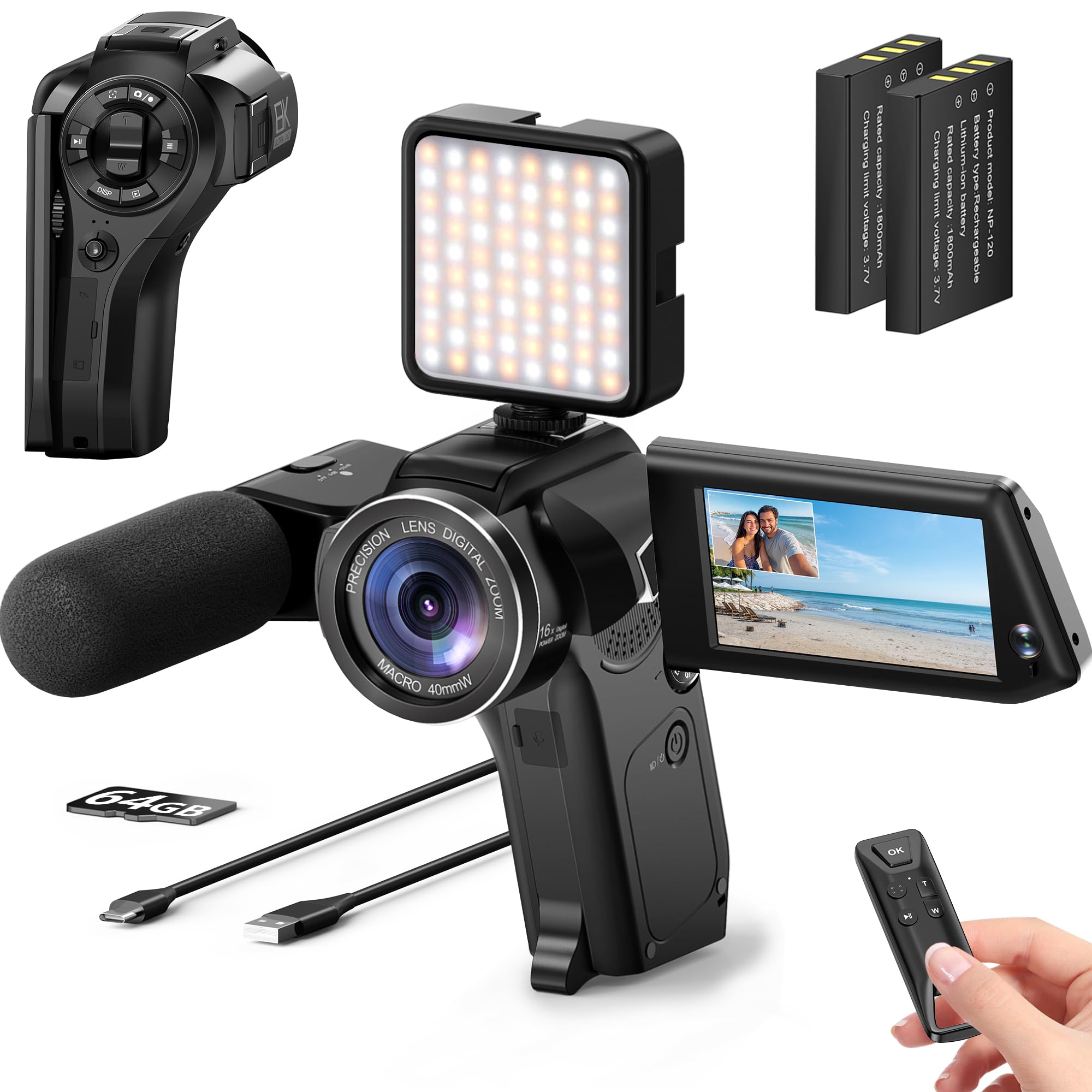
1.1 Package Contents
Verify that all items are present in the package:
- Yatao UHD2K-8K Camcorder
- External Microphone
- LED Fill Light
- 64GB Micro SD Card
- Wireless Remote Control
- Two Rechargeable Batteries
- Charging Cable (USB)
- Lens Cap
- Wrist Strap
- Cleaning Cloth
- Storage Bag

1.2 Battery Installation and Charging
- Open the battery compartment cover on the camcorder.
- Insert a rechargeable battery, ensuring correct polarity.
- Close the battery compartment cover securely.
- Connect the camcorder to a power source using the provided USB charging cable. The charging indicator will illuminate.
- Charge the battery fully before first use (approximately 2-3 hours). The indicator will change or turn off when charging is complete.
1.3 Micro SD Card Installation
- Locate the Micro SD card slot on the camcorder.
- Insert the 64GB Micro SD card with the gold contacts facing down until it clicks into place.
- To remove, gently press the card until it pops out.
1.4 Attaching Accessories
- External Microphone: Connect the microphone cable to the designated microphone input port on the camcorder.
- LED Fill Light: Slide the LED fill light onto the hot shoe mount located on top of the camcorder until it locks into place.
2. Operating Instructions
2.1 Powering On/Off
Press and hold the Power button (usually located near the flip screen or on the side) for a few seconds to turn the camcorder on or off. The flip screen will open automatically when powered on.
2.2 Basic Video Recording
- Ensure the camcorder is in video mode (indicated by an icon on the screen).
- Frame your shot using the rotatable 3-inch flip screen.
- Press the Record button (usually marked with a red dot or 'REC') to start recording. A red indicator light or on-screen timer will confirm recording is active.
- Press the Record button again to stop recording.
2.3 Taking Photos
- Switch the camcorder to photo mode (indicated by a camera icon).
- Compose your shot using the flip screen.
- Press the Shutter button (often separate from the record button, or a half-press function) to capture a 75MP image.

2.4 Zoom Function
Use the zoom rocker switch (usually labeled 'W' for Wide and 'T' for Telephoto) to adjust the 16X digital zoom. Zoom in to magnify distant subjects or zoom out for a wider field of view.
2.5 Dual-View Recording
The camcorder supports dual-view recording, allowing you to capture footage from both the front and rear lenses simultaneously. Activate this feature through the on-screen menu or a dedicated button. This is ideal for vlogging where you want to show both yourself and your surroundings.

Video: Demonstration of the Yatao UHD2K-8K Camcorder's dual-view recording feature, highlighting its utility for capturing multiple perspectives.
Video: An overview of the Yatao UHD2K-8K Camcorder's dual-view capabilities, suitable for vlogging and content creation.
2.6 Special Recording Functions
Access these functions through the camcorder's menu:
- Pause Recording: Temporarily stop and resume recording within a single video file.
- Slow Motion: Capture video at a higher frame rate for slow-motion playback.
- Time-Lapse: Record a series of images over time and combine them into a sped-up video.
- Anti-Shake: Digital image stabilization to reduce camera shake.
- Self-Timer: Set a delay before a photo or video recording begins.
- Recording While Charging: The camcorder can operate while connected to a power source.

2.7 Wi-Fi Connectivity and App Usage
Connect the camcorder to your smartphone or tablet via Wi-Fi using the dedicated app (refer to the camcorder's on-screen instructions for app name and download). This allows for wireless image/video transfer and remote control of the camcorder.

2.8 Webcam Function
Connect the camcorder to a computer using the USB cable. Select 'Webcam Mode' on the camcorder's screen (if prompted). The camcorder can then be used for live streaming or video calls.
2.9 Using the LED Fill Light
The external LED fill light provides additional illumination in low-light conditions. Turn it on and adjust its brightness or color temperature (if applicable) using its controls. Ensure it is securely mounted on the hot shoe.
2.10 Using the External Microphone
The external microphone enhances audio quality by reducing background noise. Ensure it is properly connected to the microphone input. Check audio levels in the camcorder's settings to optimize sound capture.
3. Maintenance
3.1 Cleaning
- Lens: Use the provided cleaning cloth or a specialized lens cleaning solution and cloth to gently wipe the lens. Avoid touching the lens with bare fingers.
- Screen: Wipe the flip screen with a soft, dry cloth. Do not use abrasive cleaners.
- Body: Clean the camcorder body with a soft, slightly damp cloth.
3.2 Battery Care
- Store batteries in a cool, dry place when not in use.
- Avoid fully discharging batteries frequently to prolong their lifespan.
- If storing for extended periods, charge batteries to about 50% capacity.
3.3 Storage
When not in use, store the camcorder in its storage bag in a dry, dust-free environment, away from extreme temperatures and direct sunlight.
4. Troubleshooting
| Problem | Possible Cause | Solution |
|---|---|---|
| Camcorder does not power on. | Battery is depleted or incorrectly inserted. | Charge the battery fully. Ensure the battery is inserted with correct polarity. |
| Cannot record video/take photos. | SD card is full, not inserted, or corrupted. | Check SD card capacity. Insert SD card correctly. Format the SD card (this will erase all data). |
| Poor video/photo quality. | Insufficient lighting, dirty lens, incorrect settings. | Ensure adequate lighting, use the LED fill light. Clean the lens. Adjust resolution settings. |
| No audio or poor audio quality. | Microphone not connected, internal mic blocked, low audio settings. | Ensure external microphone is connected. Check camcorder audio settings. Avoid blocking internal microphone. |
| Wi-Fi connection issues. | Incorrect password, out of range, app not installed. | Verify Wi-Fi password. Ensure camcorder and device are within range. Install the correct app. |
| Camcorder freezes or becomes unresponsive. | Software glitch, low battery. | Remove and reinsert the battery to reset. Ensure battery is charged. |
5. Specifications
| Feature | Detail |
|---|---|
| Brand | Yatao |
| Model Number | DV03 |
| Photo Sensor Technology | CMOS |
| Effective Still Resolution | 75 MP |
| Video Capture Resolution | 1440p (Upscaled to 8K) |
| Video Resolution | 1440p |
| Video Capture Format | MP4 |
| Supported Image Format | JPEG |
| Screen Size | 3.0 inches (Rotatable) |
| Digital Zoom | 16X |
| Optical Zoom | 1X |
| Connectivity Technology | Wi-Fi |
| Image Stabilization | Anti-shake (Digital) |
| Built-In Media | Memory Card (Micro SD) |
| Number of Batteries | 2 Lithium Ion (included) |
| Item Weight | 0.86 Kilograms |
| Item Dimensions (D x W x H) | 1.8"D x 2.43"W x 1.8"H |
| Special Features | Dual-View Recording, Webcam Function, LED Fill Light, External Microphone Support, Pause Recording, Slow Motion, Time-Lapse, Self-Timer, Recording While Charging |
6. Warranty and Support
6.1 Warranty Information
The Yatao UHD2K-8K Video Camcorder DV03 comes with a 30-Day Warranty from the date of purchase. This warranty covers manufacturing defects and malfunctions under normal use. It does not cover damage caused by misuse, accidents, unauthorized modifications, or natural disasters. Please retain your proof of purchase for warranty claims.
6.2 Customer Support
For technical assistance, troubleshooting, or warranty inquiries, please contact Yatao customer support. Refer to the product packaging or the official Yatao website for the most current contact information.