
1. Introduction
Thank you for choosing the Dolrso G300 Bluetooth Wireless Mouse. This mouse offers versatile dual-mode connectivity (Bluetooth 5.2 and 2.4GHz USB receiver), silent clicking, and an ergonomic design for comfortable use. This manual provides detailed instructions for setup, operation, and maintenance to ensure optimal performance.
2. Package Contents
- Dolrso G300 Wireless Mouse
- USB-A 2.4GHz Receiver
- Type-C Charging Cable
- User Manual
3. Product Overview
Familiarize yourself with the various parts and functions of your Dolrso G300 mouse.

Image: Dolrso G300 Wireless Mouse with numbered components.
- Left Button: Standard left-click function.
- Right Button: Standard right-click function.
- Scroll Wheel: For scrolling and middle-click function.
- DPI Button: Adjusts mouse sensitivity (DPI).
- Forward Button: Navigates forward in web browsers or file explorers. (Not available on Mac)
- Backward Button: Navigates backward in web browsers or file explorers. (Not available on Mac)
- Colorful LED Breathing Light: Indicates power status and mode.

Image: Dolrso G300 Wireless Mouse and its accompanying USB receiver.
4. Setup Instructions
4.1. Charging the Mouse
The Dolrso G300 mouse features a built-in 500mAh rechargeable battery. It is recommended to fully charge the mouse before first use.
- Connect the provided Type-C charging cable to the charging port on the front of the mouse and to a USB power source (e.g., computer USB port, USB wall adapter).
- Charging typically takes 2-3 hours for a full charge.
- A full charge provides approximately two months of usage, depending on usage patterns.
- The battery level indicator light on the bottom of the mouse allows you to monitor the battery status.

Image: Dolrso G300 mouse being charged via Type-C cable, with battery level indicators.
4.2. Connecting via 2.4GHz Wireless Mode
This mode uses the included USB-A receiver for a stable, interference-free connection.
- Locate the USB-A 2.4GHz receiver, usually stored in a compartment on the bottom of the mouse.
- Plug the USB-A receiver into an available USB port on your computer or device.
- Slide the mode switch on the bottom of the mouse to the "2.4G" position.
- The mouse should connect automatically. No driver installation is required.
- The effective range for this connection is up to 33 feet (10 meters).
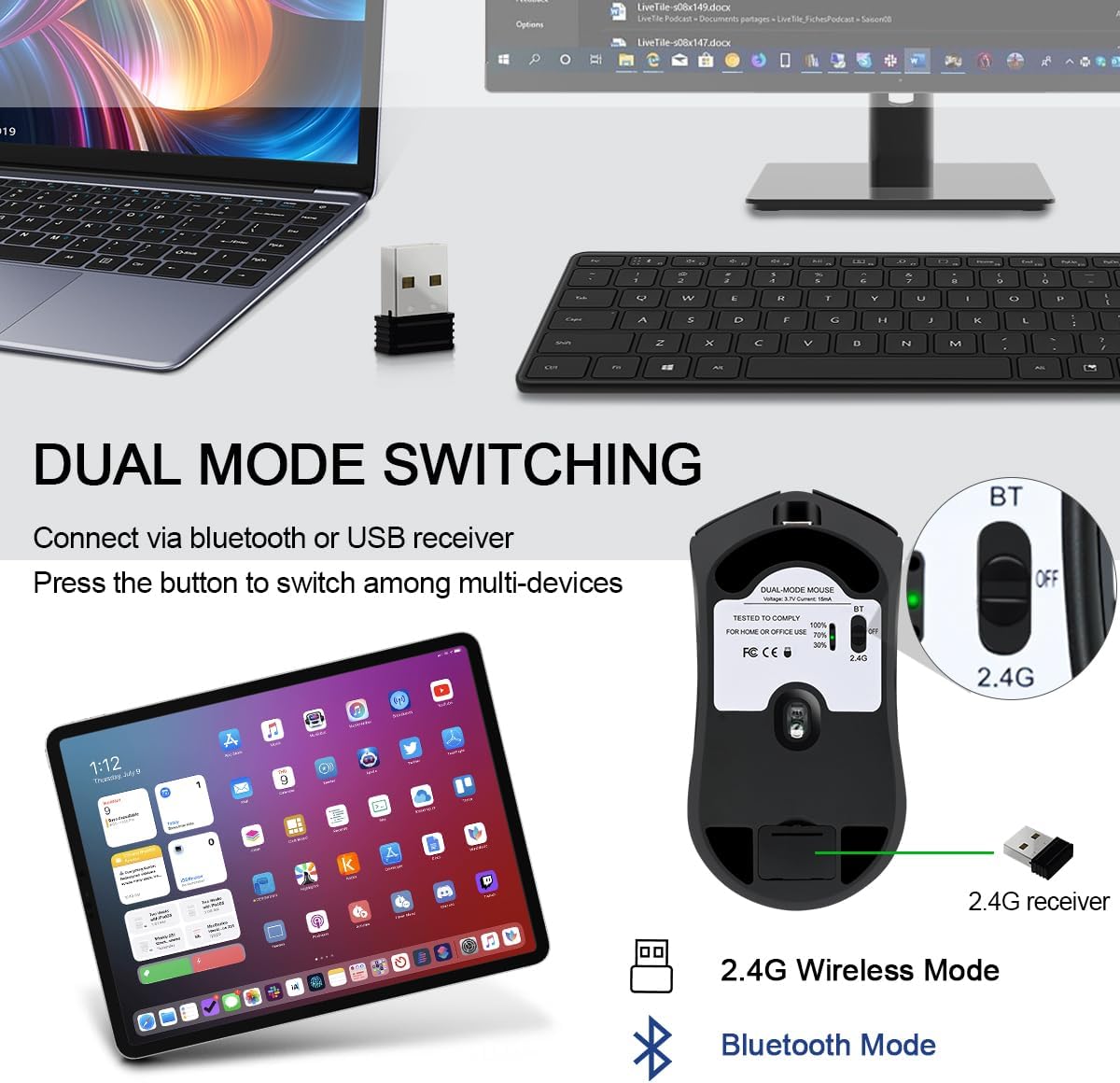
Image: Underside of the Dolrso G300 mouse, highlighting the dual-mode switch for 2.4G and Bluetooth connectivity.
4.3. Connecting via Bluetooth Mode
The mouse supports Bluetooth 5.2 for wireless connection to compatible devices.
- Slide the mode switch on the bottom of the mouse to the "BT" (Bluetooth) position.
- The LED indicator on the mouse will begin to flash, indicating it is in pairing mode.
- On your device (laptop, tablet, etc.), go to Bluetooth settings and turn on Bluetooth.
- Search for available devices. The mouse should appear as "Dolrso G300" or similar.
- Select the mouse to pair. Once paired, the LED indicator will stop flashing and remain solid for a few seconds before turning off.
- To switch between connected devices (if two devices are paired), simply slide the switch button on the bottom of the mouse.
5. Operating Instructions
5.1. DPI Adjustment
The mouse offers three adjustable DPI (Dots Per Inch) levels to customize cursor sensitivity.
- Press the DPI Button (located behind the scroll wheel) to cycle through the sensitivity settings.
- Available DPI settings are 800, 1200, and 1600.
- Each press will change the DPI, allowing you to select the speed that best suits your task.

Image: Illustration of the Dolrso G300 mouse with its three adjustable DPI settings.
5.2. Side Buttons (Forward/Backward)
The mouse is equipped with two side buttons for enhanced navigation.
- The Forward Button allows you to navigate forward in web browsers or file explorers.
- The Backward Button allows you to navigate backward in web browsers or file explorers.
- Note: These side buttons are not functional on Mac operating systems.
5.3. Silent Clicking
The left and right buttons are designed for silent operation, minimizing noise in quiet environments.

Image: Demonstrating the silent click feature of the Dolrso G300 mouse in use.
5.4. Power Saving Mode
To conserve battery life, the mouse automatically enters standby mode after 10 minutes of inactivity. To wake the mouse, simply click any button.
6. Compatibility
The Dolrso G300 wireless mouse offers broad compatibility across various operating systems.

Image: Multi-system compatibility of the Dolrso G300 mouse, including Windows, Mac OS, Linux, iOS, and Android.
- 2.4GHz Wireless Mode: Compatible with most devices that have a USB-A port.
- Bluetooth Mode: Compatible with Windows, Android, and Mac operating systems.
Bluetooth 5.2 System Requirements:
- Windows 8.0, Windows 10, or higher
- Mac OS X 10.10 or higher
- iPad OS 13 or higher
- Android 5.0 or higher
Please ensure your operating system meets these requirements or update it before using the Bluetooth mode.
7. Maintenance
To ensure the longevity and optimal performance of your mouse, follow these maintenance guidelines:
- Cleaning: Use a soft, dry cloth to wipe the surface of the mouse. For stubborn dirt, a slightly damp cloth can be used, but ensure no moisture enters the device.
- Storage: Store the mouse in a cool, dry place away from direct sunlight and extreme temperatures.
- Avoid Liquids: Do not expose the mouse to water or other liquids.
- Handle with Care: Avoid dropping or subjecting the mouse to strong impacts.
8. Troubleshooting
If you encounter issues with your Dolrso G300 mouse, please refer to the following common solutions:
- Mouse not responding:
- Ensure the mouse is charged. Connect it to a power source using the Type-C cable.
- Check the mode switch on the bottom of the mouse. Ensure it is set to the correct mode (2.4G or BT) for your connection type.
- For 2.4G mode, ensure the USB receiver is securely plugged into your device. Try a different USB port.
- For Bluetooth mode, ensure Bluetooth is enabled on your device and the mouse is paired. Try unpairing and re-pairing the mouse.
- Cursor movement is erratic or slow:
- Adjust the DPI setting using the DPI button on the mouse.
- Ensure the mouse is used on a clean, non-reflective surface.
- Check for low battery.
- Side buttons not working:
- Remember that side buttons are not functional on Mac operating systems.
- Ensure the mouse is properly connected and functioning otherwise.
- Connection drops frequently:
- Ensure the mouse is within the effective range (up to 33 feet/10 meters).
- Minimize interference from other wireless devices.
- Check battery level.
9. Specifications
| Feature | Specification |
|---|---|
| Model Number | PC127-01 (G300) |
| Connectivity | Bluetooth 5.2, 2.4GHz Wireless (USB-A Receiver) |
| DPI Levels | 800, 1200, 1600 (Adjustable) |
| Buttons | 6 (Left, Right, Scroll, DPI, Forward, Backward) |
| Battery Capacity | 500mAh Rechargeable |
| Charging Port | Type-C |
| Charging Time | 2-3 hours |
| Usage Time (Full Charge) | Approx. 2 months |
| Movement Detection | Optical |
| Item Weight | 4.2 ounces |
| Dimensions (Approx.) | 4.92 x 3.54 x 1.65 inches |
10. Safety Information
- Do not disassemble or attempt to repair the device yourself.
- Keep the device away from water, moisture, and extreme temperatures.
- Dispose of the battery and device according to local regulations.
- Avoid prolonged use without breaks to prevent discomfort.
11. Warranty and Support
For warranty information or technical support, please refer to the documentation included with your purchase or visit the official Dolrso website. You can also visit the Dolrso Store on Amazon for more product information.