
1. Introduction
This manual provides detailed instructions for the installation, setup, operation, and troubleshooting of your Uckazy 15.8 Inch Android Auto Radio. Please read this manual thoroughly before installation and use to ensure proper functionality and to maximize your driving experience.

Image 1.1: Overview of the Uckazy 15.8 Inch Android Auto Radio highlighting key features.
2. Vehicle Compatibility
This device is designed for specific BMW models and systems. Ensure your vehicle matches the compatibility requirements below:
- BMW 1 Series: F20 (2017-2019)
- BMW 2 Series: F22 (2016-2019)
- BMW 3 Series: F30/F31/F34 (2017-2021)
- BMW 4 Series: F32/F33/F36 (2017-2021) with EVO system
Important Note:
Before purchasing or installing, verify that your car's system is an EVO system. If you are uncertain, please contact Uckazy customer support for assistance.

Image 2.1: Visual guide for identifying compatible EVO systems via the 6-pin LVDS port.
3. Installation Guide
Professional installation is recommended. Ensure the vehicle's power is disconnected before beginning installation.
3.1 Wiring Diagram and Connections
Carefully review the wiring diagrams provided and accurately link all wires according to their definitions.
- A: 360-DET
- B: ACC-OUT
- C: Rear-Camera-PWR
- D: GND

Image 3.1: Detailed wiring diagram for the system and fiber optic connection.
3.2 Fiber Optic Connection
If your vehicle uses fiber optics, unplug the 2-pin fiber optic harness from the original car CD player and insert it into the Linux system harness.
3.3 AUX Audio Connection
For audio output, connect the audio harness to the AUX IN connector in the armrest box. Even if the fiber optic harness is adapted and the AUX menu is selected in the OEM interface, you may still need to connect the audio cable properly between the AUX IN and AUDIO OUT of the armrest center box.

Image 3.2: Locating the AUX port and disabling auto AUX switching in settings.
3.4 Reverse Camera Wiring
Follow the provided wiring diagram to properly connect the reverse camera. Ensure the correct camera format is selected in the settings (e.g., AHD 720p@25 for aftermarket cameras).

Image 3.3: Wiring diagram for reverse camera installation.
3.5 Wired CarPlay/Android Auto Connection
To use wired CarPlay or Android Auto, connect your device to USB1. USB1 is designated for data linking, while USB2 is for read storage links.

Image 3.4: USB connection for wired CarPlay/Android Auto and noise reduction solution.
4. Initial Setup and Settings
After installation, configure the system settings for optimal performance.
4.1 Screen Resolution and Camera Settings
Access the 'Car Settings' menu to adjust the original car's screen resolution and configure camera types (Original or Aftermarket).

Image 4.1: Steps to configure OEM screen resolution and camera settings.
4.2 AUX Switching Settings
To ensure proper audio routing, configure the 'Auto Switch to AUX' setting in 'Car Settings'. Select 'Harman Head Unit' or 'Alpine Head Unit' as appropriate for your vehicle. For manual AUX setting, navigate to 'Multimedia' -> 'External devices' and press '8' on the original car's number pad until a tone is heard.

Image 4.2: Instructions for automatic and manual AUX audio switching.
4.3 General System Settings
The system offers various customizable settings including language, display adjustments (contrast, chromaticity, saturation, dimmer levels), and audio equalization (EQ).
Video 4.1: Demonstrates how to navigate system settings, including language, display, audio, and car-specific configurations.
5. Operating Instructions
5.1 Wireless CarPlay and Android Auto
The system supports wireless Apple CarPlay and wireless Android Auto. To connect, enable Bluetooth on your phone, find the device on the screen, and allow all necessary permissions. This enables access to navigation, phone contacts, email, notifications, and music via voice assistants like Siri or Google Voice Assistant.
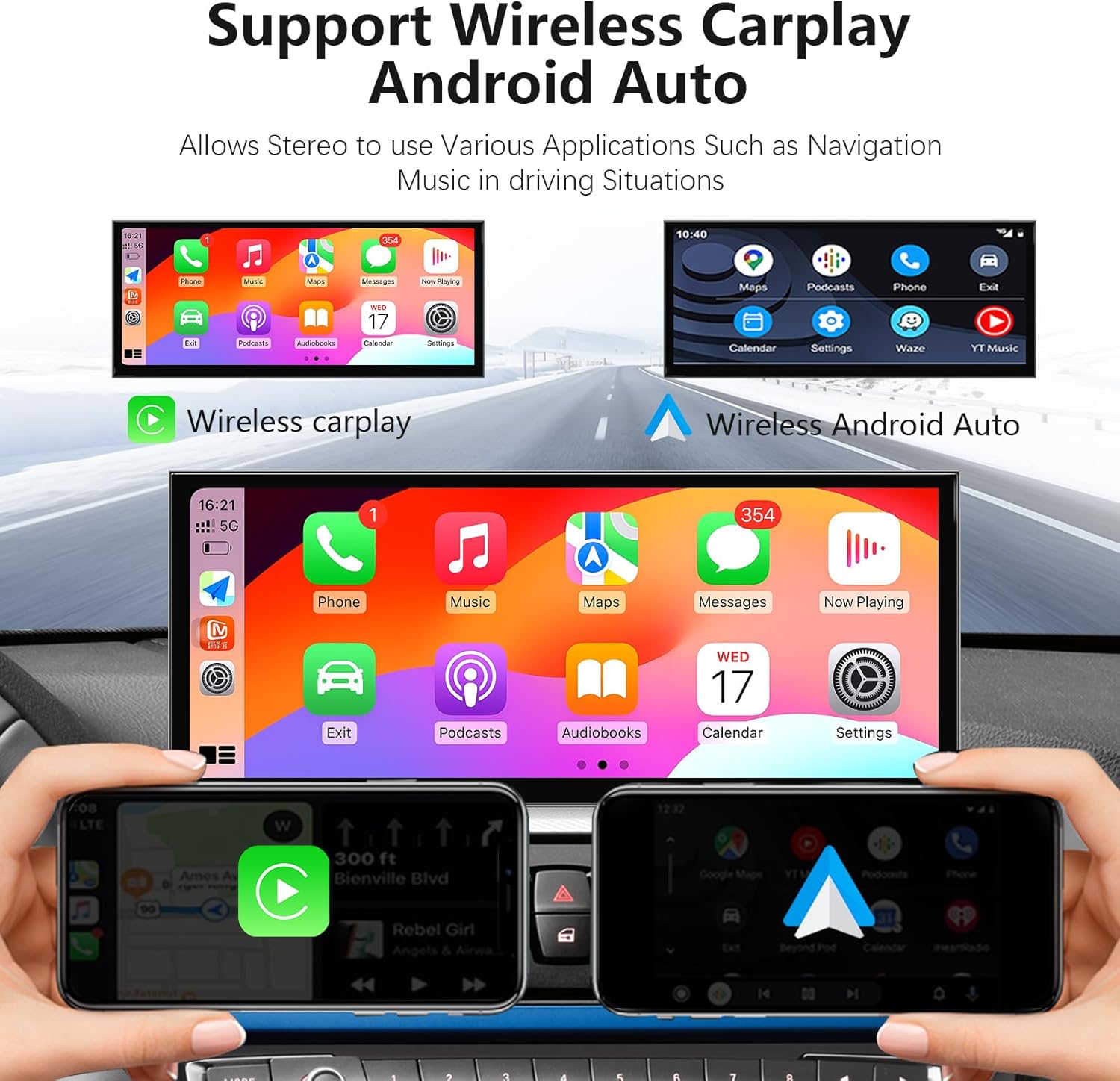
Image 5.1: Wireless CarPlay and Android Auto functionality.

Image 5.2: Steps for connecting to Wireless CarPlay.
5.2 Dual System Switching
Easily switch between the Linux system and the original car's OEM system with a single click. This retains all original functions while adding new features.

Image 5.3: Seamless switching between Linux and original car systems.
5.3 Voice Control and Navigation
Utilize voice commands (e.g., "Hey Siri" or "OK Google") for navigation, making calls, sending messages, and playing music, enhancing safety by keeping your hands on the wheel.

Image 5.4: Voice control features for navigation and media.
6. Product Features
- 15.8-inch IN-CELL Screen: Ultra-narrow (1920*720) IN-CELL screen with full lamination technology for enhanced transparency and reduced reflection.
- Zinc Alloy Construction: Screen made of zinc alloy for high strength, wear resistance, and improved heat dissipation.
- Dual System Integration: Seamless switch between Linux and original car systems, retaining OEM functions like radio, amplifier, steering wheel control, iDrive knob, and original reverse camera.
- Wireless Connectivity: Supports wireless (wired) Apple CarPlay, wireless (wired) Android Auto, wireless MirrorLink for iOS and Android phones, Bluetooth 5.0, and Wi-Fi.
- Built-in DSP: 16-segment Digital Signal Processor (DSP) for enhanced audio quality, offering reverberation, equalization, compression, and delay options.
- Camera Support: Compatible with OEM reversing camera parking radar, aftermarket reverse cameras, and front-view camera DVR (CVBS input).
- Day and Night Mode: Automatic light sensitivity adjustment based on your car's original headlights.

Image 6.1: Visual representation of key product features.

Image 6.2: Built-in DSP with 16 EQ segments for audio customization.

Image 6.3: Camera function display, showing compatibility with OEM and aftermarket cameras.

Image 6.4: Support for original BMW system features.

Image 6.5: Day and Night Mode functionality.
7. Troubleshooting
This section addresses common issues you might encounter.
7.1 Sound Distortion/Noise
If you experience distorted sound or noise from CarPlay or Android Auto, ensure the AB connection is properly made as indicated in the wiring diagrams.
7.2 OEM Car Information Not Displayed Correctly
Ensure you have selected the correct resolution for OEM displays in the settings. Incorrect resolution can lead to display issues. If unsure, try each available resolution.
7.3 Reverse Camera Not Working
Verify that the correct camera type (Original or Aftermarket) and camera format (e.g., SD NTSC, AHD 720p@25) are selected in the 'Reversing Settings' menu.
8. Specifications
| Feature | Detail |
|---|---|
| Screen Size | 15.8 inches |
| Screen Resolution | 1920x720 (HD IPS) |
| Operating System | Linux |
| Connectivity | Wireless/Wired Apple CarPlay, Wireless/Wired Android Auto, Wireless MirrorLink, Bluetooth 5.0, Wi-Fi |
| Audio Processing | Built-in DSP with 16 EQ segments |
| Material | Zinc Alloy (screen frame) |
| Package Dimensions | 17.25 x 8.5 x 7.75 inches |
| Item Weight | 5.64 pounds |
| Manufacturer | Uckazy |
9. Warranty and Support
Uckazy provides comprehensive after-sales support. If you encounter any problems during the installation process or with the product's functionality (e.g., sound issues, CarPlay not working, original car UI display problems), please contact our technical support team.
Our engineers are available 24 hours a day to reply and assist you in resolving all issues.
Contact Information: Please refer to your purchase platform or the Uckazy official website for direct contact methods.

Image 9.1: Information regarding technical support and assistance.