
1. Setup and Installation
This section provides instructions for installing your new Rimoody Android Car Radio.
1.1 Package Contents
Before beginning installation, verify that all components are present in the package:

Image: Overview of all components included with the Rimoody car radio, such as the GPS antenna, various USB cables, user manual, RCA cable, rear camera input cable, external microphone, camera, radio antenna, Canbus decoder, installation tool, and power cable.
- GPS Antenna
- USB Cables (various types)
- User Manual
- RCA Cable
- Rear Camera Input Cable
- Microphone (MIC)
- Camera
- Radio Antenna
- Canbus Decoder
- Installation Tool
- Power Cable
1.2 Radio Installation Steps
Follow these steps to install the car radio:

Image: Visual guide for the installation process, detailing the wiring connections, the insertion of the new radio into the dashboard, and the final appearance of the integrated unit.
- Wiring Connection: Connect the wires between the new radio and the original car's wiring harness. Ensure the protocol box (if applicable) is properly connected.
- Radio Insertion: Carefully install the new radio back into the car's dashboard slot.
- Secure Fasteners: Tighten any bottom screws or fasteners to secure the unit.
- Panel Reattachment: Reattach the original car frame on the outer side of the air conditioning control panel.
- Completion: The installation of the new radio is now complete.
Important: If the wiring harness does not match your vehicle, please contact customer service to request the correct wiring harness.
2. Operating Instructions
This section details the various functions and features of your Rimoody Android Car Radio.
2.1 Wireless Carplay, Android Auto, and Mirror Link
The unit supports wireless connectivity for Apple Carplay, Android Auto, and Mirror Link, allowing seamless integration with your smartphone.
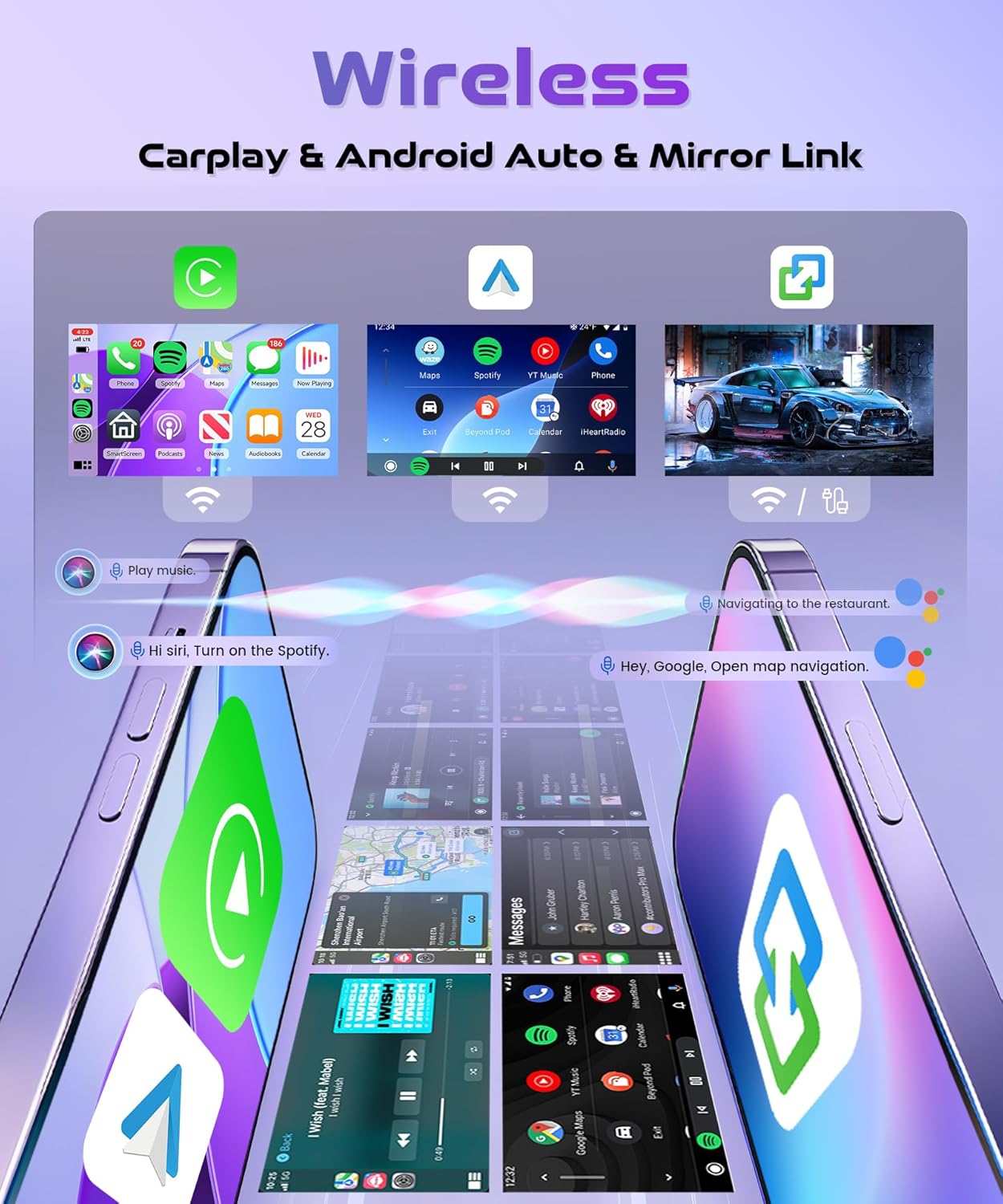
Image: Visual representation of the wireless connectivity features, including Apple Carplay, Android Auto, and Mirror Link, displaying how smartphone applications and content are integrated into the car radio's interface.
- Wireless Carplay: Access iPhone apps like navigation, music, and messages directly on the radio screen.
- Android Auto: Connect Android phones for navigation, communication, and entertainment features.
- Mirror Link: Mirror your smartphone screen to the car radio display for full access to your phone's interface.
2.2 GPS Navigation and Wi-Fi Connectivity
The radio features built-in GPS for navigation and Wi-Fi for internet access and updates.

Image: The car radio screen displaying a detailed GPS map, indicating its navigation capabilities. The image also visually represents Wi-Fi connectivity, 4G network support, 128GB storage, and a 4-core processor, emphasizing the unit's performance and connectivity features.
- GPS Navigation: Utilize pre-installed or downloaded navigation apps for accurate directions.
- Built-in Wi-Fi: Connect to a Wi-Fi hotspot for internet browsing, app downloads, and online services.
- 4G Connectivity: Supports 4G networks for faster data access (requires compatible SIM card/dongle, not included).
2.3 Bluetooth 5.0 and Audio Equalizer (EQ)
Connect your devices via Bluetooth 5.0 for hands-free calls and audio streaming. Adjust audio settings with the built-in equalizer.

Image: A composite image showcasing the Bluetooth 5.0 interface for music and calls, the audio equalizer (EQ) settings, the FM/RDS radio display, and the steering wheel control configuration screen, illustrating the various audio and control functionalities.
- Bluetooth 5.0: Enjoy stable and high-quality wireless audio streaming and hands-free calling.
- Audio Equalizer: Customize sound output with various preset EQ modes or manual adjustments.
2.4 FM/RDS Radio
Tune into your favorite radio stations with FM and RDS (Radio Data System) support.
- FM Radio: Scan and save FM radio stations.
- RDS Functionality: Display station information, song titles, and traffic announcements where available.
2.5 Steering Wheel Control
Integrate with your vehicle's steering wheel controls for safe and convenient operation.
- Customizable Controls: Map various radio functions (volume, track skip, mode) to your steering wheel buttons.
2.6 Rear View Camera and Split Screen
Enhance parking safety with rear view camera support and multitask with the split-screen feature.

Image: The car radio screen displaying a rear view camera feed, complete with parking guidelines, to assist with safe reversing. The image also illustrates the split-screen functionality, showing the camera view alongside another application, demonstrating multitasking capabilities.
- Rear View Camera Input: Automatically display the rear camera feed when reversing.
- Split Screen: Run two applications simultaneously on the screen, such as navigation and music.
2.7 10.1 Inch In-Cell HD Touch Screen
Experience clear visuals and responsive touch control with the high-definition display.

Image: A close-up view of the 10.1-inch In-Cell 1280x720 HD Touch Screen, emphasizing its high light transmittance (68%) and 100% sRGB color accuracy, demonstrating the display's quality and responsiveness.
- Display Size: 10.1 inches
- Resolution: 1280x720 HD
- Technology: In-Cell Touch Screen for improved responsiveness and clarity.
- Color Accuracy: 100% sRGB for vibrant and true-to-life colors.
- Light Transmittance: 68% for clear visibility.
3. Maintenance
Proper maintenance ensures the longevity and optimal performance of your car radio.
3.1 Cleaning the Unit
- Use a soft, dry cloth to clean the screen and exterior surfaces.
- For stubborn marks, lightly dampen the cloth with water or a screen-safe cleaner. Avoid harsh chemicals.
- Do not spray cleaning solutions directly onto the unit.
3.2 Software Updates
- Periodically check for software updates through the unit's settings menu or the manufacturer's website.
- Ensure a stable internet connection during updates to prevent interruptions.
- Updating the software can improve performance, add new features, and fix bugs.
3.3 General Care
- Avoid exposing the unit to extreme temperatures or direct sunlight for prolonged periods.
- Do not attempt to disassemble the unit; this will void the warranty.
- Ensure all cables are securely connected to prevent intermittent issues.
4. Troubleshooting
This section addresses common issues you might encounter with your car radio.
4.1 Power Issues
- No Power: Check all power cable connections. Ensure the car's ignition is on. Verify the fuse in the power cable or car's fuse box.
- Unit Restarts Randomly: Check power connections for looseness. Ensure the car's battery voltage is stable.
4.2 Audio Problems
- No Sound: Check speaker connections. Ensure volume is not muted or set too low. Verify audio output settings.
- Distorted Sound: Check speaker impedance compatibility. Adjust EQ settings. Ensure audio source quality is good.
4.3 Connectivity Issues (Bluetooth, Wi-Fi, Carplay/Android Auto)
- Bluetooth Not Connecting: Ensure Bluetooth is enabled on both the radio and your device. Delete previous pairings and try reconnecting.
- Wi-Fi Not Connecting: Verify Wi-Fi password. Ensure the hotspot is active and within range.
- Carplay/Android Auto Not Launching: Ensure your phone is compatible and the app is updated. Check USB cable connection if using wired mode. For wireless, ensure Wi-Fi and Bluetooth are enabled on your phone.
4.4 GPS Issues
- No GPS Signal: Ensure the GPS antenna is properly installed and has a clear view of the sky.
- Inaccurate Positioning: Update GPS maps. Ensure the antenna is not obstructed.
4.5 Touch Screen Unresponsive
- Restart the unit.
- Ensure the screen is clean and free of debris.
- If the issue persists, a factory reset might be necessary (note: this will erase all user data).
4.6 General System Issues
- System Lag/Freezing: Close unnecessary background applications. Clear cache. Consider a factory reset if persistent.
- Wiring Harness Mismatch: As noted in installation, if the provided wiring harness does not match your vehicle, contact customer service for assistance.
5. Specifications
Detailed technical specifications for the Rimoody 4G+128G Wireless Carplay Android Car Radio.
| Feature | Specification |
|---|---|
| Brand | Rimoody |
| Model | RimoodyB0FKB1V6VN |
| Compatible Devices | Smartphone, Tablet, Personal computer, Speaker, Amplifier, Camera, Microphone, USB |
| Special Features | Android Auto, Apple CarPlay, Built-In Wi-Fi, GPS Navigation, Music Streaming, Touchscreen |
| Audio Output Mode | Stereo |
| Audio Output Type | Bluetooth, RCA, Speakers |
| Speaker Surround Sound Channel Configuration | 4.0 |
| Output Wattage | 180 Watts |
| Connector Type | USB, AHD, CVBS |
| Connectivity Technology | USB, AHD, CVBS |
| Controller Type | Mobile App, Google Assistant, Siri |
| Video Encoding | H.264, H.265/HEVC, MPEG-4 |
| Item Weight | 500 Grams |
| Package Dimensions | 42.1 x 33.5 x 10.7 cm |
| Display Size | 10.1 Inch |
| Display Resolution | 1280x720 HD |
| Display Technology | In-Cell Touch Screen |
| Display Color Accuracy | 100% sRGB |
| Display Light Transmittance | 68% |
6. Warranty and Support
This section provides information regarding product warranty and how to obtain support.
6.1 Product Warranty
Your Rimoody car radio is covered by a standard manufacturer's warranty. The warranty period typically covers defects in materials and workmanship under normal use. Please refer to the warranty card included in your package or the seller's policy for specific terms and conditions, including duration and coverage details.
- Return Policy: 30-day refund/replacement policy from the seller.
6.2 Customer Support
For technical assistance, troubleshooting beyond this manual, or warranty claims, please contact the seller or manufacturer directly.
- Contact Information: Refer to your purchase documentation or the seller's contact details on the platform where the product was purchased.
- Before Contacting Support: Please have your product model number (RimoodyB0FKB1V6VN) and purchase date ready.


